Table of contents
Sign and send unlimited e-signatures with Xodo Sign.
Editing a scanned document often feels harder than it should be. Many tools don’t let you add text, insert annotations, or sign without converting the file first or exporting it into different apps.
Xodo Sign solves that problem by combining a full PDF editor with legally binding e-signatures in one place.
Once you upload a scanned document or image, Xodo Sign automatically converts it into an editable PDF file so you can add text, insert notes, redact sensitive information, and then sign it in just a few clicks.
This guide shows you exactly how to do it.
Edit and sign a scanned document or image in Xodo Sign
Follow the steps below to quickly edit and sign scanned documents or images online.
1. Create your Xodo Sign account
- Start a free trial to access all features. No credit card is required.
When the trial ends, your account moves to the Free plan.
2. Upload your scanned document or image
- In the Dashboard, click Start Editing to open the PDF editor.
- Click Upload File. You can upload a scanned PDF, PNG and JPG images, DOCX, XLSX, PPTX, and photos of handwritten text.
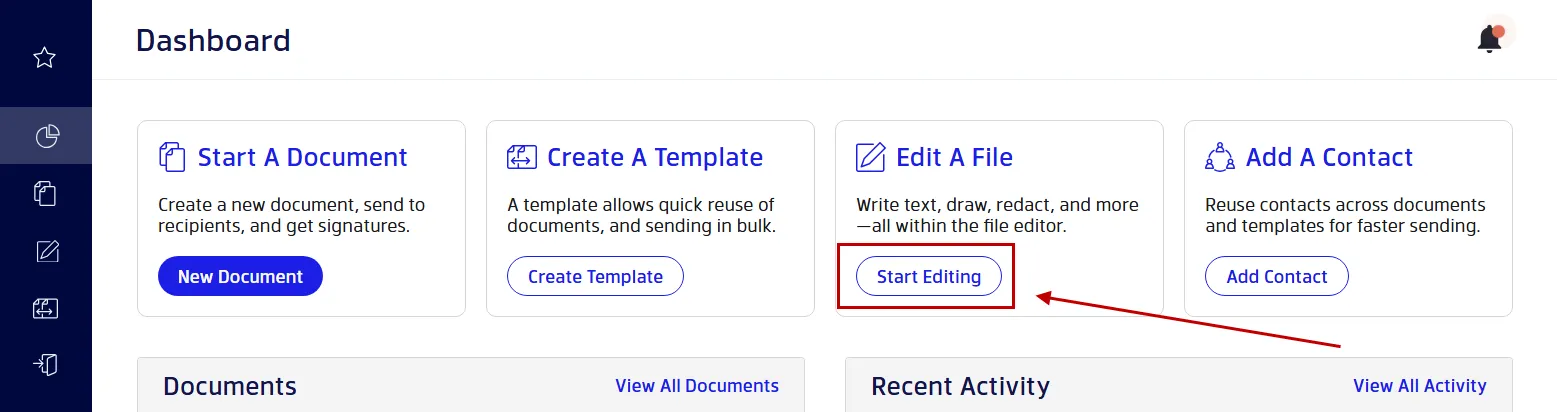
With Xodo Sign, you don’t need to manually convert scanned documents or rely on external tools. The file is converted into an editable PDF file automatically and opens in the document editor.
3. Edit the scanned document using the built-in PDF editor
In the PDF editor, you can make updates and download the edited document before signing or requesting signatures.
Tools you can use:
- Add text blocks to update outdated details.
- Insert and edit images like logos, photos, stamps.
- Highlight and annotate with comments, callouts, and other markups.
- Redact sensitive information with permanent text removal.
- Measure distances and areas.
- Crop pages to specific dimensions.
- Insert shapes.
- Reorder, delete pages.
- Insert new pages (from editable Word documents or other digital files)
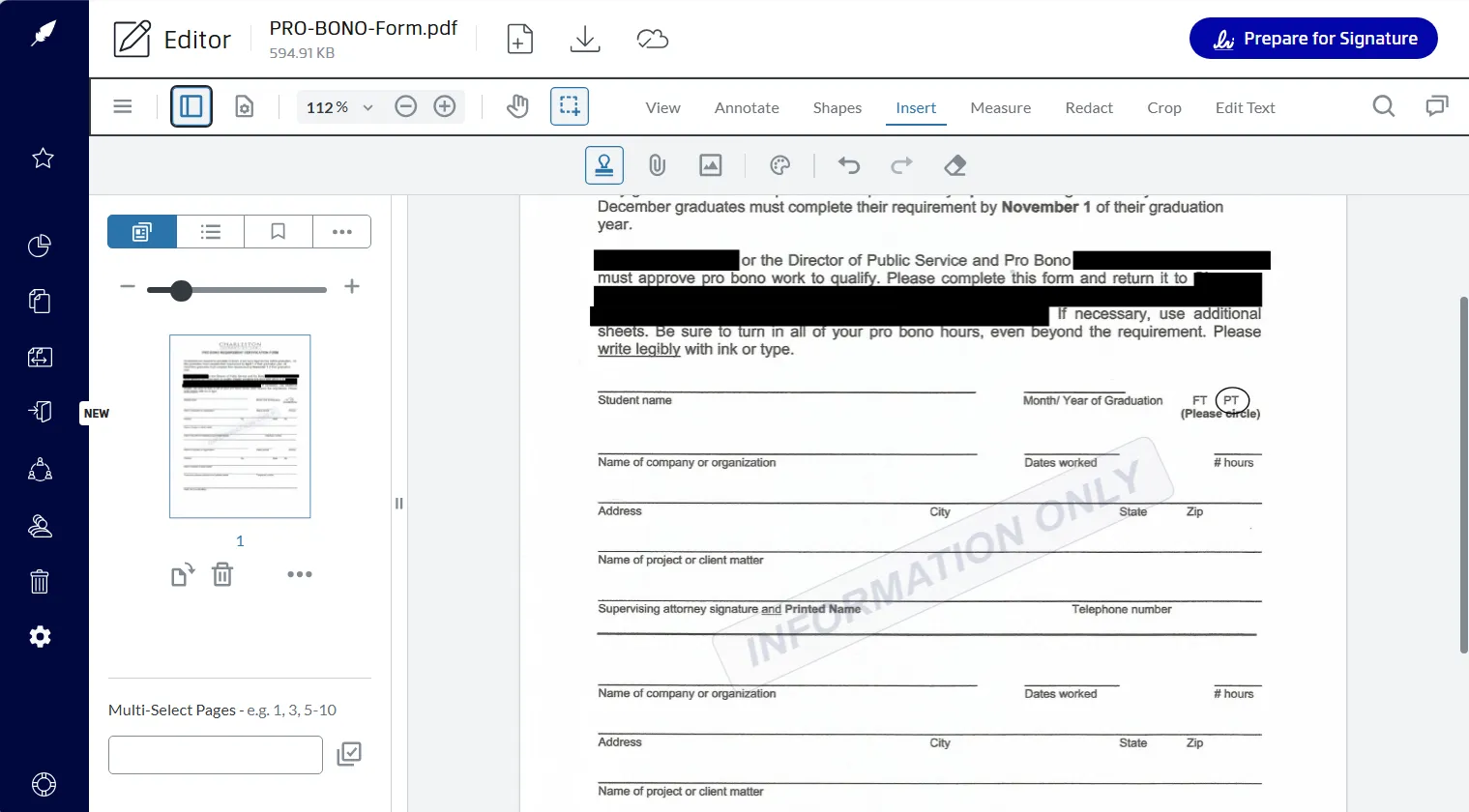
Xodo Sign enables you to make meaningful edits without using separate PDF software or exporting the file to Microsoft Word or Google Docs first.
4. Add fillable fields for signing
- Once you're done editing, click Prepare for Signature.
- Customize your document settings as needed.
- Specify who signs, add signer emails, assign roles, set a signing order, and any other options.
- Click on Prepare to continue.
- Add fields such as: signature, initials, date, text field, checkbox, dropdown, radio buttons.
- Drag each field to the right location and assign it to yourself or to any signer.
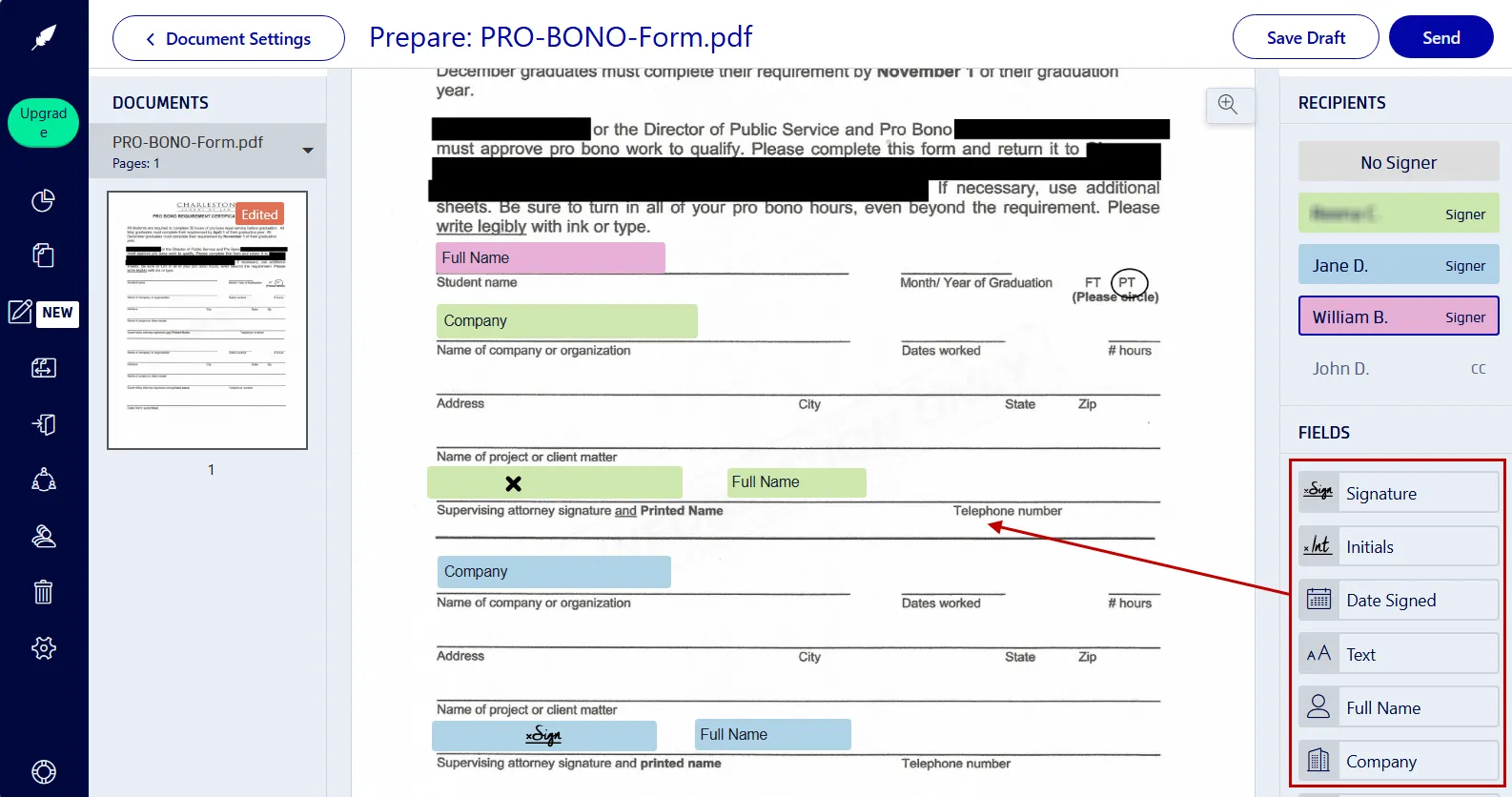
These fields allow you to turn scanned pages into PDF forms ready for signing.
5. Sign the document yourself and send it for signatures
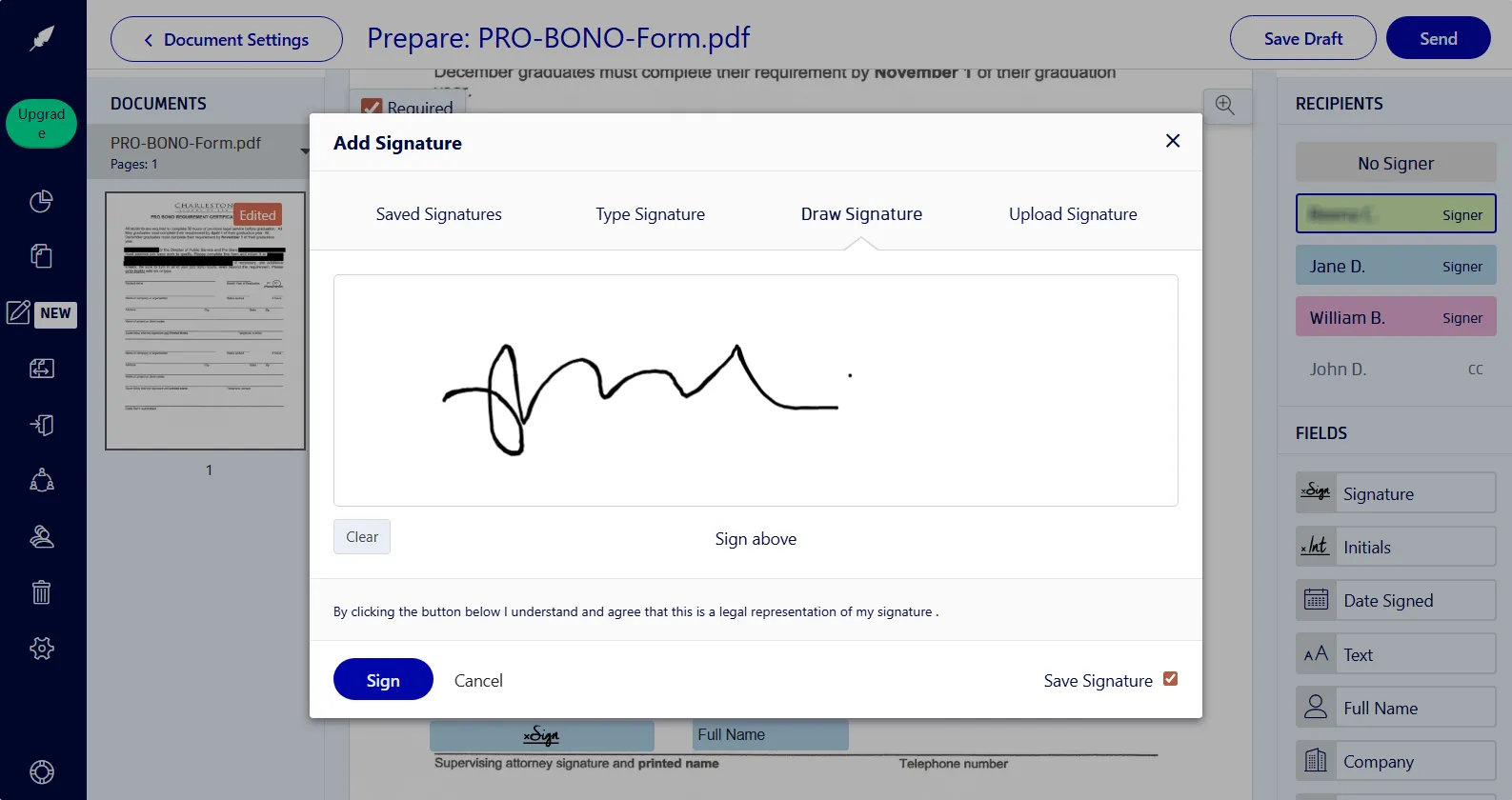
- Click on your signature field.
- Choose to type, draw, or upload your signature image. Click on Sign.
- Click on Send to request signatures from others.
Signers can open the document link on any device (desktop, mobile, or tablet) and sign without creating an account.
What makes Xodo Sign unique?
Xodo Sign combines a built-in PDF editor with legally binding electronic signatures in one continuous workflow. You can go from editing to advanced signing and take advantage of Xodo Sign's full set of features:
- Legally binding signatures and complete audit trails.
- Editing tools similar to a full PDF editor (add text box, remove text, annotate, highlight, redact).
- AI-powered document summarization.
- Templates for recurring workflows.
- Browser, mobile, and API options.
- Signature requests available on iOS and Android via the Xodo app.
- One unified flow. No need to export, re-upload, or switch tools.
Explore all Xodo Sign features in full by signing up for a free trial.
Frequently asked questions
1. Can I edit scanned documents without Adobe Acrobat?
Yes. Xodo Sign lets you edit scanned PDF documents and images in your browser and apply digital signatures without using Adobe Acrobat or other PDF software.
2. Does Xodo Sign support OCR for scanned files?
No. Currently Xodo Sign doesn't apply OCR when converting scanned documents to editable PDF files. You can't edit existing text, but you can add new editable text blocks, annotations, and stamps.
3. Can I convert a scanned image to an editable PDF?
Yes. Upload a JPG or PNG image, and Xodo Sign converts it into an editable PDF file.
4. Are signatures applied in Xodo Sign legally binding?
Yes. All signatures include audit trails, authentication data, and required security controls.
5. Can I insert a photo or logo into a scanned document?
Yes. You can insert images directly into the document within the PDF editor.
6. Can I sign a scanned document from my phone?
Yes. Use the Xodo mobile app on iOS or Android to add your signature and request signatures from others.
7. Can I edit Word documents before sending them for signature?
Yes. Upload the Word document and Xodo Sign converts it into PDF format for full editing before sending.
8. Can teams collaborate on scanned documents?
Yes. Xodo Sign supports multiple team members, shared templates, unified branding, and permission controls.
Start editing and signing scanned documents in one tool
You can try all editing and signing tools in Xodo Sign with a free trial.
Upload your scanned file, make edits, sign and collect signatures in a single workflow.
Start now and streamline your document process from any device.