
Table of contents
Sign and send unlimited e-signatures with Xodo Sign.
PDFs are the standard format for contracts, applications, onboarding forms, invoices, and business documents.
However, teams often download one app to adjust text, another to add fields, and a third to request signatures.
Electronic signing platforms like Xodo Sign brings everything together in one streamlined workspace. It simplifies internal reviews, helps users sign documents on any device, and supports legally binding electronic signatures.
This guide covers how to edit a PDF in Xodo Sign, how to sign one, and how to combine these steps into a single workflow.
Let's dive in!
How to edit a PDF in Xodo Sign
Editing comes first for most documents, especially when preparing contracts, forms for real estate agents, HR agreements, or vendor paperwork.
Follow these steps:
1. Create a Xodo Sign account
- Start a free trial with Xodo Sign. No credit card required.
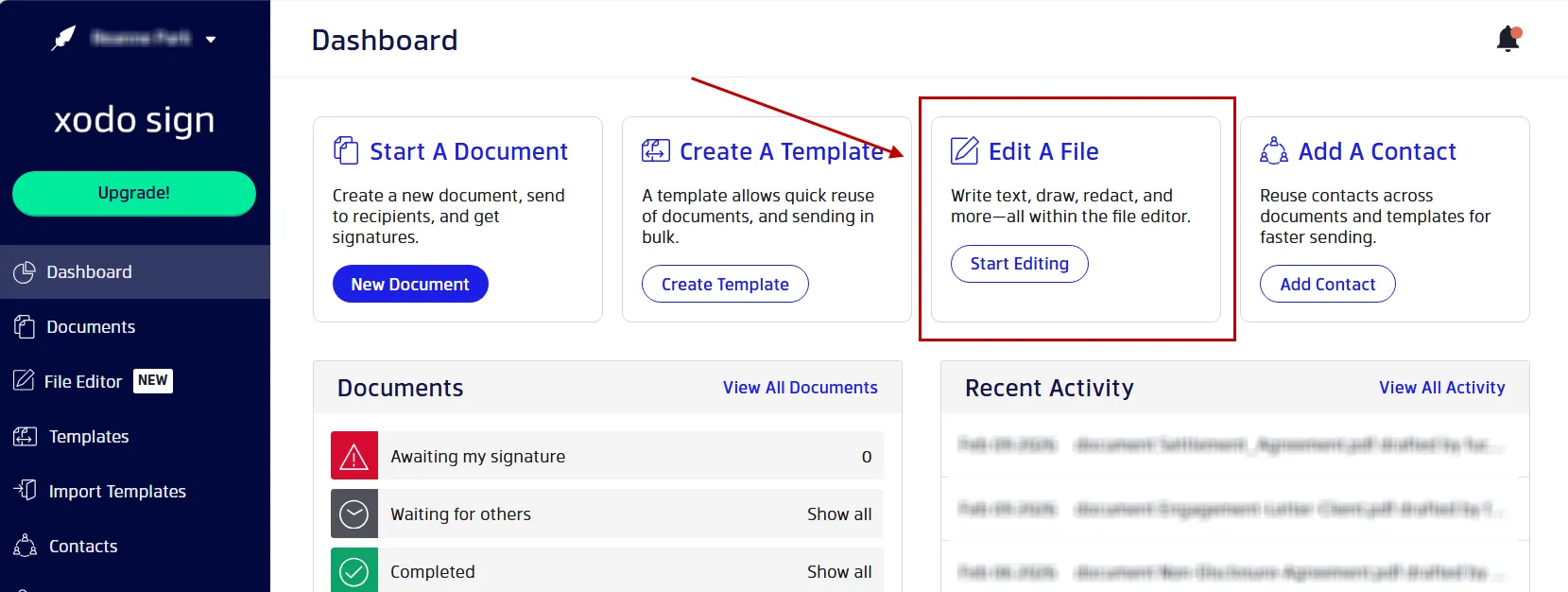
2. Upload your file to the PDF editor
- In the dashboard click on Start Editing.
- Upload your file from your computer.
- Or, drag and drop your file into the upload area.
Xodo Sign lets you upload non-PDF formats, such as Word documents, Image formats and more. The file will be automatically converted and open in the PDF Editor.
3. Edit your PDF document
- Edit your PDF document.
- Use any of the PDF tools available.
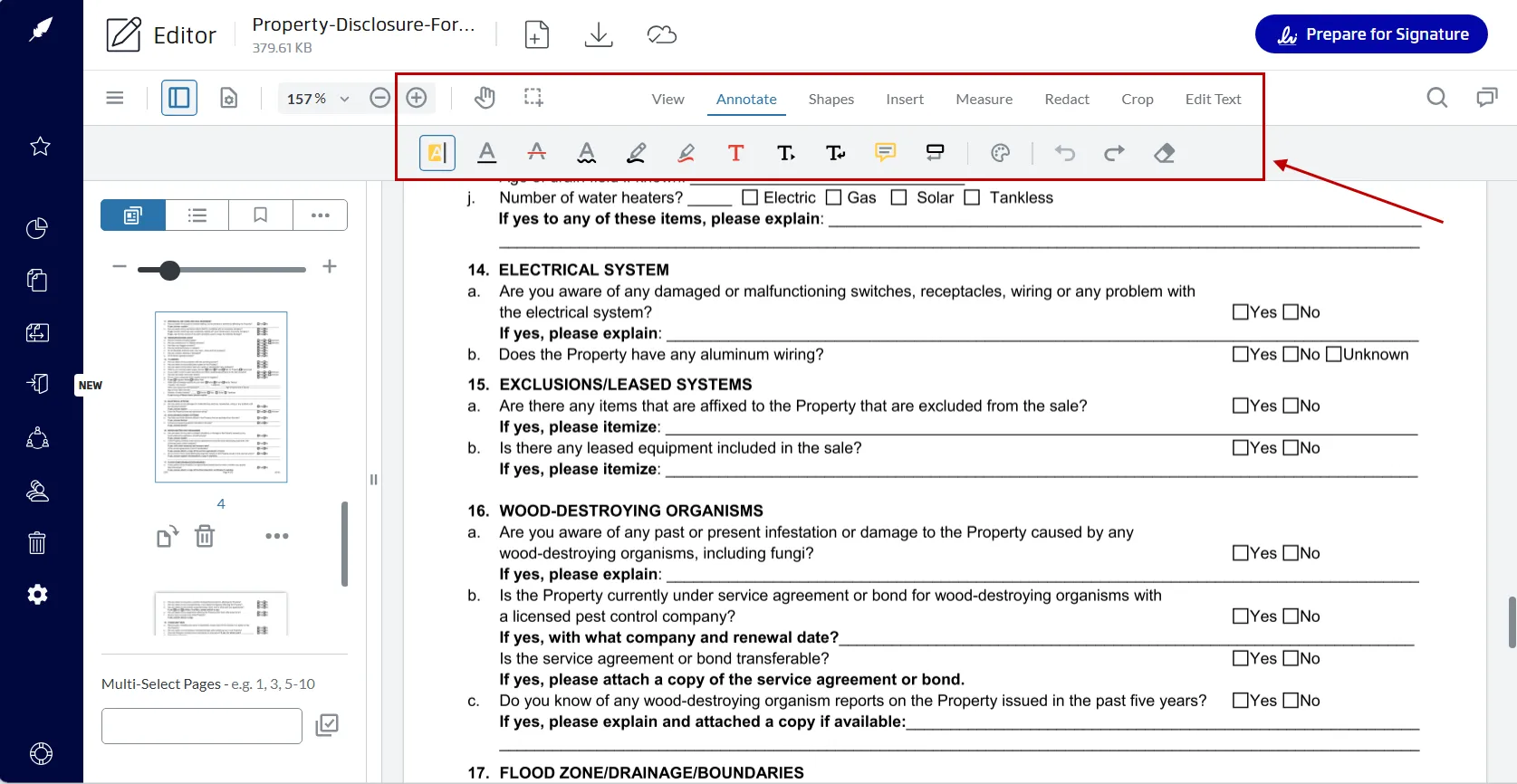
Here's a look at the editing tools in Xodo Sign and how they can support your workflow.
Text Editing
You can edit and adjust the content of a PDF file for review or for collecting electronic signatures. The text editing tool lets you:
- Add missing details such as dates or reference numbers
- Fix typos
- Insert additional clauses in agreements
- Update outdated language in templates
These edits are applied directly to the PDF without converting it to another file format.
Redaction Tools
Redaction permanently removes sensitive information such as:
- Personal data
- Account numbers
- Addresses
- Internal notes
Organizations can easily maintain compliance standards with sensitive documents with proper redaction.
Note: Redacting sensitive information from a PDF can't be undone. The data is automatically deleted and removed.
Annotations
You can add annotations for internal reviews or preparing documents. You can:
- Add comments
- Highlight text and paragraphs
- Underline or strike text
- Insert sticky notes for team feedback
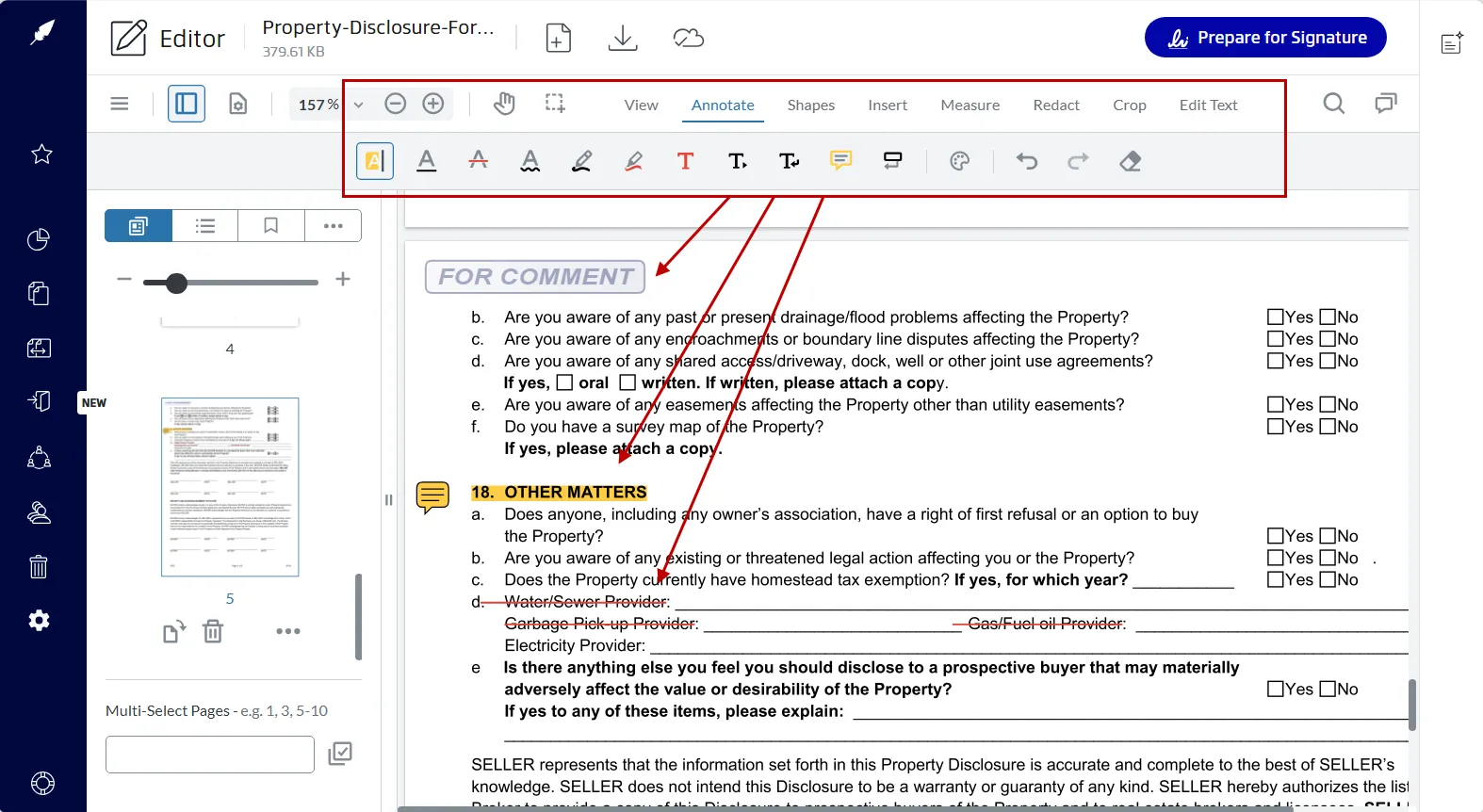
These marks are especially helpful when reviewing and collaborating with managers, reviewers, or legal teams.
Shapes
Shapes help structure visual markup. You can use them to:
- Draw attention to a specific area
- Outline sections during a review
- Add circles, rectangles, arrows, or lines
Shapes keep feedback clear, especially when working with paperwork that needs visual guidance.
Measure Tools
Measurement tools support technical documents such as drawings, floor plans, or reports. They allow you to:
- Measure distances
- Add scale information
- Support accurate markup
These tools reduce the need to switch to a separate design application for quick measurements needed in the construction industry.
Insert Options
Xodo Sign supports several types of inserts:
- Images: Add logos, image files, identification photos, or icons
- Stamps: Insert approval stamps or custom status indicators
- Attachments: Attach other separate files to your PDF forms
These features help you prepare documents for signing and improve clarity for recipients.
Page Tools
Xodo Sign includes page‑level features that support light editing and heavier document preparation with just a few clicks. PDF page actions include:
- Reorder pages
- Rotate pages
- Crop PDF pages
- Delete pages
- Merge files
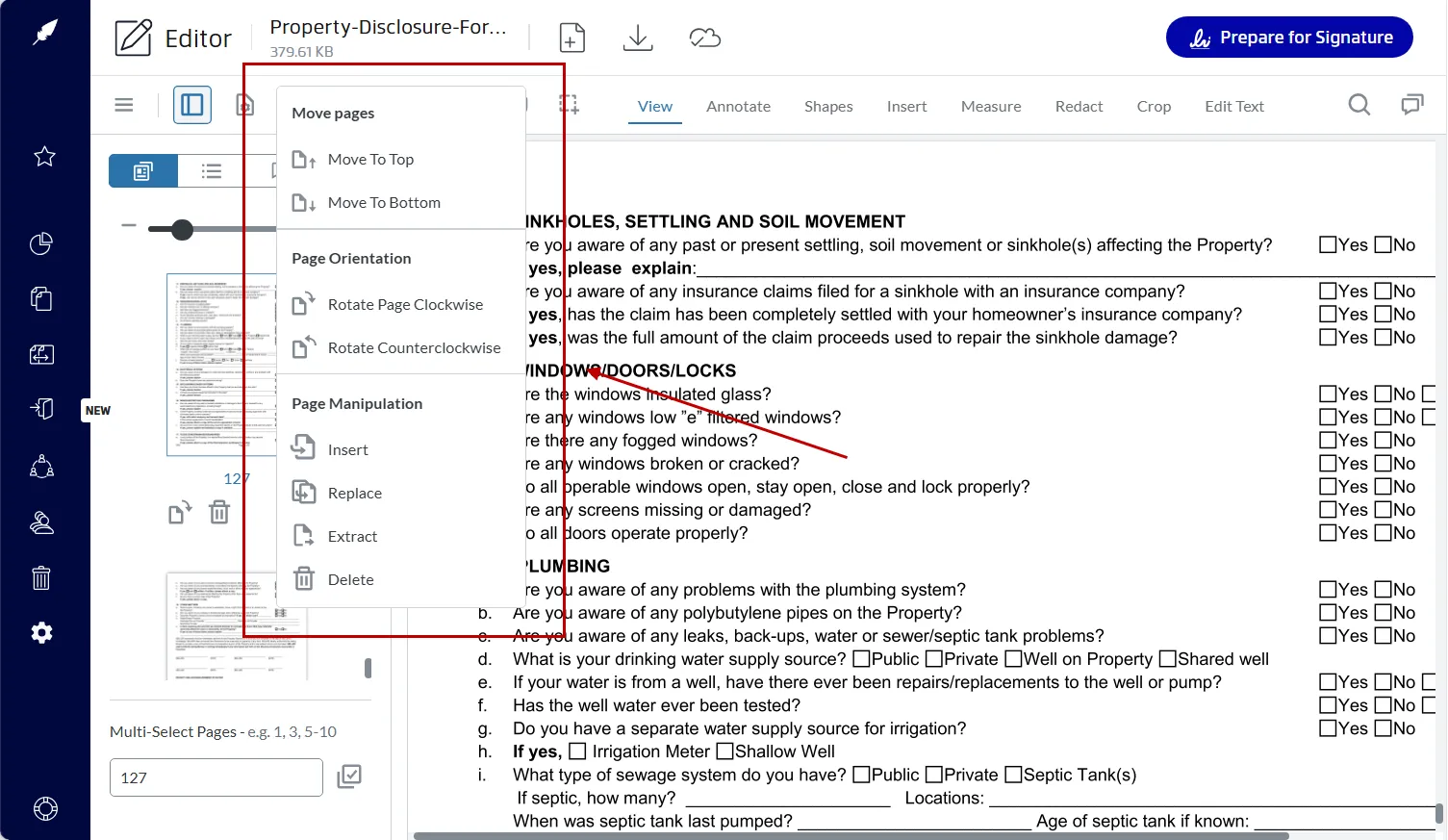
These tools are helpful when you need to combine multiple PDF files or attach more resources to the PDF before sending them for signature.
Using editing and e‑Signing together
The editing tools can be used on their own or combined with e‑signing. Many rely on both aspects when preparing:
- Real estate disclosure forms
- HR policy acknowledgements
- Sales contracts
- Vendor onboarding documents
- Approvals and authorizations
Once editing is complete, you can go directly into Xodo Sign’s signature workflow.
Exporting or downloading your edited PDF
- Download your edited PDF forms before adding signatures if you wish.
- Click on the Download file icon in the top menu of the page.
- Save the PDF document to your computer.
This allows you to save a specific version of the document: an updated version for archiving, a mark up version for review, or a version ready for signing.
You can help your team archive revisions or share your PDF document with collaborators who only need to view a copy of the PDF document.
How to Sign a PDF in Xodo Sign
Signing is where Xodo Sign stands out. The platform supports advanced features like legally binding electronic signatures, audit trails, and signer authentication.
Follow these steps to sign a PDF in Xodo Sign:
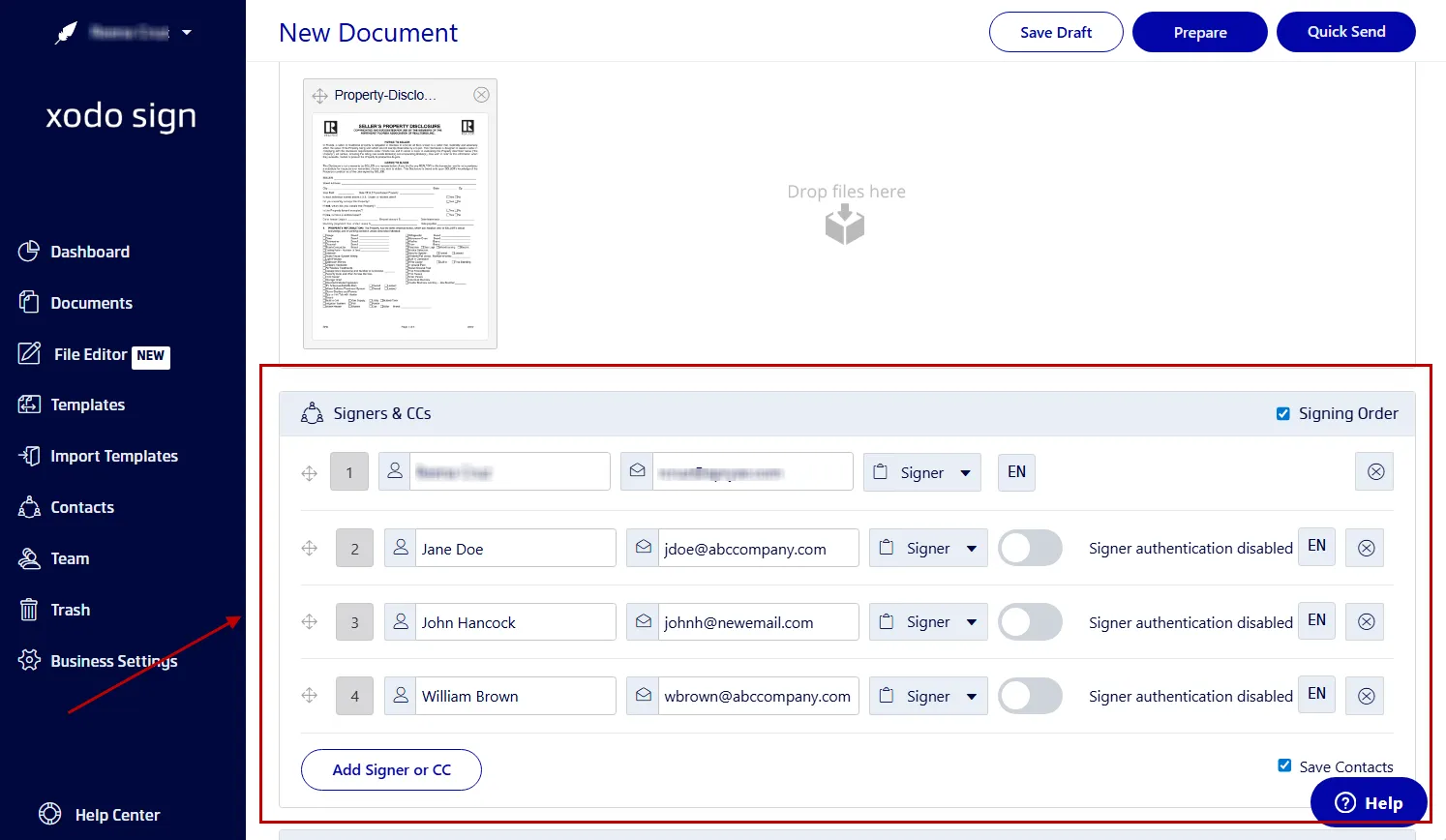
1. Set up your PDF
- From the PDF Editor, click on Prepare for Signature.
- Select your signing options: Just you, You and Others, or Others only.
- Add your signers and their emails.
- Assign each one a role: Signer or CC only.
- Set a signing order, draft a message, and turn on identity verification options if needed.
- Specify document settings such as auto-reminders, completion requirements, and expiration dates.
- Click on Prepare.
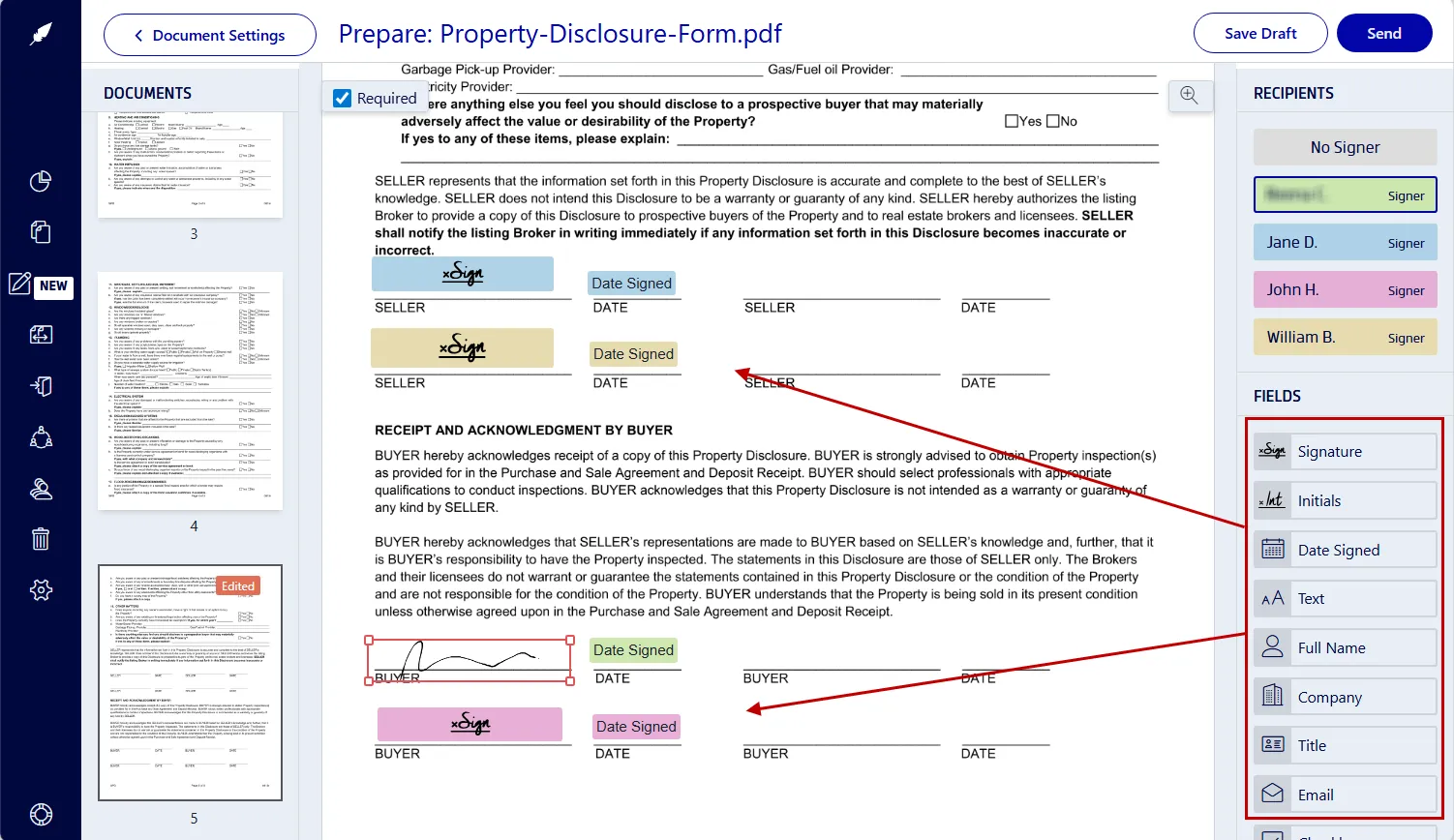
2. Add Signature Fields
- Drag and drop signing fields onto the page.
- Assign fields to yourself and to signers by clicking on the names in the side panel.
- Then drag signature, initials, text boxes, checkboxes, and date field where needed.
- Sign the document by clicking on your signature field.
- Draw, type, or upload an image of your signature.
- Click on Sign.
- Once all fields are set, click on Send.
3. Track and download the document
- Xodo Sign logs activity and tracks the signing progress.
- Access the audit trail via your dashboard Documents tab.
- View the document's progress with signer information, time stamps, and IP addresses.
- Send signing reminders if needed.
- When all signatures are collected, download a final copy of the document.
Instead of switching between PDF editors, cloud storage, and separate apps, Xodo Sign integrates everything you need into a complete workflow.
Frequently asked questions
1. Can I edit a PDF before sending it for signature?
Yes. You can revise text, add form fields, insert pages, or correct mistakes before adding signature fields. Once you finalize the layout, you can add your signature and send the document to others for signing.
2. How do I correct a mistake in a document before sending it for signature?
Open the PDF in Xodo Sign’s PDF editor and make changes directly to the text or layout. When the edits are complete, add signature fields and proceed to send it out.
3. Can I add form fields as part of editing?
Yes. You can add text fields, checkboxes, and other interactive elements to help structure your fillable PDF form before sending it for signature.
4. Can I edit and sign scanned documents?
Yes. You can upload scanned PDFs and images, annotate them, and apply e-signatures. For more advanced edits, use OCR in Xodo PDF Studio to convert scans into editable text.
5. Can I edit and sign a PDF without Adobe?
Yes. Xodo Sign gives you full PDF editing and e‑signature features in one unified platform, so you don't need to use Adobe Acrobat.
6. Can I edit a PDF after it has been signed?
Once signed, any edits you make to the PDF require a new version to maintain document integrity. You can edit a document before signatures are added.
7. Can multiple people sign the same document?
Yes. You can assign signature fields to multiple recipients and set a signing order if needed.
8. Do recipients need a Xodo Sign account?
No. Recipients can sign through a secure email link without creating an account.
9. Can I send reminders to people who haven't signed yet?
Yes. Xodo Sign lets you send reminders to people who haven’t completed their signatures yet.
10. Is Xodo Sign secure?
Yes, Xodo Sign is secure. The platform uses encrypted document storage and secure signer authentication. It also provides activity logs and audit trails.
Edit and Sign PDFs faster in one workflow
Xodo Sign simplifies your document process by bringing PDF editing and e‑signing into one tool. You can adjust text, add markup, reorder pages, and insert fillable fields before signing it.
Xodo Sign reduces steps, speeds up your workflow, and keeps everything in one place.
Try Xodo Sign today and streamline your entire PDF workflow with just a few clicks.