Table of contents
Sign and send unlimited e-signatures with Xodo Sign.
Despite what you may think about signing PDFs, you don’t need Adobe Acrobat to sign one quickly and securely. For many, Adobe can feel expensive and complex.
The good news? If you don't have or want to use Adobe, there are still e-signing tools to help you sign documents digitally instead.
Xodo Sign is one of them. It offers secure signing, audit tracking, and multi-party signing features. No heavy software or complexity.
We'll show you how to sign PDF files without Adobe using Xodo Sign online, along with additional options through your browser and mobile device.
Sign PDFs online with Xodo Sign
To digitally sign your PDF online without Adobe Acrobat or Adobe Sign, follow these easy steps:
1. Create your Xodo Sign account
- Start a free trial for 7 days with Xodo Sign (no credit card required).
A free trial will allow you to explore all of Xodo Sign's features at your own pace. Once your trial expires, your account will change to the Free plan.
2. Upload your PDF to Xodo Sign
- From your Dashboard, navigate to Documents and click the + icon.
- Select Choose Files and upload your file.
- Or drag and drop a PDF into the upload box.
- You can also import a file from your cloud storage.

3. Add signers and set document options
- Choose who signs the PDF: Just You, You and Others, or Others Only.
- Enter each person’s name and email address.
- Assign Signer or CC roles.
- Include a signing order, SMS or PIN authentication options.
- Set signing reminders, expiration dates, and form completion requirements.
- Add a message and subject line if you wish.
- Click on Prepare.

4. Sign your document and add form fields
- Insert signature fields and form fields for yourself and each signer.
- Drag a Signature field onto the page.
- Click on your own signature field.
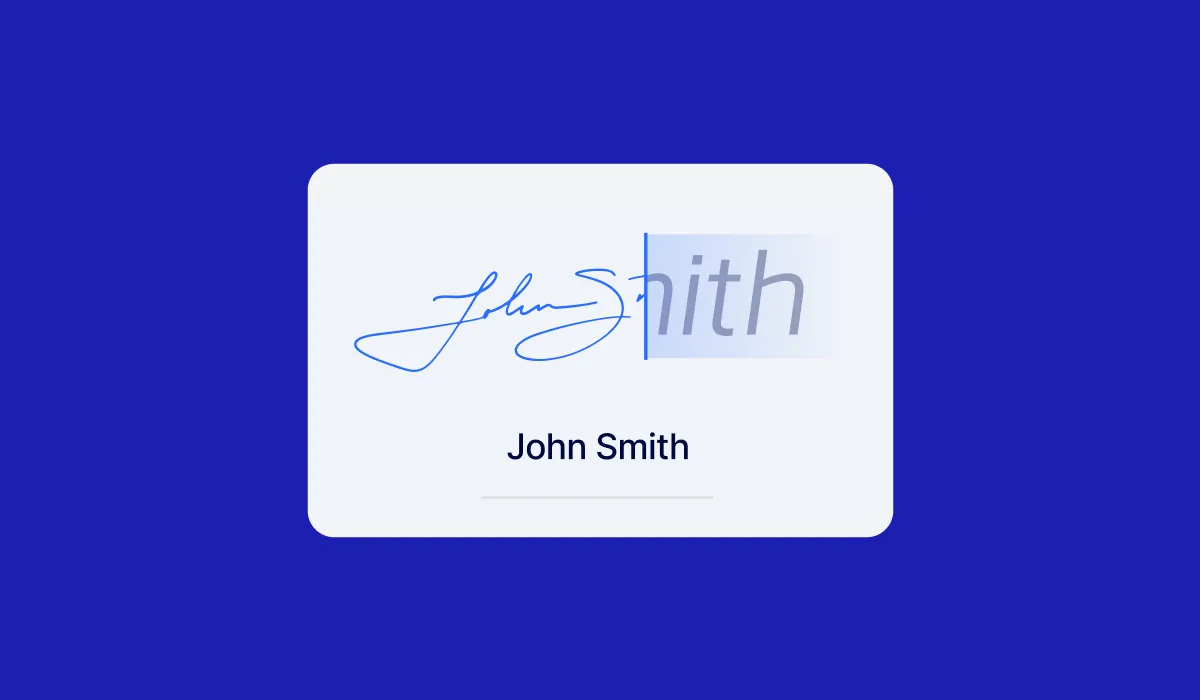
- Draw, type, or upload an image of your signature.
- Click on Sign.
- Add any other form fields needed to add text, dates, initials, or checkboxes needed.
- Once finished, click on Send.

5. Track and manage your document
- Return to your Documents tab to find and open your file.
- Monitor the file's signing progress and send reminders.
- Once all signatures are collected, download the final signed version.
- Review the document's full history activity, by going to Actions > Audit Trail.
If you’re interested in alternatives to other e-signing tools, you can explore our guide on how to sign documents without Docusign.
Why use Xodo Sign as an Adobe alternative
Many people compare Xodo Sign with Adobe Acrobat when they need a straightforward way to sign documents. Both tools let you add electronic signatures and manage contracts online, but they work very differently.
Here's where Xodo Sign can offer a better experience for anyone who wants a faster signing process without extra software:
1. Simpler and faster to use
Xodo Sign offers a clean interface and a short learning curve, so users can prepare, edit, and sign documents without navigating complex menus.
2. More affordable for small teams
Pricing is lighter and easier to scale. The pricing plans can be a more practical choice for freelancers, small business teams, and growing organizations.
3. Easier for external signers
It's faster for clients and partners to sign without needing an account or dealing with large software downloads.
4. Streamlined documents and workflow
Xodo Sign keeps the signing process focused: upload a file, add form fields, send the document, and track signatures. No bulky extras or features that slow users down.
5. Better experience for everyday signing needs
For users who mainly need to sign documents and request signatures from others, Xodo Sign feels more straightforward than Acrobat’s broader, more complex suite.
See how Xodo Sign compares to Adobe Acrobat on Capterra and G2.
Sign PDFs on your mobile device using Xodo app
Another way to sign PDFs without Adobe is to use the Xodo Mobile app on your phone. Here's how:
- Download and install the Xodo Mobile app on your iOS phone or Android device.
- Open the app and upload your PDF file.
- From the Files list, tap on your document to open it.
- Tap the drop down menu and choose Fill and Sign.
- Tap on the Signature Tool > Create signature.
- Draw, type, or upload a signature image.
- Then tap on Done.
- Tap on the page to place your signature digitally.
- Tap Back to save your signed PDF.

Note that the app doesn’t generate comprehensive audit trails or create legally binding e-signatures, this method is mostly useful for quickly signing off on approvals. If you have a Xodo Sign account, you can use the Xodo Sign tab to request compliant signatures from others.
Sign PDF files using a built-in browser tools
Most browsers support basic signing features, meaning you can sign PDFs online in Microsoft Edge, Chrome, or Firefox without Adobe. Here's a quick look at the process:
Microsoft Edge
- Open your PDF in Edge.
- Click on the Draw tool in the top menu.
- Use your mouse or touchscreen to manually draw your signature.
- Save the file by clicking the disk icon or pressing Ctrl+S.
Google Chrome
- Open your PDF in Chrome.
- Click the Draw icon to activate the drawing tool.
- Sign your signature using your mouse or trackpad.
- Download the signed version.

Mozilla Firefox
- Open your PDF in Firefox.
- Select Add signature > Add new signature.
- Draw, type, or upload a signature.
- Click Add to place it.
Each browser will let you customize your signature's appearance, save your file, and share your signed PDF by email after it has been signed. This method is a quick way to sign PDFs, but note that it lacks advanced security and tracking needed for e-signing PDFs requiring validation.
For more details, check out our detailed guide on signing PDFs in a browser.
Commonly asked questions
How can I electronically sign a PDF document?
You can use an e-signing solution like Xodo Sign to sign PDFs and other documents with legally binding electronic signatures.
Can I sign a PDF without Adobe?
Yes. You can sign PDFs using online tools like Xodo Sign, mobile apps like Xodo Mobile, or tools built in your browser.
Are electronic signatures created with Xodo Sign legally valid?
Yes. Electronic signatures created with Xodo Sign meet compliance and legal requirements in the United States and the European Union. They follow ESIGN and UETA regulations in the U.S. and eIDAS rules in the EU.
How do I sign a PDF for free?
You can sign a PDF for free using Xodo Sign or built‑in browser tools. Xodo Sign offers a free plan, making it easy to sign PDFs online at no cost.
How do I unlock a PDF so I can sign it?
If your PDF is password‑protected, you’ll need the password to remove the restrictions. Once unlocked, you can sign the file using any PDF or e‑signing tool. If the document has creator‑level restrictions, only the original owner can remove them.
How do I put a handwritten signature on a PDF?
You can use Xodo Sign to add your handwritten signature to PDF by drawing it with a mouse, trackpad, or touchscreen. You can also save your signature and use it again whenever you need it.
Can I fill out a PDF form online for free?
Yes. You can fill out a PDF form online for free using Xodo Sign’s built‑in PDF editor. It lets you complete forms and edit documents directly in your browser. You can also use standard browser tools to fill out basic PDF forms.
Final thoughts
You don't need Adobe Acrobat or Adobe Sign to approve forms, sign agreements, or collect signatures.
With its intuitive e‑signing and editing tools, Xodo Sign is a strong alternative to Adobe’s products. You get the ability to add legally binding signatures, access detailed audit trails, manage multi‑signing workflows, and edit documents without switching apps, whether you work alone or as part of a team.
See how easy it can be to work without Adobe. Try Xodo Sign today and start signing PDFs in minutes.