
Table of contents
Sign and send unlimited e-signatures with Xodo Sign.
Many people rely on Docusign to sign PDF files, but the higher price, business tiered plans, and complicated features can slow you down when you only need a quick e-signature.
If you want a simple and affordable tool that lets you sign documents online, you can use Xodo Sign or other free options built into your desktop or mobile device.
We will show you how to sign a document with Xodo Sign, how to sign on your phone, and how to use built-in browser tools and Preview on macOS for basic signatures.
Sign documents online with Xodo Sign
Follow these simple steps to sign your documents online with Xodo Sign:
1. Sign up for Xodo Sign
- Start a free trial to evaluate all Xodo Sign features. It's free for 7 days and no credit card is required.
Note: If your free trial expires, your account moves to the Free plan.
2. Upload your document
- From your Dashboard, open Documents and click the + icon.
- Choose Files and select the document you want to sign.
- You can also drag and drop the file into the upload area or import it from Google Drive, Dropbox, or OneDrive.

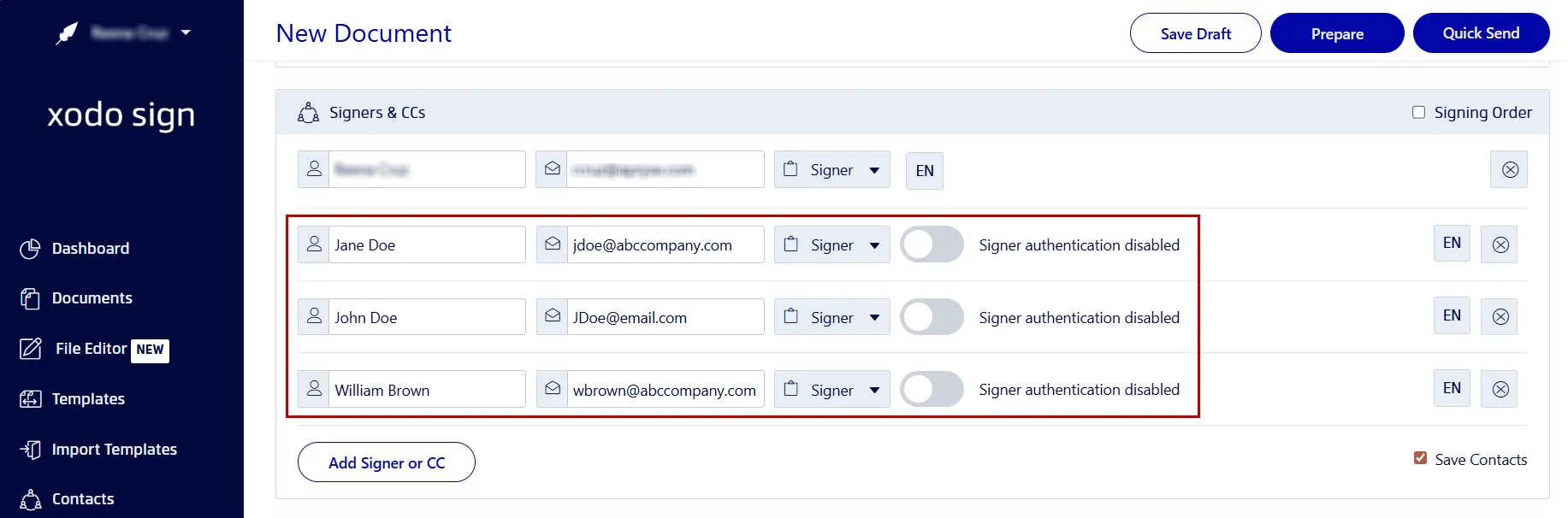
3. Add signers and adjust settings
- Choose who will sign the document: Only Me, Me and Others, or Others Only.
- Enter each signer’s name and email address.
- Assign roles such as Signer or CC.
- Adjust settings like signing order, SMS or PIN verification, reminders, expiration dates, and required form fields.
- Add a subject line and message.
- Click Prepare.
4. Insert signature, date, and other fields
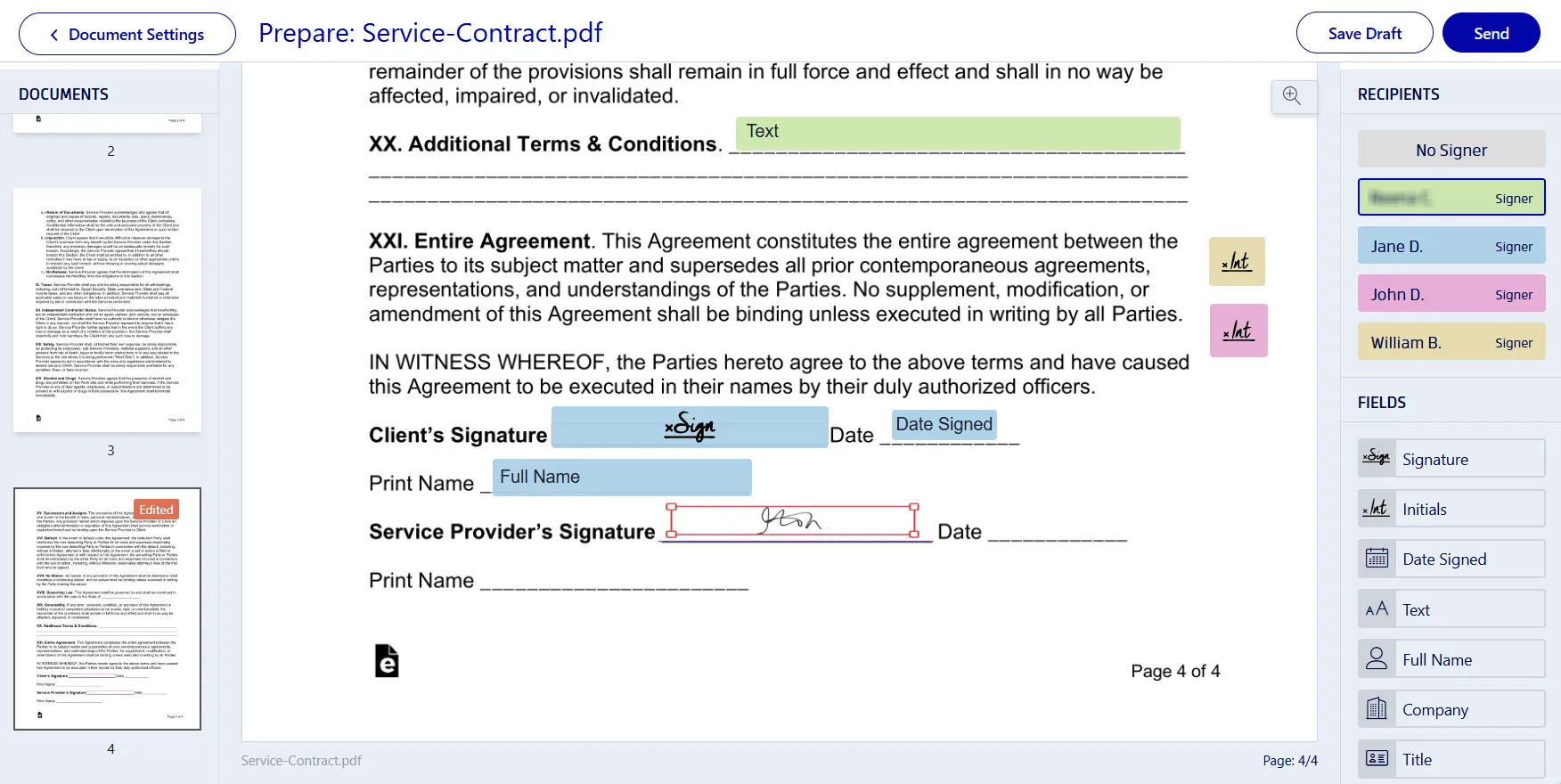
- Place signature fields for yourself and any other signers.
- Select your name in the right panel and drag a Signature Field to your document.
- Draw, type, or upload an image of your signature.
- Click Sign.
- Add a Date Signed field and any other required elements like text boxes or checkmarks.
- When everything is ready, click Send. Xodo Sign will email signers a secure link to complete the process.
5. Track and manage your document
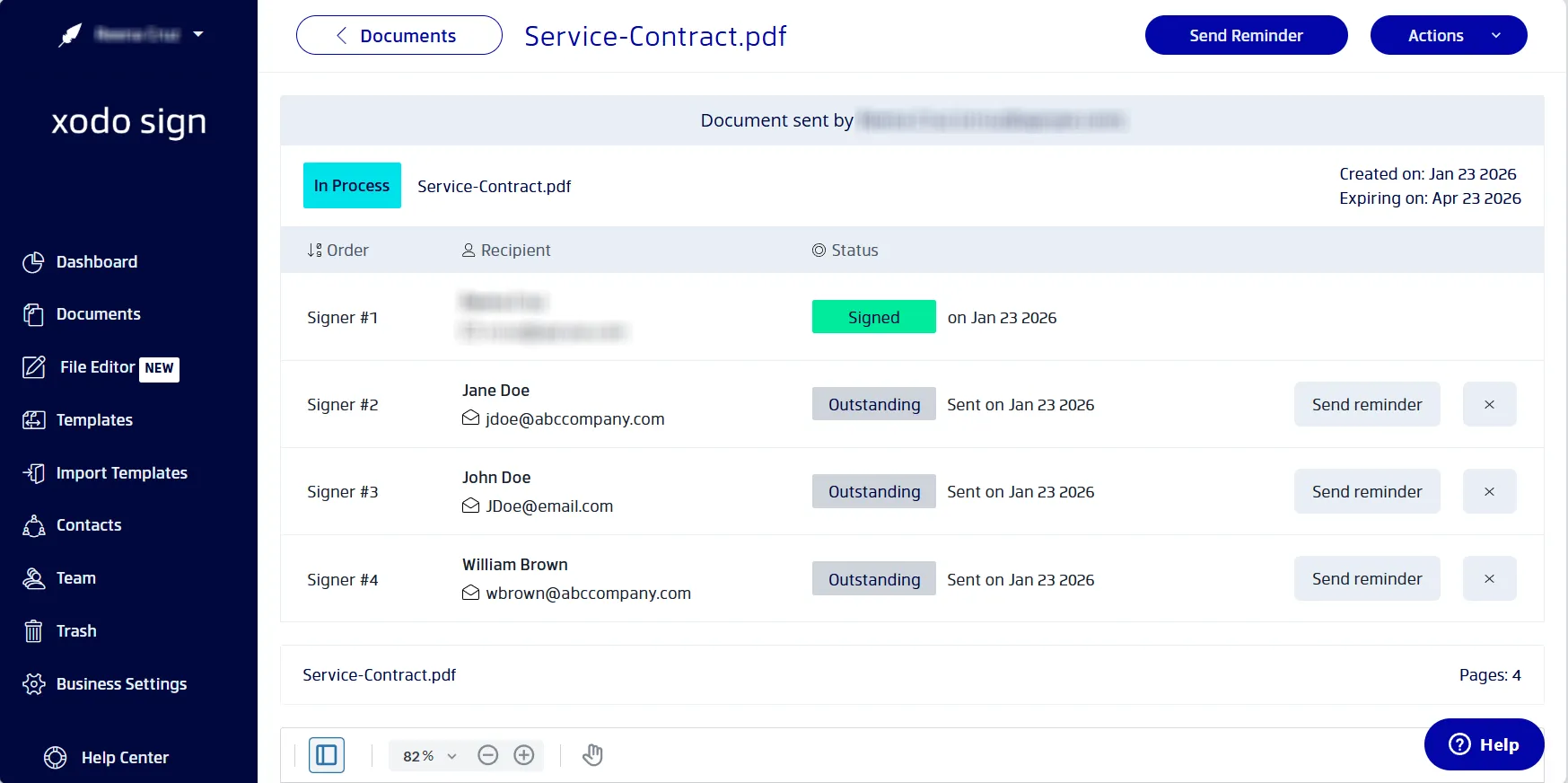
- Go to your Dashboard and open Documents to find your file.
- You can check the signing status, send reminders, and download the signed PDF once all signatures are collected.
- To view the audit trail, go to Actions > Audit Trail.
Xodo Sign is a powerful Docusign alternative that gives you an easy way to sign documents with legally binding e-signatures. You can also edit PDFs before sending them out, which removes the need to switch between apps. Your files stay organized in one place, so you have clear document access at every step.
Why Xodo Sign works well as a Docusign alternative
Xodo Sign provides teams and individual users with simple, flexible, and affordable ways to sign and manage documents without Docusign. Key reasons users choose it include:
- Lower price for similar capabilities
Plans starting at $10 USD per month. - Simple and easy to use
Xodo Sign reduces setup time and helps teams get started quickly compared to Docusign. - Integrated PDF editing before sending
Edit documents directly in the platform without switching to another app, at no extra cost. - Strong core features without enterprise‑level bloat
Legally binding signatures, document templates, audit trails and API options are available without complex menus. - Better value for money according to user reviews
Users on G2 and Capterra rate Xodo Sign higher for value for money.
Tip: If cost is one reason you're looking beyond Docusign, use our Xodo Sign vs Docusign cost calculator to compare estimated annual spend for your team.
How to sign a PDF on your phone or tablet
Signing on your mobile device is practical if you work on the go. Here is how to add simple signatures with the Xodo mobile app.
1. Install Xodo Mobile
2. Open your PDF
- In the Files menu, tap the + icon to upload your document.

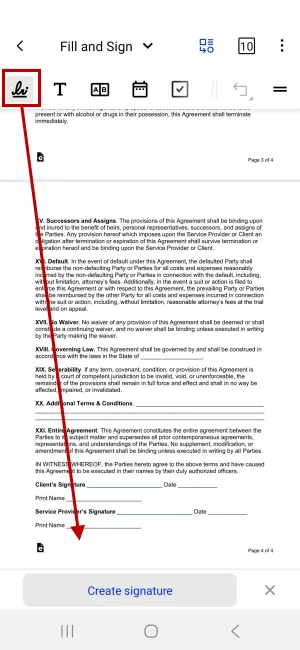
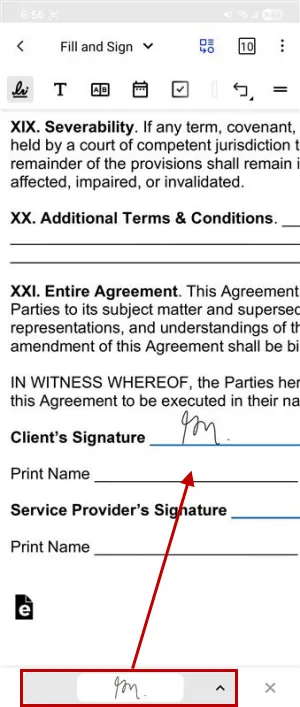
3. Use the Fill & Sign tool
- Tap the dropdown menu and choose Fill and Sign.
- Select the Signature Tool and tap Create Signature.
4. Create and add your signature
- Draw, type, or upload an image of your signature.
- Tap DONE when finished.
- Back on the page, tap on the screen to place your signature.
- Resize as needed.
5. Save your document
- Tap the Back button in the top-left corner to save your signed PDF.
This method is ideal for quick approvals with simple signatures. It does not include an audit trail, so it's not suited for formal agreements.
If you have a Xodo Sign account, you can log into the Xodo mobile app and use the Xodo Sign tab to sync your documents and request legally binding signatures from others.
Other quick ways to sign a PDF without Docusign
If you want free and built-in tools, you can use these methods.
Sign PDF documents online using your browser tool
Microsoft Edge, Firefox, and Chrome let you draw a basic signature using annotation tools. These methods are fine for personal use, although they do not support verification, identity checks, or audit trails.
Check out our guide on how to sign a PDF in your browser for full steps.
Sign on macOS using Preview
Preview lets you create a handwritten signature using your trackpad or camera. This is a simple way to sign personal files on a Mac.
See our guide for exact steps to sign PDF with Preview.
Commonly asked questions
How to sign a document without Docusign?
You can use Xodo Sign or other online tools to sign documents without Docusign. Try Xodo Sign if you want legally binding signatures at a lower price.
Is it legal to sign a PDF without Docusign?
Yes. Docusign provides electronic signatures that meet legal requirements.
Are electronic signatures created with Xodo Sign legally valid?
Yes. All electronic signatures created with Xodo Sign are legally valid and are in compliance with ESIGN (U.S.), UETA, and eIDAS (EU) regulations.
How secure are signatures created without DocuSign?
It depends on the solution you use. With Xodo Sign, you get encrypted document transfer, identity verification options, and full audit trails. These features protect your documents and create a traceable record of each action.
Do I need to install software to sign a PDF with Xodo Sign?
No need to install any software. You can sign documents online in your browser using Xodo Sign.
Is Xodo Sign free to use?
Yes. Xodo Sign offers a free plan that includes up to 5 documents each month (1 document/week). Paid plans unlock advanced PDF editing, AI summarization, and other features.
How do I turn a PDF into a signable document?
Simply upload your PDF to Xodo Sign, add signature fields and other form fields, then send it to your signers.
How do I manually sign a PDF document?
You can use Xodo Sign to manually draw a signature with your mouse, finger, or stylus. Save and reuse it as needed.
How can I sign a PDF without a digital signature?
You can add an electronic signature instead using Xodo Sign. Draw, type, or upload your signature. This is valid for most contracts and agreements that do not need a digital certificate.
Can I edit a PDF and sign a PDF with Xodo Sign?
Yes. You can use the built-in PDF Editor to make edits, then add signature fields, and sign your file online or request signatures from others.
Final Thoughts
You don’t need DocuSign for everyday signing tasks. There are user friendly and more affordable options that offer the same functionality without the extra cost or complexity.
With Xodo Sign, you can upload a document, add signers, and complete the signing process in just a few clicks.
If you want to try it yourself, start with Xodo Sign and see how easy online document signing can be.