Table of contents
Sign and send unlimited e-signatures with Xodo Sign.
Need legally binding signatures from several people on the same document, but don't want everyone waiting in line?
The answer is parallel signing.
If you're collecting approvals on a collaboration agreement, onboarding package, or internal team document, parallel signing allows all recipients to receive the document simultaneously and sign at their convenience.
It allows shared-document signing where every participant works on the same agreement, not separate document copies.
This guide shows you how to set up a parallel signing workflow with Xodo Sign. You simply add all signers to your document, leave signing order disabled, assign fields to the recipients, confirm all signers are required to complete the document, and then send the agreement.
Let's take a closer look.
Parallel, sequential, or bulk send: which signing process fits?
Before configuring anything, be sure you're choosing the correct signing workflow.
What is parallel signing?
Parallel signing means multiple recipients receive the same document at the same time and can sign simultaneously. No signer needs to wait for another person to finish first.
This approach works well when:
- A client and multiple stakeholders need to review the same contract
- HR, operations, and management must sign a shared document
- Order is irrelevant, but all signatures are still required
What is sequential signing?
Sequential signing follows a specific signing order. One recipient signs first, followed by subsequent signers.
The process is useful when a document requires a defined signing sequence. This allows your document to pass through the appropriate signers at the right stage in the approval process.
What is bulk sending?
Bulk sending distributes separate copies of a document to many people. Each recipient receives an individual version and completes it independently.
Parallel signing is different because multiple recipients are signing the same shared document. The document reaches completion only after all required participants finish their assigned actions.
How to set up parallel signing in Xodo Sign
To start setting up parallel signing in Xodo Sign, follow the steps below.
1. Sign up for Xodo Sign
- Start a free trial with Xodo Sign. No CC required.
2. Upload your agreement document
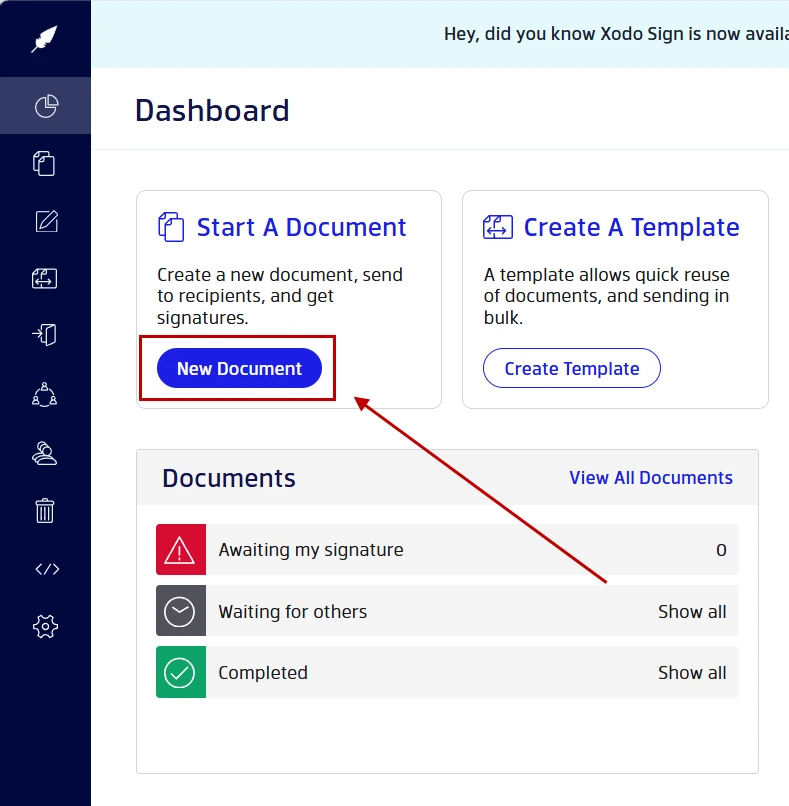
- In your dashboard, click on New Document.
- Select and upload your agreement.
3. Add all required signers
- Add each recipient who must sign the document.
- Enter their name and email.
- Set their signing role as Signer.
- Add SMS or PIN Authentication (optional).
- Customize and select the Language (optional).
- Click on Save Changes on each recipient.
- Check the option All signers required to complete document.
- Click on Prepare.
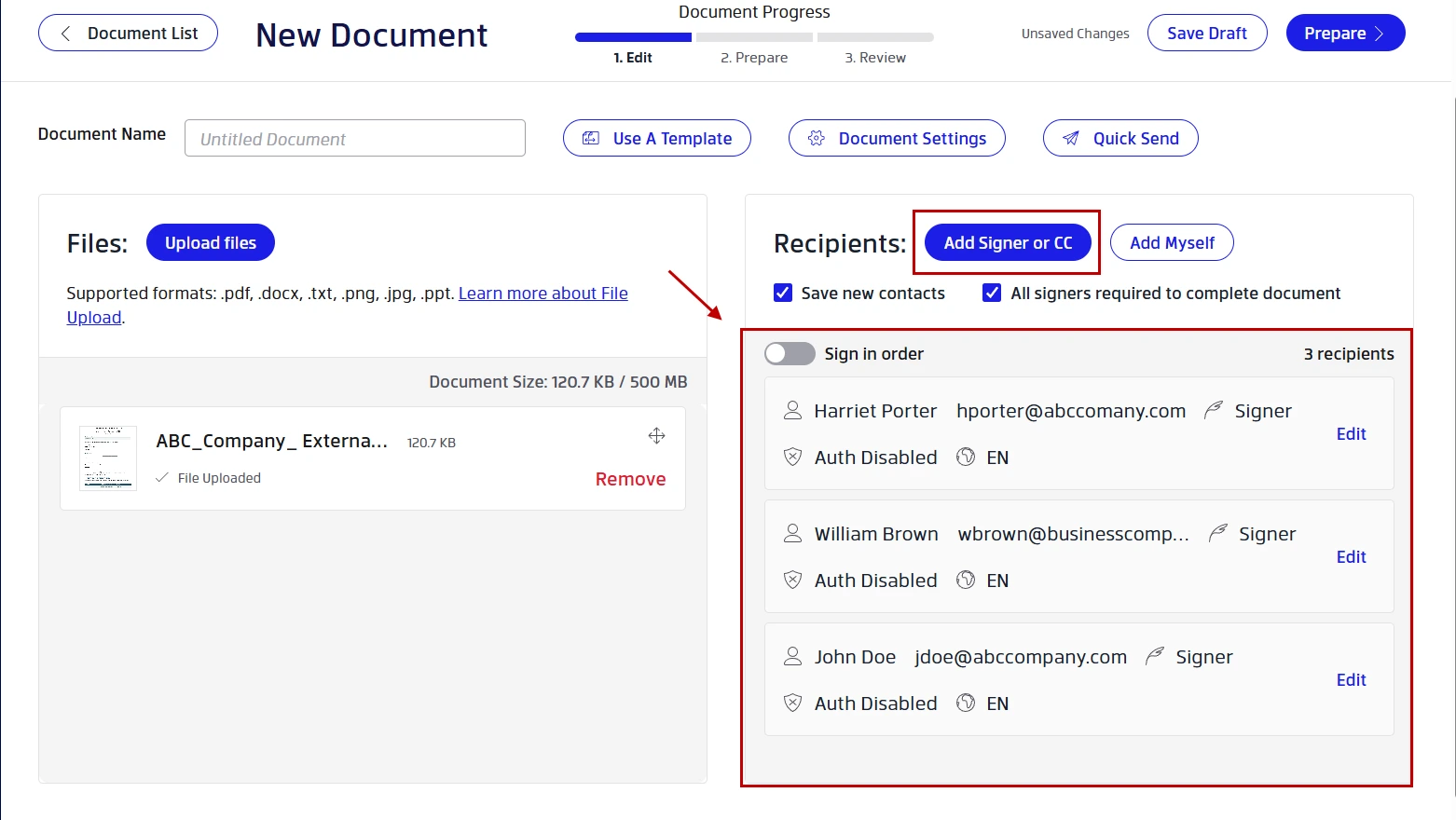
For simultaneous signing, leave the Sign in Order option turned off as shown above. Doing so allows recipients to receive the document at the same time, keeping all the required signers participating in the same document workflow.
Tip: See how to add multiple singers with the same email address if you're sending the same document to two or more people with a shared email address.
4. Assign the required fields needed
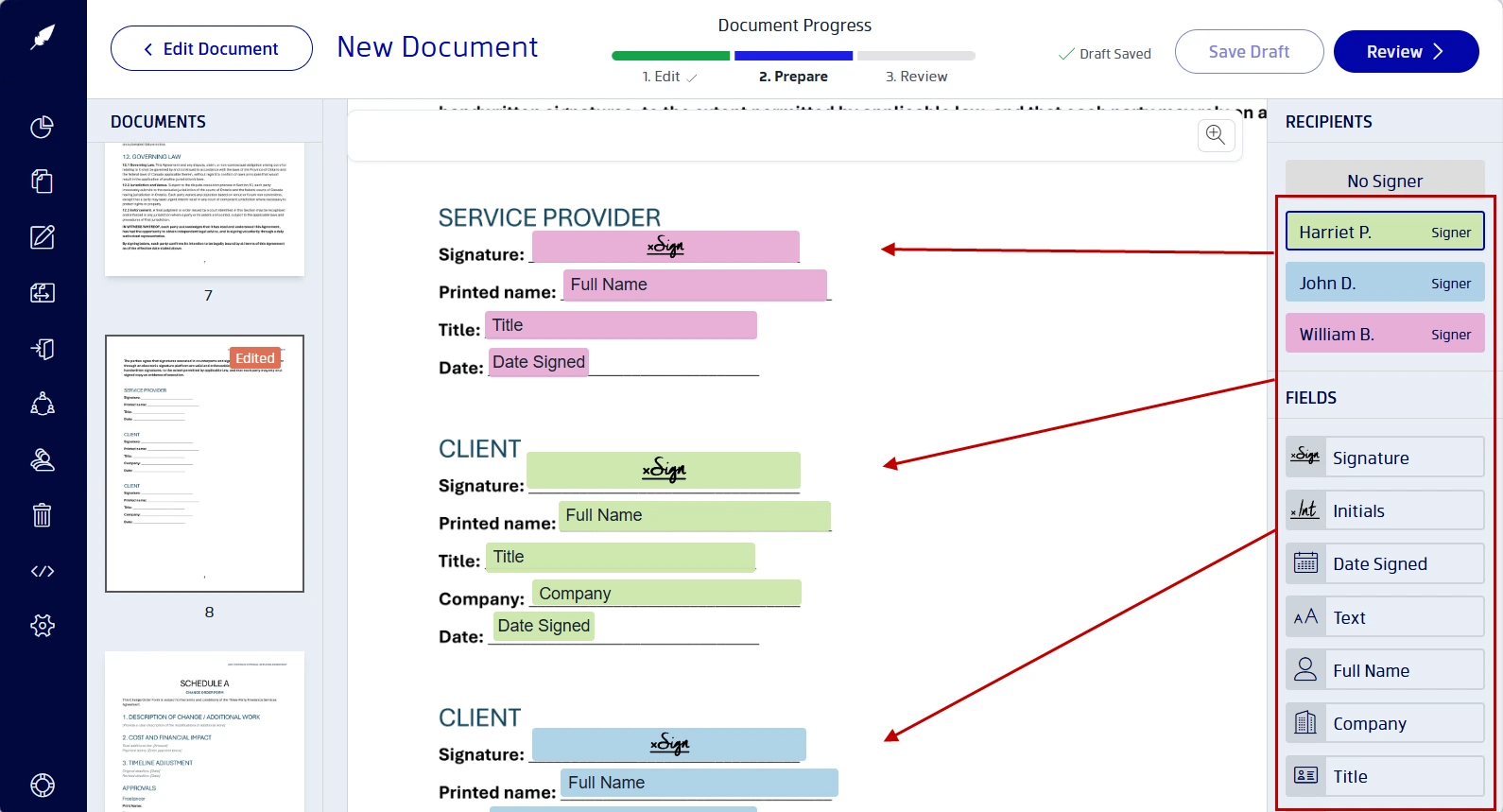
- Click on a recipient.
- Drag and drop a form field onto the page to assign it to them.
- Add a signature field, date field, text field, or initials field to the appropriate signers.
- Ensure that you designate signature fields as required.
- Once done, click on Review.
5. Review your document
- Add a message with any additional instructions.
- Set up auto-reminders and add an expiration date.
- Confirm your signers along with the roles and settings attached to them.
- If all looks good, click on Send Document.
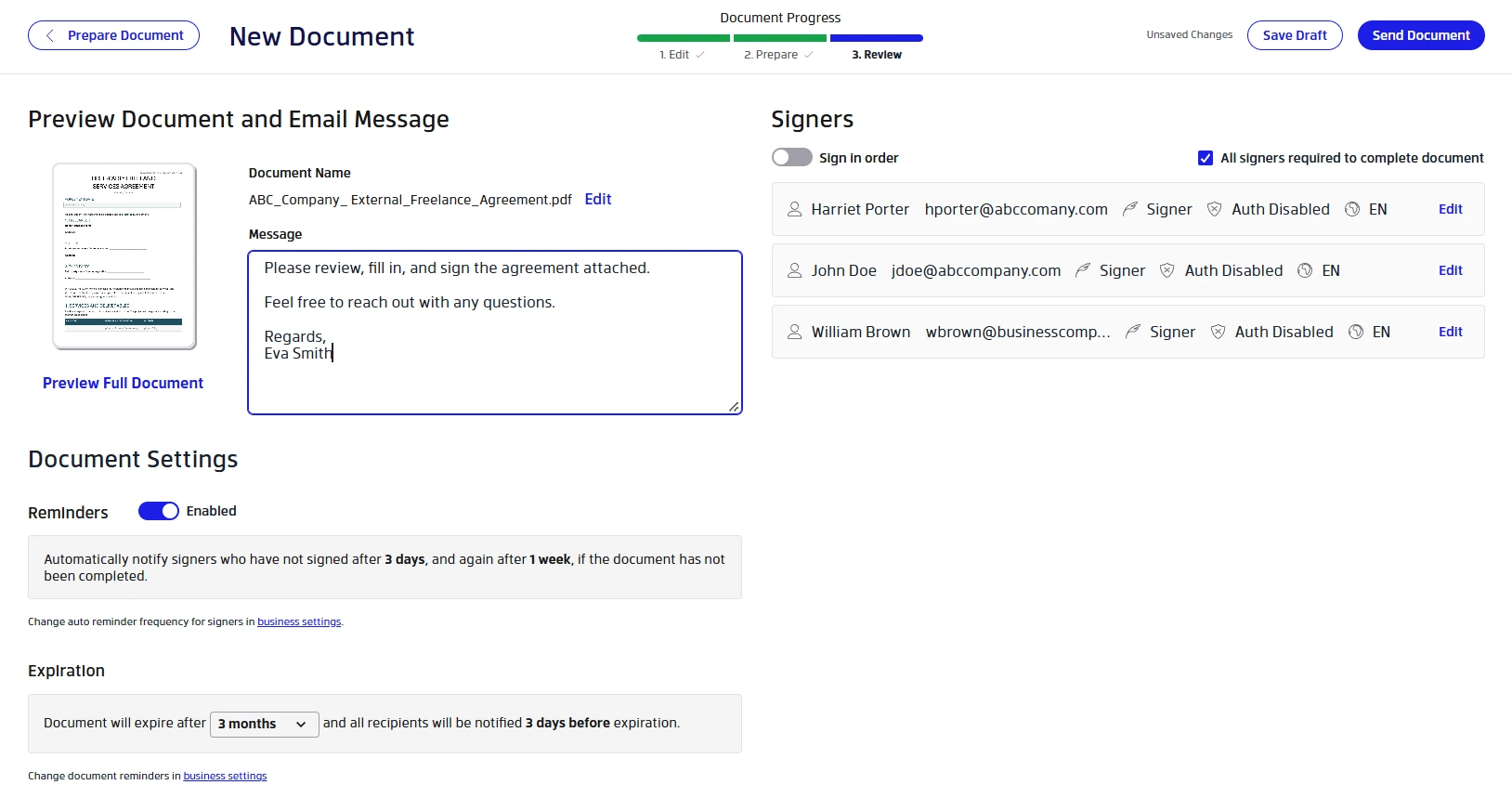
Once the request is sent, all recipients receive access to the same agreement and can begin signing without waiting for a predefined sequence.
How to track signatures and confirm completion
Sending the document is only part of the process. You also need visibility into what remains outstanding. Here's how to track signature completion:
1) Monitor pending signatures
- Go to your Documents list.
- Follow your document under the In Process tab.

With Xodo Sign, you can track:
- Which recipients have completed signing
- The recipients who still need to act
- When sending reminders is needed
- The document's overall status
The goal is to identify remaining signature requirements without manually following up with every participant. Tracking outstanding signatures is a core part of the sequential and parallel signing.
2) Know when the document is complete
A document reaches completion when all required signers finish their assigned actions. With the settings configured above, completion will depend on participation from every required signer rather than the order in which they signed.
3) Download the completed document
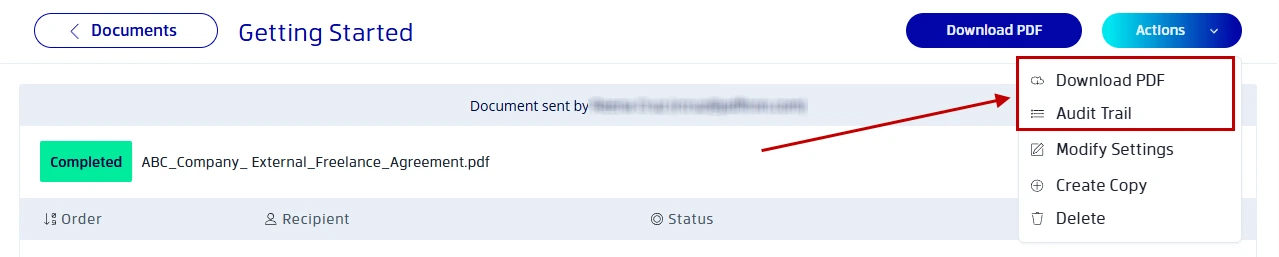
After completion, you can download and store the finalized agreement along with its associated signing record and audit trail according to your organization's recordkeeping practices.
Reusing the setup for recurring team documents
If your team regularly sends the same agreement, setting up recipients, signature fields, and signing workflows from scratch can quickly become repetitive.
That's where reusable templates can help. They provide you with the ability to set pre-configured fields. Signer roles, assigned fields, and workflow settings are already set before the document is sent.
You save the setup once and reuse it again whenever you need. Common examples include:
- Vendor agreements
- Client onboarding documents
- Internal authorization forms
- Team collaboration agreements
This reduces preparation time, keeps field assignments consistent, and lowers the risk of missing a signer or placing a field incorrectly. It means less administrative work and faster turnaround times.
Templates can save time for organizations that work with parallel signing workflows, recurring agreements, and high document volumes.
Frequently asked questions
1. Can multiple signers sign the same document at the same time?
Yes. Parallel signing allows multiple recipients to receive and sign the same document simultaneously without waiting for other recipients to finish first. Xodo Sign supports a parallel signing workflow.
2. Is parallel signing the same as bulk sending?
No. Bulk sending distributes separate document copies to many recipients, while parallel signing collects signatures from multiple recipients on one shared document.
3. Does parallel signing mean signatures are optional?
No. Parallel signing only controls when recipients can act. The completion requirement remains separate and can still require every signer to participate before the document is completed.
4. When should I use sequential signing instead?
You should use sequential signing when a document requires a specific signing order, approval path, or signing sequence. You can do this with Xodo Sign by arranging your signers in the order they should sign.
5. Can I assign different fields to different signers?
Yes. Recipient-specific field assignment allows each signer to interact only with the fields intended for them.
6. What happens if one signer completes the document before the others?
The document remains in progress until all required recipients complete their assigned actions. One signer finishing early does not prevent other participants from reviewing and signing the document.
Put parallel signing to work
When multiple people need to sign one document, waiting on a strict signing sequence can slow the entire process down.
Parallel signing helps keep agreements moving by allowing all recipients to review and sign at the same time, which is especially useful for contracts, onboarding documents, and other multi-party workflows.
If you're looking to reduce turnaround times without sacrificing visibility into who has and hasn't signed, explore the Xodo Sign plans to find a workflow that fits your team's needs.
Start with a simple document, invite all required signers at once, and see how much faster agreements can move from send to signed.