Table of contents
Sign and send unlimited e-signatures with Xodo Sign.
Sending a document for electronic signature used to feel like a chore. Print. Scan. Email. Follow up. Repeat. And if the signer was on their phone? Good luck.
There’s a simpler way, though.
If you need to send a document for electronic signature quickly and without paying upfront, Xodo Sign gives you a clean, simple workflow that works on desktop and mobile. Upload your document, place signature fields, send it, and track progress. That’s it.
Learn how to send a document for signing with Xodo Sign below. Get insight on best practices, tips on what to check, and mistakes to avoid.
How to send a document for electronic signature free with Xodo Sign
1. Sign up for a Xodo Sign account
- Start a free trial with Xodo Sign.
No credit card required. Signing up for a free trial will give you access to all the features of Xodo Sign Professional Plan. After the 7 day trial is over, if you don't upgrade, your account will revert to a free account.
2. Upload your document
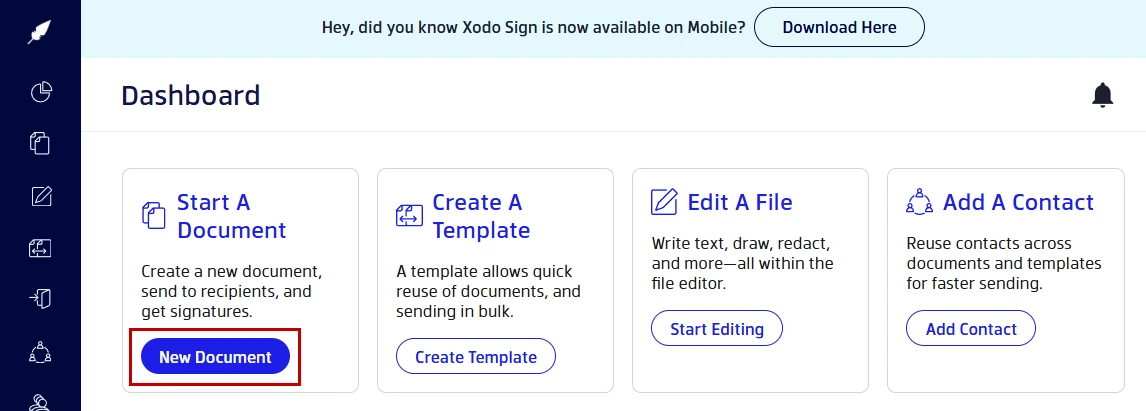
- In your Dashboard, click on New Document.
- Upload your file from your computer, cloud storage, or drag and drop it into the interface.
Xodo Sign supports common formats like PDF, Word, Text and PowerPoint along with PNG and JPG formats.
3. Set up your document for signing
Start adding the contacts you need a signature from:
- Select a signing option: Just You, You and Others, or Others Only.
- Enter the names and emails for each signer.
- Give each signer a role: Signer or CC.
- Set a signing order if needed.

You can add optional settings for your document:
- Turn on secure identity verification via SMS or PIN.
- Draft a short message with instructions.
- Specify document settings: turn on reminders, require all fields to be filled, or set an expiration date.
When everything looks good, click on Prepare.
4. Assign, insert, and sign form fields
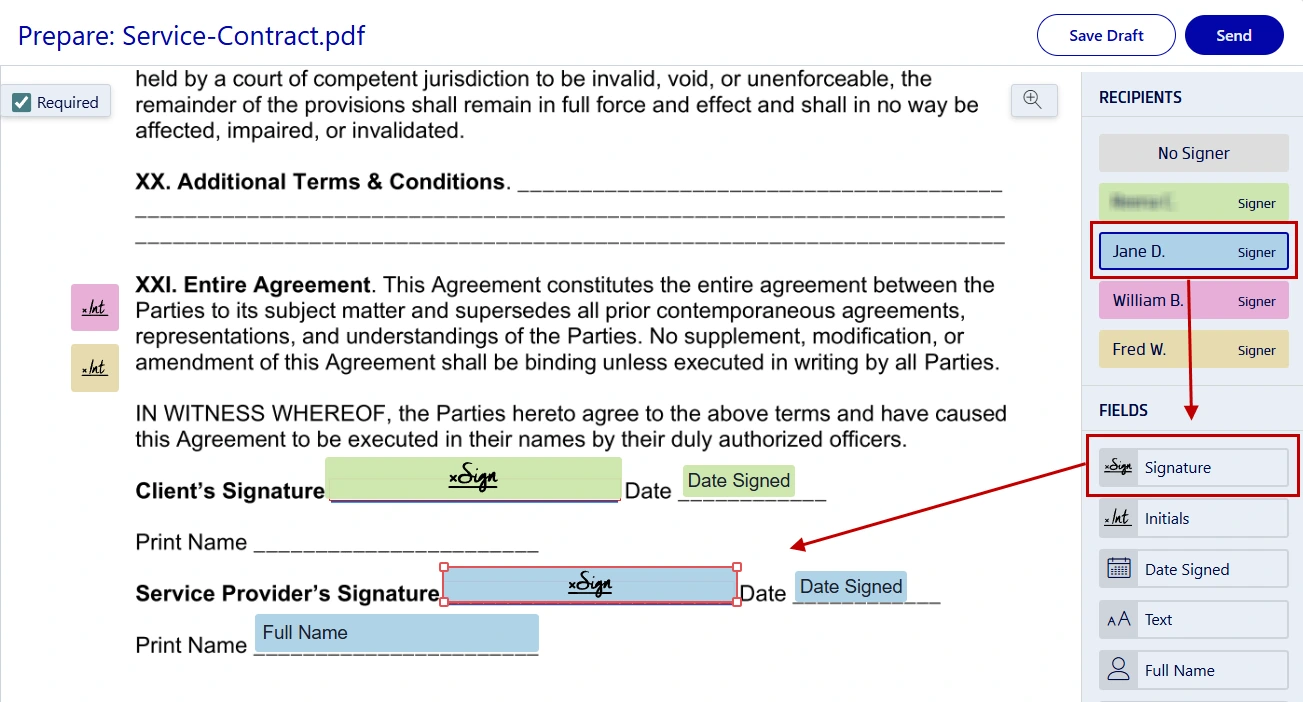
Assign fields to the signers and yourself:
- Click on their name from the righthand side.
- Drag a form field onto the page.
- You can add signature, date, name, initial fields and more.
To sign the document:
- Click on your own signature field.
- Draw, type, or upload an image of your signature.
- Click on Sign.
Once all fields are place, click on Send.
5. Keep track of your document's status
After you send the document, you can follow the document's status:
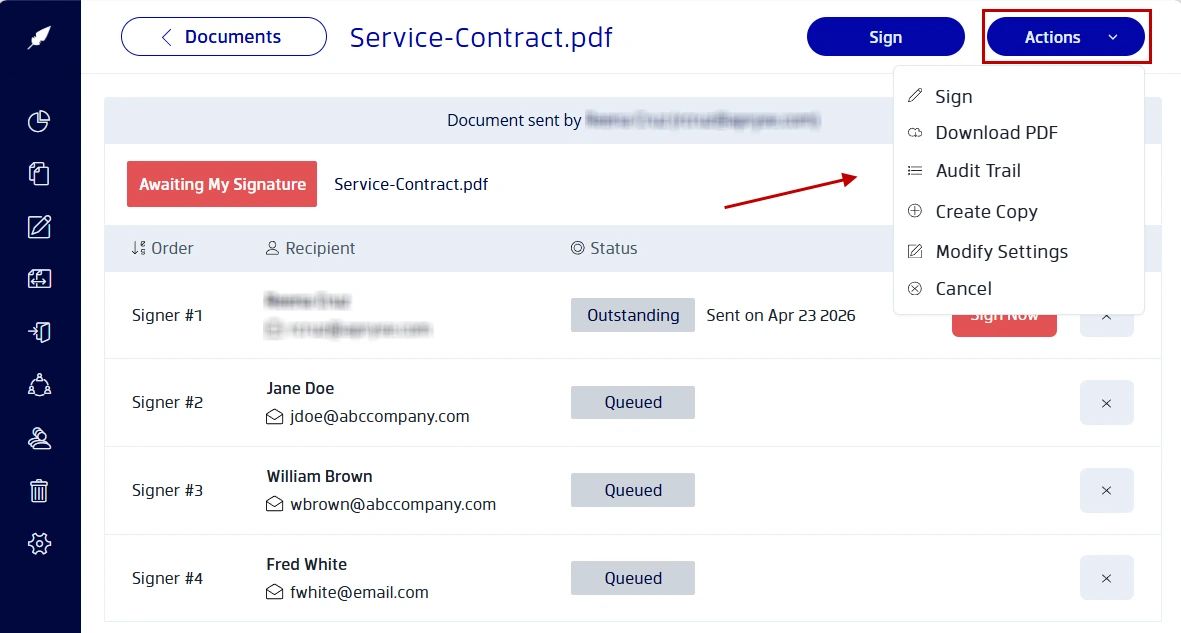
- Go to your Documents tab and click on the document.
- You'll see the progress of your document.
- Click on Actions >Audit Trail from the dropdown menu.
- You can view the timestamps of every action taken on the document.
- You’ll get notified when the document is completed.
Sending a document for others to sign electronically can be done in just a few clicks. One document. One or more signers. No hidden fees.
With a streamlined document setup and legally valid e-signatures, Xodo Sign is an easy option to try for senders and signers alike.
Best practices to get documents signed faster
Speed comes from clarity. Not complexity. When your document is easy to read, sign, and complete, signatures follow. With Xodo Sign, it comes down to a few simple setup choices.
- Write a clear subject line
Make the requested action clear, set deadlines, and requirements to avoid confusion. - Place fields precisely
Misplaced digital signature fields slow things down. Align them with visible signature lines or labels. - Keep instructions short
Long explanations rarely help. One or two sentences is plenty. - Test on mobile
Many people sign on mobile devices. If the document is hard to read or zoom, fix it before sending. - Avoid unnecessary fields
Only ask for what you actually need. Extra fields will make it difficult to fill in one sitting.
Small tweaks like these can remove friction, make signing feel easy and get your documents completed faster.
Common mistakes to avoid
If you're new to signing documents, watch out for these common mistakes before you hit send:
- Sending the wrong file version
- Forgetting to assign a signer to a field
- Overloading the document with instructions
- Using inconsistent naming for signers
- Assuming the signer is on desktop
These small issues are the main reason documents stall.
What you get with a free Xodo Sign account (features)
You can send and sign documents online easily with a Xodo Sign free account. Here's what you get.
Document Limit:
- Send up to 5 documents per month (1 document/week) for free
Features:
- Prepare and sign documents online.
- Send documents for signature requests.
- Detailed audit trail that's legally compliant.
- Works on both desktop and mobile devices.
Best for:
- Users needing to sign only a few documents per month.
- Individuals, not teams.
- Simple workflows and signing process.
- Users who don't need high document volume signing.
If needed, you can also send a document to large groups for signatures. See our guide on bulk sending e-signature for details.
FAQ
1. Can I send a document for electronic signature for free?
Yes. Xodo Sign offers a free account option that lets you send documents for e-signing. Create an account with Xodo Sign, upload your file, add signer details, place signature fields, and send it.
2. Does the signer need an account?
No. When you send a document through Xodo Sign, signers can open the link and sign in a browser without creating an account.
3. Can I create my own digital signature?
Yes. In Xodo Sign, assign yourself a signature field and click on it to either draw, type, or upload an image of your signature. Click on Sign and it will be added to the document.
4. What file types can I send?
You can send PDFs and common document formats like Word, Text, PowerPoint, and image formats (PNG and JPG). Once uploaded they'll be converted to the PDF format.
5. Can I send from my phone?
Yes. Xodo Sign works on desktop and mobile, so you can send documents on the go on Android or iOS phones and tablets.
6. Can I track if the document was opened?
Yes. In your Xodo Sign dashboard, go to the Documents tab and locate the document. You'll be able to view the audit trail and see when the document was opened and viewed.
7. Can I download the signed document?
Of course. Once your document is completed in Xodo Sign, the signed document will be available for download and storage.
Send your next document the simple way
Sending a document for electronic signature doesn’t need to feel heavy or complicated. With Xodo Sign, the process is fimple, fast, and free on any device.
If you’re looking for a free way to send and e-sign documents without any upfront costs, Xodo Sign is a good place to start.
Send and sign PDFs for free. No fluff. No overthinking. Just get it signed.