.webp)
Table of contents
Sign and send unlimited e-signatures with Xodo Sign.
If you work in Google Docs, sooner or later you need to sign a document or collect signatures from others.
The good news is that you do not need to print anything. You can directly sign Google Docs electronically or add legally binding signatures with Xodo Sign.
This step-by-step guide explains both methods so you can choose the right approach based on your document type and compliance needs.
How to insert a signature directly in Google Docs
Google offers two ways to add a signature to Google Docs documents:
- An informal signature using drawing or a signature image
- A native eSignature field for some Google Workspace plans
Here’s how both work.
Option A - Insert a simple visual signature (drawing or image)
Follow the steps below to insert a simple signature in Google Docs:
1. Open your document in Google Docs app
- Open the document you want to sign in Google Docs.
2. Place your cursor where your signature should go
- Usually at the bottom, above your typed name and title.
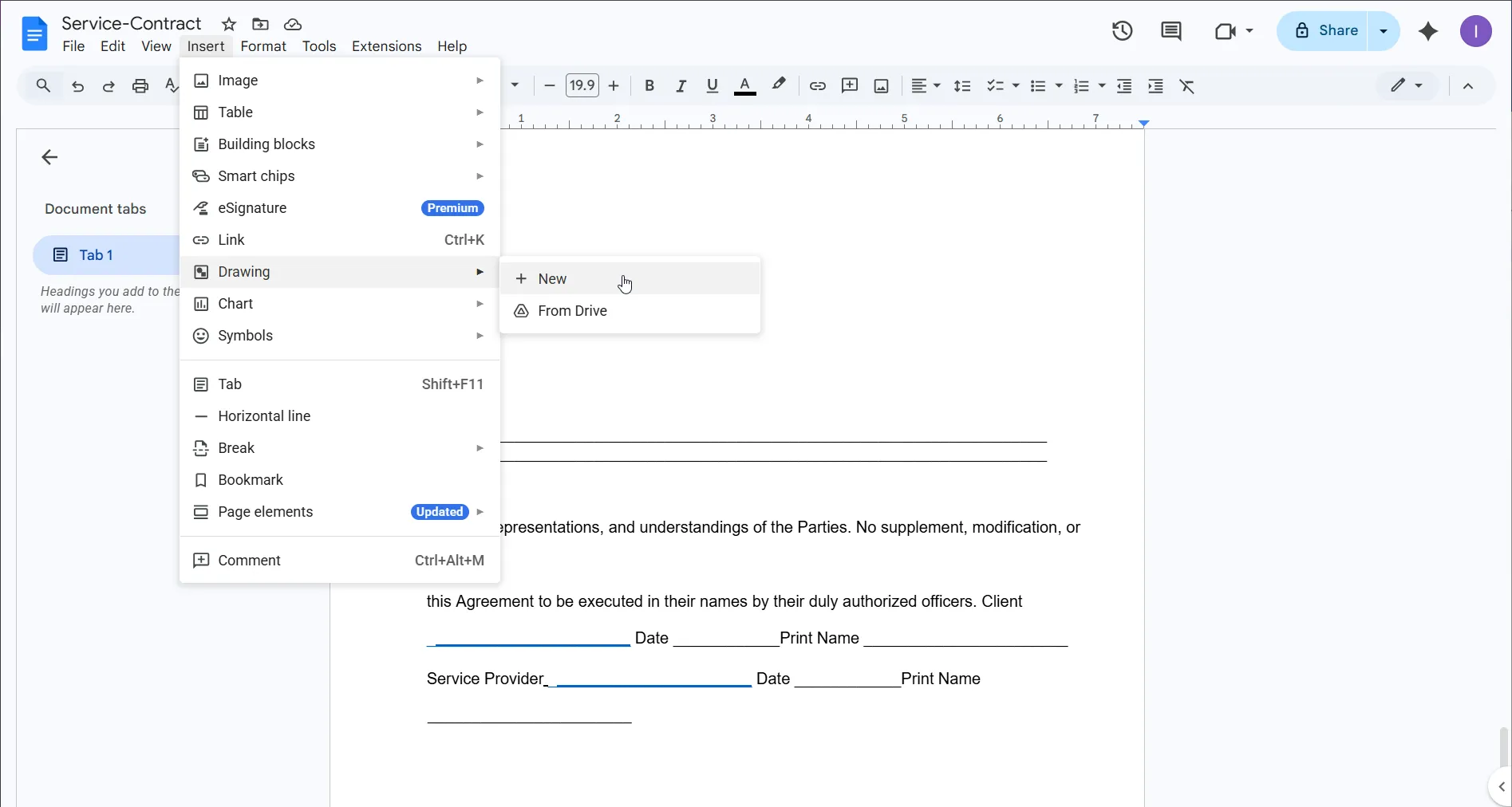
3. Open the drawing tool
- Go to Insert > Drawing > New.
- In the toolbar, open the Line dropdown.
- Select Scribble.
4. Add your signature
- Use your mouse, trackpad, or stylus to draw your signature.
- Use Undo to retry.
- You can also add a text box or upload an image file (PNG or JPG) of your signature.
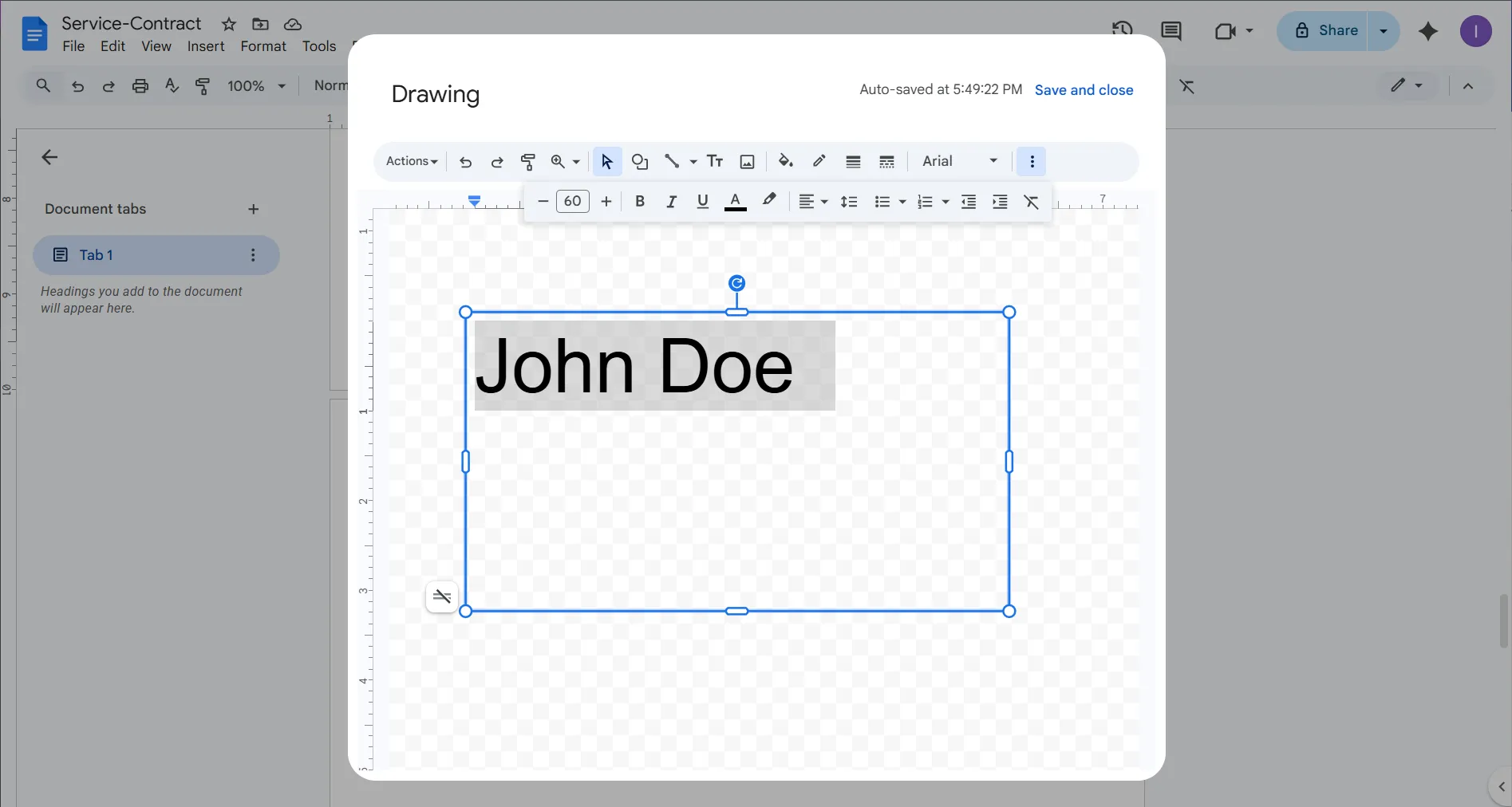
5. Save and close
- Click Save and close.
- The signature appears as an image inside your Google Doc.
- You can resize or reposition it as needed.
This inserts a simple signature that looks like a handwritten signature, but it is only visual and not suitable for sensitive documents or legally binding documents.
Limitations of adding basic signatures to Google Docs
Drawing or typing signatures inside Google Docs is convenient but has important limitations:
- No built‑in signer identity verification
- No automated audit trail with timestamps and IP addresses
- No controlled, step‑by‑step signing process
- No native compliance features for ESIGN, UETA, or eIDAS
- No support for multiple signatures on complex agreements
For contracts, approvals, HR forms, or agreements with customers, it is safer to use the native Workspace eSignature tool or Xodo Sign.
Option B - Use Google’s native eSignature (Google Workspace only)
Google Workspace now includes a built‑in eSignature feature in Docs and Drive for eligible accounts.
Who can use it?
Available to:
- Google Workspace Individual
- Business Standard / Business Plus
- Enterprise Essentials / Enterprise Plus
- Google Workspace Labs users
Limitations to mention:
- Still developing, fewer features than dedicated e-signature tools
- Limited signer roles
- Limited workflow controls
- No enterprise‑grade audit trail compared to Xodo Sign
- Cannot customize fields extensively
How to use it:
- Open your document in Google Docs
- Go to Insert > eSignature
- Add a signature field
- Assign the field to yourself or request someone else’s signature
- Send the signature request (if applicable)
- Track status in Google Drive
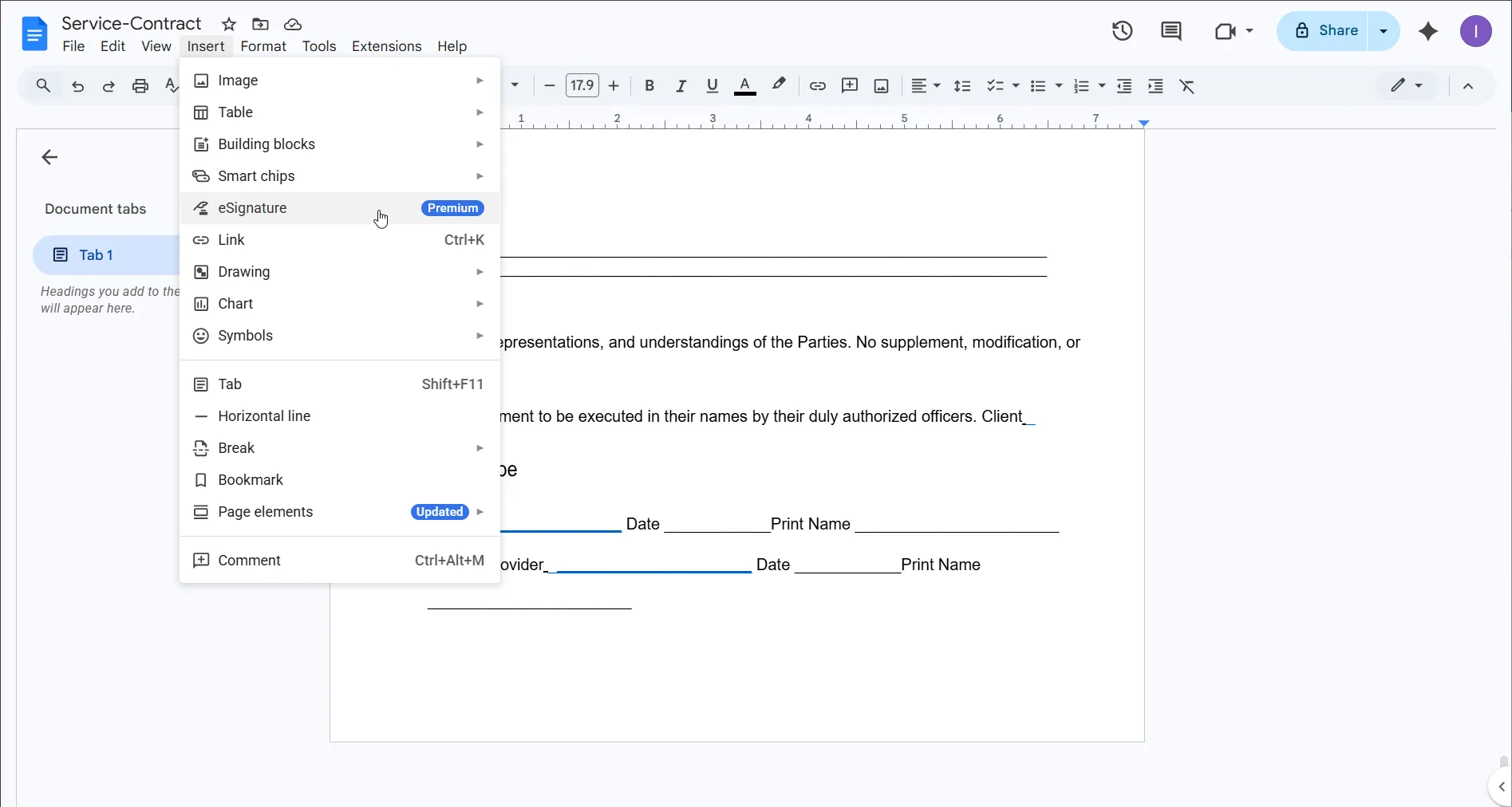
This is a convenient option for basic electronic signatures, but not suitable for formal legal workflows where compliance and verification are required.
How to sign Google Docs with Xodo Sign (for legally binding eSignatures)
Follow these steps to add legally binding signatures to Google Docs with Xodo Sign:
1. Sign up for a free trial
- Start a free trial and access all Pro features for 7 days. No credit card required.
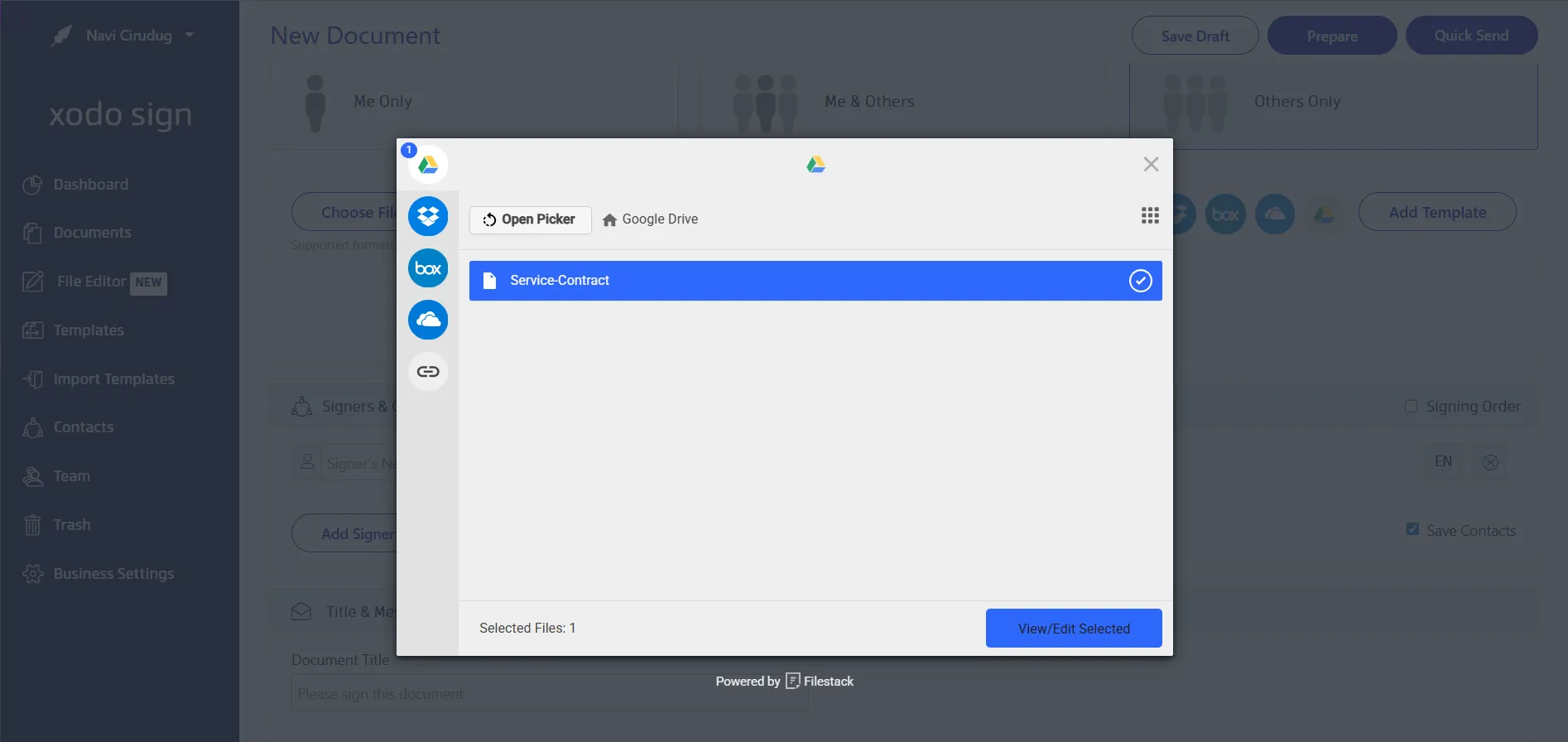
2. Upload your Google Doc
- Click New Document
- Select Google Drive to import your file
- You can also upload PDF files, images, PPTX, or Excel files
3. Add signers and prepare your document
Choose signing mode:
- Just You
- You and Others
- Others Only
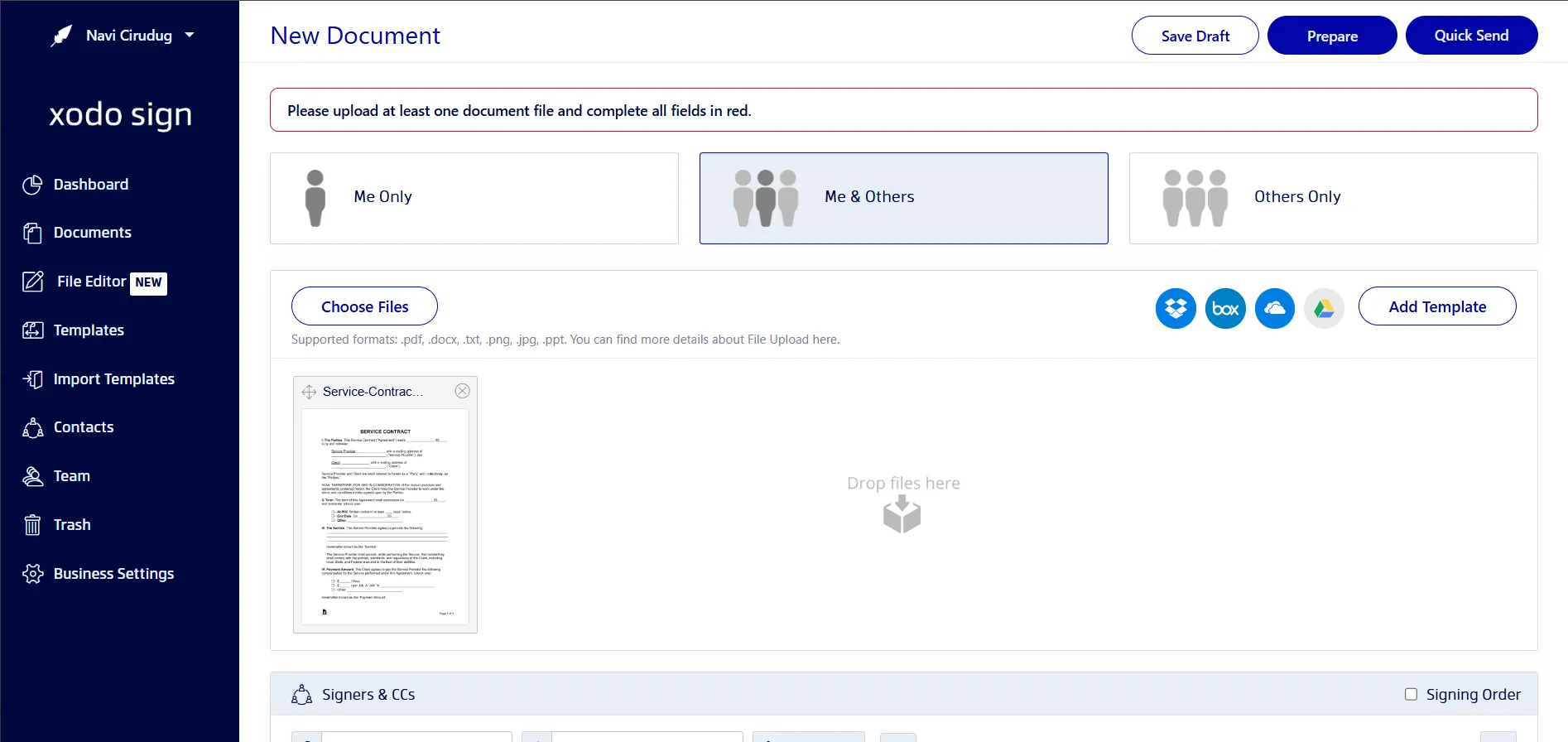
Then:
- Add signer names and emails
- Assign signer or CC roles
- Set signing order
- Add optional verification (SMS or PIN)
- Add a message
- Schedule reminders
- Set expiration
- Require all fields (optional)
Click Prepare.
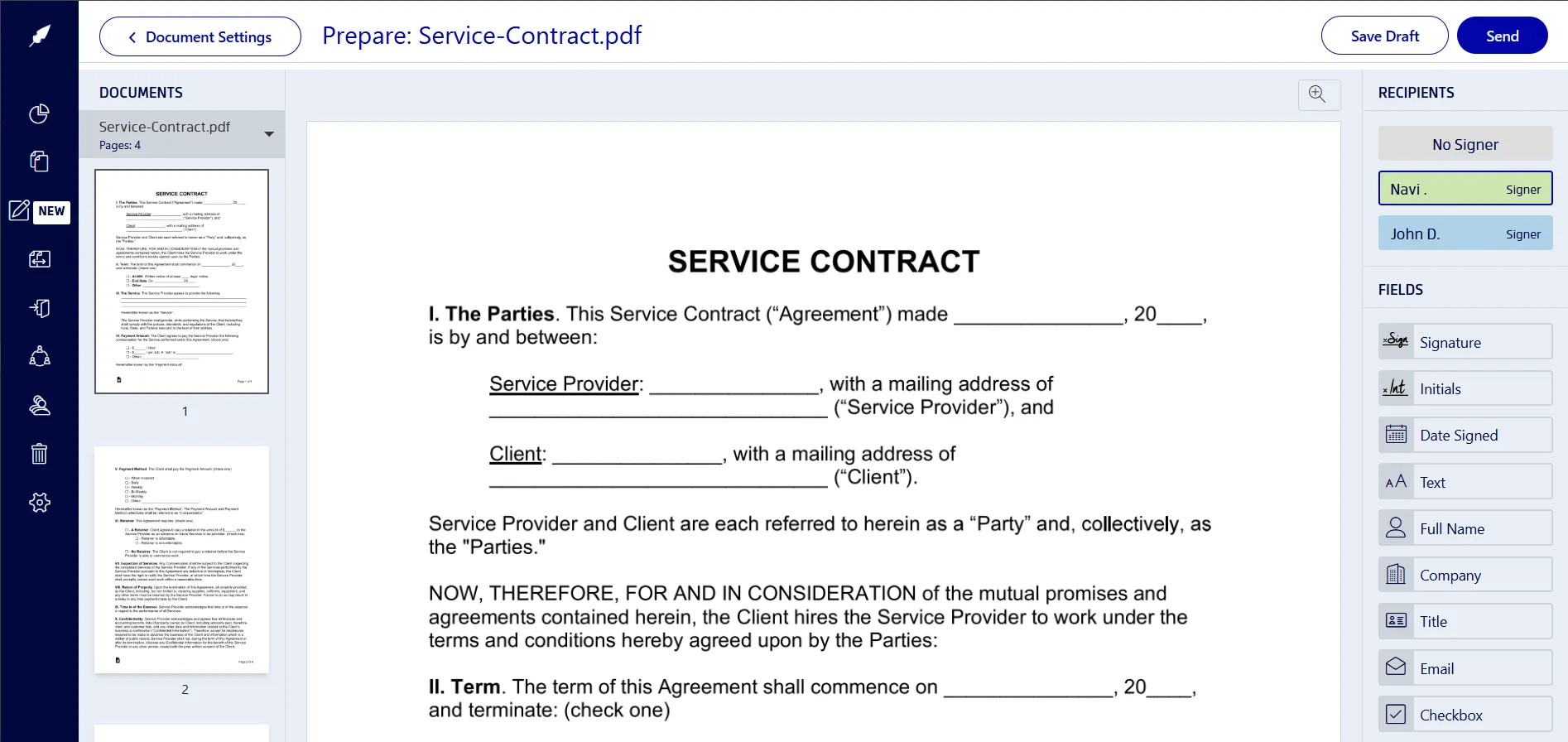
4. Add fields
- Drag and drop signature, date, initials, checkboxes, or text fields
- Assign each field to the correct signer
- Add your own signature by drawing, typing, or uploading an image
- Click Send
5. Track progress and download
In Dashboard > Documents, you can:
- See who has signed
- Check pending signatures
- Send reminders
- Download the final signed PDF with a complete audit trail.
What is the best way to sign a Google Doc?
Use Google Docs only when you:
- Need to sign something simple for internal or low‑risk use
- Don’t need identity verification
- Only need an informal, Google Docs signature
Use Xodo Sign when you:
- Sign contracts, agreements, HR forms, or sensitive legal documents
- Need e-signatures compliant with ESIGN, UETA, and eIDAS
- Need tracking, signer verification, or audit trails
Google Docs offers convenience, while Xodo Sign provides a secure and compliant digital signatures workflow.
Frequently asked questions
1. Can you sign Google Docs without printing?
Yes. You can draw or insert an image of your signature inside Google Docs. For legally binding signatures, upload the document to Xodo Sign and send it through a verified workflow.
2. Is a signature in Google Docs legally binding?
A drawn or image-based signature is not legally binding because it has no audit trail or identity verification. Xodo Sign provides compliant signatures aligned with ESIGN, UETA, and eIDAS.
3. How do I insert a signature in Google Docs?
Go to Insert → Drawing → New, choose Scribble, draw your signature, or upload a signature image. Click Save and Close to place it in the document.
4. How do I sign a Google Doc with Xodo Sign?
Upload the file from Google Drive, add signers, drag in signature fields, send for signing, and download the signed PDF with a complete audit trail.
5. Do recipients need a Xodo Sign account to sign my Google Doc?
No. They can open the email link, sign the document in their browser, and complete the workflow without signing up.
6. Is there a free way to sign Google Docs with Xodo Sign?
Yes. Xodo Sign’s free plan allows you to sign up to 5 documents per month (1 document/week) and is suitable for occasional signing needs.
7. Can I create a fillable signature in Google Docs?
Yes, but only through the premium Workspace eSignature feature. If you're using basic Google Docs tools, you can add drawing spaces or placeholder lines.
8. Can I type my signature in Google Docs?
Yes, you can type your name into a text box and add it into the Google Docs document. Alternatively, Xodo Sign includes a native a typed signature generator.
Choosing the right way to sign your Google Doc
For quick internal approvals, you can use Google Docs’ built‑in tools.
For important contracts, agreements, and documents requiring compliance, use Xodo Sign to create secure, verifiable, signatures with complete audit trails.