
Table of contents
Sign and send unlimited e-signatures with Xodo Sign.
If you're a student, teacher, admin staff or anyone dealing with agreements, contracts, forms, or approvals, you frequently need to turn PDFs into signable documents. We've all been there - staring at a static PDF and wondering how to add a signature or get one from someone else.
This guide shows you how to make a PDF signable using Xodo Sign. We'll cover how to add your own signature, insert form fields, request signatures from others, and send files from your desktop or mobile.
What does it mean to make a PDF signable?
Making a PDF signable means making the file suitable for one or more people to add their signatures. This involves adding signature fields, some optional text fields, dates, checkboxes, and then sending the PDF off for signing. Tools like Xodo Sign can help you do this online, no extra software needed.
Below is the full step by step process.
Steps to create a signable PDF file with Xodo Sign
To create a signable PDF online for free, just upload your document to Xodo Sign, decide who needs to sign, add signature and form fields, and save the draft. You can then sign the document yourself or send it off to others through a secure signing link.
Here's how to do it in just a few clicks:
1. Log in or create an account
- Log in if you're already an user.
- Or, start a free trial to access all features. No credit card required.
2. Upload your PDF document
- In your dashboard, just click on New Document.
- Then, use Choose Files, drag and drop, or load the file from cloud storage.
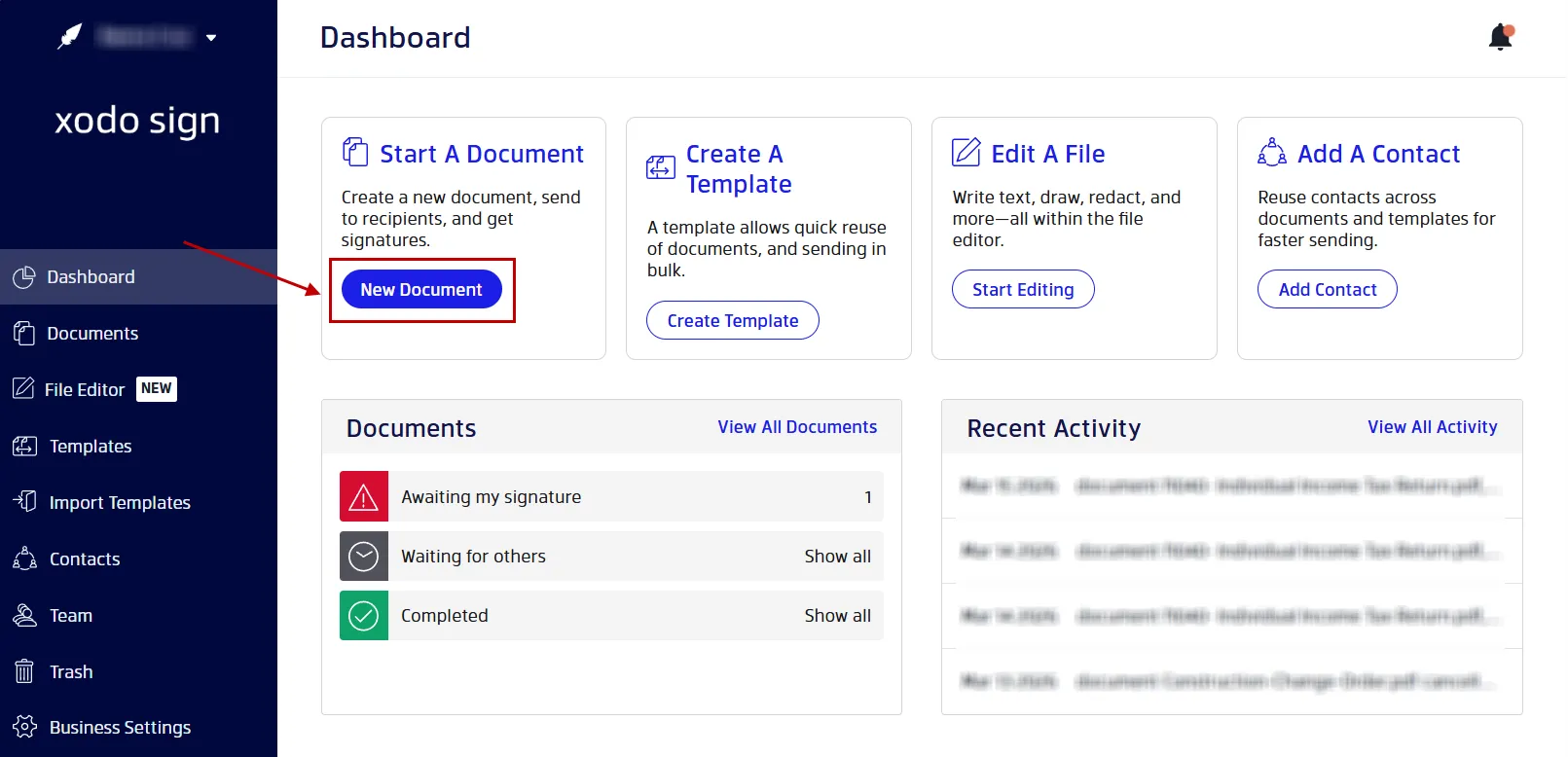
You can also upload MS Word, Excel, PowerPoint, JPG, and PNG files and convert them into fillable PDF forms.
Optional: Edit the PDF before sending it off for signature
With the Xodo Sign Professional plan, you can actually edit the PDF before adding fields and signatures.
Here's how:
- In the Dashboard, click on Start Editing.
- Xodo Sign opens your file in the PDF editor.
- Use the tools to add or edit text, correct typos, insert comments and annotate, redact sensitive information, crop and organize pages, without needing to switch to something like Adobe Acrobat.
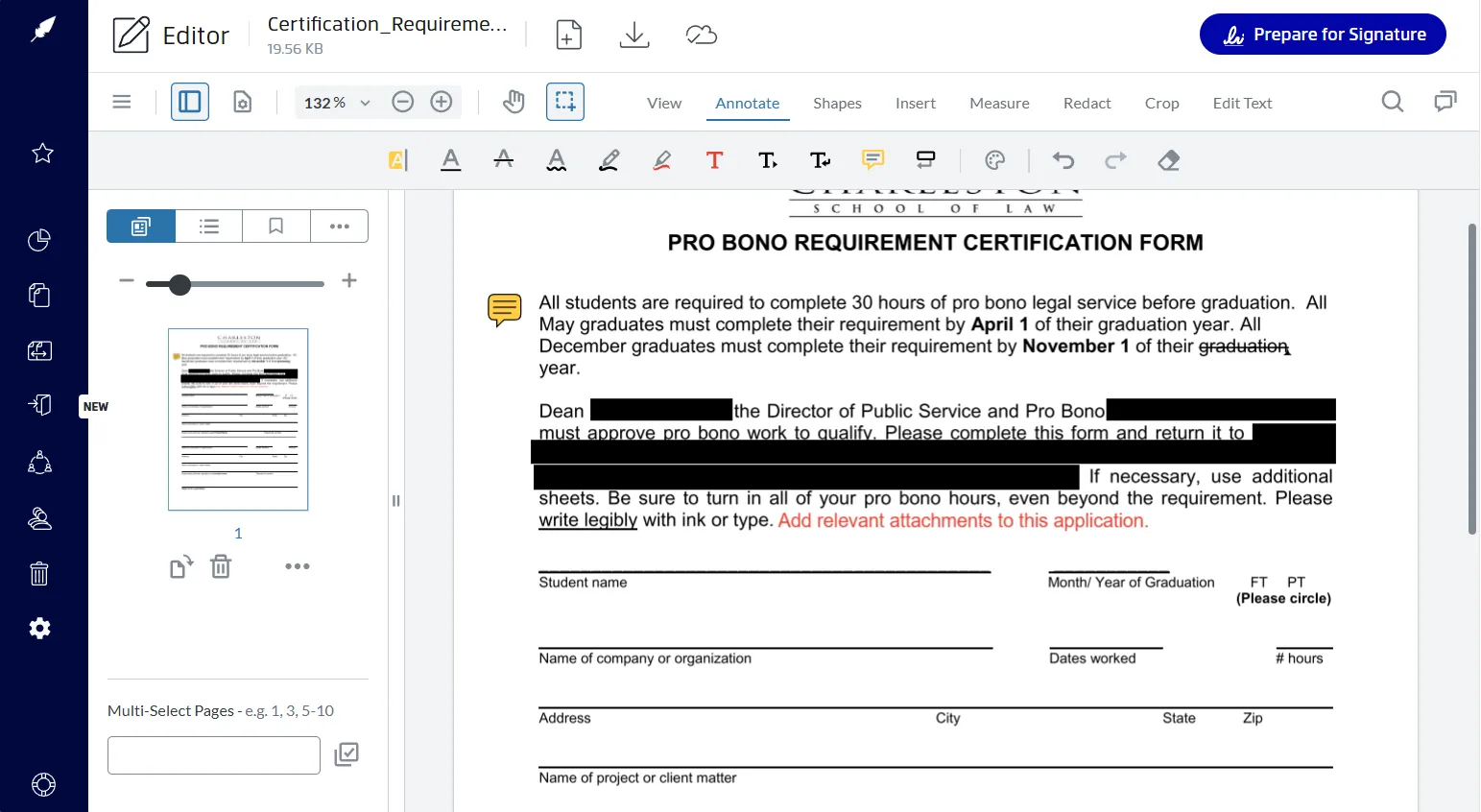
The built-in editor lets you do all your pre-signing adjustments in one place, without having to switch back and forth between tools.
3. Get your document ready for signing
- Decide who needs to sign (Just You, You and Others, Others Only)
- Set the signing order, and enable signer authentication.
- Give the document a title and add a message.
- Adjust any of the optional settings - like reminders, signing requirements, expiration date.
- Click Prepare to move into the field placement view.

4. Add signature fields
- Identify each signer on the right hand side.
- Drag and drop your fillable fields for signatures, initials, dates, checkboxes, and text.
- Assign each field to the correct signer.
- Click on your signature field to add your own signature.

5. Save the document
- When fields are placed, just click Save Draft.
- You can then download the PDF or send it off to others to collect signatures.
Tip: Check out our guide on how to sign a PDF on Windows.
How to request signatures from others
To get signatures from others, just open your prepared PDF, click Send, confirm the recipient emails, and send the file. Each signer will get a secure link and can complete the document online.
Here are the exact steps:
- Open the prepared PDF with all the fields already in place.
- Click Send in the top right corner.
- Xodo Sign emails each signer a secure link.
- Track progress from your dashboard.
- Once it's all done, just download the signed PDF and the audit trail.

Why use Xodo Sign instead of a basic PDF reader?
Most basic PDF readers just let you draw a signature, but these signatures aren't actually legally binding and can't handle multiple signers or workflows.
With Xodo Sign, you get:
- Legally binding digital signatures compliant with US, EU, and global standards.
- Audit trails with signer timestamps and IP information.
- Reusable templates if you use similar forms all the time.
- Secure cloud‑based storage and encrypted document handling
- A full PDF editor for editing text, annotations, redaction, and page manipulation.
Xodo Sign is a practical option for anyone dealing with documents that need secure e-signatures and document editing workflows.
How to make a signable PDF using Xodo Mobile (iOS and Android)
You can also prepare PDFs for signing and request signatures using the Xodo mobile app.
Here's how to do it on iOS or Android:
- Download the Xodo app on iOS or Android.
- Install and open the app.
- Open your PDF.
- Select Prepare Form from the top menu.
- Tap on the signature field option.
- Place the signature field on the page.
- Sign the document or save it for later.
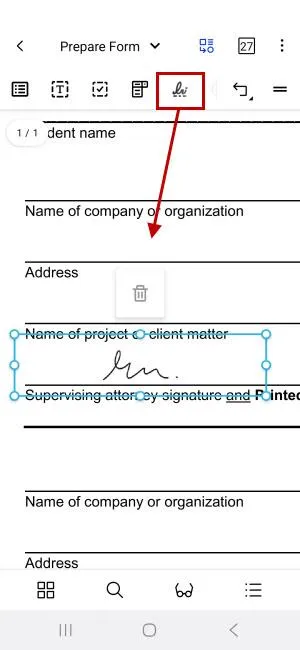
If you need to get multiple people to sign a document on iOS or Android, use the Xodo Sign tab in the app to request signatures from other people.
Frequently asked questions
1. Can I turn any PDF into a signable document for free?
Yes, you can upload any PDF and use Xodo Sign to add signature fields. You can either create a free account or sign up for a free trial to get access to the e-signing tools.
2. Are electronic signatures legally binding?
Yes. Signatures created in Xodo Sign are legally binding in the U.S., Canada, the EU, and many other regions. Each signed document includes an audit trail.
3. Do signers need an account?
No. They can just click on the link you send them and sign the document without needing to create an account.
4. Can I edit the PDF before making it signable?
Yes. With Xodo Sign Professional, you can edit text, annotate, comment, redact, and reorganize pages. You can make all of these changes without needing to use Adobe Acrobat or any other additional software.
5. Can I collect multiple signatures on one PDF?
Yes. Just add in multiple signer roles and then assign a field to each one during the preparation stage.
6. Can I reuse the same form often?
Yes. Xodo Sign allows you to convert the form you've prepared into a template that you can use again and again.
7. Can I track whether someone has opened or signed the document?
Yes. From the Dashboard, go to Documents to view status, see pending signatures, send reminders, or download the completed PDF.
8. Why is my PDF not signable?
It may be locked, in which case you can try removing the password or uploading an unlocked version. If it’s a scanned PDF, so try converting it using OCR before adding in fields.
9. How to create signable PDF from Word?
Just upload your Word file to Xodo Sign and it will convert it into a PDF for you. You can then add in signature fields, save or send the document to get signed.
10. How to make a PDF signable for a client?
Upload the document to Xodo Sign, choose the "others only" option, add in signature fields for your client, assign the field to them, and then send them the file. They will then get a secure link to complete the signing process.
Make your next document ready for signatures
Want to prepare a PDF for signing without having to use loads of different tools?
Xodo Sign lets you upload your file, add signature fields and collect legally binding signatures in a simple online workflow. You can use it for personal and business documents, onboarding forms and even client agreements.
Give it a try with your next document to see just how easy it is to set up a document that's ready for others to sign right away.