Table of contents
Sign and send unlimited e-signatures with Xodo Sign.
If you need a signature image for a document, form, or application, the good news is that you don’t have to sign a piece of paper and scan it.
No printer. No scanner. No software installation.
With the online signature generator, you can type your name or draw your signature, customize it, preview the result, and download it as a PNG or JPG image. It’s free to use as many times as you need.
The main decision is simply how you want your signature to look. Typing is usually the quickest route. Drawing gives you more control over the strokes and shape of the result.
Should you type or draw your signature?
Both methods produce a reusable signature image. Your choice will come down to what you want that image to look like. The table below can help you quickly decide.
For a quick choice, think about what matters most: speed or a closer match to your handwritten signature.
- Type your signature when you want a quick, polished result. Enter your name, compare the available styles, and choose the one you prefer.
- Draw your signature when you want it to resemble your handwritten signature. Use a mouse, trackpad, stylus, or touchscreen, and retry if the first attempt does not look right.
Steps to type or draw your signature online
Use the signature generator to create your signature without printing, scanning, installing an application, or opening an account. Here's how:
1. Go to the free online signature generator
- Navigate to the Online Signature Generator.
- Choose either Draw or Type to create your signature.
If you aren't sure which one you want, start with Type for speed. You can switch approaches if the result isn't what you had in mind.
2. Type or draw your signature
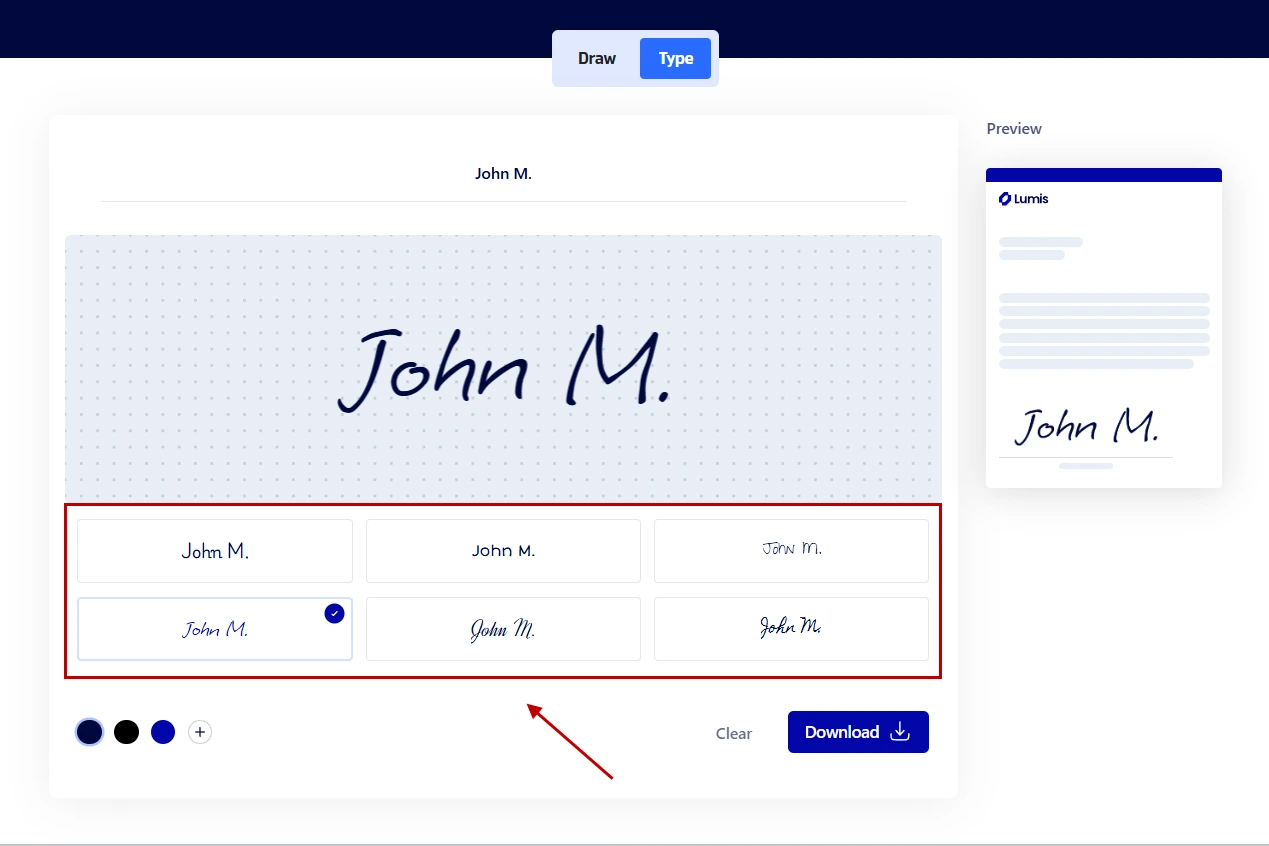
For a typed signature:
- Select your font.
- Type your name above the signature area.
- Select your signature color and your signature style.
- Click on the Clear below to start over.
For a drawn signature:
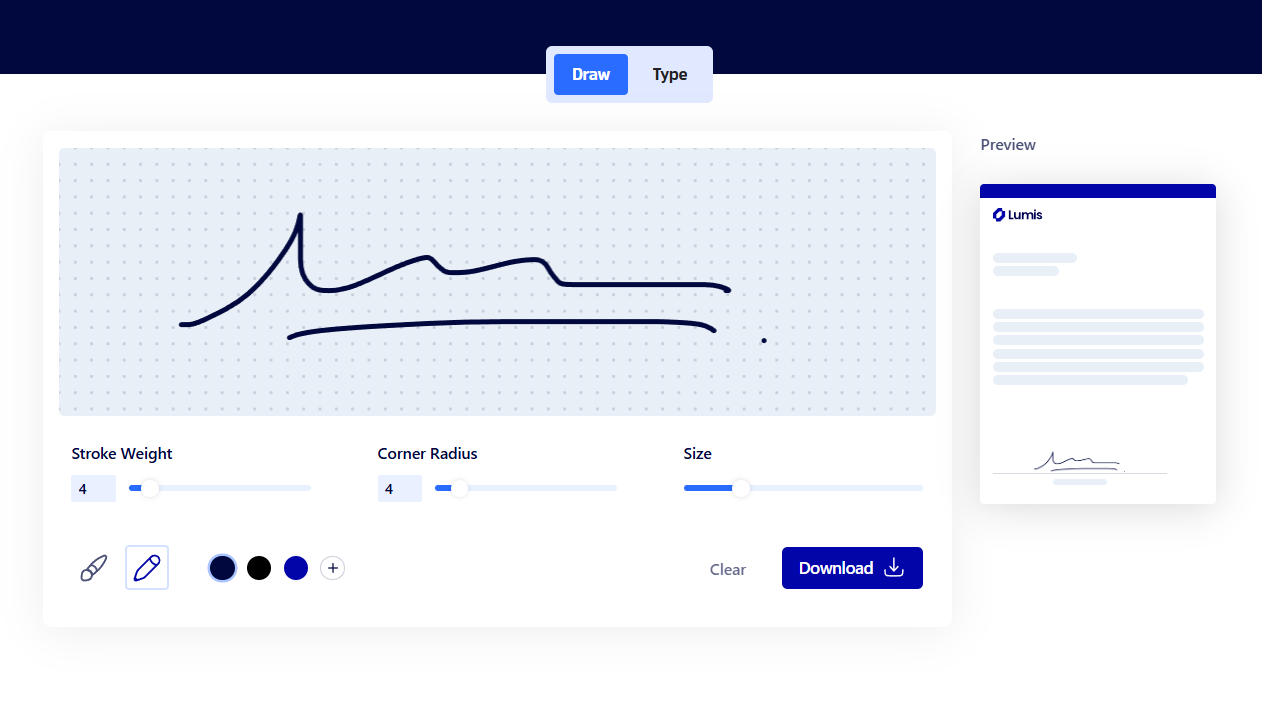
- Draw your signature in the signature creation area.
- Use your finger or stylus on a touchscreen, or use your mouse or trackpad on a computer.
- Customize the Stroke Weight, Corner Radius, and Size.
- Select either the Brush or Pen tool to change the look of your line stroke.
- Select your signature color.
- Click on the Clear below to start over.

3. Preview the result
- Check the preview on the right-hand side to see what your signature will look like on a document.
- For a drawn signature, retrying it now is easier than replacing the image in multiple documents later.
- For a typed version, review the available styles and choose the result you prefer.
4. Download your signature
- When you're satisfied with the preview, click on Download.
- Select to save the signature as either PNG or JPG.
- Once downloaded, rename the file.
You now have a signature image you can reuse without repeating the creation process each time.
Use your signature to sign documents
Your downloaded signature is now ready to reuse.
You can use it to sign documents online with Xodo Sign. Simply upload your document, add your own electronic signature, and complete it online without printing or scanning.
Need someone else to sign? You can also send documents for e-signature, track their progress, and keep a timestamped audit trail of the signing activity.
Where can you use the signature image?
Your downloaded signature can be inserted anywhere the application or document accepts an image of a signature. Typical signing destinations include:
- PDF and Word documents
- Reports, agreements and contracts
- Word processing apps
- Online forms
- Image editing apps
- Email messages
- Slide decks
That flexibility is one reason creating a reusable image can be more convenient than printing a document, signing it, and scanning it again each time.
Once you've saved your signature image, the next step is adding it to your document. Check out our guides on e-signing:
Common signature-image mistakes to avoid
Creating an image of your signature takes only a few steps. Creating one you'll actually want to reuse, though, deserves a little more attention. Here are some tips:
- Don't draw your signature too quickly
A mouse can make your normal signature look unfamiliar. Slow down, try again, or use a touchscreen or stylus if one is available. - Choose to draw your signature when you expect a copy of your handwriting
A typed signature uses a generated visual style. If resemblance to your usual handwritten signature style is a priority, the Draw option is the more appropriate starting point. - Preview your signature before downloading it
Once you complete your signature, look for clipped strokes, awkward marks, or proportions that won't work well once the image is placed in a document. Fixing those details early saves repetitive tries. - Don't treat the image like a tracked signing record
A PNG or JPG doesn't independently record who used the image, when they used it, or what happened to a document. For those details, move to an e-signature platform that provides timestamped audit trails. - Don't share your signature image unnecessarily
Your signature image is a reusable copy of your signature, so treat it as sensitive. If someone gains access to the file, they could copy or reuse the image without your permission. Keep it in a secure location and avoid circulating the standalone file.
Frequently asked questions
1. Can I create my signature on a phone or tablet?
Yes. You can easily create a signature on your phone or tablet. Use the same desktop steps outlined above.
2. Do I have to use my full name in a signature?
No. There isn't one visual format you must use for a signature. People may use a full name, initials, or other forms, depending on the context. If you're deciding how you want your signature to look rather than how to generate it, create and test multiple signatures.
3. Should I keep more than one version of my signature image?
Yes. You can keep more than one version of your signature. The free signature generator supports both JPG and PNG output formats. However, keep file names clear so you don't accidentally insert and use an old or unwanted version.
4. Can I resize a signature image after downloading it?
Yes. You can resize a signature image to fit the signature field in your document. Keep the original proportions when resizing so the signature doesn’t look stretched or compressed. For documents you sign regularly, keeping the original file unchanged gives you a clean copy to reuse.
5. Is typing my name always enough to sign a document?
No. Every document and jurisdiction has different requirements. A typed signature can form part of an electronic-signature process, but requirements depend on the transaction and applicable rules.
6. Should I use the same signature image every time?
If you've created a signature image you're happy with, using the same version can keep your signature visually consistent across documents. However, check signing requirements before using it to determine whether the signature is appropriate for a particular transaction.
Create a signature that works for how you sign
There’s no single right way for a signature to look.
A typed signature is useful when you want something clean and consistent, while drawing gives you more control over the shape and character of your signature.
Once you know which approach works for you, creating your signature with the online signature generator is quick, simple, and free.