Table of contents
Sign and send unlimited e-signatures with Xodo Sign.
Managing and signing hard copy paper documents is a hassle. It costs time, money, and resources, especially when deadlines are tight or teams are remote.
Fortunately, using electronic signatures gives you a convenient way to sign documents and keep the entire workflow in one place.
This guide walks you through how to sign a document without printing using Xodo Sign, a secure and simple e‑signature tool that works in your browser.
Sign documents using Xodo Sign
Follow the steps below to sign a document without printing using Xodo Sign:
1. Create a free account
- Start a free trial to try Xodo Sign's features hassle-free. No credit card is required.
The trial lasts 7 days, after which your account automatically moves to the free plan unless you choose to upgrade.
2. Upload your document to Xodo Sign
You can open your PDF document in different ways:
- Select New Document > Choose Files to upload a PDF from your computer.
- Drag and drop your file into the designated area.
- Import from Dropbox, Google Drive, Box, or OneDrive.
Xodo Sign supports PDFs, Word documents, PowerPoint files, and common image formats.

3. Set up your signers
- Choose how the document will be signed: Me Only, Me and Others, or Others Only.
- Enter the names and emails of your signers.
- Assign them as a Signer or CC.
- Set a signing order, add PIN or SMS verification, or write a custom message.
- Adjust your document settings for sending reminders, expiration dates, and completion requirements.
- Click on Prepare.

4. Insert signing and form fields
- Add both signature and fillable fields for each signer.
- Click and drag signature, initials, date, and text fields onto the page.
- Click on your own signature field to draw, type, or upload an image of your signature.
- Click on Sign once your signature is added.
- When all the fields are placed, click on Send.

5. Track your document's signing activity
Monitor the signing status of your document in your dashboard.
- Go to Dashboard > Documents and locate your file.
- View your document's signing status.
- Send reminders to signers if needed.
- Download the completed file to a desired location.
Each completed document includes a detailed audit trail. You can view all timestamps, activity, and verification data.
Why use Xodo Sign to sign documents
From legally valid e-signatures and document security to streamlined signing workflows and accurate audit trails, Xodo Sign is the ideal choice to e-sign. According to reviews on G2, here's why:
- Easy to use – The interface is simple and offers a straightforward signing workflow.
- Useful features – Xodo Sign provides the tools you need without unnecessary complexity.
- Good value for money – The platform offers strong functionality at a competitive price.
- Helpful customer support – Customer support is responsive and reliable when needed.
- Secure digital signing – Xodo Sign supports compliant digital signatures and lets people sign and manage documents from any device.
With Xodo Sign, you get a user-friendly platform to handle e-signatures you can try for free.
Sign documents on iOS and Android
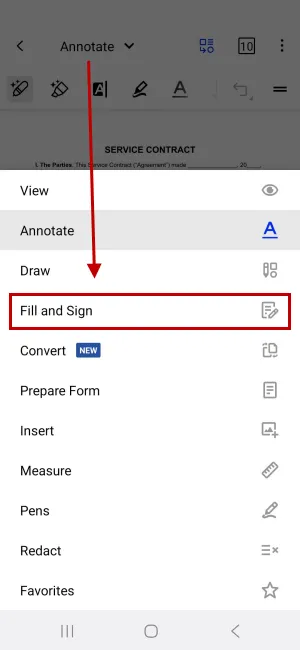
You can easily sign a PDF on iOS or Android using the Xodo Mobile app, without printing. Here’s how:
- Install the Xodo app on your iOS or Android device.
- Open the app and select your PDF from the file list.
- Or, tap on the "+" icon to browse for and upload your document.
- From the drop down menu and select Fill and Sign.
- Tap on the Signature Tool to create your signature.
- Draw, type, or upload a signature image.
- Tap on DONE and then tap on the page to place the signature.
- Tap the back arrow to save your signed file.
Sign PDFs online using free browser tools
You can also add signatures to PDFs using simple, built‑in tools in modern browsers like Microsoft Edge, Google Chrome, or Mozilla Firefox. Follow these steps to sign your documents without printing:
- Open the PDF file in your preferred browser.
- Select the pen, signing, or drawing tool.
- Add your handwritten signature.
- Save the PDF file.

These basic drawing and signing tools are helpful for signing a PDF that doesn’t have legal requirements. For detailed steps, see our full guide on signing PDFs in your browser.
Other ways to sign documents without printing
If you’re looking for more ways to sign documents, we’ve created step‑by‑step guides with quick and easy methods:
- How to sign PDFs without Adobe
- How to sign a document without PandaDoc
- How to sign a document without Docusign
These guides walk you through simple ways to sign PDF documents using Xodo Sign tools, without needing any of those platforms.
Tips for managing digitally signed documents
If you're new to digitally signing your documents, here are a few tips to help you work more smoothly:
- Double check the recipient’s email address.
- Use password protection or secure sharing.
- Validate digital signatures by reviewing its signature details.
- Use an encrypted folder or trusted cloud services.
- Keep consistent naming conventions for effective version tracking.
- Use identity verification options to prevent unauthorized access.
Together, these habits make managing your signed documents simpler and more secure.
Frequently asked questions
Is an electronic signature legally valid?
Electronic signatures are legally recognized in many regions, including the US and EU. Documents signed with Xodo Sign follow ESIGN and eIDAS requirements.
Is there a way to sign a document without printing it?
Yes. You can upload your document to Xodo Sign, place a signature field, add your electronic signature, and save the signed version, no printer or scanner required. You can also request signatures from others in seconds.
Do I need special software to sign documents?
No. Xodo Sign runs entirely in your browser. You don’t need to download any software, just create a free account and start signing documents.
How do I electronically sign a document?
You can use the steps below to electronically sign a document with Xodo Sign:
- Upload your file to Xodo Sign.
- Select Me Only or Me and Others as your signing option.
- Set your document options.
- Click on Prepare.
- Place and assign yourself a signature field on the page.
- Click on it to draw, type, or upload a signature image.
- Click on Sign.
- Save or send the signed document.
Is Xodo Sign secure?
Yes. Xodo Sign is secure because it uses industry‑standard encrypted connections and provides a detailed audit trail for every completed document, including timestamps and signer activity.
What file types does Xodo Sign support?
Xodo Sign supports file types such as PDF, Word (.docx), PowerPoint (.pptx), as well as PNG and JPG image formats.
Is Xodo Sign free?
Xodo Sign includes a free plan that supports up to 5 documents each month. Paid plans offer more advanced features like AI summarization, PDF editing, and higher limits.
Can multiple people sign the same document?
Yes. With Xodo Sign, you can easily add several signers, assign their roles, and set the signing order.
Go paperless today with Xodo Sign
Every time you print and scan a document, you lose valuable time. Digital signing eliminates those steps and keeps your workflow moving.
With Xodo Sign, you get a secure, legally valid online document signing solution that’s simple enough for anyone to use.
Don’t let paperwork slow you down. Sign your first document with Xodo Sign today.