
Table of contents
Sign and send unlimited e-signatures with Xodo Sign.
Many teams use PandaDoc for proposals and contracts, but not every workflow needs a full document automation platform.
If your main goal is to upload a file, add a legally valid signature, and send it back, there is a faster and more affordable alternative to PandaDoc.
You can sign a PDF and other documents in your browser, on your phone, or with an eSignature app like Xodo Sign.
This guide walks through each method so you can pick the one that fits your needs.
Sign documents using Xodo Sign
The fastest way to sign a document without PandaDoc is to use Xodo Sign. Here’s how it works:
1. Sign up for a Xodo Sign account
- Start by creating a free trial account. No credit card is needed.
During the free trial, you can test all professional features. After 7 days, the account switches to the free plan unless you choose to upgrade.
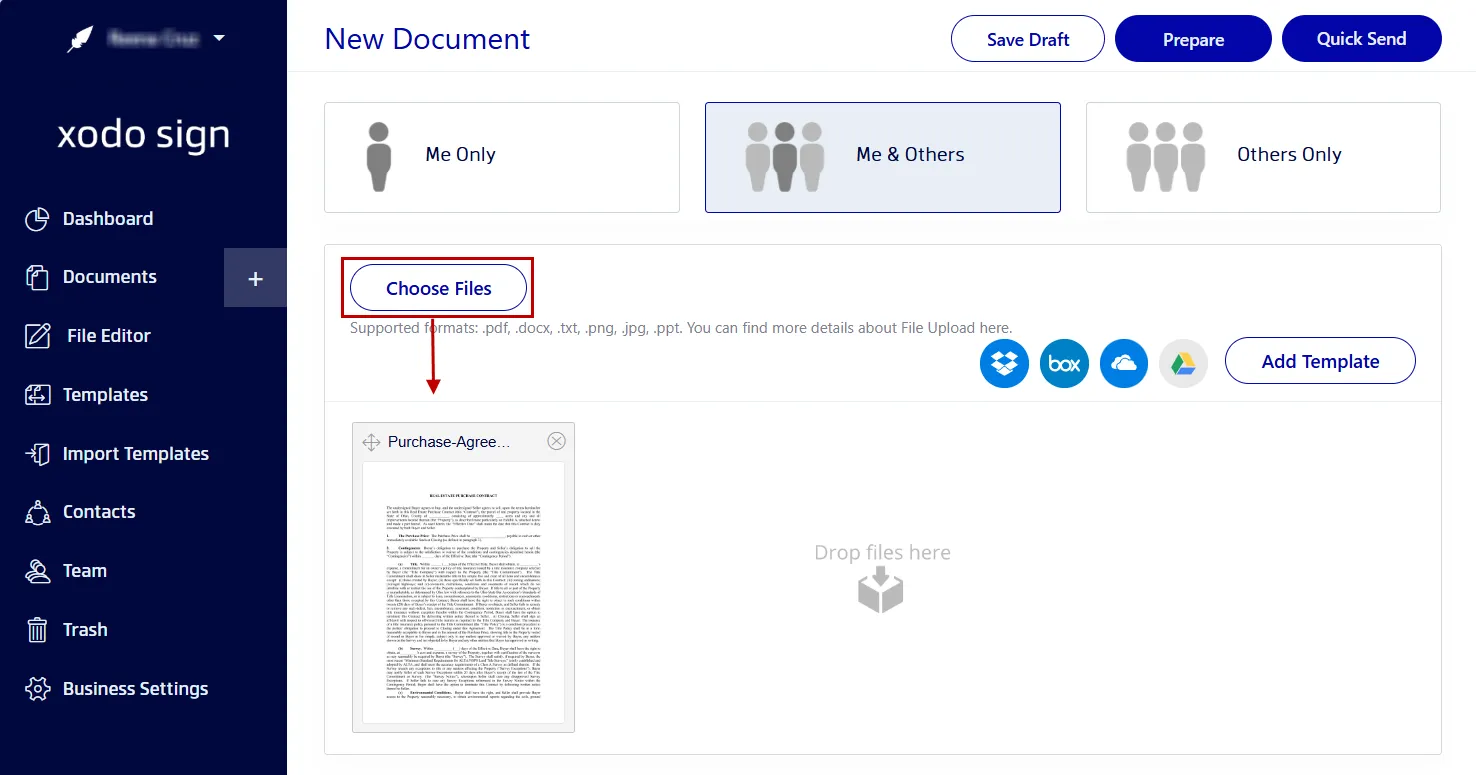
2. Upload your document
In the dashboard, go to Documents and click the + icon. You can then:
- Click on Choose Files to upload your document (PDF, Word, PPT, images).
- Drag and drop your document into the upload area.
- Import from cloud storage like Google Drive, Dropbox, or OneDrive.
3. Add signers and configure options
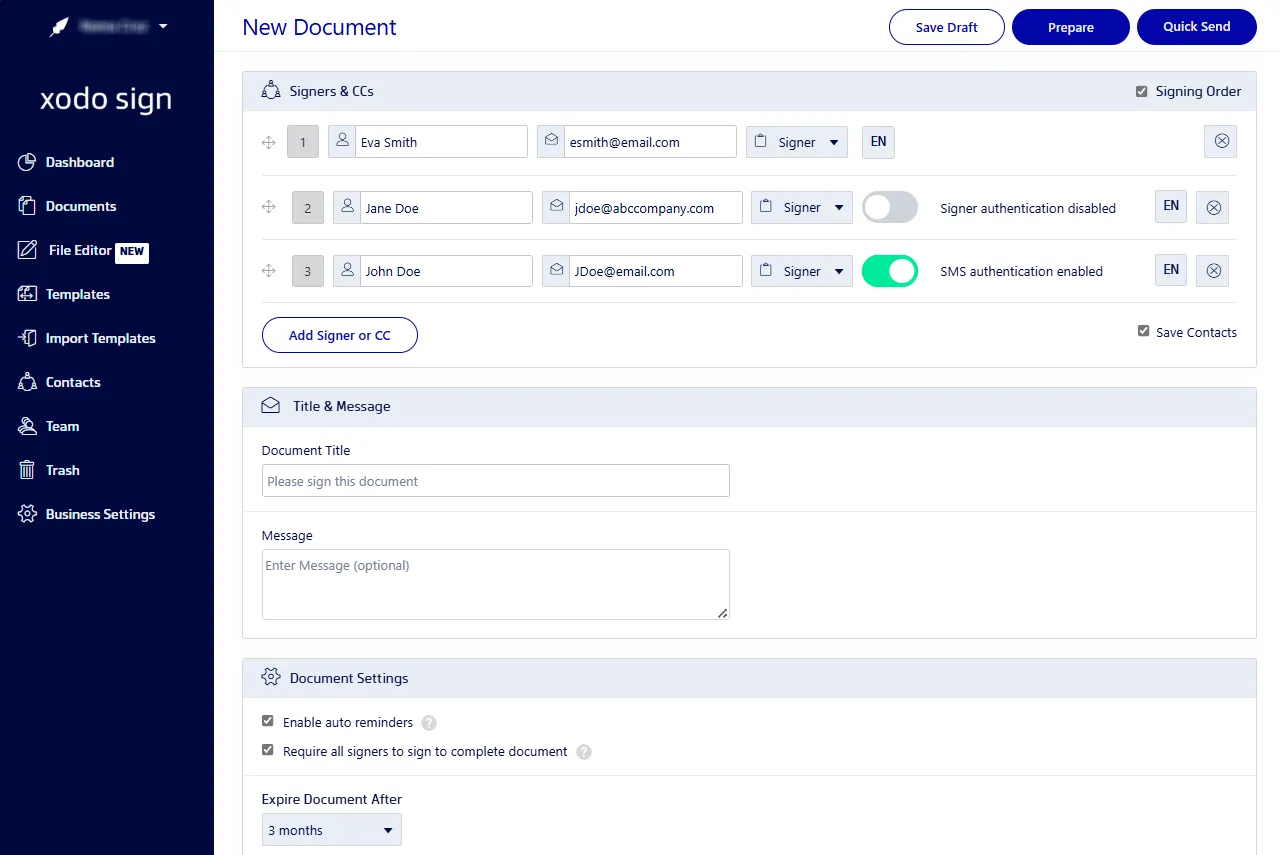
Choose who needs to sign the document:
- Pick Only Me, Me and Others, or Others Only.
- Enter names and email addresses of your signers.
- Assign roles (Signer or CC).
Set your document management options, including:
- Signing order
- SMS or PIN verification
- Add a personalized message
- Automated reminders
- Expiration dates
- Form completion requirements
Then, click on Prepare to move to the next step.
4. Insert signature fields and sign
- Drag and drop signature and form fields on the page.
- Add a signature field on the page along with any other fields.
- Click on the signature field.
- Draw a handwritten signature, type your name, or upload an image of your signature.
- When everything is set, save or send the document.
- Xodo Sign will send out the signature requests automatically.

5. Track and manage your document
- Back in your dashboard, go to the Documents tab.
- Check who has signed and send reminders to anyone pending.
- Once all electronic signatures are collected, download the PDF file.
You can view the full audit trail under Actions > Audit Trail and track all activity. You'll get details on the file that includes timestamps, IP addresses, and signer activity.
How Xodo Sign compares as a PandaDoc alternative
Xodo Sign gives individuals and teams a simple way to edit and sign documents online, without the cost or complexity of PandaDoc. Many users choose it because it offers:
- A quick signing workflow from upload to completion.
- Pricing that fits freelancers, smaller teams or simpler processes.
- A wide range of fields for collecting form data.
- A built-in PDF editor at no extra cost.
- Easy tools for adding a handwritten or typed signature.
- Support for multiple signers and custom signing order.
- Templates for recurring documents.
You can see what customers say on G2 or Capterra.
If you also want to compare with Docusign, take a look at our guide on signing documents without Docusign.
Sign a document (PDF) using a browser
If you only need a simple approval, your browser can handle basic signatures.
Microsoft Edge, Google Chrome, and Mozilla Firefox all include basic annotation tools to draw a signature. The process is similar in each browser:
- Open your PDF directly in the browser.
- Select the pen, signature, or drawing tool.
- Draw your signature on the page.
- Save the updated file to your computer.

You can customize your signature's appearance and download the signed PDF for sharing. This is a quick option, but it doesn’t include identity checks, tracking, or audit logs. For more details, check out our full guide on how to sign PDFs in your browser.
Sign a PDF on a mobile device
You can also sign PDFs on your phone without PandaDoc using the Xodo Mobile app. Here's how:
- Download and install the Xodo Mobile app on iOS or Android.
- Open the app and upload your PDF.
- Go to Files and select your document.
- From the drop down menu, select the Fill and Sign tool .
- Tap on the Signature Tool and click on Create signature.
- Draw, type, or upload an image of your signature.
- Then tap on DONE.
- Tap on the page to place your signature. Resize it if needed.
- Tap the Back button in the top left side corner to save the file.

Frequently asked questions
What can I use instead of PandaDoc?
You can use Xodo Sign, it is a lighter and more affordable option. It supports multiple signers, full audit trails, templates, and flexible e-signing tools. It also offers advanced document editing and AI summarization, without the need to switch apps.
How do I make a PDF electronically signable?
You can make a PDF signable with Xodo Sign. Simply upload your PDF to Xodo Sign, add your signers, place signature fields on the page, and send the document for signing.
How do I electronically sign a document?
To electronically sign a document, use these steps:
- Upload your document to Xodo Sign.
- Choose who is signing: Me Only or Me and Others.
- Add signers, adjust your document options, and select Prepare.
- Add a signature field, click on it, and then draw, type, or upload an image of your signature.
- Then save or send the signed document.
Can I sign a PDF on my phone without PandaDoc?
Yes. Install Xodo Mobile, open the PDF, select Fill and Sign tool, create a signature, and place it on the page. The file saves on your phone when you exit the editor.
Can I add multiple signers with Xodo Sign?
Yes. Xodo Sign supports multiple signers, signing order, verification options, and reminders. Every completed document includes an audit trail.
Is browser signing secure?
Browser signing is suitable only for informal approvals or simple signatures. It doesn’t include identity verification, signer logs, or compliance features.
Are signatures created with Xodo Sign legally binding?
Yes. Xodo Sign supports electronic signatures that comply with ESIGN, UETA, and eIDAS.
What file types can I upload to Xodo Sign?
You can upload PDFs and common document formats, including MS Word files. Many users convert documents to PDF first to keep the formatting stable.
How do I track who has signed my document?
In Xodo Sign, open your document in the dashboard to check signer status. You can send reminders to anyone still pending and download the final file when all signatures are complete.
Can I sign recurring documents without PandaDoc?
Yes. With Xodo Sign, you can create templates for documents you send often. You can pre‑place fields once and reuse the template whenever needed.
A simpler way to sign documents
You don’t need a large workflow platform to sign documents online. Browsers, mobile apps, and secure online tools make it easy to upload, sign, and return files.
Xodo Sign lets you add legally binding e‑signatures, manage contracts, and keep your document process on track. Try Xodo Sign for free to see how simple online signing can be.