Table of contents
Sign and send unlimited e-signatures with Xodo Sign.
Dropbox Sign, formerly HelloSign, is a popular platform for adding electronic signatures to documents and collecting signatures online.
Many individuals and businesses use Dropbox Sign to prepare and send documents to collect e-signatures. However, not everyone uses Dropbox Sign.
If you aren't a Dropbox Sign user and receive a form from the platform to sign, you can still complete the document and add an electronic signature.
In this guide, we'll cover your options for signing documents without Dropbox Sign, helping you choose the easiest option for your needs.
Can you sign a document without Dropbox Sign?
Yes. You can sign a document without Dropbox Sign, and you do not need a Dropbox Sign account to complete a request someone sends you.
- If someone has already sent you a Dropbox Sign request, open and complete it through the original link.
- If you simply need to add your own signature to a PDF, any browser or a PDF editor mobile app should be enough.
- If you need to send a document to others, assign fields, track progress, or keep a record of the signing process, use a dedicated e-signature platform such as Xodo Sign.
Here is a quick way to choose:
Tip: If you're comparing platform features for your team, see our detailed Xodo Sign vs. Dropbox Sign comparison.
Complete a Dropbox Sign request using the sender's link
You can quickly complete an existing Dropbox Sign request through the link provided by the sender. Here's how:
- Open the request email.
- Review the document.
- Complete each signature, initials, checkbox, or other required field.
- Review the terms and finish signing.
Note: If you do not recognize the sender or were not expecting the document, verify the request before opening or signing it.
Sign and send a document with Xodo Sign
Xodo Sign provides a compliant, browser-based workflow for self-signing and signature requests. You can upload a file, assign signers, place fields, send the request, and check its status.
Follow these steps:
1. Sign up and create a Xodo Sign account
- Create a free account
- or start a free trial to test the Professional features. Credit card is not required.
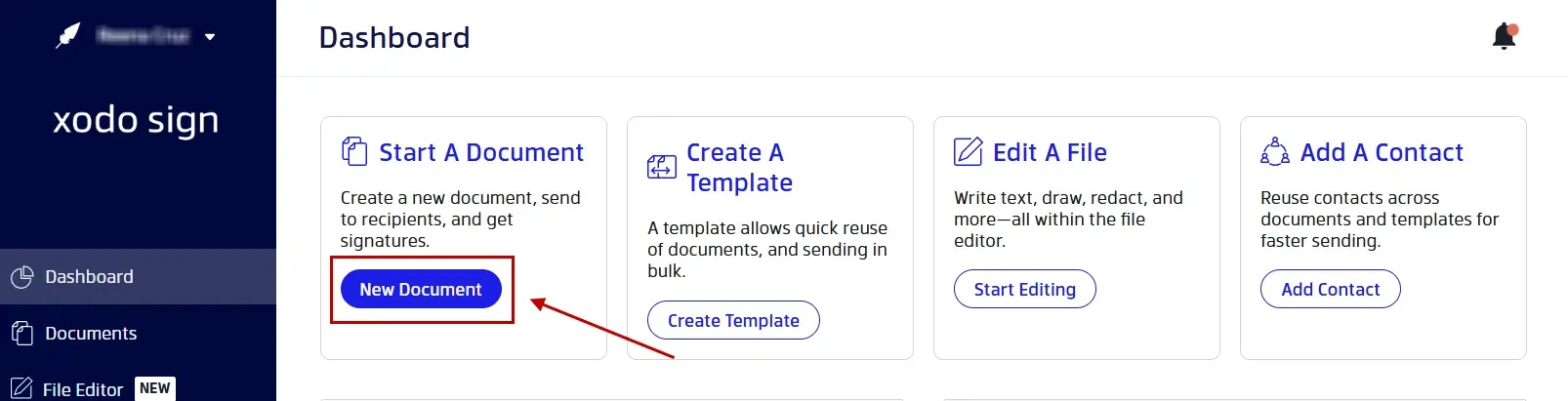
2. Start a new document and add your file
- Select New Document.
- Upload your file.
3. Set up your document
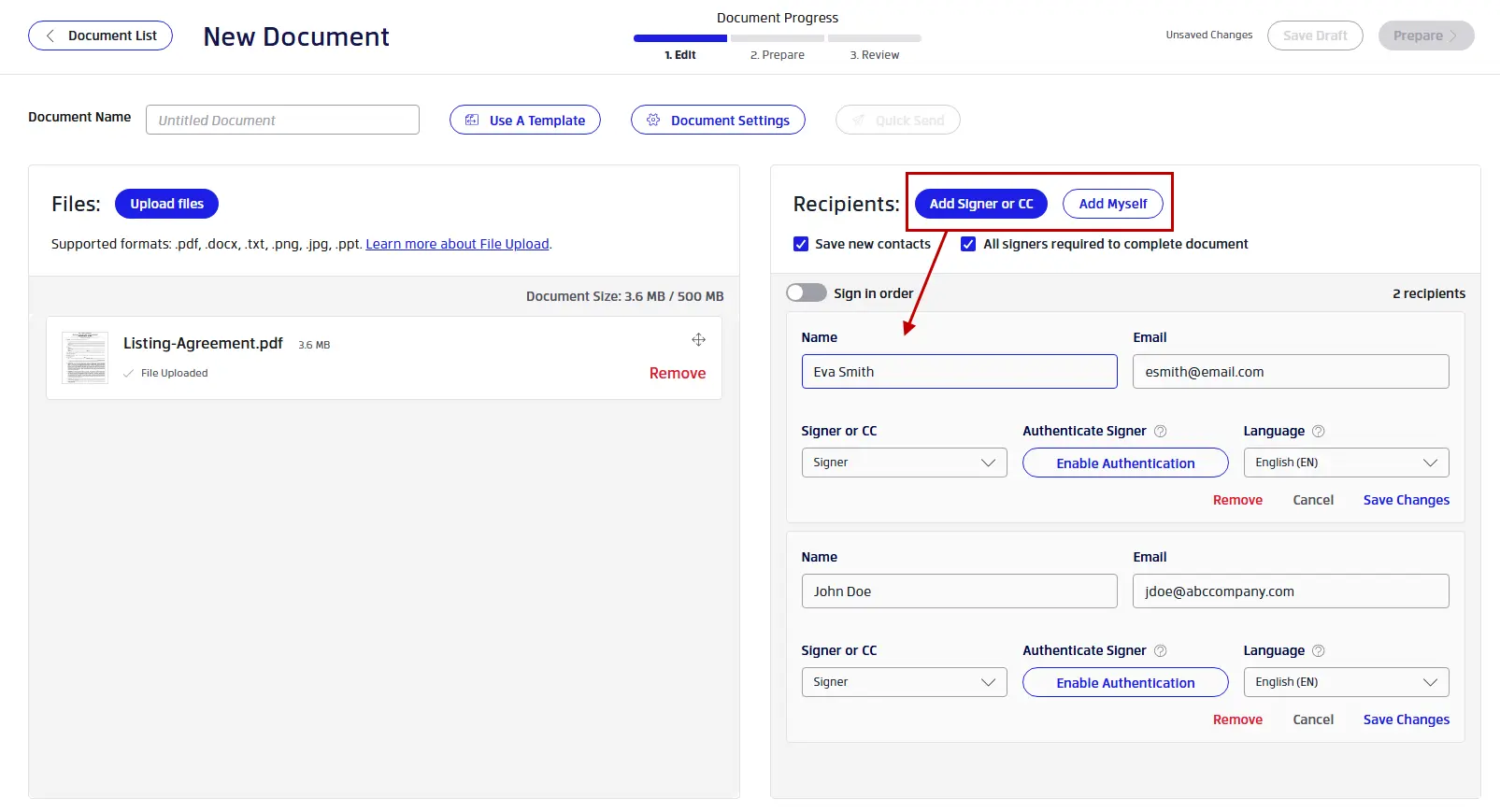
- Click on Add Signer or CC to add external signers.
- Click on Add Myself to sign the document yourself.
- Click on Save Changes to confirm signers and recipients.
- Set a signing order and authentication settings if needed.
- Click on Document Settings to set reminders and an expiration date.
- Click on Prepare.
External recipients do not need a paid seat or a Xodo Sign account to sign a document you send them.
4. Prepare the document
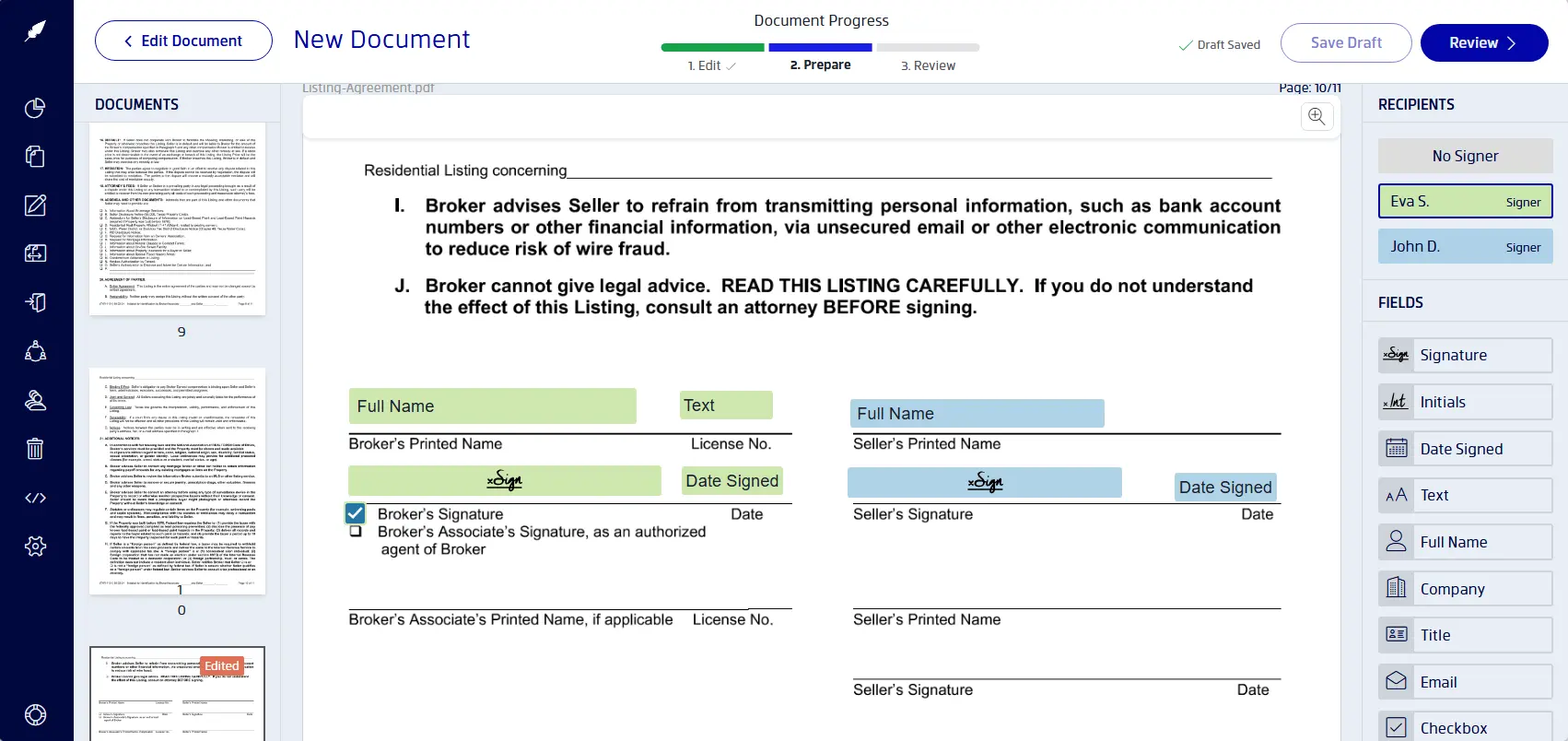
- In the Preparation view, assign fields to the correct recipient.
- Drag and drop signature, initials, date, text, checkbox, or other form fields where needed.
- Confirm that each required field belongs to the right person.
5. Sign and send your document
- Click on your signature field.
- Add your signature by typing, drawing, or uploading it.
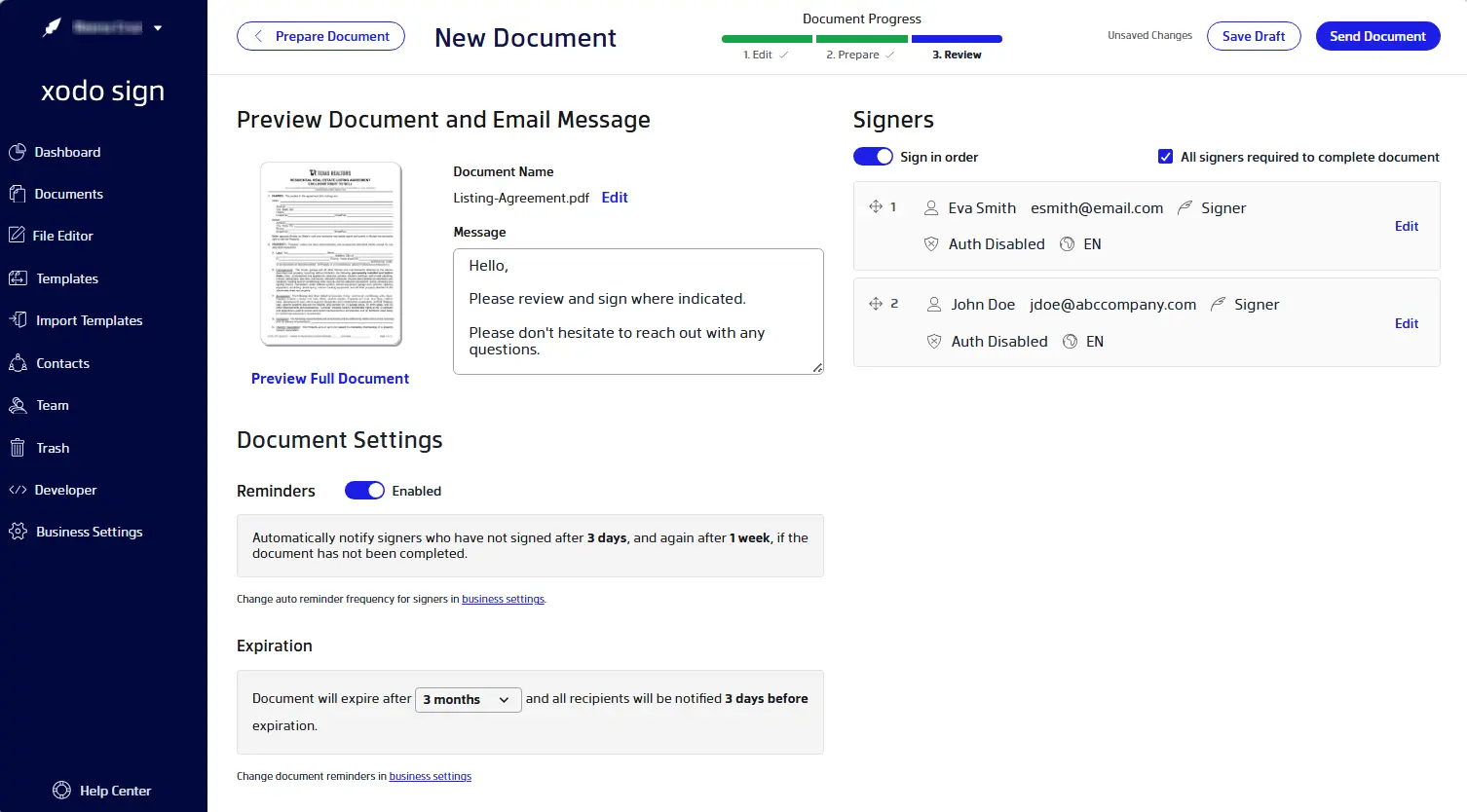
- Click on Review.
- Add a message and make any document setting adjustments.
- Once all looks good, click on Send Document.
6. Track your document
You can use the dashboard to:
- Track the status of the document.
- Check which signers are pending, who viewed the document, who signed it, or declined.
- Download the document and its audit trail once completed.
Keep Dropbox for storage and use Xodo Sign for signatures
Using a different e-signature service does not require changing where you store files.
You can keep documents in Dropbox while using Xodo Sign to prepare, sign, send, and track them. Xodo Sign supports Dropbox as an app integration, so an existing storage workflow can remain in place.
This is useful when you use Dropbox to handle storage, but don't have a Dropbox Sign plan. If your main issue is adding more people who can send documents, see the Dropbox Sign Essentials vs. Standard guide.
For self-signing, a simple PDF tool can be enough
A full e-signature workflow may be more than you need. For a simple document that only requires your signature, a browser or mobile app can be enough to sign it.
Add your signature to the PDF using a browser
Signing PDFs in a browser fits tasks that don't need request tracking, signing order, recipient activity, or a platform-generated audit record. Most browsers will allow you to manually draw or add a quick signature to the PDF.
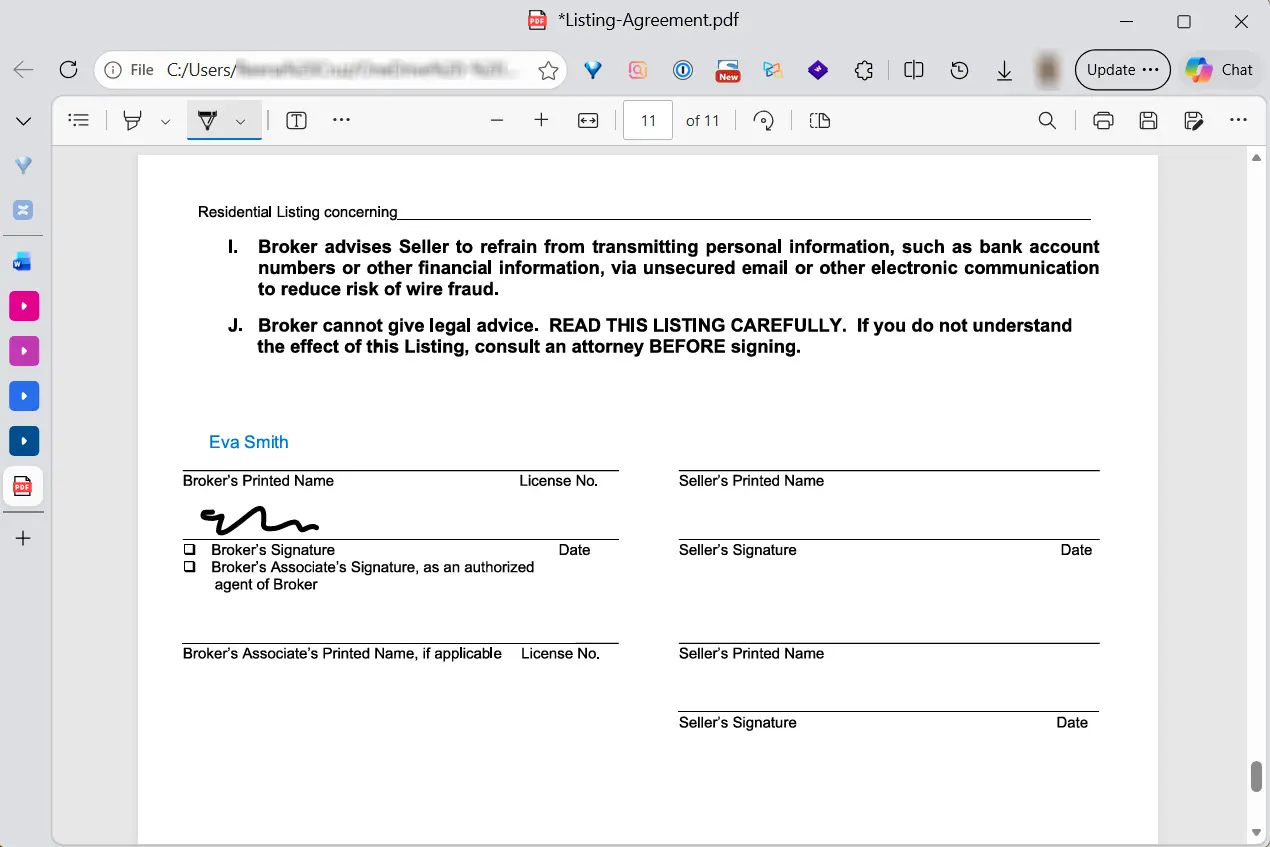
Note that a signature annotation may provide less evidence about the process, so match the method to the parties' requirements and local laws.
Sign the PDF from your phone or tablet
You can use the Xodo app to sign a PDF on your phone or tablet. It's available to download for free from the Google Play Store or App Store. The PDF editor app allows you to add a quick signature to documents by typing, drawing, or uploading an image of a signature.
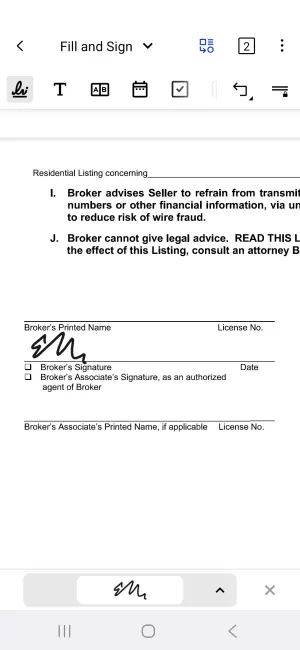
Note: A signature annotation may provide less information about the signing process than a managed e-signature request. Match the method to the document, the other parties’ requirements, and applicable local laws.
When the document needs more than a signature
You should use a dedicated e-signature platform when the process around the signature matters.
Common reasons include:
- Collecting signatures from more than one person
- Using a template for repeat documents
- Assigning form and signature fields for specific recipients
- Setting a signing order
- Sending reminders or expiration notices
- Tracking the status of each request
- Keeping a timestamped audit trail with the completed file
These features become more useful in certain scenarios for different needs:
- An HR team that uses templates and assigned fields for recurring onboarding documents.
- Businesses and organizations sending contracts or approval forms that need reminders, status tracking, and a record of when each person signed.
- A freelancer sending client agreements and needs to create a managed and official contract signature requests for the client.
In each case, Xodo Sign can send the agreement, assign the appropriate fields, show its status, send reminders, and record signing events in a detailed audit trail.
Frequently asked questions
1. Is Dropbox Sign required to sign a file I received from a Dropbox Sign user?
No. You can open, review, and sign a request without creating an Dropbox Sign account. An account may be needed to view previously signed documents inside Dropbox Sign.
2. What is the simplest way to sign a Dropbox PDF myself?
You can sign a PDF with Xodo Sign, Xodo Mobile, or a suitable browser PDF tool. Use a dedicated e-signature platform if you need more capabilities such as sending your document to multiple recipients, status tracking, request controls, authentication options, or an audit trail.
3. Can I use Xodo Sign without moving my files out of Dropbox?
Yes, you can keep source and completed files in Dropbox while using Xodo Sign or another service to prepare, sign, send, and track signature requests.
4. Can Xodo Sign import files from Dropbox?
Yes. Xodo Sign can import documents from cloud storage services like Dropbox, OneDrive, and Gdrive. You can upload your source file from Dropbox when creating a new document in Xodo Sign, complete the signing workflow, and save the finished file according to your records process.
5. What happens to a Dropbox file after I send it through Xodo Sign?
The source file can remain in Dropbox. Xodo Sign manages the signature request as a separate workflow. After all required signers finish, download the completed document and audit trail, then store them according to your records process.
6. Do people need a Xodo Sign account to sign a document I send them?
No. People who receive a Xodo Sign signature request do not need an account to sign it. They open the request sent to their email address and complete the fields assigned to them.
7. If I don't use Dropbox Sign, are my electronic signatures still valid?
Yes, electronic signature validity doesn't depend on one named vendor. The U.S. ESIGN Act and EU eIDAS policies and regulations recognize electronic signatures, but always check regulated documents with qualified legal counsel where needed.
Choose the right way to sign
If you already received a Dropbox Sign request, complete it through the sender’s original link. You can usually sign without creating an account.
If you only need to add your own signature to a simple PDF, a browser or mobile tool may be enough.
For a process that includes recipients, fields, signing order, status tracking, reminders, authentication options, and an audit trail, use a dedicated e-signature service.
Try Xodo Sign today. The free plan offers up to 5 documents per month. The Basic plan starts at $10 per month for unlimited signatures. And a free trial for Professional doesn't require a credit card.