
Table of contents
Sign and send unlimited e-signatures with Xodo Sign.
Drafting a request for others can sometimes be awkward, especially when it comes to important documents that need action.
If you don't know where to start, the best way to ask someone to sign a document online is to make the request specific and easy to act on.
Name the document, briefly explain why you need the signature, include a deadline when there is one, and tell the recipient exactly how to sign. Keep the message short and give them a way to ask questions.
Then make the signing process just as clear as the message.
With Xodo Sign, you can prepare a document, assign fields to recipients, send a signature request, and track its progress online. Recipients can open the request and sign in their browser.
Let's go over the process from the beginning.
What should you include in a signature request?
A good electronic signature request answers the recipient's potential questions before they even have to ask them.
Include these five pieces of information:
- What they are signing. Use the document's actual name or a description they will recognize.
- Why you need their signature. One sentence is usually enough.
- What they need to do. Ask them to review and sign rather than simply saying, "Please see attached."
- When you need it. Give a specific date when timing matters.
- How to get help. Give the recipient an easy way to contact you if something is unclear.
For example:
Hi [Name],
I'm sending the [document name] for your review and signature so we can [brief purpose]. Please review and sign it by [date]. If you have any questions before signing, just let me know.
Thanks,
[Your name]
The useful part is specificity. The recipient knows what arrived, why it arrived, what action you expect, and when you need it. Adding such a message directly to your Xodo Sign signature request ensures that recipients will get the context and signing link together.
In short, requests should identify the document and purpose, provide clear signing instructions, and state an applicable due date.
How do you politely ask someone to sign a document?
If you want to be polite when asking for a signature, you can be direct without sounding demanding.
State what you need, give enough context to make the request understandable, and close by offering to answer questions.
Simple phrases work well:
- "Please review and sign [document name] when you have a chance."
- "Could you please review and sign [document name] by [date]?"
- "I'm sending [document name] for your signature so we can [next step]."
- "When you're ready, please use the link to review and sign the attached agreement"
- "If you have any questions before signing, please let me know."
Avoid burying the action inside a long explanation.
The recipient typically does not need the full history behind the document. They need enough context to understand why it was sent and what you are asking them to do.
Should you include a deadline?
Yes, include a deadline when there is a real timing requirement. Make it specific. "By Monday, November 30th" is more useful than "ASAP." If the exact time matters, add the time and time zone.
You can also explain the reason briefly:
Could you please review and sign by Monday, November 30th, so we can complete the onboarding paperwork on schedule?
This gives the date context without creating unnecessary pressure. If there is no meaningful deadline, don't invent one just to make the request sound like an urgent top priority.
Three signature request email examples
You don't need a long email template for every situation. Start with one of these drafts and adjust the details to suit the recipient and document.
1. Standard business signature request
Subject: Signature request: [Document name]
Hi [Name],
I'm sending [document name] as discussed for your review and signature. Please use the link in this request to review and sign the document at your earliest convenience.
If you have any questions before signing, please let me know.
Thank you,
[Your name]
2. Signature request with a deadline
Subject: Signature requested by [Document name]
Hi [Name],
Could you please review and sign [document name] by [date]? We need the completed document so we can [brief next step].
Please let me know if you have any questions or need anything from me before signing.
Thanks,
[Your name]
3. Polite follow-up for an unsigned document
Subject: Follow-up: [Document name]
Hi [Name],
Just following up on the signature request for [document name]. When you have a moment, please review and sign it using the link in the original request.
If you have any questions or are having trouble accessing the document, don't hesitate to let me know.
Thank you,
[Your name]
These examples deliberately keep the action near the top. Give your signature-request emails concise subject lines, short requests, identifiable documents, direct signing instructions, and specific deadlines when needed.
Once the wording is ready, you can send your document out for a signature.
How to send your signature request with Xodo Sign
An e-signature platform like Xodo Sign can help you set up an easy signing process that's fast, secure and efficient. Here's how:
- Create a free account. No credit card is required.
- Upload your document.
- Add your recipients, assign roles, and a signing order if needed.
- Click on Prepare.
- Place and assign the required form fields, such as signature, initials, date, or text fields.
- Click on Review.
- Add your drafted message and adjust your document settings.
- Click on Send.
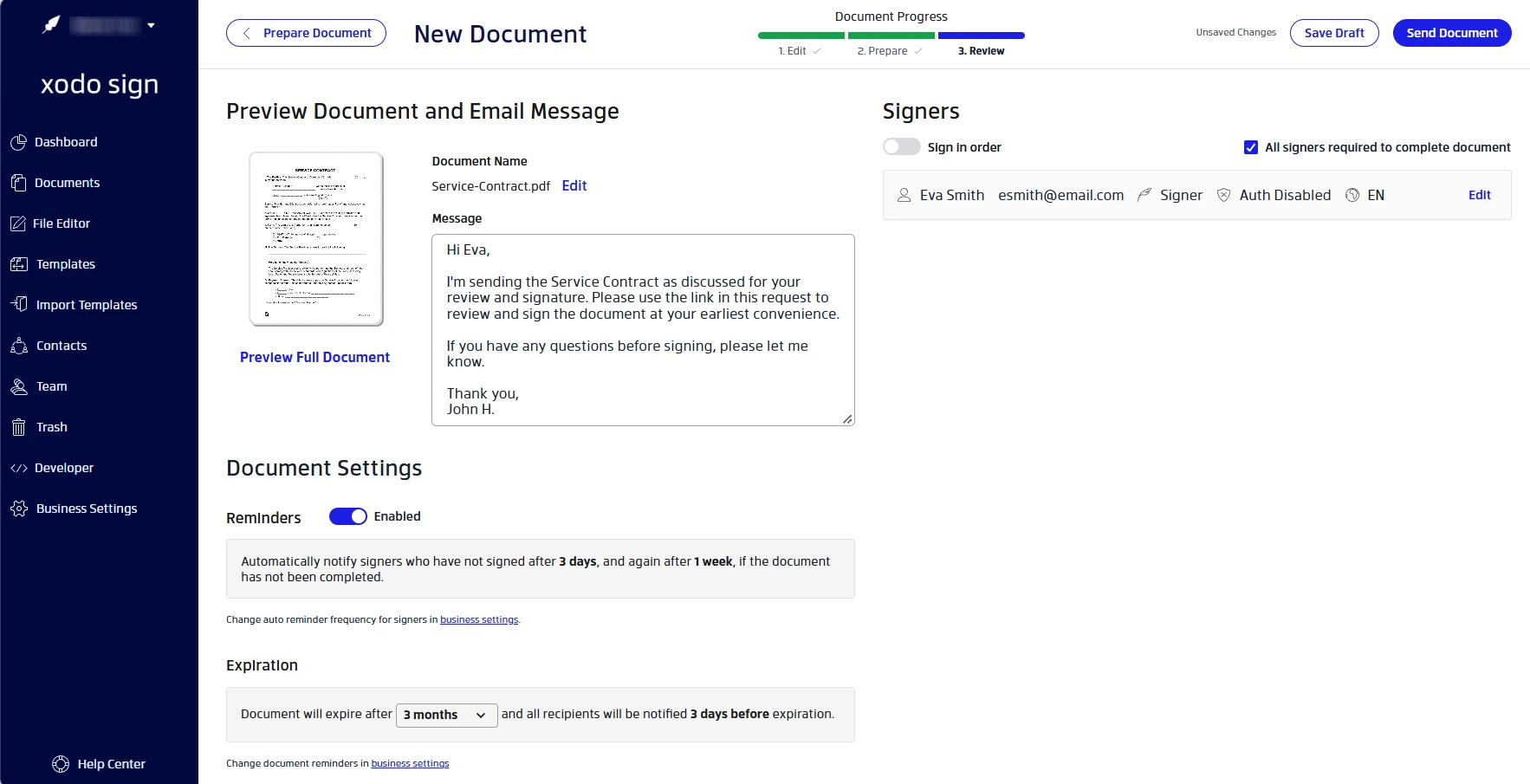
Once the document is sent, you can monitor its status from your Xodo Sign Document list. For a closer look at the full workflow, check out our guide on sending a document for an electronic signature.
If needed, you can also sign and send your document for signatures, as well. You simply need to add yourself as a signer and add your own signature.
What happens after you send your signature request
Once the request is out, the next step is managing signers and keeping the document moving toward completion. Below are a few things to keep in mind.
What if more than one person needs to sign?
When multiple people need to complete the same document, first decide if signing sequence matters. For example, imagine a document that needs:
- A contractor's signature.
- A manager's signature after the contractor signs.
- A project coordinator who only needs a copy.
You can assign signature fields to the contractor and manager, set their signing order, and use the CC role for the coordinator. The coordinator will receive a copy once you send it out. The contractor will receive and sign the document first. Then only after the contractor has signed will the manager be sent the document to sign.
If no order is set, the document will be set up for a parallel signing process where everyone receives the document at the same time.
How can you track a signature request and follow up?
After sending, you can track the document from Xodo Sign rather than relying only on your inbox.
Xodo Sign's workflow lets you check on the progress from the Documents tab and view the audit trail containing document events and timestamps. It offers auto-reminders for outstanding signatures and notifications when a document is completed.
If a request remains unsigned, you can send a manual reminder. For this, keep your follow-up message brief:
Hi [Name],
I'm following up on the signature request for [document name]. Please let me know if you have any questions, concerns, or trouble opening it.
Thank you.
Don't assume silence means the person is refusing to sign. They may have missed the original message, need clarification, or be unable to access it.
For time-sensitive documents, restate the actual deadline rather than escalating the tone.
Does the recipient need a Xodo Sign account?
No. Recipients don't need to create their own Xodo Sign account to complete a signature request. They'll receive a secure email link they can use to click on and sign the document in their browser.
Once all required signatures are complete, the completed document can be downloaded, and Xodo Sign provides an audit trail associated with the signing activity.
If you need to work on a document before requesting another person's signature, you can sign documents online.
Frequently asked questions
1. What is a good subject line for a signature request email?
A good subject line for a signature request will make the action and document easy to identify. For example, "Signature request: [Document name]" works for a routine request, while "Signature requested by [Date]" gives the recipient useful timing information. Choose subject lines that identify the requested action and document.
2. Should I send a document as an attachment or use an e-signature link?
Use an e-signature link when you need the recipient to sign and return a document. It provides a clear signing workflow without requiring the recipient to download, sign, save, and email the file back. With Xodo Sign, recipients can open the request and sign in their browser without creating an account.
3. Can I see if someone has opened my signature request?
Yes. Xodo Sign provides tracking information that allows you to see any recipient activity on the document such as when it was opened or viewed.
4. Can someone sign a document from their phone?
Yes. Xodo Sign works not only on desktop, but mobile devices, as well. Recipients aren't limited to a desktop computer to complete a signing request.
5. What happens after everyone signs the document?
Once all the required signatures have been collected, the completed document along with its audit trail is available to download.
6. How many signature requests can I send for free with Xodo Sign?
With Xodo Sign's free plan, you can send up to 5 documents per month, limited to 1 document every 7 days. No credit card is required.
Ready to request a signature?
A good signature request makes the next step clear. Name the document, explain why you need the signature, add a deadline when it matters, and give the recipient a simple way to sign.
Once your message is ready, Xodo Sign lets you prepare the document, add recipients and signature fields, send the request, and manage the document online in one single platform.
Ready to send yours? Start with a free account and send a document for signatures with Xodo Sign.