Table of contents
Sign and send unlimited e-signatures with Xodo Sign.
Signing requests often arrive when time is short. A client sends a contract, a landlord shares a lease, or a routine form needs your signature that day.
The fastest way depends on what is already in front of you.
If someone sent you a SignNow invitation, you can usually complete it through the provided link without creating an account. If you are starting your own signing process, you can use Xodo Sign to self-sign a document or send it to other people. For a personal PDF that only needs your signature, a browser or mobile app may be enough.
Start with the task. Then choose the tool.
Can you sign a document without SignNow?
Yes, you can sign a document without SignNow. You can use an alternative e-signature platform, or a basic browser or mobile PDF tool.
The best method depends on what you need to do:
- A browser or mobile app may be enough for a low-risk document that only needs your signature image.
- An e-signature platform may be ideal if the document requires more options for compliance or tracking features.
Here is the quickest way to choose:
We cover each method below.
How do you complete a SignNow signature request?
You do not need to move an existing SignNow request to another service. In standard workflows, recipients can open and sign documents sent through SignNow without creating an account.
To complete the SignNow request:
- Confirm that you recognize the sender and expected the document before opening it.
- Open the link in the invitation email.
- Review and complete the required fields.
- Add your signature to sign the document.
- Finish the request.
Note: If a field is incorrect, the link has expired, or you do not recognize the sender, stop and contact the sender before proceeding. Also, do not continue when you can't verify the document’s origin.
For requesting signatures with multiple signers, reminders, status tracking, authentication, or an audit trail, try a dedicated e-signature workflow with tools like Xodo Sign.
How do you create a signature request with Xodo Sign
Use Xodo Sign when you are starting the workflow yourself and need to sign a document, request signatures, or do both. Follow these steps:
1. Create a Xodo Sign account
- Create an account
- Or start a free trial if you want to test the Professional features.
The free trial lasts for 7 days and no credit card is required.
2. Upload your document
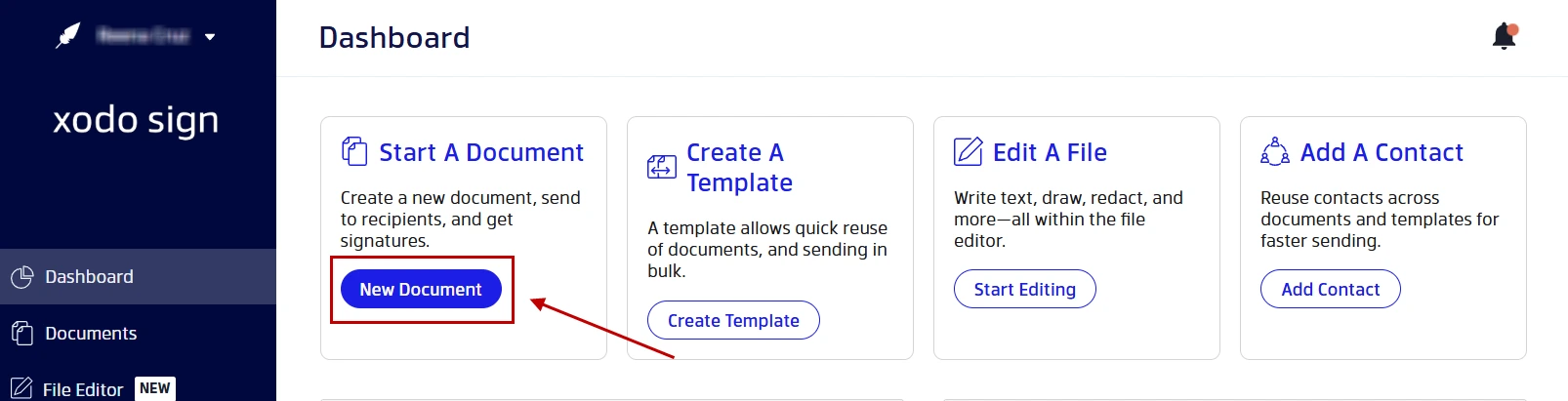
- In your dashboard, click on New Document.
- Upload your PDF file. You can also upload Word, TXT, PPT, and image formats.
3. Add everyone who needs to sign
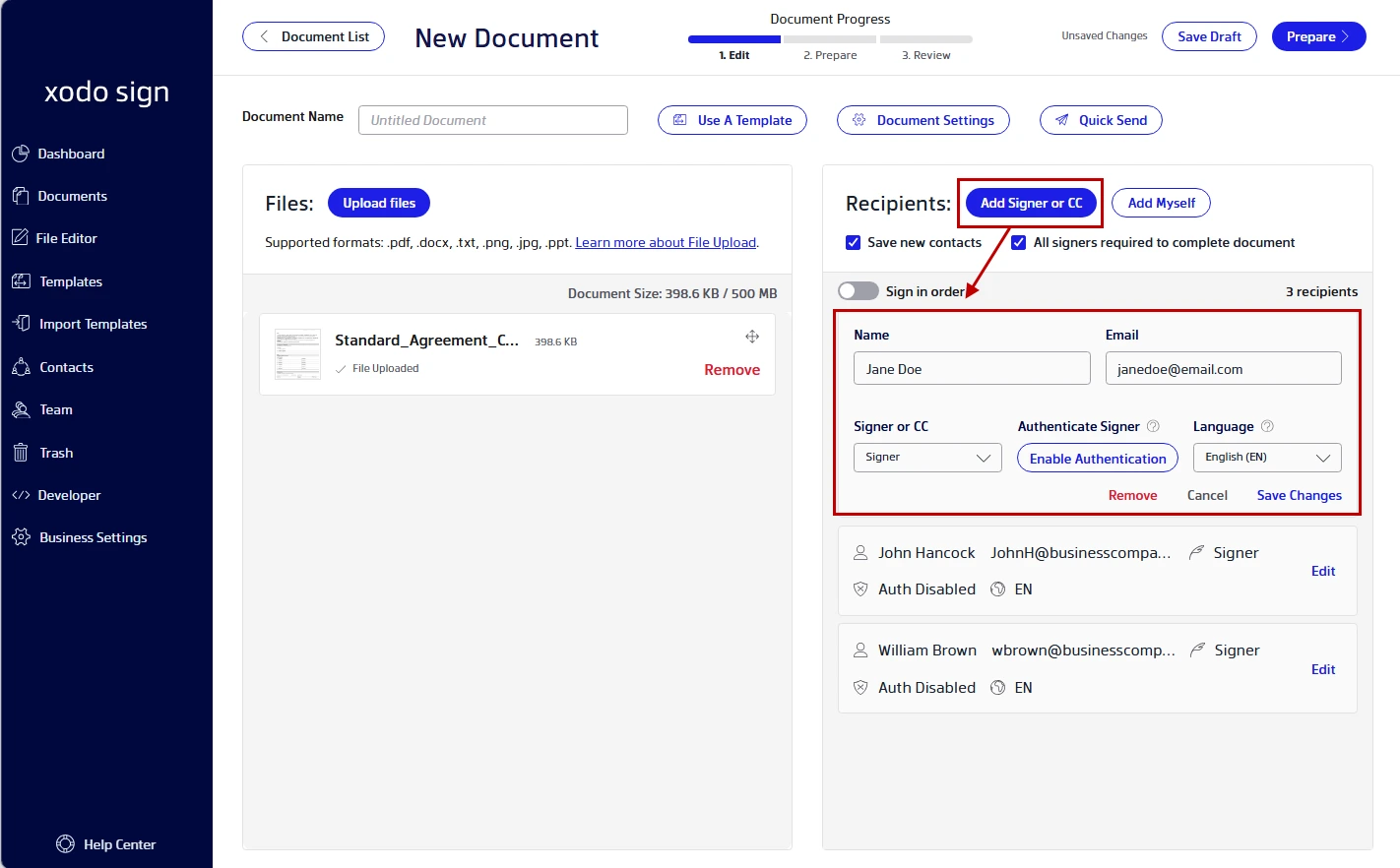
- Click on Add Signer or CC or Add Myself to add yourself and your recipients.
- Click on Save Changes for each signing party.
- Set the signing order, enable signer authentication, or add a message.
- Use the Document Settings options to add auto-reminders or expiration dates.
- Set a signing order and authentication settings if needed.
- Click on Prepare.
4. Place and assign document fields
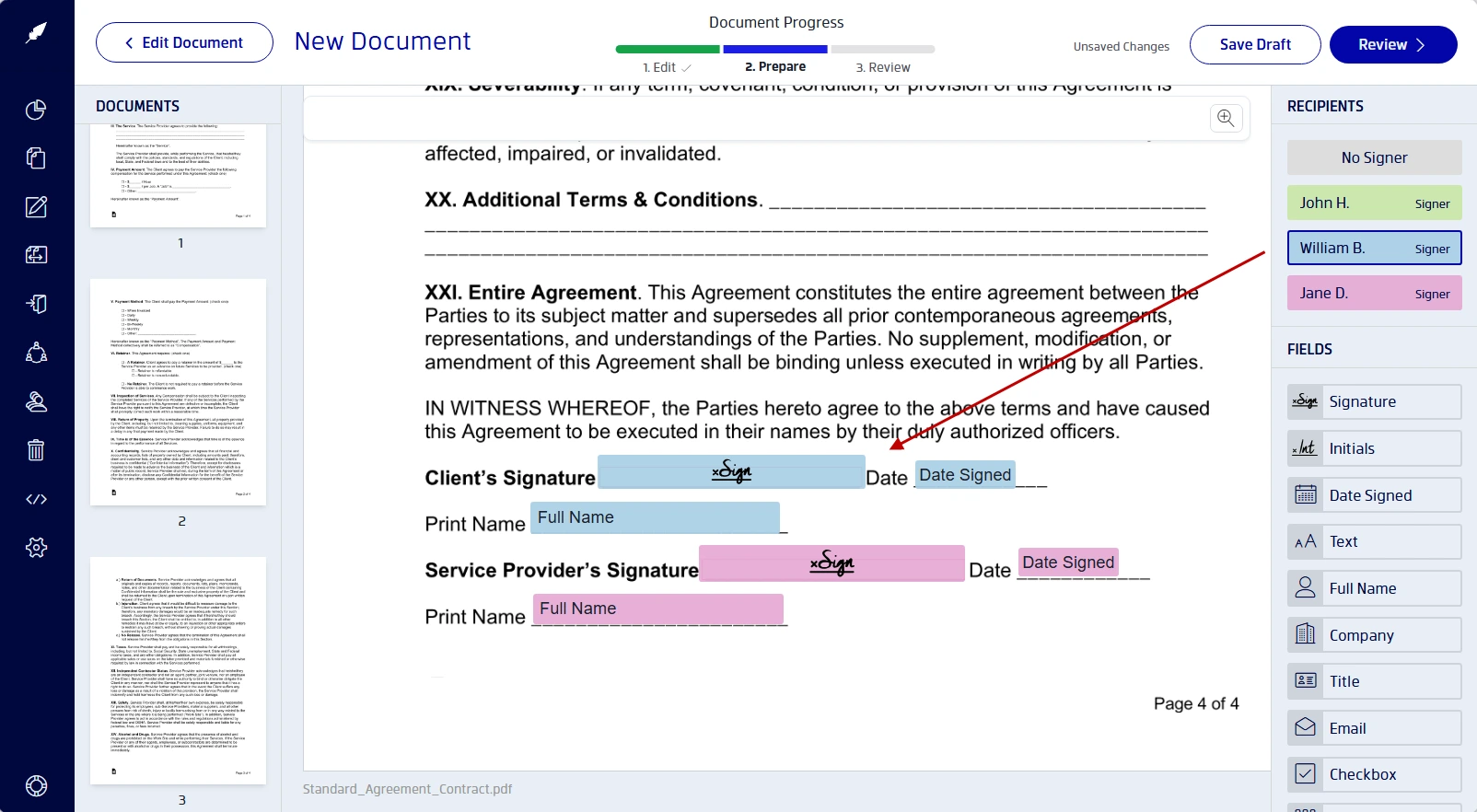
- Click on a recipient on the right hand side.
- Drag and drop the form fields the person needs to complete onto the page.
- Add signature, initials, date, text, checkbox, radio button, dropdown, or attachment fields.
- Repeat for every recipient.
- Sign your document by clicking on your signature field.
- Draw, type, or upload an image of your signature.
- Click on Review.
Recipients will get an email invitation with a link to sign in their browser. Xodo Sign account is not needed to complete the document.
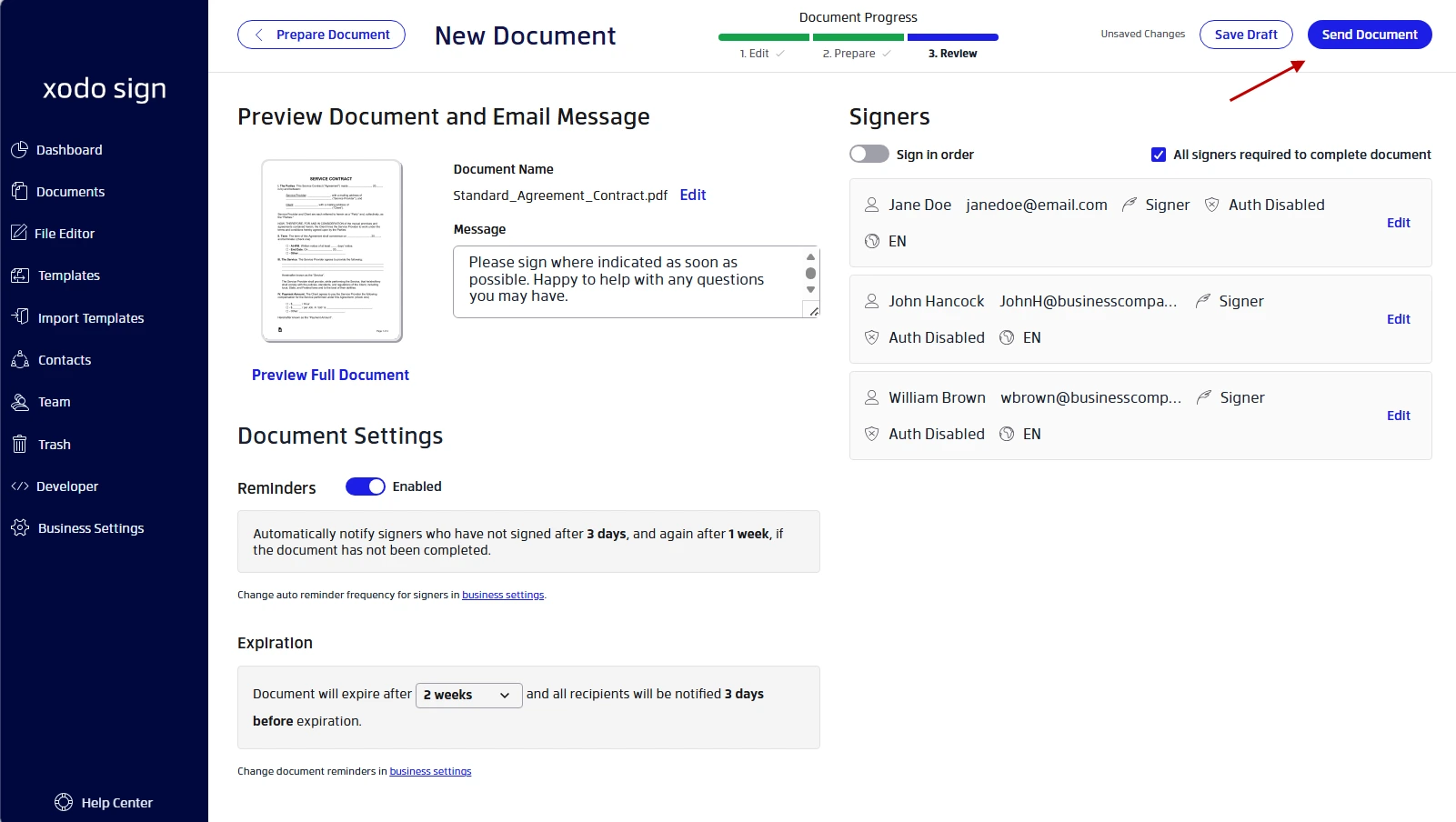
5. Review and send your document
- On the following page, add a message.
- Check your document settings and signers.
- Click Send Document.
6. Monitor your document
- Use your Document List to follow the document's status.
- Once complete, download the signed PDF and audit trail.
What if you only need to sign the document?
If no one else needs to sign and you do not need a tracked invitation, try a browser or mobile PDF app method.
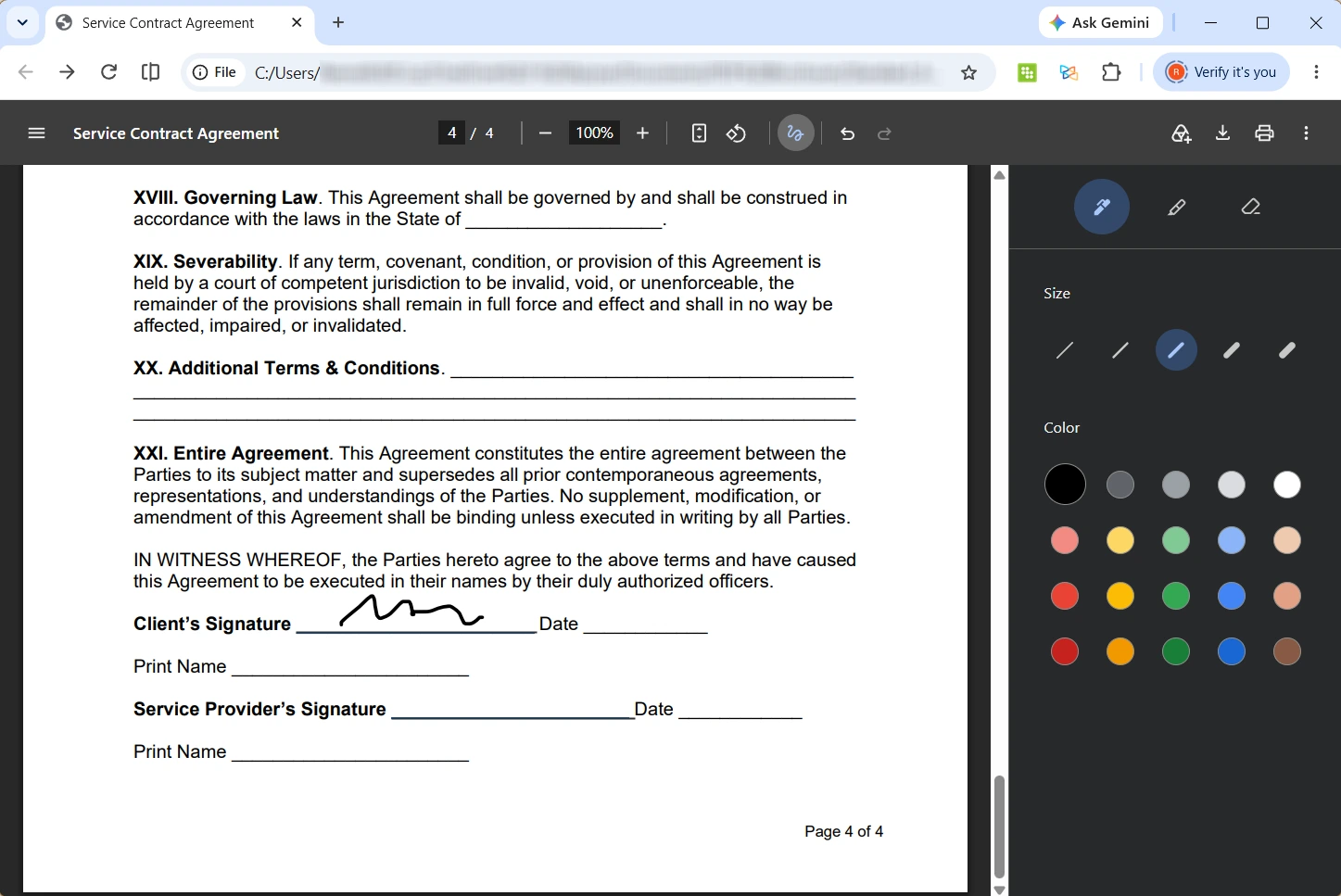
Sign a PDF in your browser
Modern browsers like Google Chrome and Microsoft Edge provide drawing, text, or annotation tools that can be used to add a simple signature.
Simply open your PDF online in a browser and use the available tools to manually sign a document online. You can then store and share the signed file through an appropriate secure method. Check out our guide on signing a PDF in your browser for more details.
Note: Do not overwrite the original PDF document until you have checked the signed copy.
Sign a PDF on your phone or tablet
A mobile PDF editor app can be more convenient when you are away from your computer.
With Xodo Mobile, you can open a PDF, fill forms, add an electronic signature, and share the completed document from an iOS or Android device.
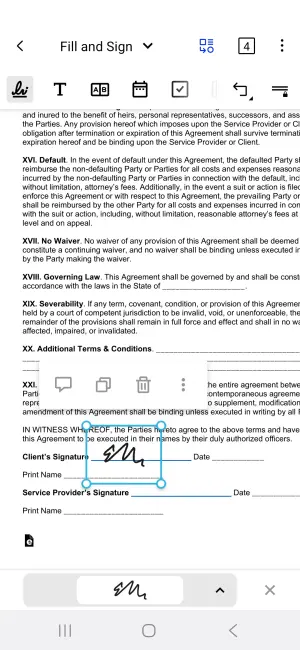
A phone works well for a quick self-signature. It is less suitable when several people need assigned fields, sequential signing, reminders, or a shared completion record.
When should you use a dedicated e-signature tool instead?
Always use a dedicated e-signature platform when the task involves more than placing a signature image on a page.
A managed, compliant workflow is a better fit when you need to collect information, control who completes each field, monitor progress, or retain evidence of the signing process.
For example, a personal permission form may only need a browser tool. Lease agreements between tenants and a property manager, on the other hand, will call for text fields, signing order, and reminders.
Xodo Sign is a strong fit when you need:
- Multiple signers or a defined signing order
- PDF editing before fields are added
- Digital signatures, date, text, checkbox, or fillable form fields filled in by specific people
- Automatic reminders or an expiration date
- Detailed audit trails after signing
- PIN or SMS authentication for selected recipients
- Status tracking for outstanding requests
- Reusable templates for documents you send often
If legally binding e-signature workflows are part of your regular work, Xodo Sign gives you a comprehensive set of tools to prepare documents, collect signatures, track requests, and retain signing records.
Tip: If several people on your team will send documents regularly, review these SignNow alternatives for teams.
Frequently asked questions
1. Do I need a SignNow account to sign a document someone sent me?
No. SignNow recipients can complete standard signature requests without an account. Some regulated workflows may require an account or added authentication. Ensure you check the instructions attached to the signing request.
2. Can I sign a PDF without SignNow?
Yes, you can sign a PDF without SignNow. You can sign documents using other e-signature platforms, using your browser, or a dedicated mobile app. A platform like Xodo Sign let's you sign documents and request signatures from others online.
3. Do Xodo Sign recipients need an account?
No. Any recipient can open a Xodo Sign invitation, complete the required fields, and submit it through a browser without creating an account. Only the sender needs an account to manage the request, but external signers do not need one to receive or electronically sign a document.
4. Can I request signatures from others if I don't want to use SignNow?
Yes. With Xodo Sign, you can easily add multiple signers to a document, set a signing order, and send it for signing once all settings are in place.
5. Can I sign documents from my phone without SignNow?
Yes, you can. Most mobile PDF apps can handle simple self-signatures. Check the document before submitting, use a trusted app like Xodo, and confirm that every required field is complete.
6. Can I control which fields each signer completes?
Yes. A dedicated e-signature platform such as Xodo Sign lets you assign signature, date, text, checkbox, and other fields to specific recipients. Check every assignment before sending so each person receives the correct fields.
7. Are electronic signatures valid without SignNow?
Yes, electronic signatures are valid without SignNow. Their validity doesn't depend on SignNow alone. Many jurisdictions recognize electronic signatures. Some documents may need a qualified signature, notarization, witness, or ink signature. Seek legal advice for a specific transaction.
Choose how you want to sign documents
The simplest option depends on what you need to do.
- Complete an existing SignNow invitation via the link to keep the request and signing record together.
- Use a browser or mobile PDF tool when you only need to add your own signature to a document.
- Try Xodo Sign when you need to prepare a document, collect signatures, track progress, send reminders, and keep the completed record in one workflow.
A simple form may only need a quick e-signature, while contracts, lease agreements, onboarding documents, and approvals often benefit from a more structured process.
Try Xodo Sign for the next document you need to sign or send. The free trial gives you access to Professional features without requiring a credit card. The Basic plan starts at $10 per month with unlimited signatures, while you can sign and send 1 document per week with the Free plan.