Table of contents
Sign and send unlimited e-signatures with Xodo Sign.
Field teams depend on fast decisions. Any delay in approving a construction work order slows down crews, affects scheduling, and adds cost.
Paper forms make this even harder. Digital signatures give teams a cleaner approval process that works from phones, tablets, and laptops. Xodo Sign supports this workflow with simple document preparation, audit trails, and e‑signing that works well in the construction industry.
This guide walks through every step of preparing, editing, and signing construction work orders in Xodo Sign.
Signing a construction work order with Xodo Sign
1. Sign up for Xodo Sign
- Start a free trial to access all Xodo Sign's features. No credit card required.
2. Upload your construction work order
- Click on New Document.
- Browse and upload your file, or drag and drop it.
- Upload from local storage or cloud storage.
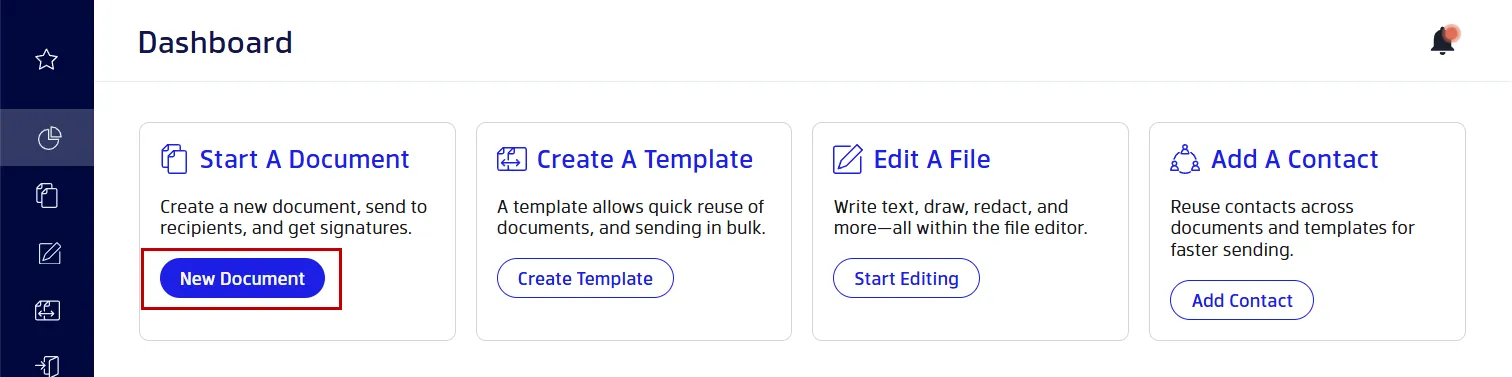
Supported formats: PDF, DOCX, and image files. PDF is the most common format used in construction.
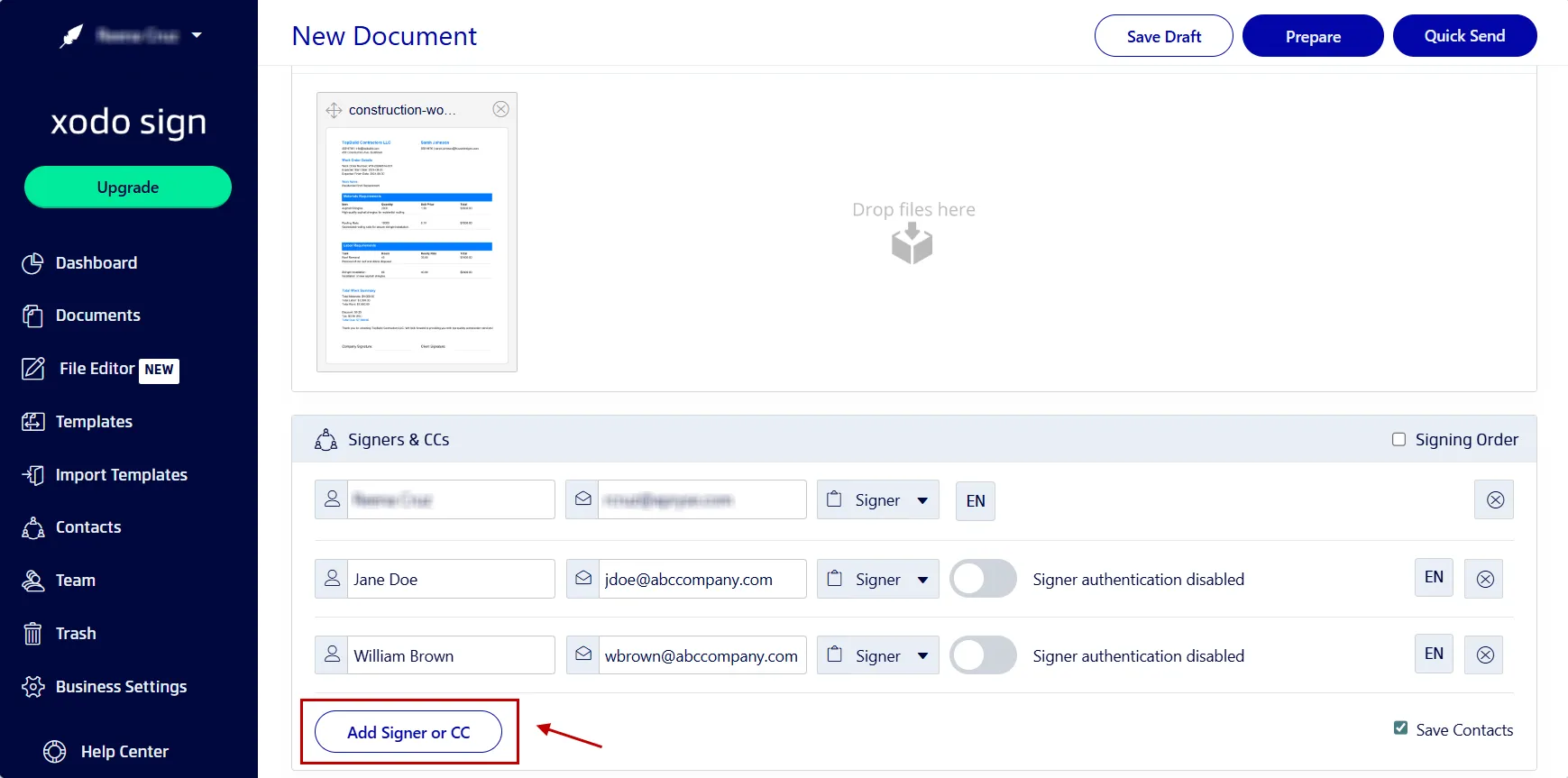
3. Add signers and set up your document
- Select a signing option: Just You, You and Others, or Others Only.
- Add names and emails for each signer.
- Assign each participant a role (Signer or CC).
- Set the signing order.
- Optional: enable SMS or PIN authentication.
- Provide a message if needed.
- Configure reminders, required fields, and expiration.
- Click on Prepare.
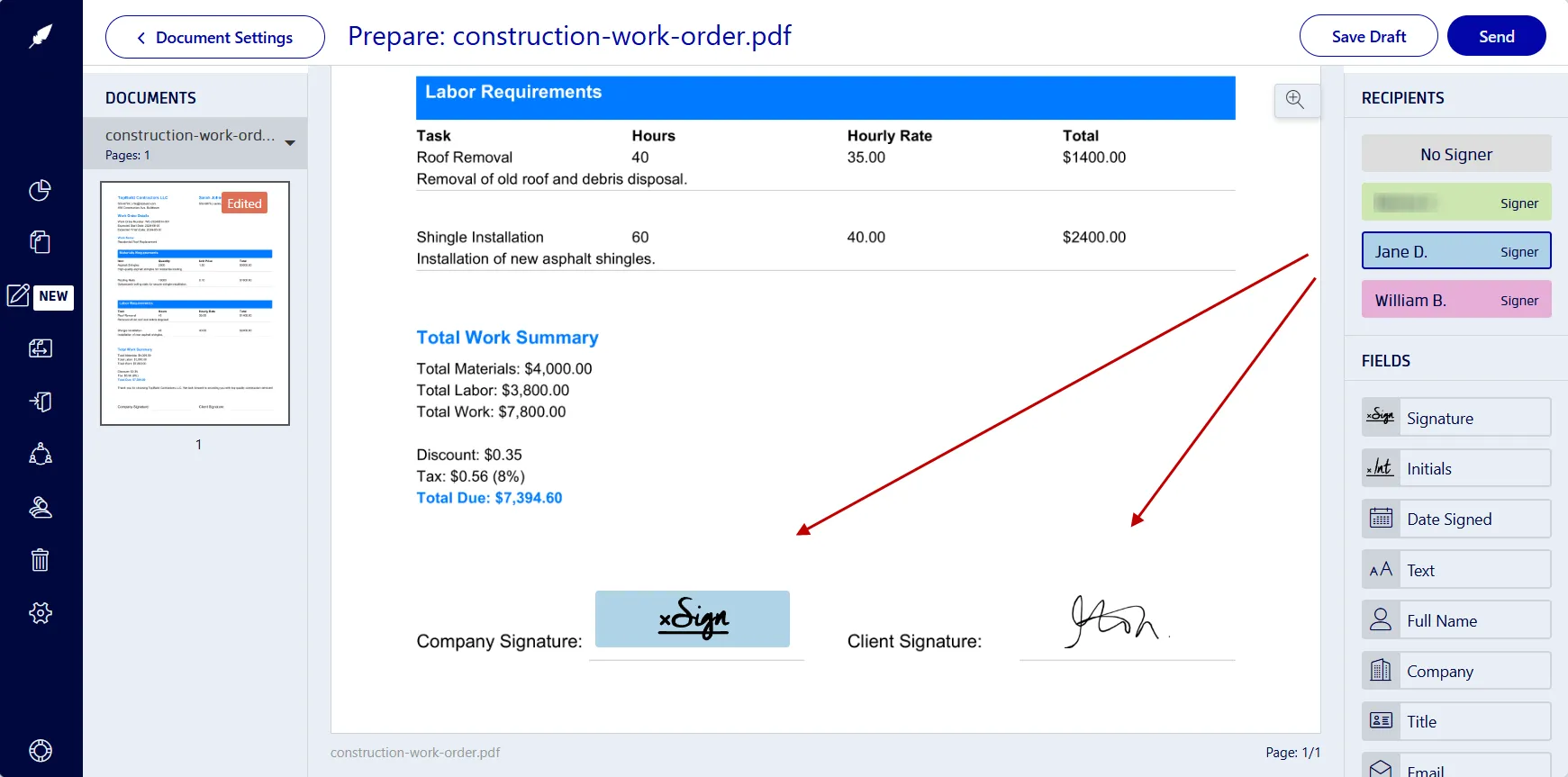
4. Insert signature and form fields
- Select the signer in the right panel.
- Drag fields onto the document: signature, initials, date, checkboxes, text boxes.
- Add your own signature by drawing, typing, or uploading it.
- Click Sign, then Send.
5. Track status and download the completed work order
- Go to Dashboard > Documents.
- View the status of your work order.
- Download the completed PDF when finished.
- Store it with project documents such as contracts and change orders.
Every signed document includes an audit trail showing timestamps and IP addresses for record keeping purposes.
What is a construction work order?
A construction work order is an approval document that authorizes a specific task or service on a project. It includes the scope of work, costs, labor and material estimates, schedule details, and signatures. Field teams rely on work orders to move small, time‑sensitive tasks forward without needing a full construction contract.
A construction work order usually follows a work request. Once approved, the crew can begin work and the assigned personnel know what equipment or materials are required.
Common uses include:
- Specific jobs, emergency repairs, or maintenance tasks.
- Out‑of‑scope items and materials needed to be approved.
- Field changes with minimal financial risk.
- Work assigned to subcontractors under existing agreements.
- Requests issued by field supervision or facilities management.
Some organizations refer to these documents as a service order, especially when work is performed for a client or other party.
For budget or scope changes, teams issue change orders instead.
When to use change orders
Typical examples include:
- Added or removed work
- Design or specification changes
- Unforeseen conditions affecting time or cost
- Adjustments that must be documented formally
When to use full contracts
Used for:
- New builds
- Large renovations
- Trade agreements with subcontractors
- Any work requiring detailed terms, insurance, schedule, and payment structures
Elements of a construction work order
A standard construction work order includes:
- Project details
Project name, location, client, company name, contractor. - Work description
Clear detailed description of the specific task, or service. - Labor and materials estimate
Hours, rates, quantities, and unit prices. - Work limits
Cost caps, time limits, priority level, or not‑to‑exceed amounts. - Requested by
Name or role of the person who formally requested the work. - Assigned to
Contractor, subcontractor, or field crew who will perform work on the task. - Attachments
Photos, drawings, sketches, or notes from routine inspections completed on site. - Schedule details
Expected start and completion date. - Approval signatures
Authorized individuals who can release the work. - Tracking information
Work order number, date issued, and related purchase order reference.
A related form contractors often sign is a subcontractor agreement.
Why e‑signatures work well for field approvals
When crews are waiting on decisions, even small delays cost businesses time and money. E‑signatures streamline the approval steps that usually hold up the job and help teams complete tasks successfully.
This means:
- No printing, scanning, or manual handoffs.
- Faster turnaround for urgent repairs or add‑ons and emergency work orders.
- Real‑time status visibility into work order approvals.
- Signing on phones and tablets on site.
- Secure and compliant storage in the cloud.
- Required fields reduce missing details.
- Automatic documentation for audits or disputes.
This helps supervisors allocate resources and keep work moving.
Signing work orders in the field
With Xodo Sign capabilities in the Xodo Mobile app, supervisors and technicians can:
- Open a work order on a phone or tablet
- Add notes or markups
- Attach photos of site conditions
- Collect signatures on site
- Save the signed file with a full audit trail
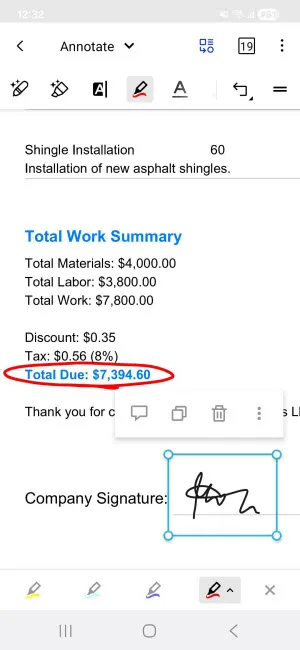
This supports routine inspections, preventive maintenance work orders, and small‑scope items that need same‑day decisions. Check out our AEC webinar for a look at the entire process.
Tips to avoid disputes over extra work
Most disputes over extra work come from unclear scope. Simple, detailed documentation can prevent issues between your team and any service provider:
- Use precise scope descriptions.
- Add labor and material rates.
- Set payment and detailed cost limits.
- Carefully review terms on liability, warranties, and dispute resolutions.
- Put verbal agreements in writing.
- Always collect a signed work order before you start work.
- Use required fields to prevent missing data.
- Add a message reminding signers why a timely signature matters.
- Save the signed and dated document somewhere secure.
Xodo Sign helps construction teams move faster.
Frequently asked questions
1. Does a work order need to be signed?
Yes. A work order must be signed by the party requesting the work and the party performing it for the document to be enforceable. Signatures confirm agreement on scope, costs, schedule, and responsibilities.
2. Are e‑signatures legally valid for construction work orders?
Yes. Xodo Sign supports ESIGN and eIDAS compliant signatures. Verify requirements for your region or contract type.
3. What makes a work order legally enforceable?
A work order becomes enforceable only when both sides agree to the terms, provide consideration, are legally able to enter the agreement, and the terms are lawful.
4. Do clients need a Xodo Sign account to sign?
No. Anyone can respond to a signature request sent from Xodo Sign and sign from a browser without creating an account.
5. Can I edit a work order before signing it?
Yes. Upload the document to the PDF editor in Xodo Sign, make edits, cross out or update items, initial changes, and then prepare it for signing.
6. Do you need a solicitor to sign a contract?
No. You don't need a solicitor to sign a contract. Legal review is optional depending on the agreement’s complexity and the level of risk involved.
7. Should I sign a work order if there are blank fields or missing information?
No. Never sign a document with blank fields that could be altered later. This could cause legal issues and disputes.
Start managing construction work orders with Xodo Sign
Signing construction work orders in Xodo Sign helps field teams reduce delays, improve record‑keeping, and move tasks forward without paperwork bottlenecks.
Start a free trial to see how digital signatures fit into your work order process.