Table of contents
Sign and send unlimited e-signatures with Xodo Sign.
Digital signatures help general contractors, project managers, and owners reduce errors and maintain verifiable records that meet compliance requirements in the construction industry.
With Xodo Sign, you can upload a change order, configure signers, set a signing order, add required fields, and send the document while in the office or out on a job site.
This guide walks you through each step so you can approve change orders quickly and keep your construction projects on schedule.
How to sign a construction change order with Xodo Sign
1. Sign up for Xodo Sign
- Start a free trial. No credit card is required and you will access all of Xodo Sign's features.
2. Upload your construction change order
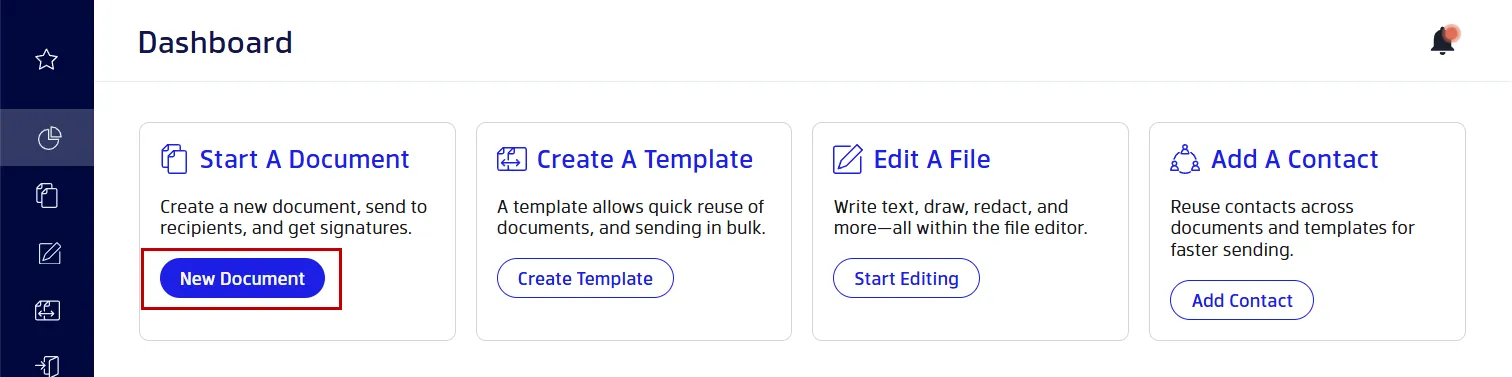
- In your dashboard, click on New Document.
- Upload your construction change order.
- You can upload a PDF, DOCX, PPT, or image files. Xodo Sign will convert any non‑PDF file into a PDF automatically.
This supports teams who review changes to the original scope in different file formats.
3. Add and request signatures from multiple signers
- Select from the signer options provided: Just You, You and Others, or Others Only.
- Add the names and emails for each signer.
- Assign Signer or CC roles.
- Set a signing order, add identity authentication, or write a message.
- Customize settings: auto-reminders, completion of fields required, or expiration dates.
- Click on Prepare to continue.

4. Insert your signature and add form fields
- Assign fields to signers by clicking on the signer's name.
- Then drag any signing fields (signature, initials, date, full name) onto your document.
- Click on your own signature field.
- Draw, type, or upload an image of your signature.
- Click on Sign.
- When all fields are placed, click Send.
Xodo Sign will automatically send invitations to each signer.

5. Track status and finalize
- Go to your Documents tab.
- View the status and audit trail of your document.
- Download the signed change order once completed.
- Save or share the completed form.
Tip: If you're working with other construction paperwork, you can also learn how to sign a construction work order.
What is a construction change order?
A construction change order is a document that updates the original construction contract when the scope of work, cost, or project timeline needs to change. It explains what part of the project scope is being revised, why the change is necessary, and how it affects the schedule and project costs. All parties sign it before work continues so the update is captured in writing.
Common challenges with change order approvals
Change order approvals often slow down projects because teams struggle to keep everyone aligned on the process and communication channels.
Common issues include:
- Missing signatures that affect the project timeline.
- Verbal approvals that aren't documented properly.
- Multiple revisions without version control which makes it difficult to confirm the final approved terms.
- Email attachments create delays when supervisors or owners are unavailable.
- Lost paper forms or photos taken in the field that never make it back to the office.
- Disputes over what work was “approved” when scope or changes in project budget are unclear.
- Slow communication between teams on site and teams in the office.
Understanding what a complete change order includes helps reduce back‑and‑forth and avoid disputes over the original scope. Clear review and approval processes also help teams keep the project management workflow moving without delays.
Typical elements of a construction change order
While projects may differ, all change orders follow a similar structure:
- Change description
Details of added, removed, or revised work may adjust the contract scope. - Cost impact
Changes in labor costs, material costs, and a new proposed contract price. - Schedule impact
Updates to start or completion dates that may shift the project schedule or modify the contract time. - Reason for change
An explanation of why a change in the initial contract is needed. - Supporting documentation
Attachments like updated construction documents or diagrams outlining accurate cost estimation. - Approval terms
Notes or conditions that align with the contract terms or clarify the changes on the original agreement. - Contractor/owner signatures
Confirmation that both the contractor and the project owner agree on the update. - Change order number
A unique contract number identifier that helps teams track versions and maintain clean contract documents.
A clear change order layout helps both the sender and recipient review the update quickly and move through the final approval process on time.
Approve construction change orders on site
Teams often rely on mobile apps when updates need to be signed from the construction site, ensuring everyone stays on the same page without returning to the office.
With Xodo Sign mobile features, you can:
- Open change orders on your phone or tablet
- Measure distances and areas
- Add notes or markups
- Sign and request signatures from others
- Share signed documents with your project team
- Send change orders if you're the one issuing revisions

These options help prevent delays when work changes require quick on‑site confirmation. To use Xodo Sign on mobile, download the Xodo app for iOS or Android.
Compliance and documentation best practices
Good documentation habits make change order management easier and protect teams during audits or disputes.
To keep your change order approvals audit‑ready:
- Store all signed change orders with the master contract
- Keep a naming convention (e.g. CO‑005‑Masonry)
- Export PDF reports for turnover packages or regulatory audits
- Use audit trails during compliance reviews
- Maintain version control for mid‑project updates
These habits support accurate records throughout the construction process.
Frequently asked questions
1. How do I sign a construction change order?
Upload your change order to Xodo Sign, add necessary fields, assign signers, set the signing order, and send it for signatures. After all signatures are collected, download the completed PDF.
2. Who signs a construction change order?
Typically the contractor and project owner, but depending on contract terms, architects, subcontractors, or owner reps may also sign.
3. Can a change order be signed on a phone or tablet?
Yes. The Xodo Mobile app allows teams to review, sign, and send change orders on a phone or tablet.
4. Can signers be required to sign in a specific order?
Yes. Xodo Sign lets you set a signing order so approvals follow contract workflow requirements.
5. Can I edit a change order before signing?
Yes. Use the built-in PDF editor to adjust text, add notes, or attach supporting documentation, then sign the updated version.
6. Can subcontractors or vendors sign without the owner present?
Yes. Xodo Sign supports remote signing, so all parties can approve in their own time zones or locations.
7. What happens if someone signs the wrong version?
Use version control in Xodo Sign and verify the change order number before sending. The audit trail captures version history so incorrect versions don’t move forward.
Sign and organize your change orders with Xodo Sign
Clear documentation support proper change order management, keeps project stakeholders informed, and reduces confusion as the project progresses.
With Xodo Sign, you can collect approvals from owners, subcontractors, or suppliers without waiting for in‑person meetings or paper forms.
Start a free trial and manage construction change orders quickly and securely.