Table of contents
Sign and send unlimited e-signatures with Xodo Sign.
Signing subcontractor agreements often slows down a construction project kickoff. Missing fields, unclear roles, and back‑and‑forth emails can delay a subcontractor's work by days.
Using Xodo Sign to digitally sign agreements speeds up onboarding for both the subcontractor and the general contractor. You can send construction contracts to multiple parties, track their progress, and store everything in a secure, searchable workspace.
Below is a guide on how to sign a subcontractor agreement online using Xodo Sign.
Steps to sign a subcontractor agreement with Xodo Sign
1. Sign up for an account
No credit card is required. You can access and test all of Xodo Sign's pro features for 7 days.
2. Upload your subcontractor agreement
- In your dashboard, click on New Document.
- Upload your agreement using the method that suits you.
- Use Choose Files, drag and drop, or upload from cloud storage.
Note: Xodo Sign supports multiple formats and converts them to PDF automatically, which helps standardize agreements during the review and approval processes.

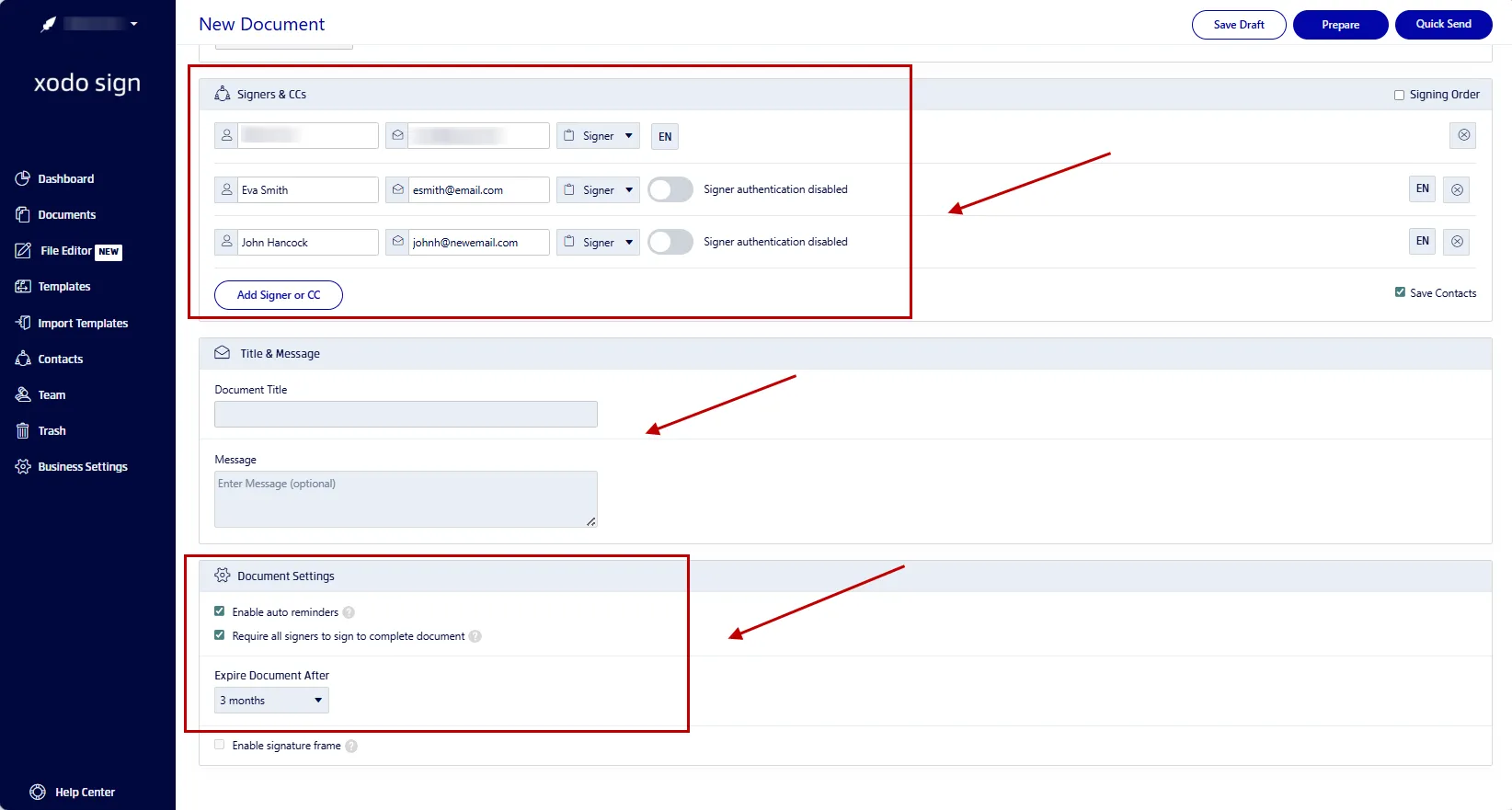
3. Add signers and set up your document
Choose how your subcontractor agreement will be signed:
- Just You
- You and Others
- Others Only
Then set up your document:
- Add each signer's name and email
- Assign signing or CC roles
- Set a signing order
- Add verification options via SMS or PIN
- Write a message for your signers if needed
- Schedule auto-reminders
- Require all fields to be completed
- Add an expiration date to close signing windows
Click on Prepare.
4. Add signature and form fields
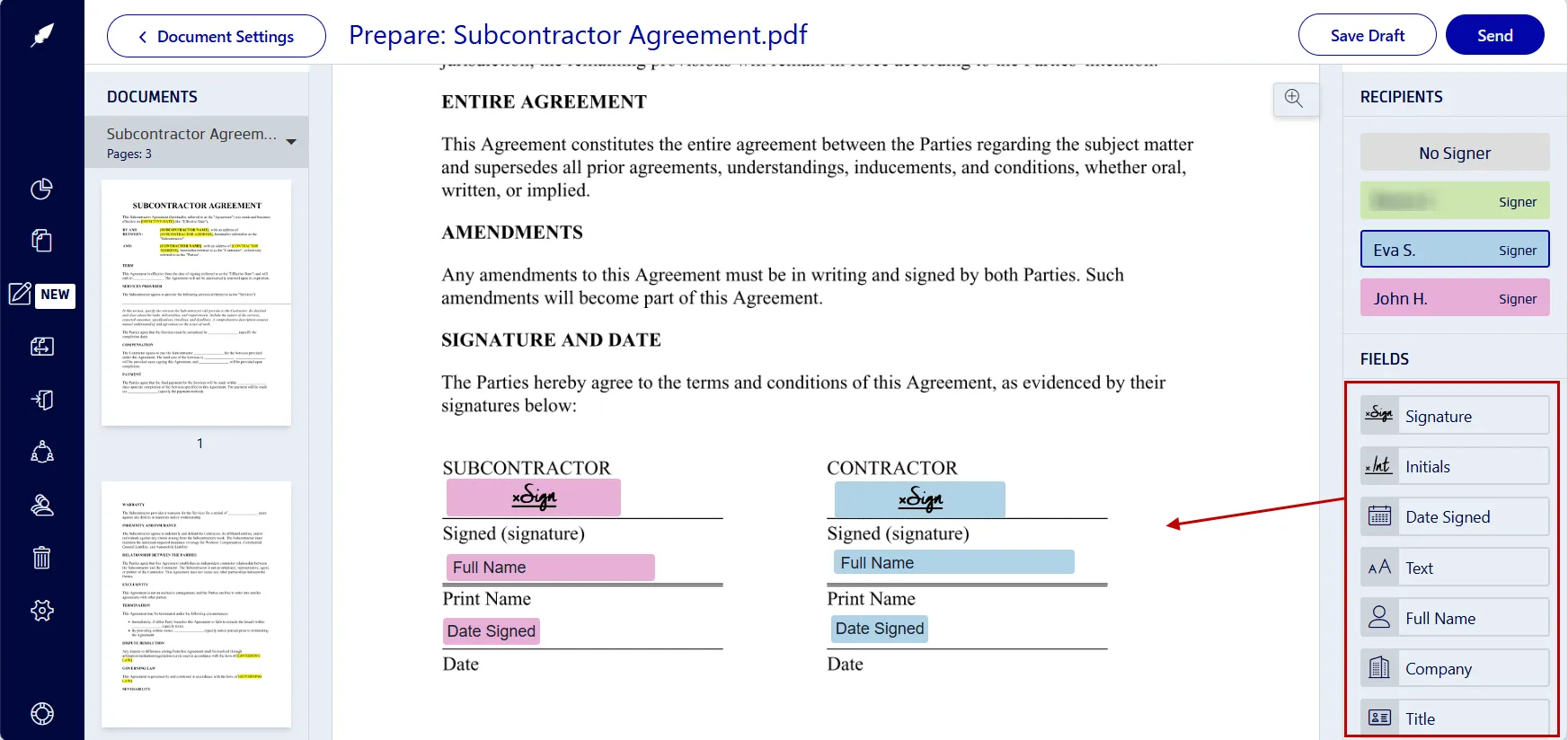
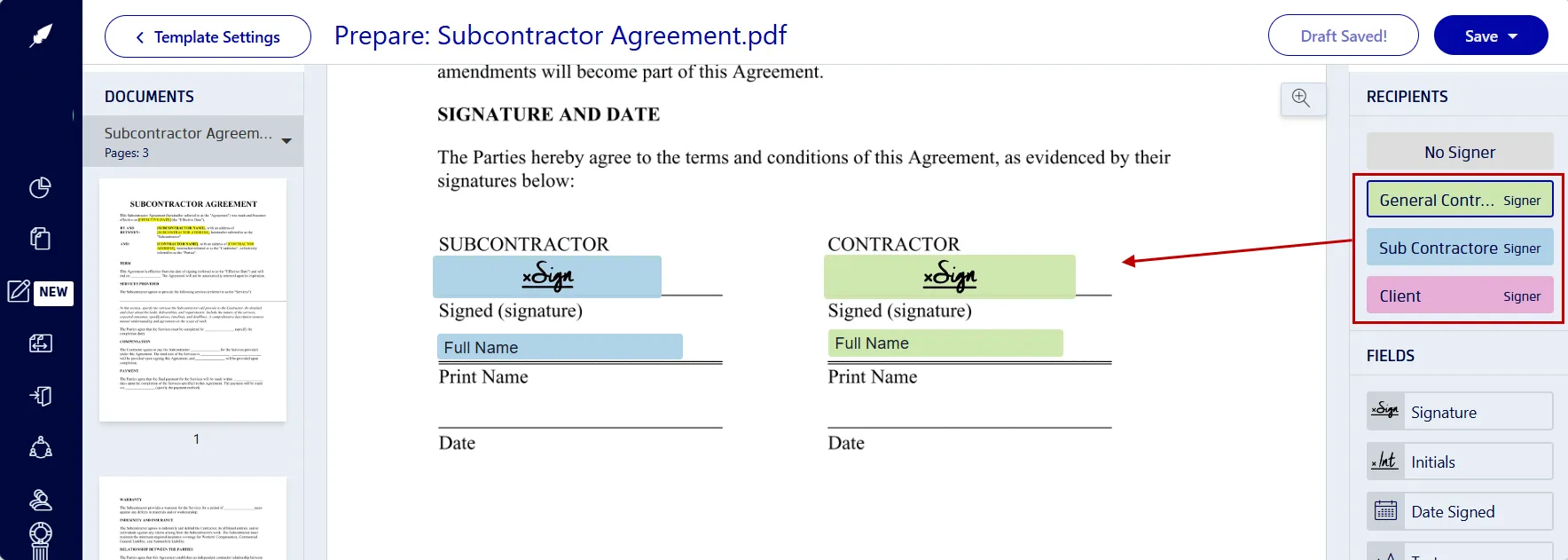
- Click on and assign fields to each signer on the right.
- Drag and drop fields for signatures, initials, dates, checkboxes, and text.
- Click on your signature.
- Draw, type, or upload an image of your signature.
- Click on Sign.
- Once every field is placed, select Send.
Xodo Sign will automatically send the signing invitations to your designated signers.
5. Track progress and download
Go to Dashboard > Documents to monitor the file's activity. You can:
- See who has signed
- View pending signatures
- Resend signing reminders
Download the final signed PDF.
Each signed subcontractor agreement will include a fully compliant audit trail with timestamps and IP addresses.
Tip: If you're other construction documents, check out how to sign a construction change order.
Key elements of a subcontractor agreement
A good subcontractor agreement outlines the scope of work, responsibilities, and important details, and it sets clear expectations for both parties. A well‑defined written agreement helps the subcontractor and the general contractor understand what each side is responsible for before signing.
It should include:
- Scope of work
The specific tasks, deliverables, materials, or methods required, and how they relate to the prime contract. - Project schedule
The planned start date, major milestones, and expected completion date and notice requirements. - Payment terms
Rates, payment schedule, labor and material costs, and clauses related to disputes over money owed. - Change order process
An explanation of how change orders to the work will be requested, approved, and priced. - Dispute resolution clauses
Clear terms on how potential disputes will be handled, such as negotiation, mediation, arbitration, or litigation. - Safety and insurance clauses
Requirements for insurance requirements, licensing requirements, or compliance with regulations. - Quality and compliance
Outline the quality and industry-level expectations of the subcontractor's completed work. - Lien clauses
Lien language clarifies when the subcontractor can file a claim for unpaid or extra work. - Warranty clauses
Warranty clauses define how long the subcontractor has to repair defects in their work. - Termination
An outline of terms or conditions that define grounds for termination.
These details can prevent potential disputes between the parties involved. It is aimed at protecting both sides of the construction project while supporting compliance documentation.
How to create a subcontractor agreement template in Xodo Sign
If your construction team uses the same format for every subcontractor, creating a template saves time during onboarding.
To create a template in Xodo Sign:
- From the Dashboard, click on Create Template.
- Select New Template > Template and upload your file.
- Add signer roles and a signing order.
- Enter a template title and message.
- Set options for staff member access.
- Click on Prepare and place fields such as signature, date, or initials.
- Click on Save to save it to the Active Templates list.
- Or select Save & Use to begin sending it immediately.
Tips for your template
- Define required signing roles
Set standard roles such as general contractor representative, subcontractor owner, or witness. - Include necessary fields
Add fields for business contact details, tax ID, insurance details, signature blocks and, company information. - Set fields to Required
When adding form fields, check on the Required option to ensure no field is missed and you capture all data. - Include initial fields
Adding initial fields at the bottom of each page can prevent later disputes over substituted pages in a contract.
Tip: If you're switching from Docusign, you can easily import existing templates you already use.
How to send and track multiple subcontractor agreements at once
Here's how to use one template to generate multiple agreement in one workflow:
- Go to Templates from your Dashboard.
- Locate your template.
- Go to Actions > Send Template in Bulk.
- Click on Download Blank CSV. This CSV is generated to help create the list of your signers to send the template to. Or, click on Skip and upload your own list.
- Fill in the signers' details and save the CSV file.
- Click on Choose Files and upload the CSV file into Xodo Sign.
- Click Confirm.
- Select Send to X Signer.

You'll be able to monitor the progress of each and every agreement sent out in your Documents tab.
You can see who's signed and send signing reminders to those who haven't.
Frequently asked questions
1. What’s the difference between a subcontractor agreement and an independent contractor agreement?
A subcontractor agreement is tied to a specific project and often falls under a general contractor. An independent contractor agreement usually covers broader, ongoing work.
2. Can work start before the subcontractor agreement is signed?
Yes, but it’s risky. Without signatures, the payment terms, liability, and scope of work are not legally confirmed.
3. Can I draft a contract without a lawyer?
Yes. A lawyer is not required for a contract to be binding as long as the terms are clear and agreed to in writing.
4. What clauses should subcontractors review carefully?
Pay‑if‑paid clauses, lien waivers, retainage terms, and change order requirements affect financial outcomes and should be reviewed closely.
5. How long should I keep a signed subcontractor agreement?
Many contractors keep records for 7–10 years, depending on local laws and warranty periods.
6. Can I use one master subcontractor agreement across multiple projects?
Yes, but note that most general contractors attach project‑specific scope addendums.
Keep your subcontract agreements moving with Xodo Sign
Using Xodo Sign helps you move subcontractor agreements through review and digital signing with fewer delays.
Templates, bulk sending, and tracking tools give your team a simple way to manage documents and keep all agreements organized across every project.
Try it for free on your agreements and see how it works for your team.