
Table of contents
Sign and send unlimited e-signatures with Xodo Sign.
Independent contractor agreements often move through small teams.
A founder hiring a designer, an agency onboarding a freelancer, or a finance team bringing in a consultant, all need the same basic workflow: prepare the agreement, send it for signature, track completion, and store the signed copy with contractor records.
The process is usually simple, but the admin work can get messy fast.
This guide covers how to keep that send-sign-return process practical. We'll go over how businesses can manage independent contractor agreements online with Xodo Sign, without turning the task into a legal drafting exercise.
What is an independent contractor agreement
An independent contractor agreement is a business document or service contract that outlines the working relationship between a company and a non-employee service provider.
It's commonly used when hiring freelancers, self-employed individuals, consultants, agencies, subcontractors, or other independent contractors for specific services.
Key elements of the agreement typically includes:
- The work to be performed
- Scope of work
- Definition of work completed
- Payment terms
- Clauses on intellectual property rights
- Project start and end dates
- Ownership expectations
- Confidentiality clauses
- The parties involved
- Legal and financial liability
Depending on the business and project, it may also reference confidential information, trade secrets, governing laws, termination clauses, and other agreement-specific details.
For larger projects, businesses often document deliverables and timelines separately using a statement of work (SOW).
Important to note:
- Independent contractor agreements are different from employment contracts. Employment agreements are used specifically for employees, not outside service providers.
- If you're going to be hiring another party to complete part of the work, a separate subcontractor agreement may also be needed.
- Since the terms can affect business, legal, and tax responsibilities, the entire agreement should be reviewed and, when needed, the business consult a qualified legal professional.
Who usually sends an independent contractor agreement
The business hiring the contractor usually prepares and sends the independent contractor agreement. The contractor is usually the recipient and signing party.
In practice, the sender might be:
- A founder or small business owner
- An office manager
- A finance or admin team member
- An accounting firm administrator
- A professional services manager
For the business, signing is only one part of the workflow. It also needs a clear way to manage the process.
This is where a tool like Xodo Sign fits in naturally. It helps the sender manage the document from signature request to completed copy.
What should you check before sending the agreement?
When you have a written independent contractor agreement, review it from the signer’s point of view before sending it out.
Check that the the initial contract meets your team's requirements. Namely that:
- The business name and contractor’s legal name or business entity are correct
- Internal approvals on the terms are complete
- Signature, date, initials, and required text fields are clear
- The document is the final approved version being sent
- Related onboarding documents are included
The goal is to upload a clean, finalized version. Xodo Sign can then help you send and manage the agreement during the signing process, keeping a signing workflow efficient and organized.
How to send an independent contractor agreement for electronic signature with Xodo Sign
To send an independent contractor agreement for electronic signature, follow these steps:
1. Create a Xodo Sign account
- Start by signing up for a Xodo Sign free trial. No credit card is required.
2. Upload the agreement
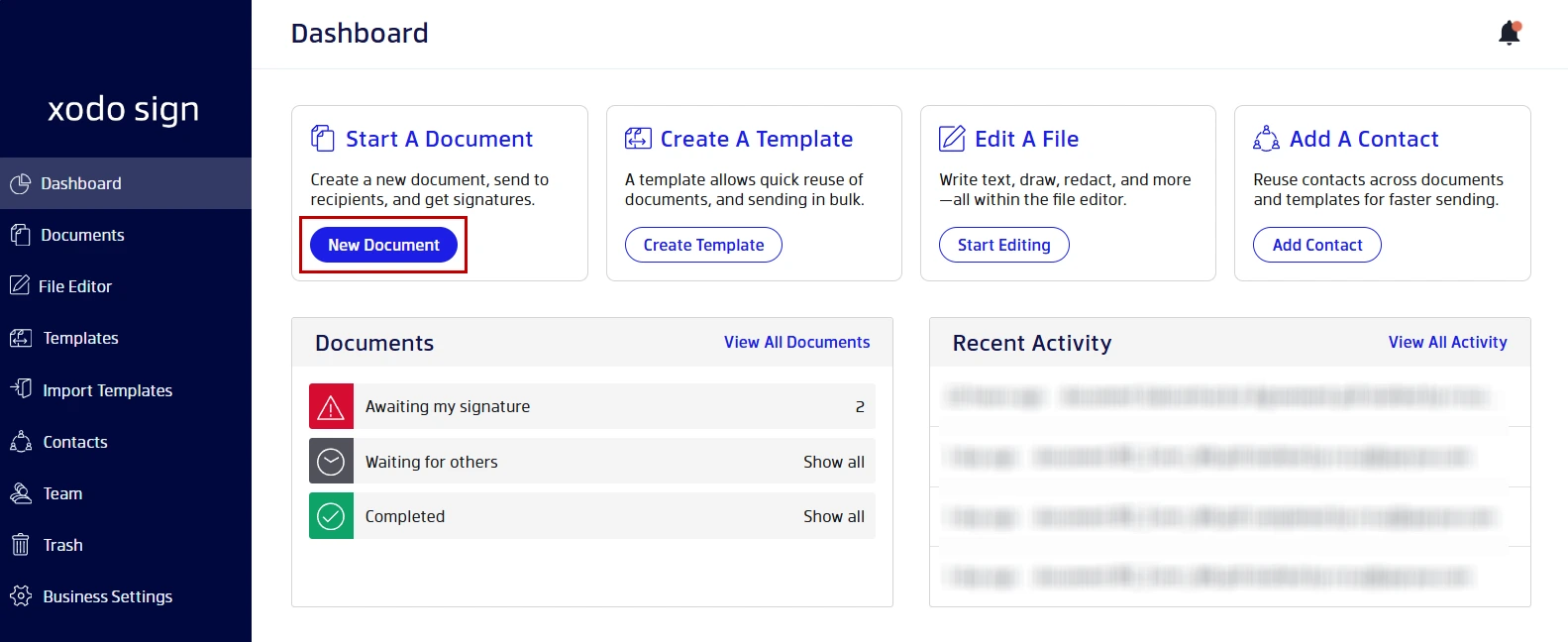
- In your dashboard, click on New Document.
- Use the Upload files button or drag and drop your file to open it.
3. Add the contractor as a signer
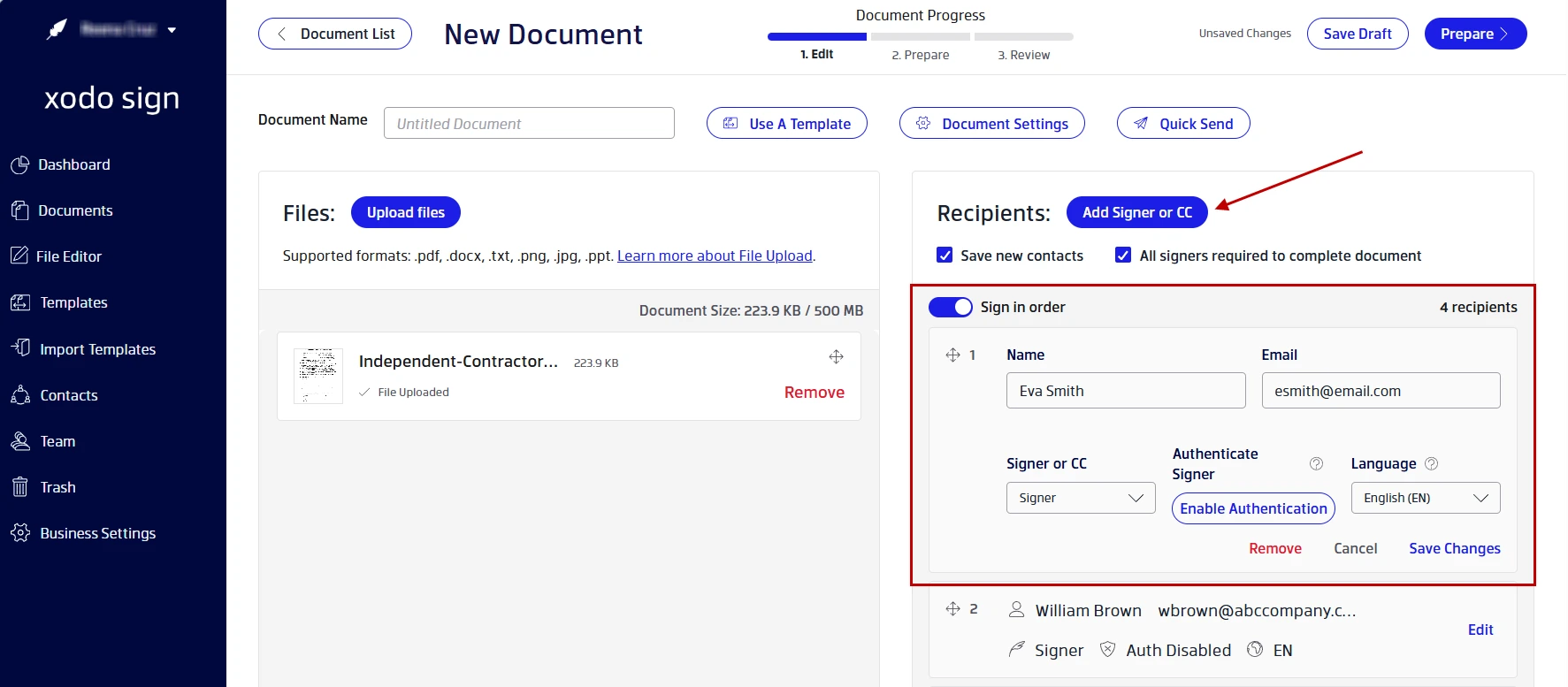
- To add the contractor as a signer, click on Add Signer or CC.
- Enter their name and email address.
- Designate them as a Signer.
- Enable signer authentication if needed.
- Click on Save Changes.
- If someone from the business also needs to sign, add that person too.
- Then toggle the Sign in order switch and set up a signing order.
- Click on Document Settings to set expiration dates or reminders.
- Click on Prepare.
4. Add signature, date, and required fields
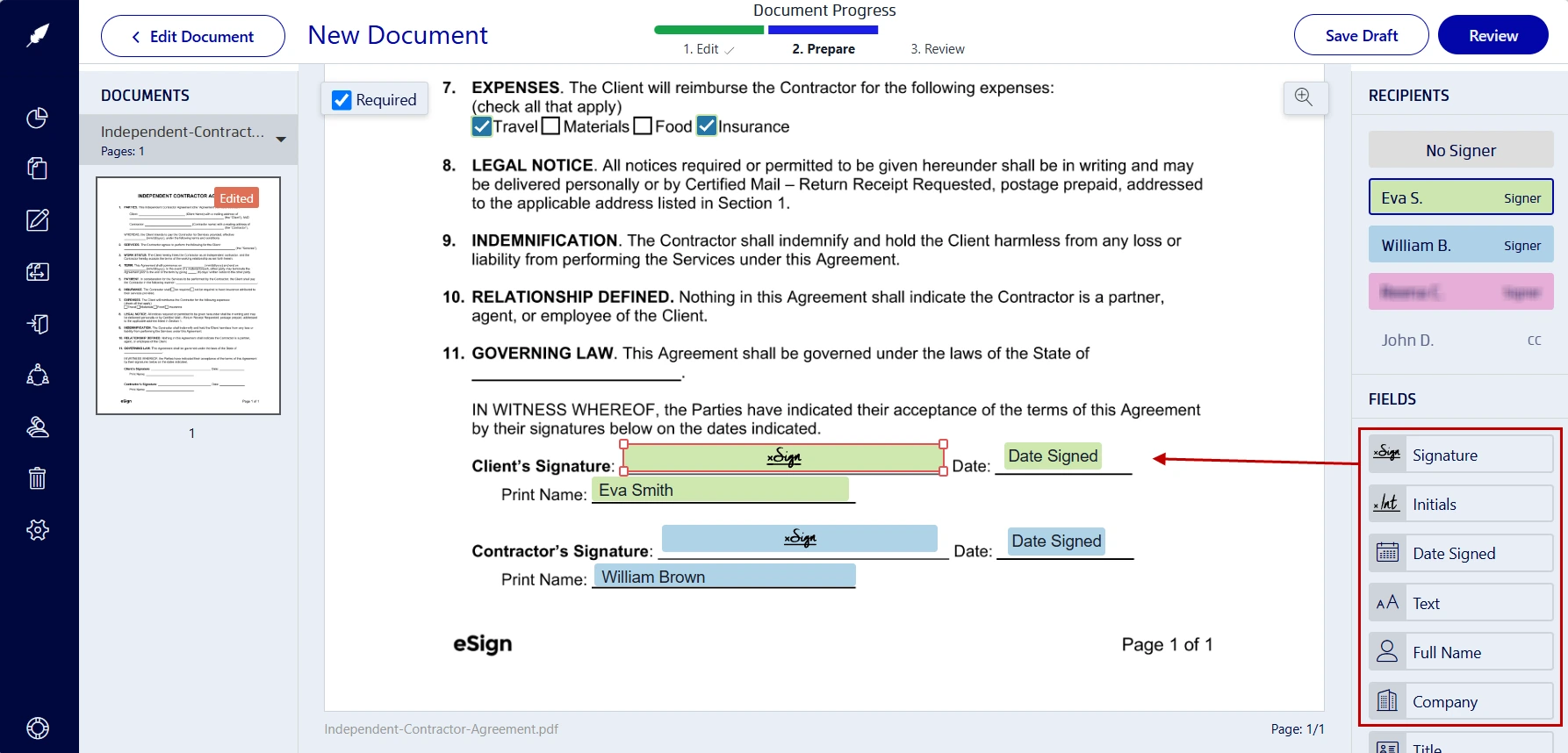
- Assign each field to the right signer by clicking on them.
- Drag and place fields from the right hand side to the page.
- Common fields include:
- Signature
- Date signed
- Initials
- Name
- Title or business name
- Text fields for required entries
- Once the fields are ready, click on Review.
5. Send the signing request
- Add a short message with instructions and any note of special importance.
- Confirm your document settings and signers.
- If all looks good, click on Send Document.
- Xodo Sign will email the contractor a secure signing invitation.

6. Track status until completion
To track the status of the agreement:
- Go to Documents.
- Locate the agreement and click on it.
- Click on Actions > Audit Trail.
- You can track the document's status, see where a request stands, or send a follow up.
Using the above process, you can keep your contractor documents organized, payment-ready, and easier to review later.
How contractors sign an agreement sent through Xodo Sign
From the signer's side, the signing process is simple. Here's what it looks like from the contractor's perspective:
- The contractor receives an email invitation.
- They open the secure link.
- They review the independent contractor agreement.
- They complete assigned fields.
- They sign digitally and apply an electronic signature.
- They submit the signed document.
- Both parties receive or can access the completed copy.
Note: The contractor doesn't need to create an account to complete an agreement sent from Xodo Sign.
Electronic signature workflows work well for contractor onboarding. The business controls the sending and tracking process, while the contractor gets a clear path to review and sign. It reduces common delays from printing, scanning, manual data entry or renaming files.
How businesses track, remind, and store signed agreements
After the sending and signing process, businesses can track, remind, and store signed agreements easily. However, the biggest advantage is not only the signature. It's the visibility around the document.
i) Send reminders
Senders can use auto-reminders to keep contractor agreements moving without adding more manual follow-up work.
Contractors are busy. Emails get missed. Projects start quickly.
Automated reminder settings in Xodo Sign helps you follow up without writing a new email every time. This is especially useful for agencies, startups, marketing teams, and professional service businesses that manage several independent contractors at once.
ii) Track document completion
Businesses can monitor each agreement after it has been sent. This helps answer the essential questions:
- Has the contractor received the request?
- Has the document been completed?
- Is another signer still pending?
- Does the sender need to follow up?
For admin and operations teams, those answers are important. Contractor paperwork often sits between project kickoff, worker and vendor setup, finance review, and payment approval. A clear status view keeps work moving.
With the audit trail feature, your team can track the agreement's status in one place instead of checking scattered email threads.
iii) Store the signed agreement
Many businesses keep signed agreements alongside onboarding paperwork, tax documentation, payment records, project notes, and the completed form used for vendor setup.
Good document management and storage practices with an online workflow can help businesses retrieve the agreement later for finance, business operations, audit, or internal review. Since these files may contain sensitive and confidential information, access should be limited to the right people.
Completed agreements can stay organized in Xodo Sign and you can more easily find the final copy when needed.
With one online workflow, you get a clearer record of each contractor agreement from request to completion with less manual admin work.
What paperwork is often collected with contractor agreements?
An independent contractor agreement is often one part of a larger onboarding process.
Before work begins, or before the first payment is issued, businesses may also need to collect documents from contractors for reporting income taxes or setting up payment.
Common examples include:
- W-9 forms for U.S.-based contractors
- Statements of work
- Payment setup forms
- Project intake forms
- NDAs
- Vendor onboarding documents
- Direct deposit forms, where applicable
Using Xodo Sign, you can upload a number of onboarding documents with the contract agreement and send them all at once in a single packet for an efficient signing process.
Common mistakes to avoid
- Treating independent contractor agreements like a one-off attachment
Email attachments become hard to manage when several people, versions, or reminders are involved. A signing workflow gives the sender a clearer view from send to completion. - Making the contractor figure out what to sign
Add fields in the right places before sending and make them required where needed. If the contractor has to guess where to sign, date, or initial, the agreement may come back incomplete. - Sending the wrong version
Confirm the document is final before uploading. Once a document is sent for signature, changes can create confusion. If a material change is needed, send a corrected version of the entire agreement through a new request. - Forgetting related onboarding documents
The independent contractor agreement is often only one part of the onboarding packet. You may also be responsible for collecting payment information, W-9 tax documentation, or project-specific forms. Keep those workflows organized. - Storing signed copies in personal inboxes
A signed agreement shouldn't live only in someone’s email. Store it in the right business system or Xodo Sign workspace so the team can find it later. - Treating this as legal or tax advice
Electronic signature tools help with document workflow. They don't decide if an agreement is legally binding, meeting contract obligations, if a contractor is classified correctly, or how a business should handle income tax reporting. Ask qualified advisors for those questions.
Frequently asked questions
1. Who sends an independent contractor agreement?
The business hiring the contractor usually sends the agreement. The sender may be a founder, small business owner, operations manager, admin team member, finance team, agency lead, or contractor onboarding coordinator. The contractor usually receives the agreement and signs it through the provided link.
2. Can independent contractor agreements be signed electronically?
Yes, many businesses use electronic signature workflows for independent contractor agreements. The right process depends on the document, location, and business requirements. Xodo Sign helps send, sign, track, and store agreements online, but legal questions should be reviewed with qualified counsel.
3. Does the contractor need a Xodo Sign account to sign?
No, the contractor doesn't need a Xodo Account to sign a document. In a typical sender-managed workflow, the business sends the signing request and the contractor signs through the secure email link.
4. Do both the business and contractor need to sign?
Often, yes. Many independent contractor agreements are signed by both the business and the contractor, but the exact signer setup depends on the agreement and the business process. With Xodo Sign, the sender can add multiple signers and assign fields to each person.
5. What fields should a business add before sending?
Common fields to add to the document include signature, date, initials, name, title, and text fields for required information. As the sender, you should assign each field to the correct person so the contractor can complete the agreement without confusion.
6. Should a W-9 be sent with the independent contractor agreement?
Many U.S. businesses collect a W-9 alongside or before an independent contractor agreement, especially before the first payment. The W-9 is a separate form that helps the business collect taxpayer details for vendor setup and for IRS reporting. The exact process depends on the business and contractor relationship.
7. How can a business track if the contractor has signed?
With Xodo Sign, the sender can monitor the document’s status after sending and see whether the agreement is pending, completed, or needs a reminder. This reduces manual follow-up across email threads and gives the business a clearer view of the signing process.
8. Where should the signed agreement be stored?
Independent contractor agreement documents should be stored with contractor records, such as onboarding files, tax documentation, payment setup records, and project documents. Since these files can include sensitive business information, companies should control access and follow internal document retention policies.
Streamline independent contractor agreement signing with Xodo Sign
Independent contractor agreements are usually managed by the business hiring the contractor. A clear online workflow helps your team prepare the agreement, send it for signature, track its progress, and store the completed copy as a legally binding contract.
With Xodo Sign, small businesses, agencies, and admin teams can manage the full send-sign-return process in one place, including signature requests, reminders, document status, and completed agreements.
Try Xodo Sign for handling contractor agreement signing online. No printing, scanning, or chasing emails.