Table of contents
Sign and send unlimited e-signatures with Xodo Sign.
A W-9 can usually be completed and signed online, but the workflow matters. The IRS doesn't host a signing portal for client onboarding. Instead, the business or requester handles the form and signing process.
For businesses, it means requesting, collecting, and properly storing a signed W-9 form. For freelancers and independent contractors, this means filling in tax details, signing the form, and sending it back to the business.
Xodo Sign helps make the process easier to manage for businesses requesting forms and clearer for contractors completing and signing them. It may sound complicated, but every step in the signing process is streamlined.
We'll cover everything you need to know and focus on how signers can upload a document, fill in the paperwork, sign it, and send it back, all from within the same workflow.
Can you sign a W-9 form online
Yes, you can sign a W-9 form online when the electronic signing process meets IRS requirements for electronic Form W-9 submissions.
IRS requester instructions for W-9 forms include requirements such as:
- Providing the same information as the paper form
- Preserving access to a hard copy
- Documenting user access that results in submission
- Requiring the payee’s electronic signature as the final submission entry when a signature is required
In plain English: signing a W-9 online can work, but the process should be more than typing a name into a random file and sending it through an unsafe channel.
A valid electronic workflow should help confirm the right person completed the form, preserve the form contents, capture the signature step, and keep a reliable record.
Businesses may also have their own rules for how they accept W-9s, especially when sensitive information is involved. A completed W-9 contains a taxpayer identification number, so casual file sharing is not ideal. For security, many businesses may prefer either an e-signing platform, secure upload link, or contractor portal instead of standard email.
What is a W-9 and who completes it
W-9 is used to provide a correct taxpayer identification number to a person or business that needs it for tax reporting. It may be used for reporting income paid to you, real estate transactions, mortgage interest, cancellation of debt, and other reportable payments.
The requester is usually the business, client, platform, financial institution, or other party that needs the information for tax purposes. The payee is the person or business entity that completes the form.
In many contractor workflows:
- The business asks for the W-9 before or during onboarding
- The freelancer, vendor, or independent contractor completes it
- The completed form is returned to the business
- The business stores it for tax documentation and reporting needs
The W-9 itself is not sent to the IRS by the contractor in this common workflow. It is sent to the requester.
What information goes on a W-9
A W-9 asks for identification and tax classification details. Most contractor use cases include:
- Name as shown on the income tax return
- Business name or disregarded entity name, if different
- Federal tax classification
- Address
- Taxpayer identification number
- Signature and date, when certification is required
For individuals, the taxpayer identification number is often a social security number. For many businesses, it may be an employer identification number. The correct choice depends on the person or entity completing the form.
This article is about the document workflow, not tax advice. If you are unsure what name, classification, or number to use, check the IRS website or ask a qualified tax professional.
When does a W-9 need a signature
A W-9 commonly needs a signature in the Certification section because the signer is certifying that the taxpayer identification number is correct and that certain backup withholding statements apply.
Some cases may not require a signature, but many standard contractor and vendor collection workflows request a signed W-9.
For businesses, this is where process matters. If your company requires a signed W-9 during onboarding, the signature step should be part of the same workflow, allowing payees to sign without printing or manually submitting a hard copy.
For contractors, if the business asks for a signed W-9, complete the form carefully, sign it, and return it using the channel they provided.
How to sign a W-9 form online step by step
If, as a contractor, you receive a W-9 PDF form that isn't filled out or linked to another signing platform, you can securely complete the form with Xodo Sign. Follow these steps:
1. Sign up for Xodo Sign
- Start a free trial with Xodo Sign. No credit card is required.
2. Upload the W-9 form
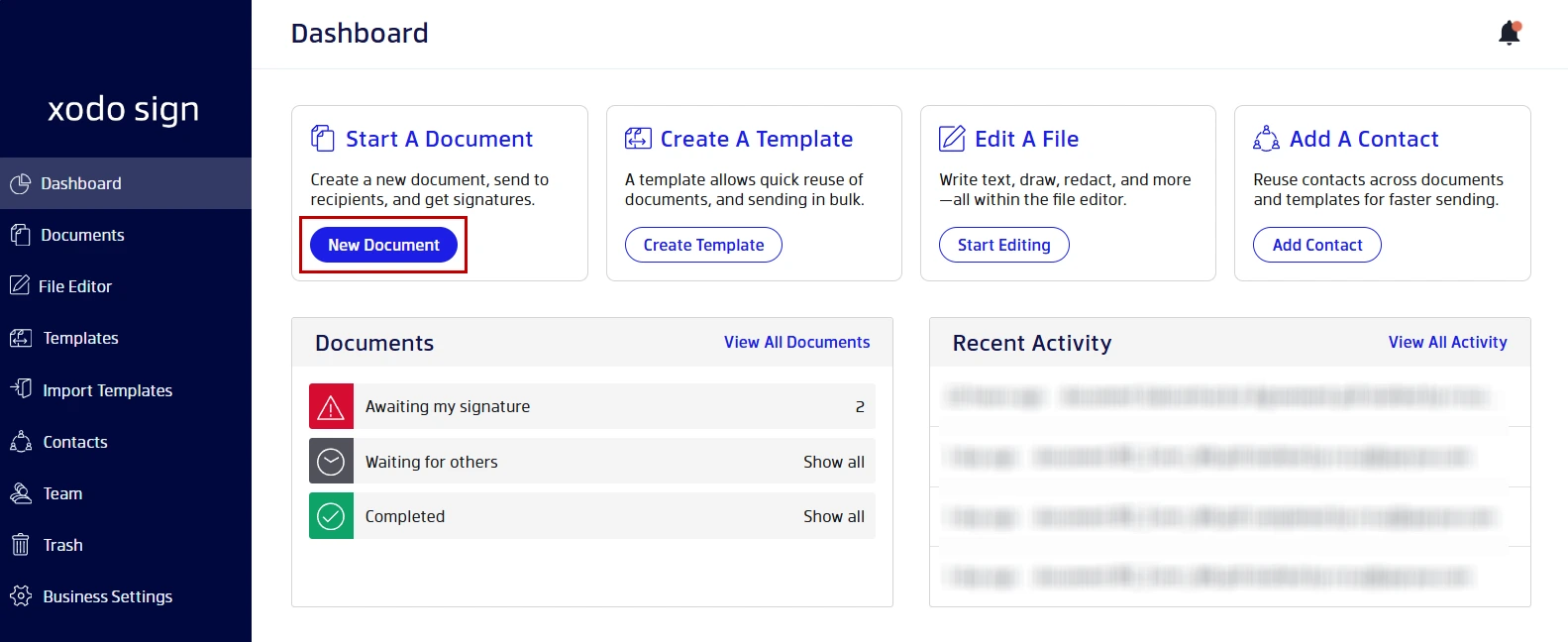
- Go to your dashboard.
- Click on New Document > Upload Files.
- Browse for, select, and open your W-9 form.
- You can also drag and drop your file directly on the uploading area.
3. Add signers
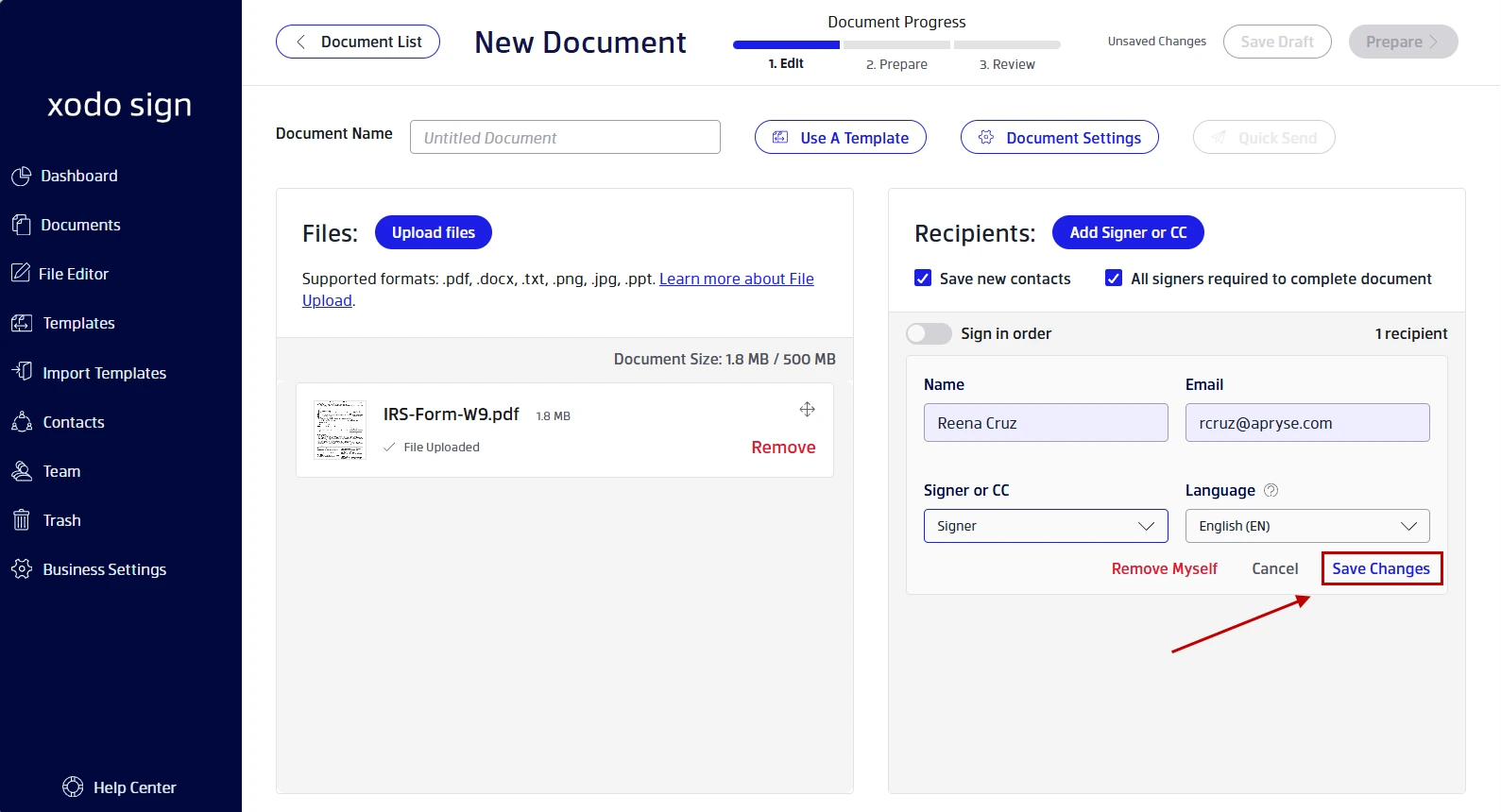
- From the Recipients section, select Add Myself.
- Add your name and email.
- Click on Save Changes.
- Optional: You can also add your requester as a CC recipient using Add Signers or CC. Enter their contact information, and click on Save Changes.
- Select and check any other signing and access settings needed.
- Then click on Prepare to continue.
4. Insert and fill in form fields
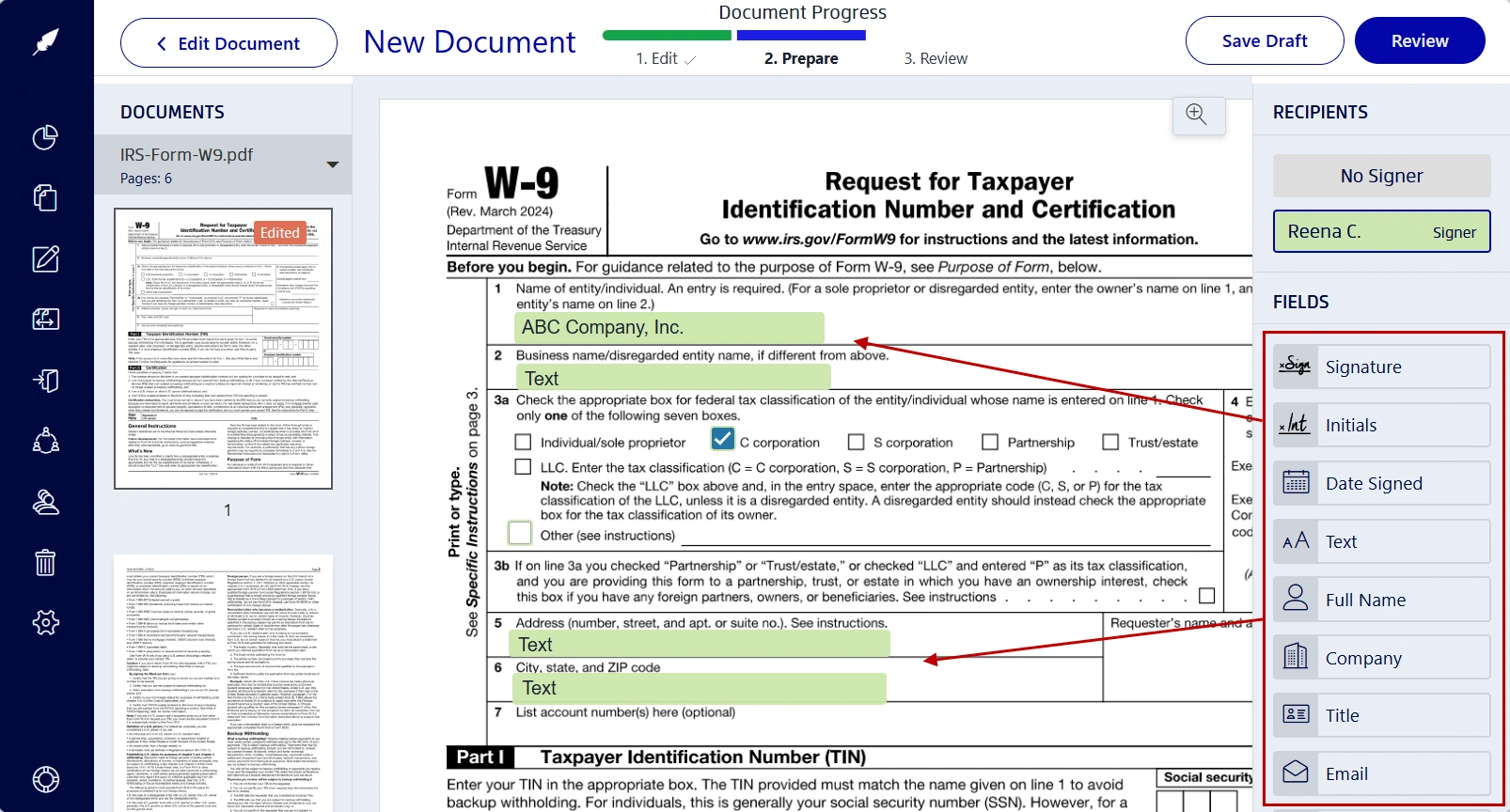
- Drag signing and form fields onto the page. You can add signature, full name, text boxes, company name, date, checkboxes, and text fields.
- Start filling the fields in by clicking on them:
- Enter your name as required.
- If applicable, add your business name, DBA, or disregarded entity name.
- Select the right federal tax classification.
- Enter the mailing address where tax documentation should be sent. Use the address the requester should keep on file.
- Add your taxpayer identification number in the correct field. This may be a social security number or employer identification number, depending on your situation.
- Read the Certification language before signing. Don't skip this step. A W-9 is short, but it carries real tax meaning.
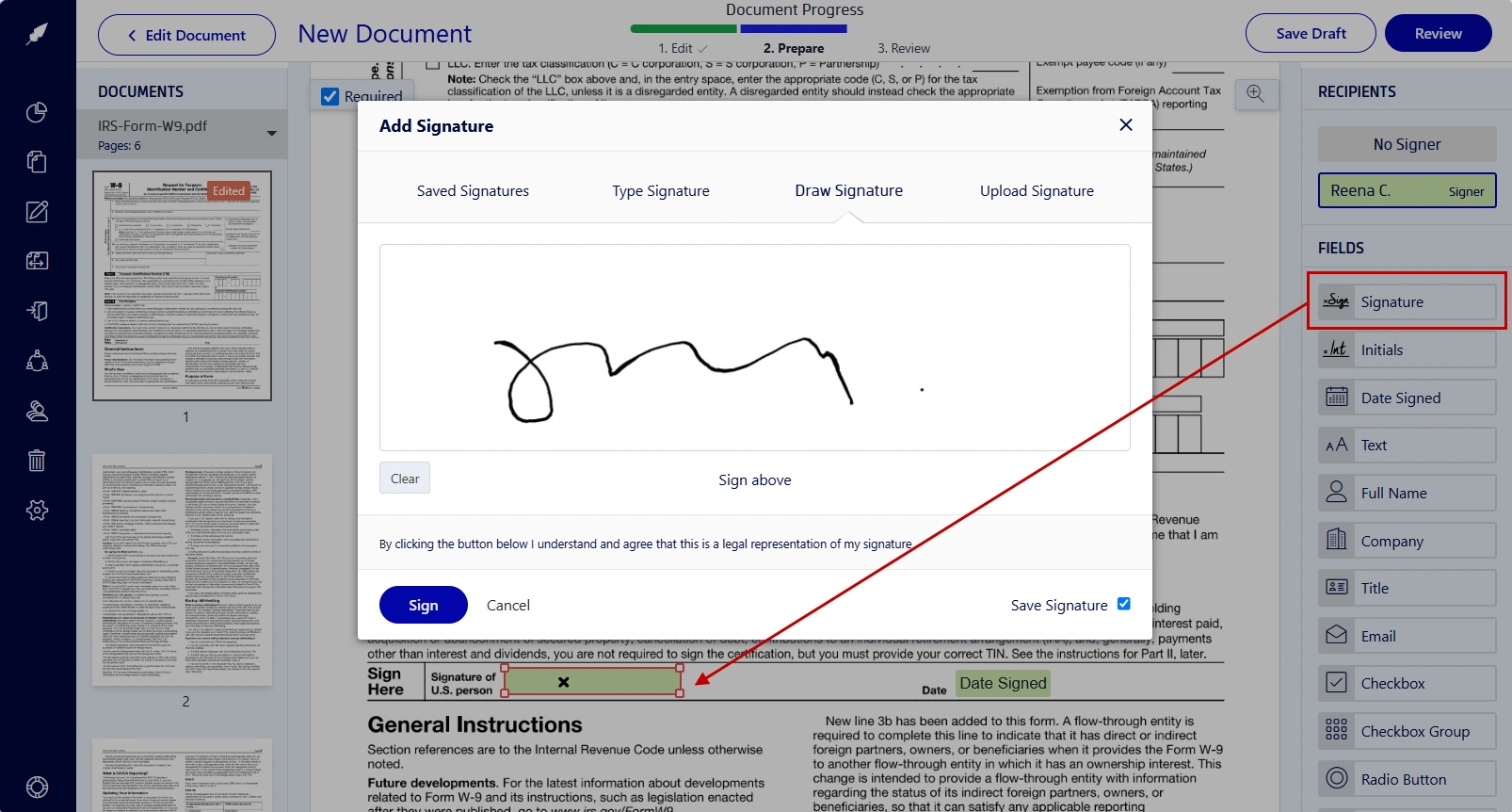
5. Electronically sign your W-9 form
Once you've reviewed and agreed to everything, sign the document.
- Click on your signature field.
- Draw, type, or upload an image of your signature.
- Click on Sign.
6. Save, download, and send the completed form
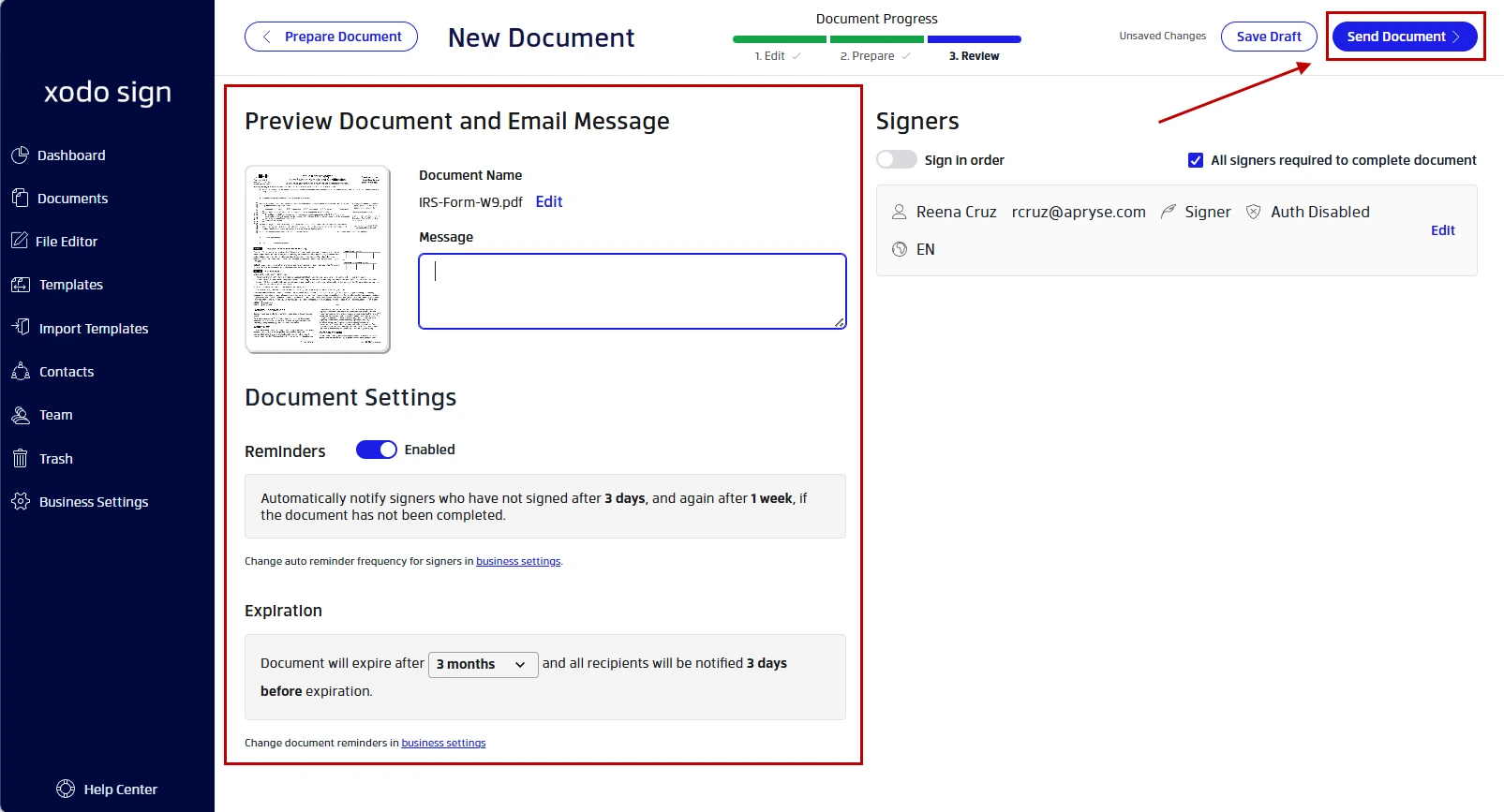
i) If you've added your requester as a CC recipient:
- Add an email message.
- Check or uncheck any document options needed.
- Click on Send Document. Both you and your requester will receive the signed copy.
ii) If you're sending your W-9 form using another requested method:
- Click on Save Draft.
- Download a copy by going to Documents > Drafts.
- Locate the W-9 form you just signed. You can then either:
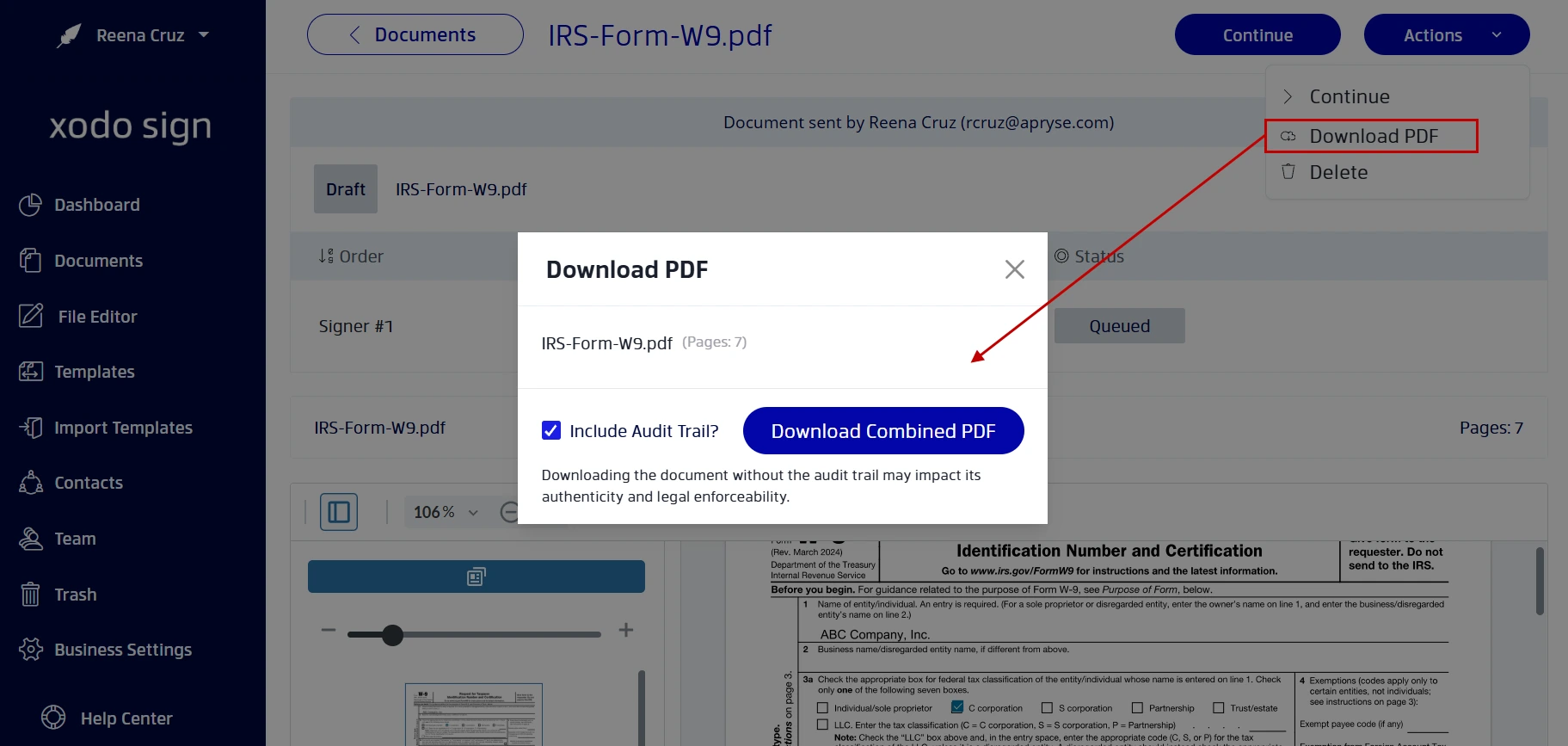
- Click on the file and from the document preview, click on Actions > Download PDF.
- Click on Continue > Download PDF (from the Drafts list).
- Confirm to include an audit trail or not.
- Click on Download Combined PDF.
- Send the signed W-9 back through the method the requester gave you.
Where possible avoid sending an unprotected W-9 through standard email if a safer method is available. A completed form may include a social security number, employer identification number, and other sensitive information.
How businesses collect W-9s digitally from contractors
For businesses, W-9 signing is usually part of a larger contractor onboarding workflow. The W-9 may sit next to an independent contractor agreement, statement of work, direct deposit form, NDA, or other paperwork.
A digital collection process usually looks like this:
- The business requests the W-9 from the contractor
- The contractor completes and signs the form
- The completed form is returned digitally
- The sender tracks the status
- The business stores the signed W-9 with the contractor’s file
Xodo Sign fits this sender-side workflow. It can also help businesses prepare and edit documents, route them to the right signer, track completion, send reminders, and keep signed documents stored with related records.
When you work with more than one contractor, Xodo Sign can keep the process organized. One missing W-9 is annoying. Ten missing W-9s during a busy onboarding week can slow finance, operations, and admin teams down fast.
If your business needs to send documents for signatures often, Xodo Sign can also support related workflows for contractor agreements, vendor forms, and onboarding packets.
What are common W-9 mistakes to avoid
- Treating the IRS as the signing platform
You do not complete a W-9 through an IRS-hosted signing website for a client’s onboarding request. The IRS provides Form W-9 and related instructions, but the common contractor workflow is between the requester and the payee. - Sending sensitive information casually
Use a secure return method when possible. A W-9 may include a social security number, employer identification number, address, and tax classification. - Assuming every business accepts the same process
Some businesses accept a signed PDF. Others require a secure portal or e-signature platform. Ask the requester how they want the completed form returned. - Skipping the certification language
The statements in the certification section are important. Read it carefully before signing. The W-9 signature is tied to statements made under penalties of perjury. - Mixing up W-9 and 1099 workflows
A W-9 is generally collected from the payee before reporting. A 1099 is a tax form used for reporting payments. Do not treat them as the same signing process. - Using stale or unofficial forms
Use the IRS website or the requester’s form. If something looks outdated, verify before sending it back. You can confirm if the form you have matches the current form by checking the IRS website.
Frequently asked questions
1. Can I sign a W-9 electronically?
Yes. A W-9 can be signed electronically when the electronic submission process meets IRS requirements. Those requirements include:
- Preserving the submitted information
- Providing the same information as the paper form
- Supporting hard-copy retrieval
- Capturing the payee’s e-signature in the submission process
2. Who signs a W-9 form?
The payee usually signs the W-9. In contractor workflows, that often means the freelancer, independent contractor, vendor, or business entity providing the taxpayer identification number to the requester.
3. Do I send my W-9 to the IRS?
No, not in the common requester workflow. The W-9 is usually given to the requester. The requester uses the information for tax reporting connected to income tax, reportable payments, or other tax purposes.
4. Is a typed signature enough for a W-9?
A typed signature alone is not the whole question. The electronic signing process should meet IRS requirements for electronic Form W-9 submissions when those rules apply. A secure e-signature workflow is safer than treating any typed name in any file as automatically valid.
5. Can a business collect W-9s with an e-signature tool?
Yes, if the workflow is set up properly and the business accepts that process. Xodo Sign can help send the form, collect the signature, track status, send reminders, and store the completed form with related contractor paperwork.
6. What is the safest way to return a signed W-9?
Use the secure method requested by the business, such as an e-signature link, secure portal, or protected upload process. Avoid standard email when a more secure option is available. For instance, Xodo Sign uses secure methods for sending signed documents.
7. What if I made a mistake on my W-9?
Ask the requester how they want corrections handled. In many cases, they may ask you to complete and sign a new W-9. Don't guess on tax classification, name, or taxpayer identification number fields. Check the IRS website or ask a qualified tax professional with questions.
A simpler way to sign, return, and store W-9 forms
A better W-9 process comes down to control: the contractor knows what to complete, the business knows what has been returned, and sensitive information is not left floating through scattered email threads.
Xodo Sign aims to keep that workflow organized and clear for both businesses collecting forms and contractors signing them. The cleaner the process, the easier it is to keep the onboarding process moving.
Start with the Xodo Sign trial and simplify the document signing process.