
Table of contents
Sign and send unlimited e-signatures with Xodo Sign.
The hard part is done. Your agency and client have agreed on the scope, fees, timeline, and deliverables.
Now you need to collect signatures on the correct version of the statement of work and keep a reliable record of the completed document.
This stage sounds simple, but mistakes happen all the time:
- The wrong SOW version gets sent.
- An unauthorized contact signs on behalf of the client.
- Required signature fields are missing.
- Teams lose track of the completed file.
- Old project details accidentally get added in.
If you're sending approved SOWs regularly, having a repeatable signing process can save time and reduce administrative headaches.
This guide walks through how to send a statement of work for electronic signature using Xodo Sign, from final review through document completion and storage.
What should you check before sending an SOW for signature?
Before you start sending an approved statement of work for signature, take a few minutes to verify four things first:
- The document version
- The authorized signers
- The commercial terms
- And workflow
1. Confirm you're sending the final approved version
Version control becomes surprisingly difficult once multiple stakeholders start reviewing an SOW.
Commercial terms change, deliverables evolve, and new attachments are added along the way.
Before sending, confirm that:
- All approved revisions have been incorporated
- Deliverables, milestones, and payment terms reflect the agreed scope
- Referenced exhibits, attachments, or schedules are included
- Project names, dates, and engagement details are accurate
A marketing agency, for example, may go through five or six revisions before a project schedule is approved. Sending version four instead of version six can create confusion and delay project kickoff.
The goal is to collect signatures on the exact agreement both parties approved.
2. Verify who actually has signing authority
Routing the SOW to the wrong person is one of the most common causes of signing delays.
The person managing the project isn't always authorized to approve new work.
This is especially common in larger companies where other departments and stakeholders may be involved.
Before sending, confirm who needs to sign and who only needs visibility:
- Authorized client representative: Signs the SOW.
- Authorized service provider representative: Signs the SOW.
- Project manager: Receives a copy.
- Operations stakeholder: Receives a copy.
- Finance or procurement contact: Receives a copy, if needed.
If the SOW falls under an existing master services agreement (MSA), verify that the signer can approve project-specific work under that agreement.
3. Review the commercial terms one last time
A final review helps confirm that the executed SOW reflects the service contract agreement that will govern the project. Check the following:
- Fees and billing structure
- Payment schedules
- Deliverables and acceptance criteria
- Project timelines and milestones
- References to an MSA or related agreements
- Change request procedures
- Effective dates
This review becomes even more important for long sales cycles. A proposal approved several weeks ago may contain details that have since changed.
Also, pay attention to deliverables and acceptance criteria. Many disputes stem from differing interpretations of what was promised, not pricing issues.
A few minutes spent reviewing commercial terms can prevent costly amendments after execution.
4. Map out the signing workflow
Once the document and signers are confirmed, decide how the signing process should work.
In many cases, simultaneous signing is the fastest option. In others, companies may require signatures to follow a specific sequence when signing a contract.
For example:
- Client approves and signs the SOW
- Service provider countersigns
- Completed copies are distributed to stakeholders
Before sending, confirm that everyone who needs to take action is assigned as a signer, while stakeholders who only need visibility are included as copy recipients.
How to send an SOW for e-signature with Xodo Sign
In Xodo Sign, upload the approved statement of work, add recipients, assign signer fields, review the message and settings, then send the document for electronic signature.
Then log in and follow these steps:
1. Sign up for a free trial with Xodo Sign.
- Start by signing up for a free trial with Xodo Sign.
- No credit card is required.
2. Upload the final statement of work to Xodo Sign
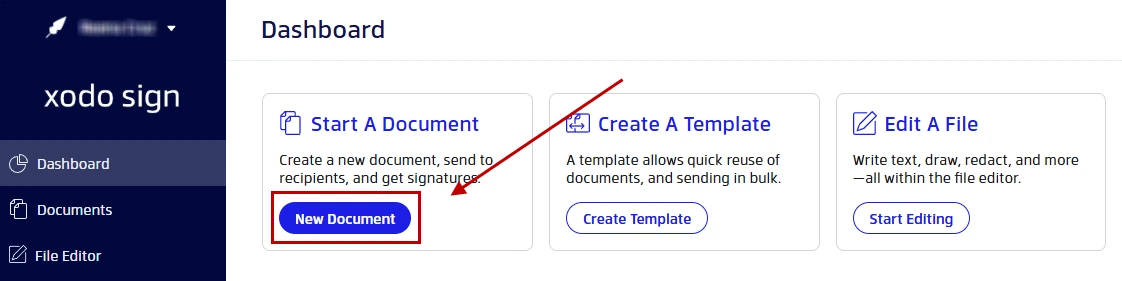
- Go to your Dashboard
- Click on New Document.
- Upload the SOW document you need signed.
3. Add your client and other authorized signers
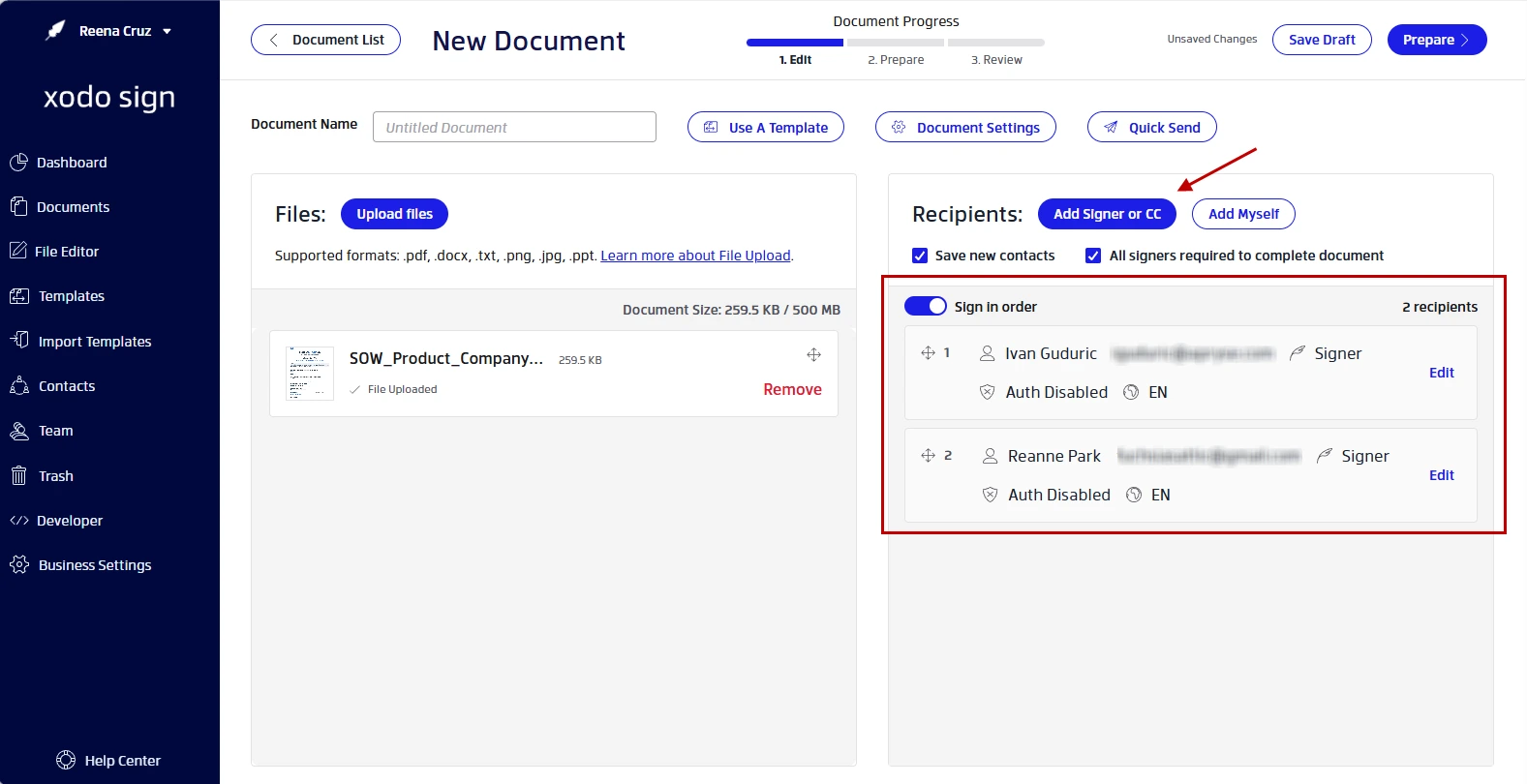
- Add the parties who need to sign the SOW.
- Click on Add Signer or CC.
- Enter your recipient's name and email address.
- Select their role: Signer or CC.
- Set your signing order.
- Set other options as needed.
- Then click on Save Changes.
- Repeat the steps for every recipient.
- Click on Prepare once done.
Tip: If signers don't need to sign in sequence, use a parallel signing method. Doing so lets all parties sign at the same time, allowing you to collect legally binding signatures faster.
4. Add signature and form fields
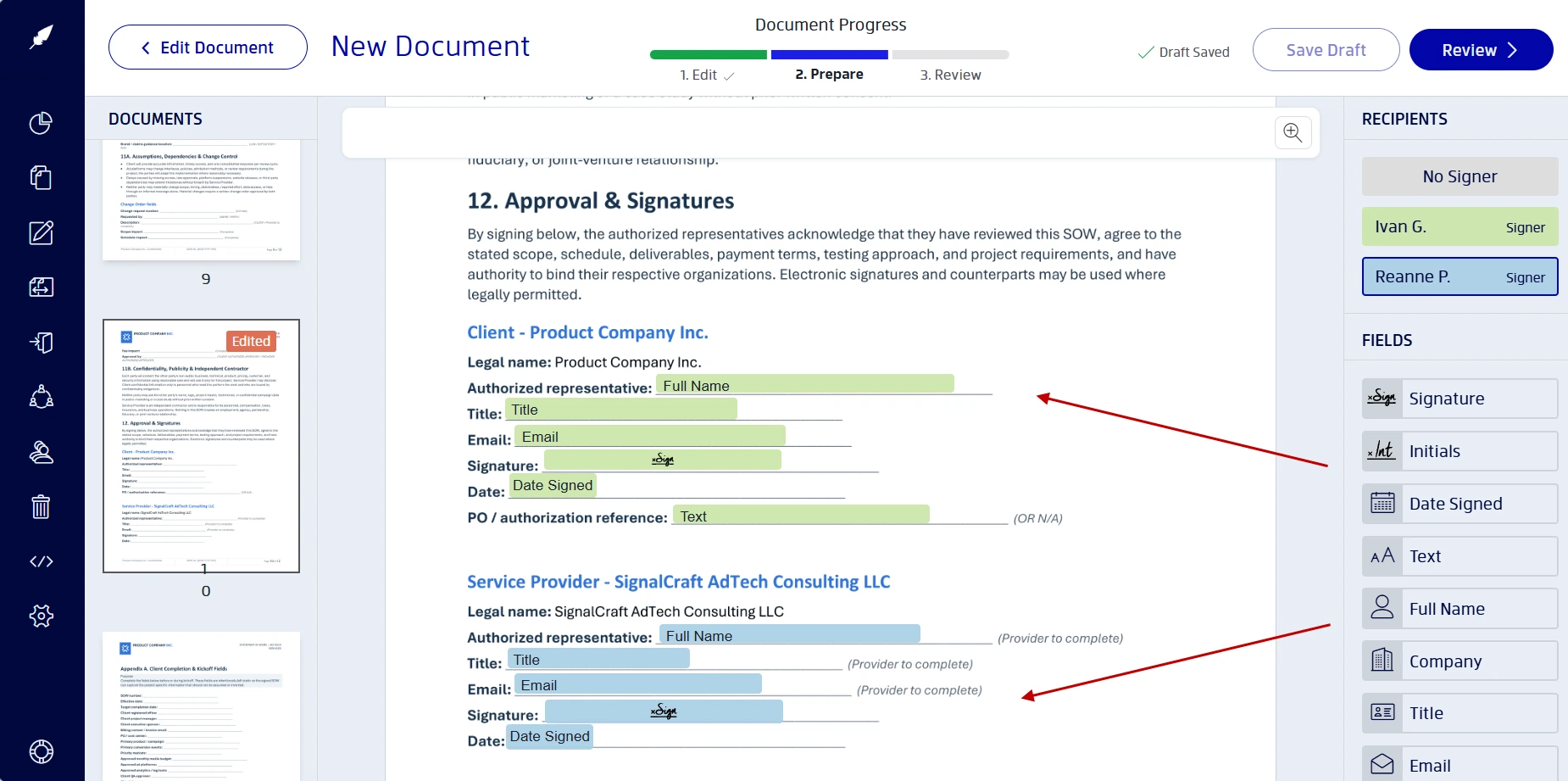
- Click on a recipient from the right-hand panel.
- Then click and drag to place signature, name, title, and date fields where needed on the page.
- Once done, click on Review.
5. Review the signing request
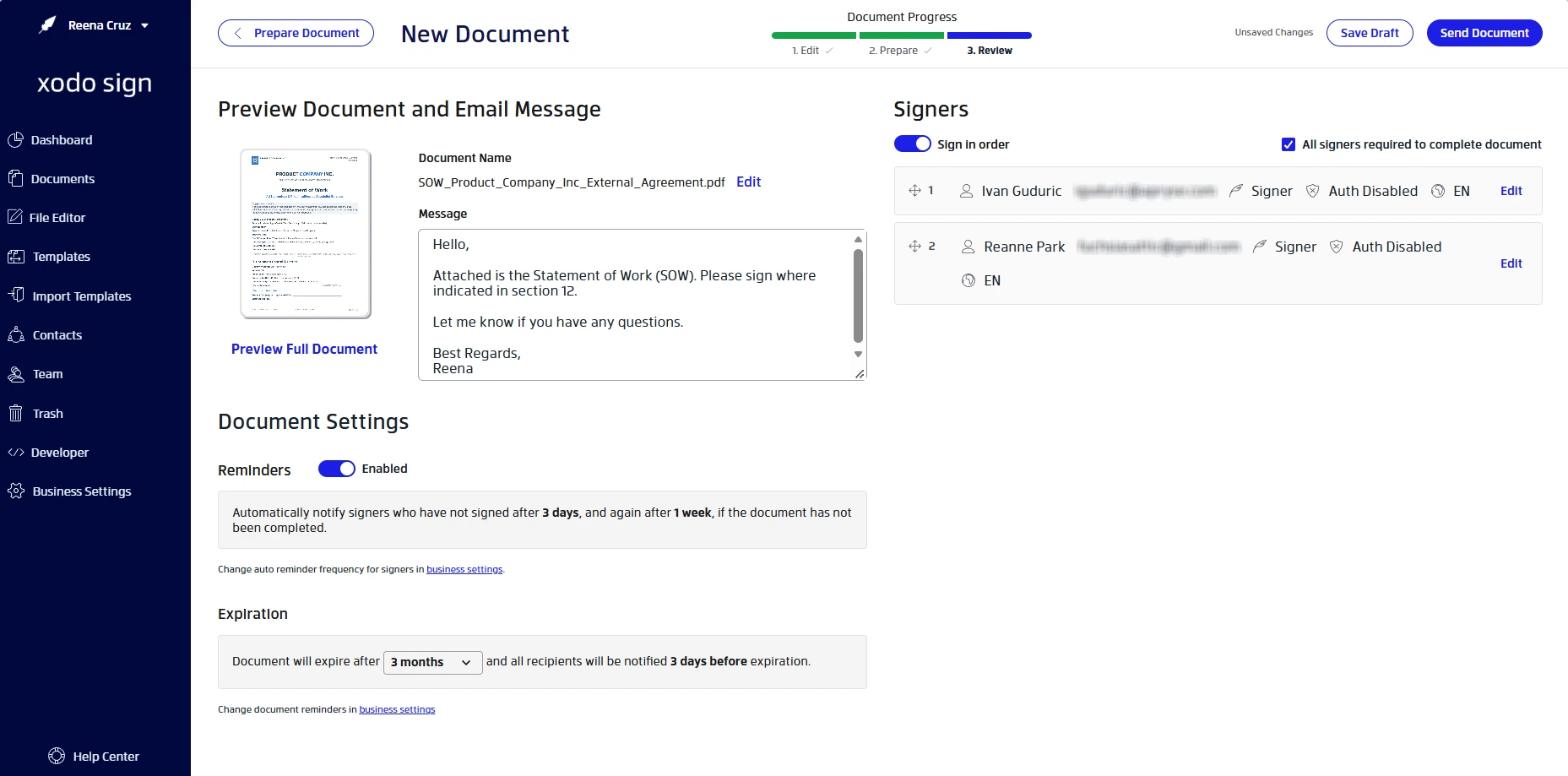
- Review the SOW's signers, emails, their roles, and signing order.
- Draft a project-specific message.
- Add reminder and expiration settings.
- Click on Send Document.
Recipients will receive an email invitation to review and sign the document electronically. The request then moves into the tracking phase, allowing you to monitor completion status.
6. Tracking a completed SOW
After sending your SOW:
- Monitor its progress through the document activity and status views.
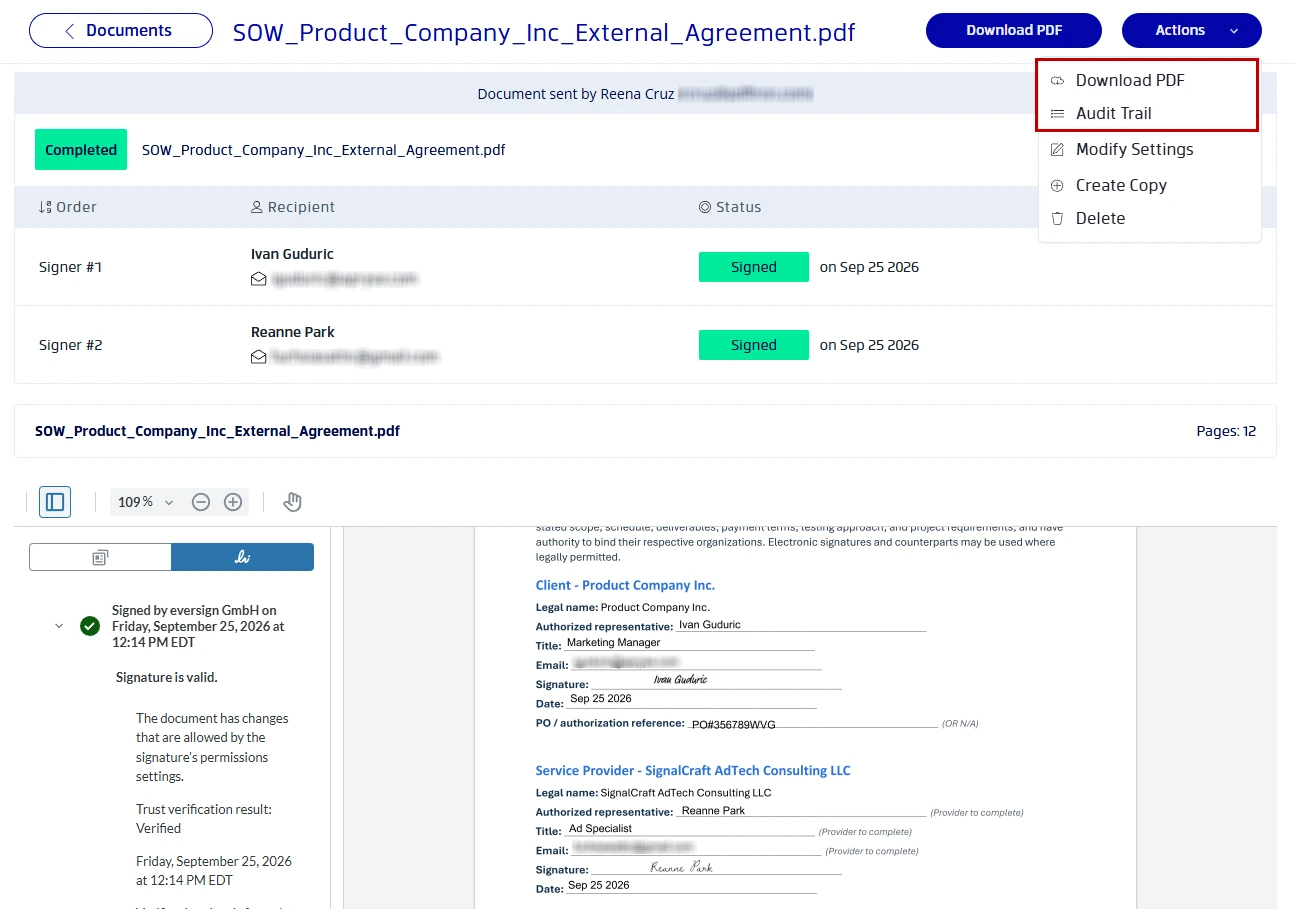
- Once completed, download the completed SOW.
- Download the associated audit trail.
- Store both for your records.
Why completion records matter
Because SOWs often define project scope, deliverables, timelines, and payment terms, maintaining a clear record of the executed document helps teams verify what was approved if questions arise months after the project begins.
Professional-services organizations frequently need documentation showing:
- Who signed
- When they signed
- The final executed version
- Associated audit information
Xodo Sign document tracking includes detailed audit trails that record all document activity with timestamps, IP addresses, and signer names.
A note on legal status
Electronic signatures may be legally recognized in many jurisdictions, but requirements vary depending on applicable laws, industries, document types, and locations. Always consult qualified legal counsel for guidance specific to your situation.
Reusing your signing setup for the next project
If you're sending SOWs every week, with Xodo Sign you can create reusable templates to standardize recurring workflows.
They allow you to prepare recurring documents with the same signer roles, field placement, signing order, and document preparation settings. For detailed setup instructions, check out our guide on creating templates in Xodo Sign.
When does it make sense to use templates?
Reusable templates make the most sense when you're sending the same type of SOW over and over. Instead of rebuilding the signing workflow for each project, you can start with a preconfigured template and update only the engagement-specific details.
They're a good fit for:
- Marketing retainers
- Consulting engagements
- Professional-services agreements
- Project extensions
- Standardized client SOWs
As your document volume grows, those time savings add up quickly. A signing workflow that takes several minutes to configure manually can be ready to send in just a few clicks when built into a template.
What to recheck before reusing a template
The efficiency of templates depends on keeping project-specific information up to date. Before sending a reused SOW template, review the following items:
- Client name
- Project name
- Scope references
- Effective dates
- Payment terms and fees
- Authorized signers and CC recipients
It's also worth checking any project-specific attachments, statements of work tied to an MSA, and milestone dates that may have changed since the template was created.
A good template should eliminate repetitive setup work, not repetitive reviews. It prevents outdated information from carrying into a new engagement and reduces the likelihood of revisions after the signing process begins.
If you need unlimited reusable templates, explore the Xodo Sign Professional plan in more detail.
Frequently asked questions
1. Can I sign a statement of work online?
Yes. An approved statement of work can be signed or sent for signature using Xodo Sign. The signer receives an email signing request and completes the document online.
2. Who should sign an SOW?
Typically, an authorized representative from the client organization and an authorized representative from the service provider should sign the SOW. Internal stakeholders can have a CC role and can receive copies in Xodo Sign.
3. Should I send a Word file or a PDF?
PDF files are generally preferred for signature workflows because they help preserve formatting and reduce document inconsistencies during the contract management process.
4. Do recipients need a Xodo Sign account?
No. A signer receives your e-signature request through the platform and can sign within their browser via a secure link.
5. What should be stored after signing?
After the document is signed, you should keep the following:
- Signed PDF
- Audit trail
- Related attachments
- Internal project record
These materials help to maintain a complete transaction history should any disputes arise.
6. Can I reuse a SOW signing workflow?
You can reuse a SOW signing workflow. Xodo Sign allows you to use templates to save time for recurring projects, provided you review project-specific details before each send.
7. Is a signed SOW proof that deliverables were accepted?
No. A signed SOW documents agreement to the stated work, not that deliverables were accepted. It should not automatically be treated as evidence that services were delivered, accepted, or completed.
Send your next SOW with less administrative work
When project terms have already been agreed upon, the goal is simple: get the correct statement of work in front of the correct signers and maintain a reliable record of the completed agreement.
Xodo Sign helps professionals and teams prepare documents, assign signer-specific fields, track status, reuse templates, and retain completed signing records in one simple workflow.
Start a free trial of Xodo Sign and create a repeatable signing process for client projects.