%201.webp)
Table of contents
Sign and send unlimited e-signatures with Xodo Sign.
When you’re ready to extend a job offer, speed matters. Candidates expect a smooth experience. Hiring teams need records they can trust. That’s where signing an offer letter online makes a real difference.
Electronic offer letters remove friction from the hiring process. With Xodo Sign, you can prepare, send, sign, and store offer letters in one place.
The result? Fewer delays, fewer errors, and faster acceptances.
In this guide, you’ll learn how to sign an offer letter electronically online and send it for acceptance with just a few clicks.
How to sign an offer letter online with Xodo Sign
1. Create a Xodo Sign account
- Start a free trial. Set up takes minutes. No credit card is required.
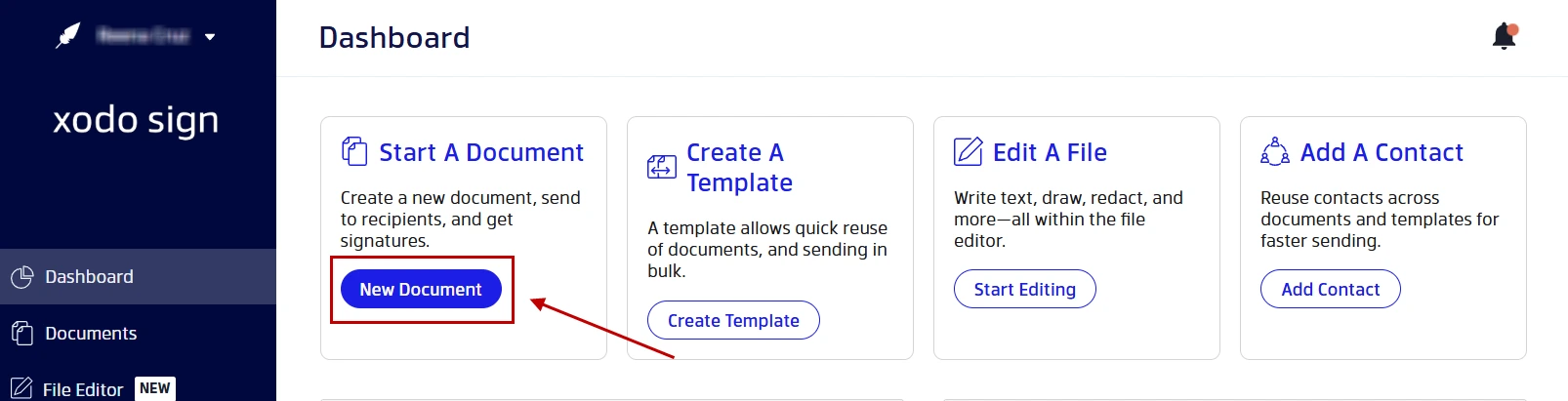
- Once you’re logged in, you’ll be taken to your dashboard, where you can upload, send, and track offer letters.
2. Upload your offer letter
- In the dashboard, click on New Document.
- Click on Choose Files and select your offer letter.
Xodo Sign supports PDFs, Word files, and common image formats. Uploaded files are converted to editable PDF file automatically.
3. Set up signers, signing roles, and settings
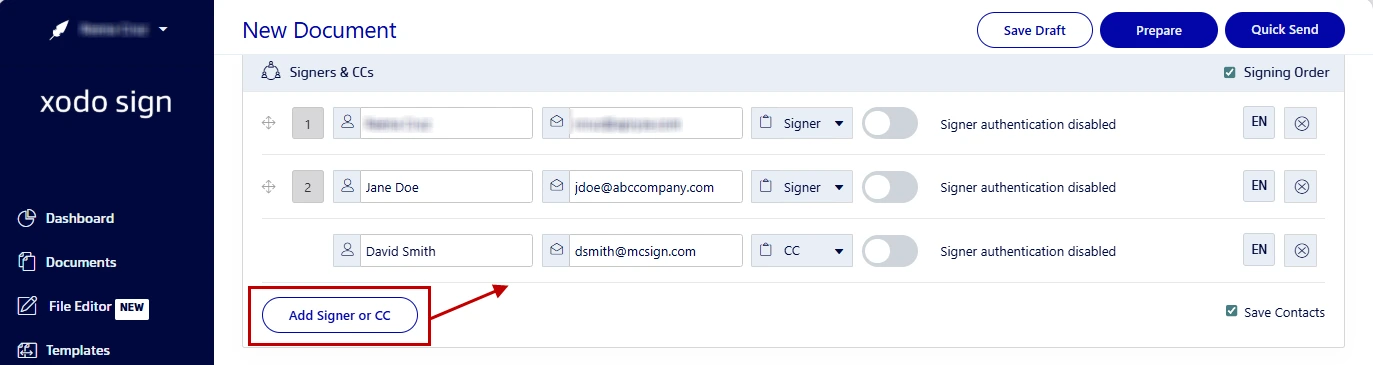
- Select your signing option: Just You, You and Others, or Others Only.
- Add the candidate’s name and email.
- If needed, add other signers or recipients who need a copy.
- Assign the candidate as a Signer and other roles accordingly.
- Specify a signing order if you have multiple signers.
- Select any advanced options such as expiration dates and auto-reminders.
- Click on Prepare.
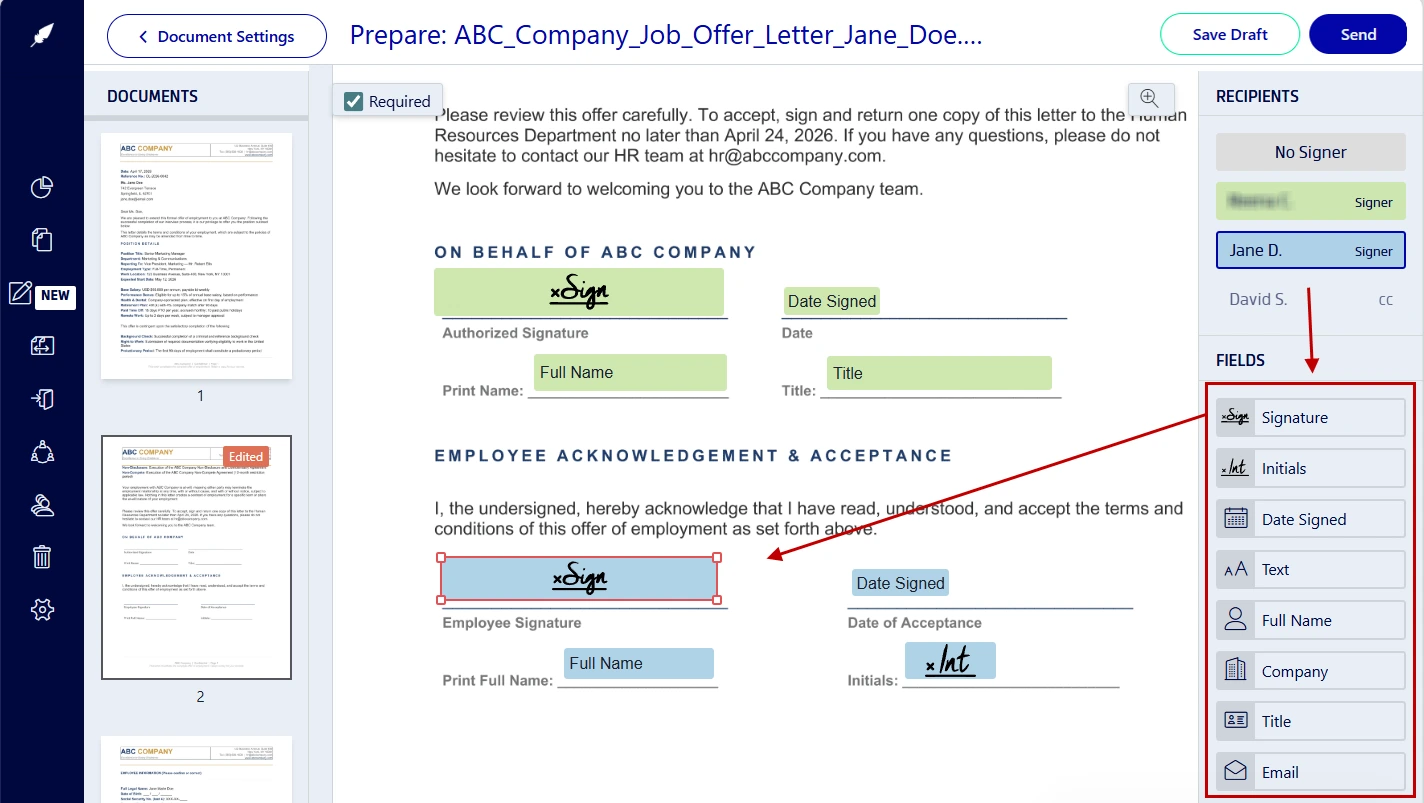
4. Insert signature and date fields
- Click on the candidate's name to assign fields.
- Drag and drop the signature, date, or initials field onto the page.
- Assign fields to the other signers and yourself in the same way.
- In your own signature field, draw, type, or upload an image of your digital signature.
- Quickly preview to verify all the necessary fields are added.
- When everything looks good, click on Send.
Xodo Sign sends the signing request immediately. The candidate can sign the offer letter online from any desktop or mobile device. No Xodo Sign account is required.
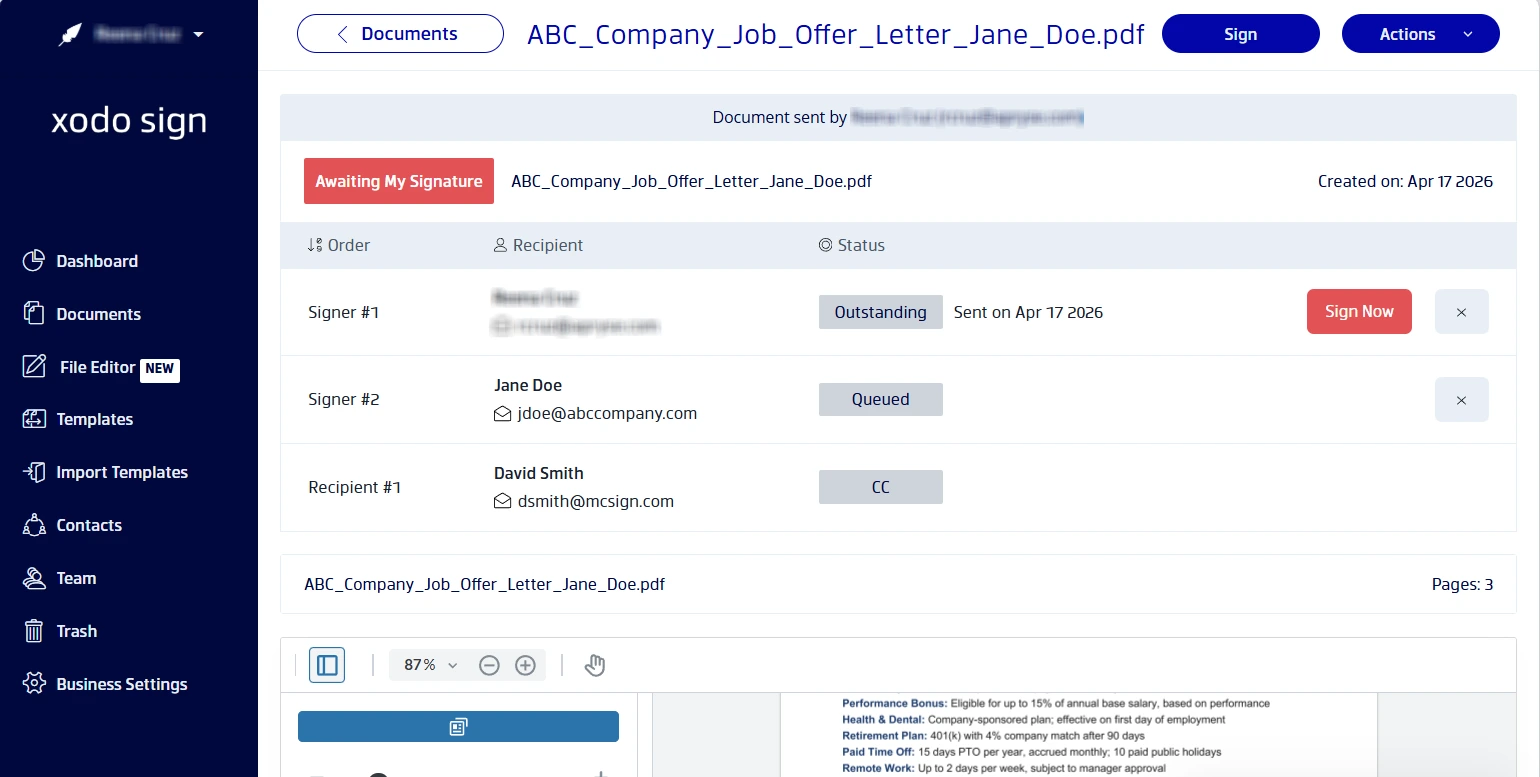
5. Keep track of the offer letter status
To view and track the status of your offer letter:
- Open your Dashboard and click on Documents.
- Check under the In Process tab.
- View the activity on the document.
- Send out signing reminders if needed.
- Once everyone has signed, the document will be under the Completed tab.
- You can download the completed PDF along with its full audit trail.
How offer letter acceptance works
The acceptance of an offer occurs when the candidate signs the job offer letter. Here’s what the candidate experiences:
- They receive an email containing a secure link to your offer letter.
- The link will open the document in their web browser.
- The candidate can complete the form by clicking and typing in each field.
- Acceptance is confirmed by signing the document.
- Clicking Finish locks in the signature.
If a signing order is set, the document moves to the next signer automatically. You’ll see the status update in your dashboard from In Process to Completed once everyone has signed.
If all parties haven’t signed before the expiration date, you can extend the deadline or resend the offer.
More ways to simplify hiring paperwork
If you need to sign other hiring documents, see our related guides:
Frequently asked questions
1. Is an electronic signature on an offer letter legally binding?
Yes. Offer letters signed with Xodo Sign are legally binding and compliant with regulations like ESIGN and eIDAS in most regions.
2. What file formats does Xodo Sign support for offer letters?
Xodo Sign supports PDFs, Word documents, and common image formats. Files are converted to secure PDFs before editing and signing.
3. Can I require extra identity verification from a candidate?
Yes. When preparing your offer letter, you can enable email OTP (one-time passcode) or SMS verification to confirm the signer’s identity before they access the offer letter.
4. How do I track multiple outstanding offer letters?
Use the Documents dashboard to view all active offer letters. You can see which offers are pending, signed, or completed and send reminders as needed.
5. What if a candidate wants to negotiate terms before signing?
If revisions are needed, you can cancel the document you sent, update the offer letter, and send a revised version for signing.
6. Can candidates sign offer letters on mobile devices?
Yes. Xodo Sign is fully responsive. Candidates can review and sign your offer letter on smartphones or tablets without installing an app.
7. How secure is the offer letter signing process?
Xodo Sign uses industry-standard 256-bit HTTPS encryption and is SOC 2 Type 2 compliant, ensuring your signed documents remain protected.
Stop chasing signatures. Start closing roles.
Knowing how to sign an offer letter online and send it for acceptance can remove delays from your hiring process.
Xodo Sign removes the paperwork bottlenecks and keeps approvals consistent. Teams can sign documents online, request signatures, and manage every document online. Built for recruiters, HR managers, and founders working with contracts and employment agreements.
Try it today and start signing and sending secure documents in minutes.