Table of contents
Sign and send unlimited e-signatures with Xodo Sign.
You created a PDF document to be read and signed by your partners but realize later that there's a problem.
The pages are all out of order.
When you scan papers and create a PDF document, you have to do it in the exact order. What happens when you make, and you need to sort the document vs. rescanning the pages?
Well, there are several options you can use to reorder and edit your PDF documents using desktop and internet tools.
Let's take a look at how you can sort your PDF documents.
Reorganizing Your PDFs Online
There are several tools you can use online that are designed for the purpose of sorting PDFs. For example, Xodo has a tool that allows you to sort, delete and rearrange PDF pages.
The process is rather simple:
- Go to the Rearrange PDF Pages tool.
- Upload the PDF you want to work with.
- Rearrange and reorder pages the way you want.
- Download the updated PDF to your device.
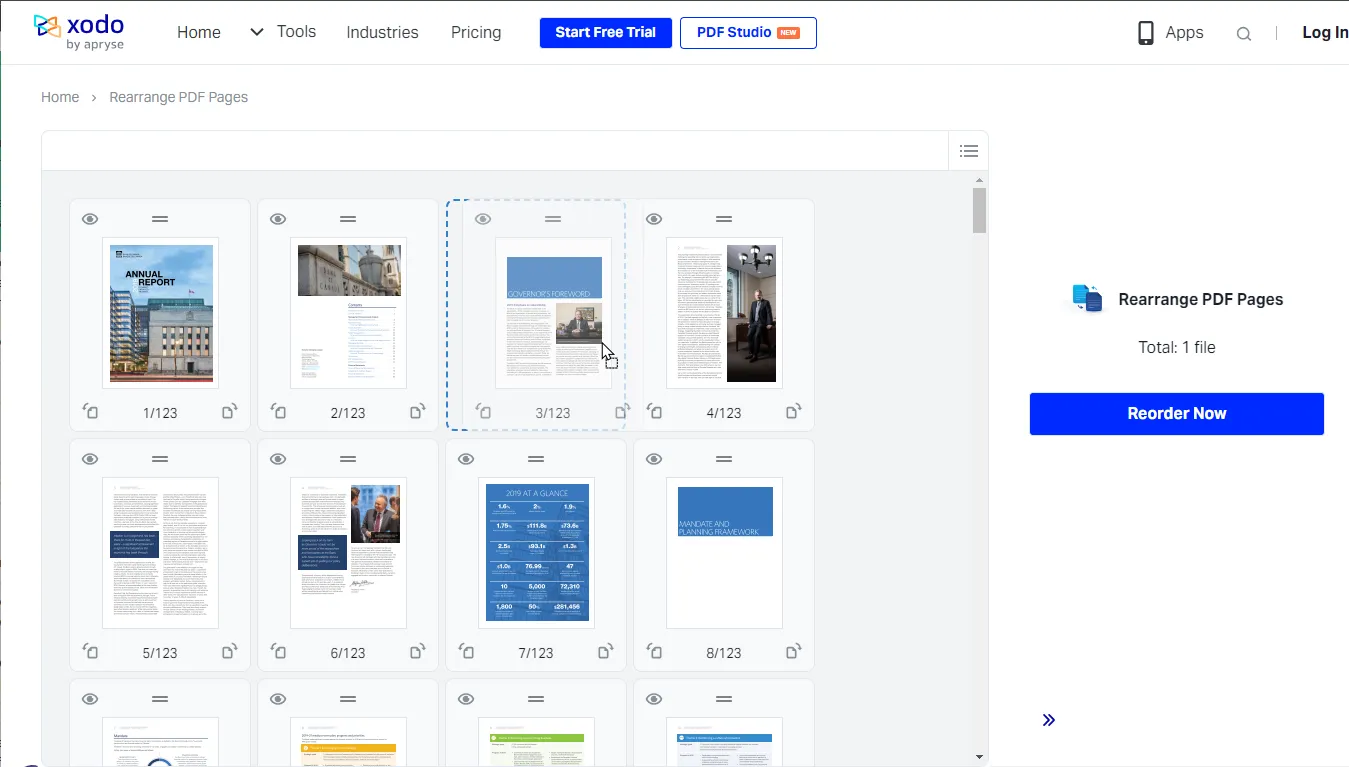
You can also use other Xodo tools to rotate, split, merge, and edit PDF files directly in your browser.
Sorting PDF Documents Using Adobe
Adobe is a desktop software you can use to manipulate your PDF documents.
Let's take a look at some of the steps you have to take to reorganize your PDFs.
Rotating Your PDF
To rotate the documents in your PDF file, all you have to do is open your PDF in the software. The click on Tools > Organize Pages.
Or you can go to Organize Pages located in the right pane.
Once you're in, you'll need to choose which of the pages you want to rotate. You can select a page range (i.e., 1-10).
There's also the option to specify pages based on whether they're even or odd numbered, landscape, or portrait. Then if there's only one page, you can always type in that page number.
You're then able to rotate the document in 90-degree increments, left or right.
After you're done, you're all set!
Moving PDF Pages
With your PDF document already open, select Tools > Organize Pages. When the Organize Pages toolset opens in your secondary toolbar, you can view the thumbnails of each page.
Choose which of the pages you'd like to move. All you have to do is click on the thumbnail and drag it to the position it should be in.
The pages will automatically renumber to reflect the change.
Deleting PDF Pages
If you have irrelevant or redundant pages in your PDF, then you can easily remove them. Go to Tools > Organize Pages, then choose the range of pages you'd like to remove.
You can choose between landscape or portrait, and even and odd pages. Plus, you can enter the page numbers you'd like to delete.
After specifying them, go to your secondary toolbar and hit the "Delete Pages" button, which should look like a trash can.
Don't forget to click "OK" to confirm the deletion.
Get Your PDF Documents Organized!
With these three available options, you should find no problem with sorting your PDF documents.
You have the option to manipulate your document in other ways as well, such as deleting and adding pages.
Have a document that needs some TLC? Then use these tips today to get them right.
Make sure to come back and let us know in the comments!