
Table of contents
Sign and send unlimited e-signatures with Xodo Sign.
If you’re choosing between Docusign and Xodo Sign, the most noticeable differences relate to cost, document limits, workflow setup, and in-line editing tools.
The 8 points below explain why many teams consider Xodo Sign as the best alternative to Docusign.
1. Affordable pricing plans that stay predictable as usage grows
Xodo Sign offers unlimited documents on paid plans at a fixed cost, while Docusign uses per‑user and envelope‑based pricing. Teams with higher or unpredictable volume often find Xodo Sign’s model easier to budget for. See how those pricing differences could affect your actual spend with our e-signature cost calculator.
Note: The Docusign plan names and pricing used in this comparison are based on the U.S. version of the Docusign pricing page (as of October 2026). The table compares plans using upfront annual billing. Pricing, plan availability, and included features may vary in other regions.
Free plans
Both Docusign and Xodo Sign offer free plans, but they work differently.
Xodo Sign’s Free plan supports up to 5 documents per month, limited to one document every 7 days.
Docusign’s free account is primarily designed for signing and storing your own documents. Users who want to send documents to others for signature are directed to a free trial of a paid plan.
2. Unlimited documents on paid plans
Unlimited documents are one of the clearest differences between Xodo Sign and Docusign. Most of Docusign’s plans include per‑envelope limits, while Xodo Sign keeps usage flexible across all paid tiers.
Who benefits from unlimited documents with Xodo Sign:
- High‑volume senders
Envelope caps are not a factor, helping avoid any overages. - Agencies
Templates and built-in text editing reduce repeat prep work. - Admin and ops teams
Internal approvals can be completed without counting envelopes. - Legal users
Frequent revisions and audit trail requirements fit well with unlimited documents. - Real estate users
Multiple revisions and follow‑ups can be handled without monitoring usage.
3. Built‑in PDF editing tools
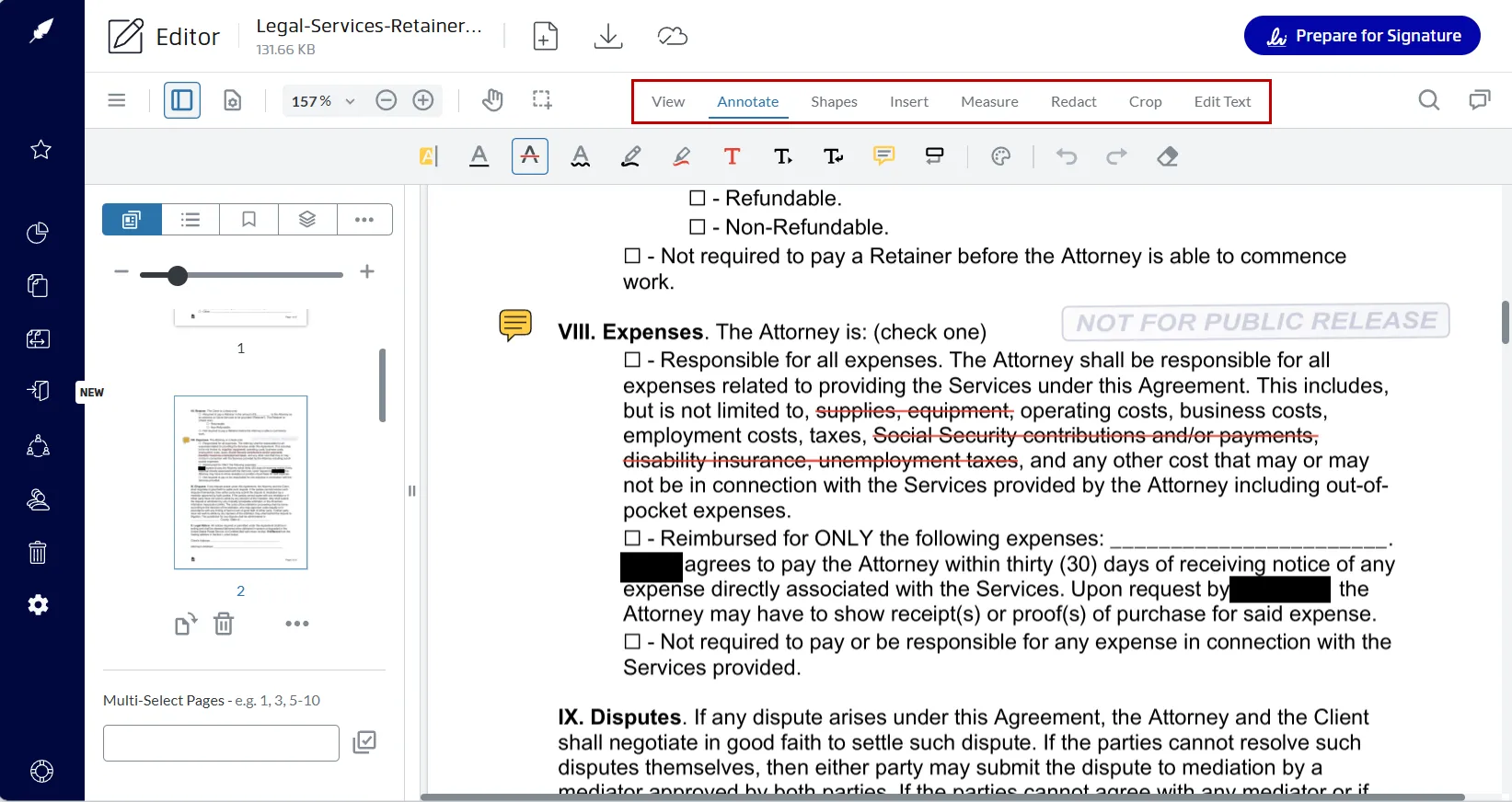
Xodo Sign includes native PDF editing in its Professional plan. This lets users update documents before sending them for signature. All without having to switch apps or purchase a separate PDF editor.
Available editing options include:
- Adding and editing text within a PDF
- Redacting sensitive information
- Merging, splitting, cropping, and reordering pages
- Inserting shapes, links, stamps, and images
- Adding comments and other annotations
- Measuring distances and areas
Docusign only includes Quick Edit for lightweight changes such as editing text, repositioning text or image blocks, and adding, deleting, or reordering pages.
4. Simple setup and daily workflows
Xodo Sign
Focuses on straightforward setup and intuitive daily actions. Uploading files, editing documents, adding fields, creating templates, and tracking status are easy to learn. This is helpful for small teams or users who send documents frequently and want predictable steps.
Start a free trial to see how advanced editing and unlimited e-signatures fit into your typical workflow.
Docusign
Docusign offers a broader range of products, integrations, and enterprise workflow options. Teams with more advanced requirements may therefore have additional products, integrations, or configuration choices to consider during setup.
5. Higher user ratings on G2 and Capterra
Reviews give insight into real user experience. As of October 2026, G2 and Capterra ratings show slightly higher satisfaction scores for Xodo Sign.
G2:
- Xodo Sign: 4.8/5
- Docusign: 4.5/5
- Xodo Sign: 4.8/5
- Docusign: 4.7/5
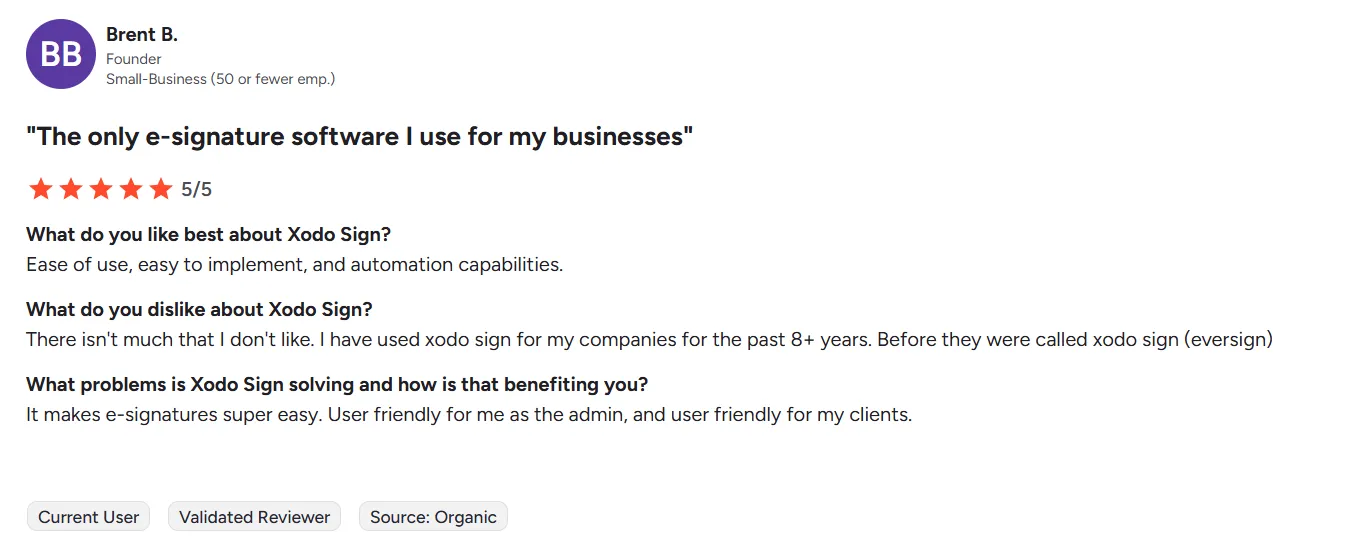
Many reviews highlight ease of use, clear workflows, and fast document setup as reasons for choosing Xodo Sign.
6. Most core features included without extra add‑ons
Xodo Sign’s paid plans include tools many teams need in day‑to‑day work:
- Templates
- Document editing (Professional)
- AI summarization (Professional)
- Signature requests
- Status tracking
- Audit trails
These features work within the same e-signature and document preparation workflow. External modules or additional products are not required for common signing tasks.
Docusign’s ecosystem is broader but often requires additional modules or integrations for similar tasks.
7. Better suited for teams that manage high document volume
Teams that handle frequent or multi‑party signing processes benefit from predictable costs and flexible workflows.
What high‑volume teams often need:
- Stable pricing
- Unlimited sends
- Detailed audit trails
- Easy template management
Xodo Sign supports these needs without requiring plan upgrades tied to volume. Teams that benefit from this setup:
- Contractors
Often manage bursts of project paperwork, including change orders and compliance forms. - Agencies
Handle ongoing client work with frequent revisions and approvals. - SMBs
Benefit from pricing that does not increase when volume grows.
8. Clear API pricing with simple tiers
Xodo Sign uses clear document allocations for API plans. Docusign’s API pricing is tied to envelope consumption, which may require closer monitoring.
Frequently asked questions
1. Is switching from Docusign to Xodo Sign difficult?
Xodo Sign provides a guided document workflow and supports importing existing Docusign templates, which can reduce the amount of setup required when switching platforms.
2. Can I import my Docusign templates?
Yes. Xodo Sign can import Docusign templates from JSON files, including many existing fields and signer roles.
3. Is Xodo Sign legally binding?
Yes. Xodo Sign supports legally binding e‑signatures compliant with ESIGN and eIDAS.
4. Does Xodo Sign include audit trails?
Yes. Every document includes a complete audit trail with timestamps and activity records.
5. Can Xodo Sign be used with Google Drive, OneDrive, or Dropbox?
Yes. Xodo Sign integrates with popular cloud storage services to simplify document access.
Switch to Xodo Sign
Many teams compare Xodo Sign to Docusign when they’re looking for predictable pricing, unlimited electronic signatures on paid plans, built-in PDF editing, and a straightforward document workflow.
If you want a closer look at how Xodo Sign fits your workflow, start a free trial or request a live demo.