%202.webp)
Table of contents
Sign and send unlimited e-signatures with Xodo Sign.
Scanning and emailing a document is much simpler than it used to be. You no longer need a physical scanner or desktop scanning software.
The Xodo mobile app gives you an easy workflow with a built‑in scanner that uses your device camera to capture documents and turn them into clean, ready‑to‑send PDFs.
This quick guide shows how to scan a document on Android or iOS, edit it, save it, and email it. Everything works the same on both platforms.
Why use your phone to scan documents?
Most people now scan documents with their phones because it’s:
- Fast – capturing a page takes seconds.
- Always available – your phone is with you when you need it.
- High-quality – modern cameras and apps produce clear text.
- Easy to share or email – send the attached scanned document directly from your device.
With the Xodo app, you can automatically scan paper documents and export them as a polished PDF.
How to scan and email a document with Xodo Mobile
Follow the steps below to scan a document quickly on your iPhone or Android device.
Step 1: Install and open the Xodo app
Xodo is free for both iOS and Android.
Open the app after installation.
Step 2: Capture your document
In the Xodo app:
- Tap Scan in the bottom right corner.
- Choose Manual or Auto capture.
- Place your document on a flat, well‑lit surface.
- Frame it inside the capture box.
- Hold your phone steady and tap the shutter button.

Xodo detects edges automatically and corrects perspective for you.
If your document has multiple pages:
- Tap Add page (document with a plus icon) to continue scanning.
- Repeat until you’ve captured all the pages.
Step 3: Review and edit your scan
After capturing, Xodo displays a preview. You can:
- Enhance the scan
- Apply filters (color, grayscale, or original)
- Crop or rotate
- Delete unwanted pages
- Clean up marks or stains

These tools help you produce cleaner scans before sharing or emailing scanned documents.
Step 4: Save your PDF
- When your scan looks correct, tap Next.
- Save the file on your device or in Xodo Drive.
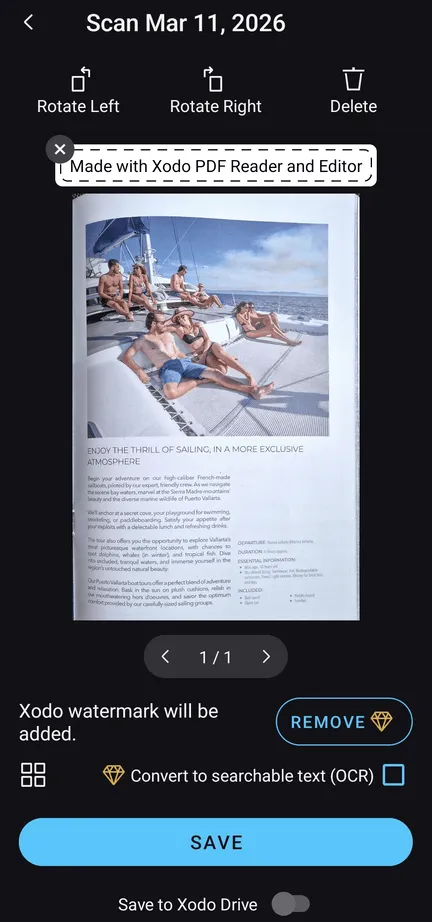
Note: With the free version of Xodo, saved files include a watermark. To remove it and access advanced features like OCR (to convert scans into searchable PDFs), start a free trial. Without an account, you can still save your scanned file with the watermark.
Step 5: Email your scanned document
Once the file is saved:
- Tap the three‑dots menu next to your PDF.
- Tap Share.
- Choose your email app (example: Gmail).
- Your email app opens with the PDF already attached.
- Enter the recipient’s email address, add a subject and message, then send.

You can also share your PDF through messaging apps, file transfer apps, or upload it to cloud folders directly from Xodo.
Optional: Sign your scanned document
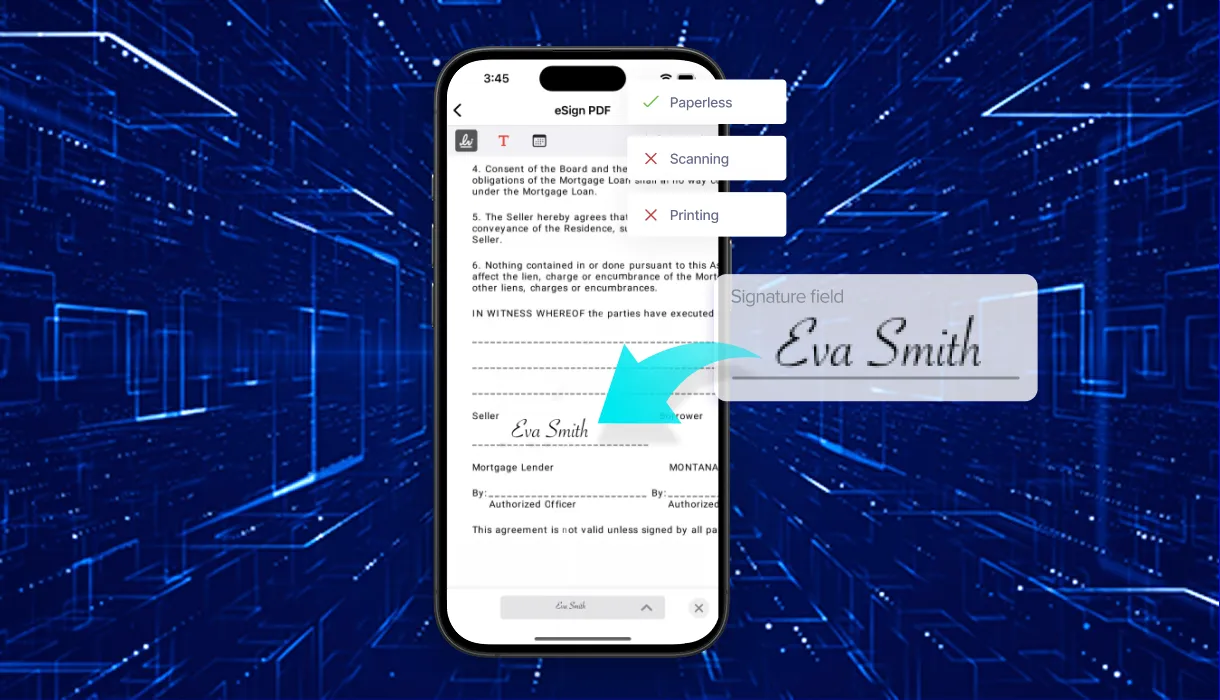
If your scanned document needs a signature, you can sign it inside the Xodo app.
You can:
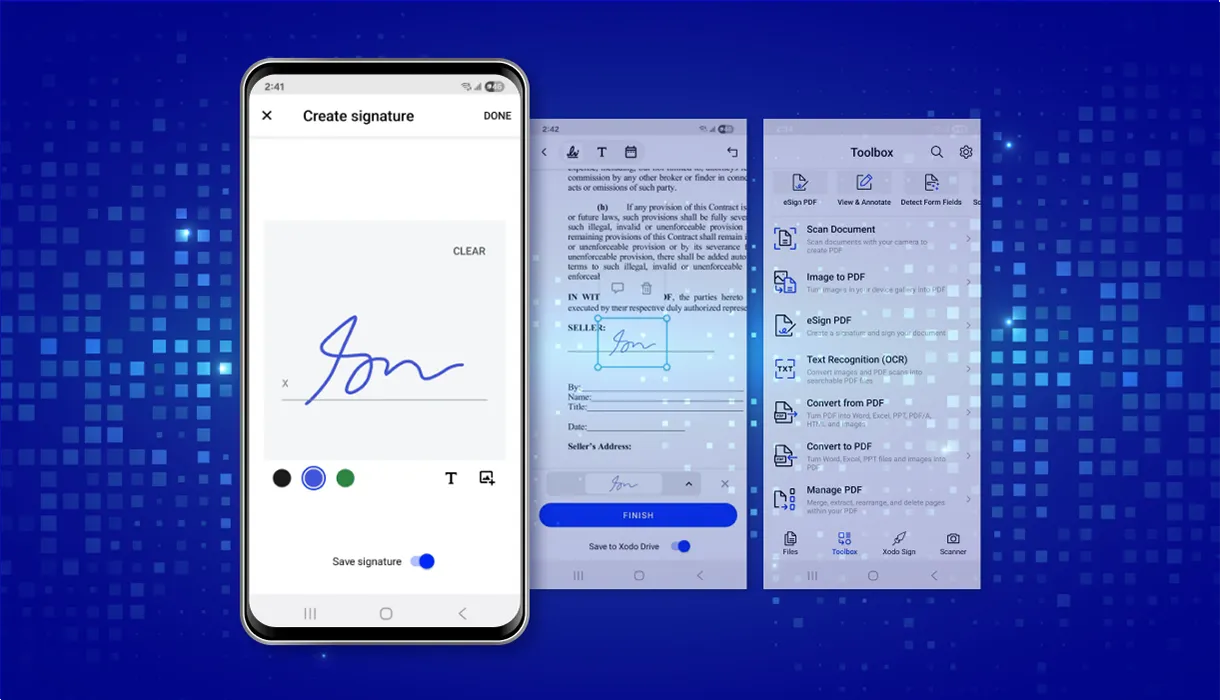
- Add your e‑signature using the eSign PDF tool
- Send the file to others for a legally binding signature using the Xodo Sign integration
- Track the status of every request from the app
This is useful when a scanned or signed document must be sent for approvals or formal processing. You can also request signatures from others directly from the Android or iOS app.
Frequently asked questions
1. How do I scan a document with my phone?
Open Xodo on iOS or Android, tap Scanner, capture your pages with the camera, make adjustments, and save your file as a PDF.
2. Can I scan multiple pages into one PDF?
Yes. When scanning with Xodo, tap Add page after each capture. The app combines all pages into a single PDF automatically.
3. How do I email a scanned document on Android or iPhone?
After saving your scan in Xodo, tap Share, choose your email application, and it opens with the PDF attached so you can send it to others.
4. Does the Xodo mobile app work the same on Android and iOS?
Yes. The scanning process and menu layouts are nearly identical on both platforms, so the steps in this guide apply to both.
5. Can I sign a scanned document digitally?
Yes. Add your electronic signature inside the Xodo app or send the PDF file for signing through Xodo Sign.
6. What file types does the Xodo scanner create?
Xodo saves scanned documents as PDFs. This makes them easy to email, share, store, print, or sign.
7. Can I take a picture instead of scanning?
You can, but scanning with Xodo gives better results. The scanner corrects angles, cleans text, and keeps all the pages together in one PDF.
8. How do I scan and type on a document?
After scanning, open the PDF in Xodo and use the Annotate tools to add comments or type text. Then save or send your updated file.
Next steps with Xodo
Scanning and emailing documents on the go is straightforward with the Xodo mobile app. Capture pages, edit them, save a compatible PDF, and sign or send it with Xodo Sign when you need formal approval.
Download Xodo for iOS or Android to scan and send your next document in minutes.

%202.webp)