
Table of contents
Sign and send unlimited e-signatures with Xodo Sign.
You shouldn't need one PDF editor for those changes and another platform to request signatures.
With Xodo Sign, agents can edit real estate PDF documents and then prepare them for electronic signatures without having to switch between applications.
The key is to make those updates before you prepare the approved document for requesting signatures.
This guide will show you how.
What might a real estate PDF need before it’s sent for signature?
Not every document needs editing. But PDFs used in real estate workflows may require minor fixes or additions before a client adds a digital signature to it.
For a real estate agent or transaction coordinator, that might mean:
- Correcting an approved property detail or typo.
- Highlighting or commenting on supporting information during review.
- Redacting sensitive identifying information that shouldn't go to a recipient.
- Reordering, rotating, replacing, or removing pages from a lease contract.
- Adding signature, initials, date, or other input fields once the PDF itself is final.
- Marking up a business floor plan for reference.
Using Xodo Sign Professional's advanced PDF editor you can revise existing or add new text, annotate content, redact details, crop pages, insert measurements, organize pages, and more.
How to edit a real estate PDF and send it for e-signature
Consider an everyday example. You're preparing an approved property disclosure form. Before it goes to the recipients, you need to correct an authorized property detail, annotate a few details, and set up signature fields for multiple people.
Here's how to go from editing and preparation to sending and tracking in one workflow.
1. Sign up and upload your real estate PDF to Xodo Sign
- Start a free trial with Xodo Sign. No credit card required.
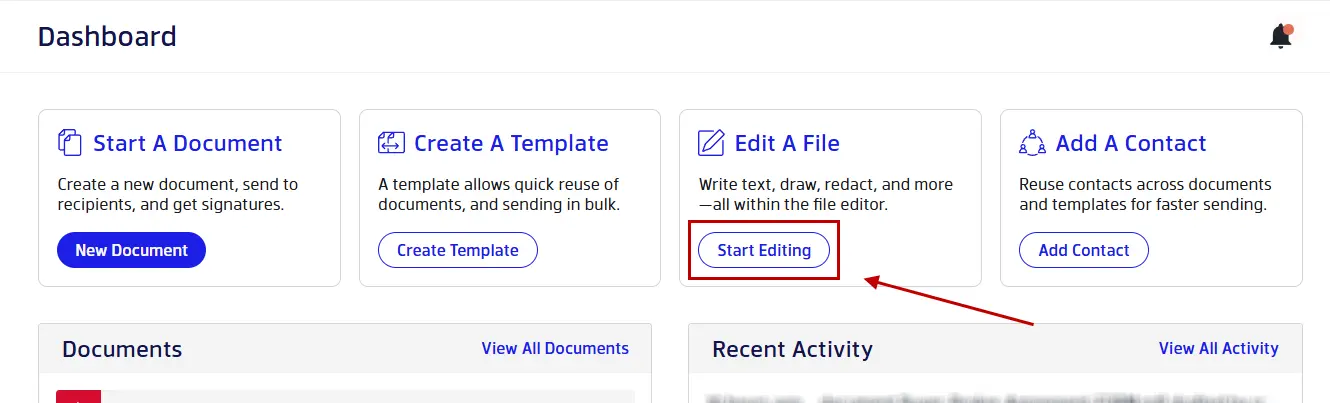
- Once logged in, click on Start Editing > Upload file.
2. Make the required PDF edits
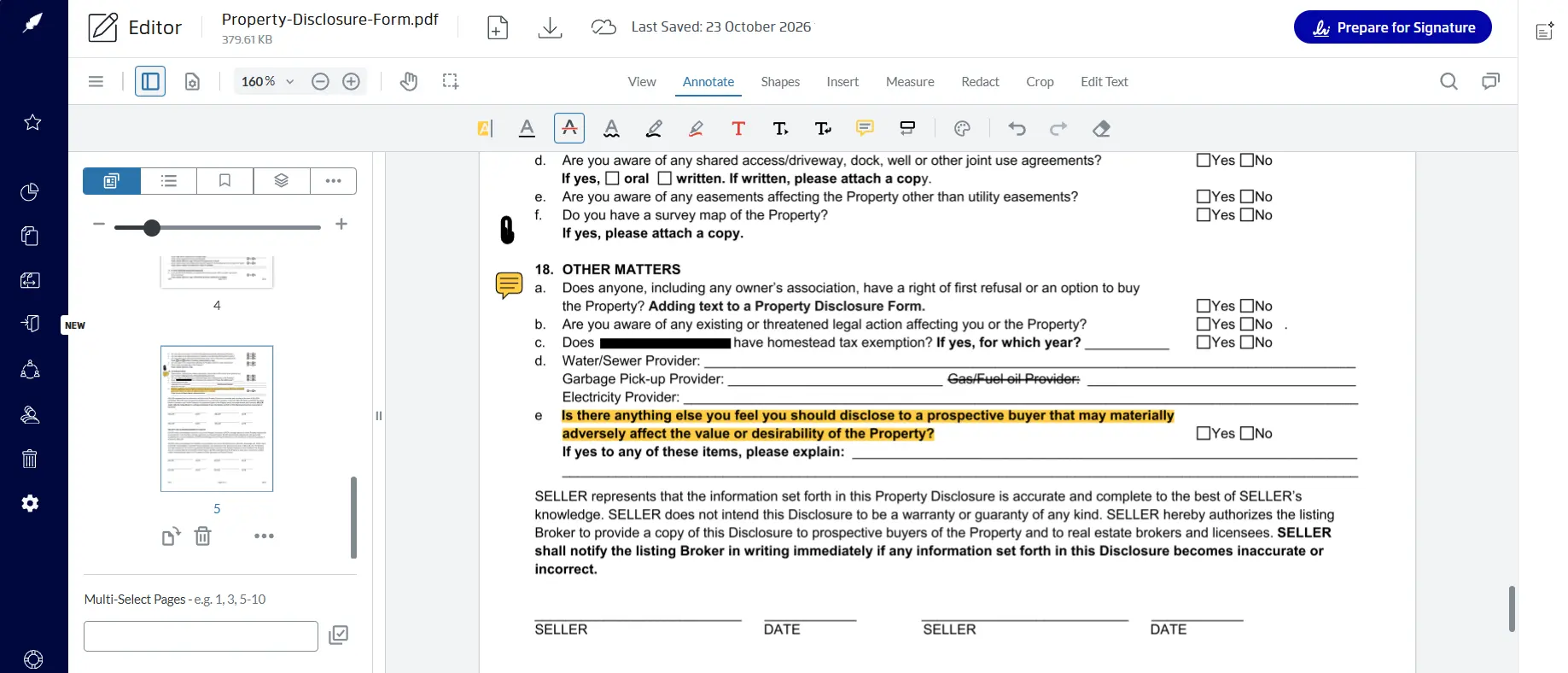
- With your PDF opened, select any of the available PDF editing tools.
- Make your required PDF changes. You can:
- Update and edit text about property details before sending a PDF form.
- Reorder, rotate, insert, replace, and delete pages.
- Add highlights, comments, callouts, and strikethroughs on itemized lists.
- Permanently redact sensitive buyer or seller information.
- Markup and insert measurements to a floor plan for reference.
- Review your edits.
- Once all PDF content changes are confirmed, click on Prepare for Signature.
Important: If a standardized or association-approved form needs a substantive change, follow the brokerage, association, legal, and transaction requirements when modifying the file.
3. Add recipients and set the signing order
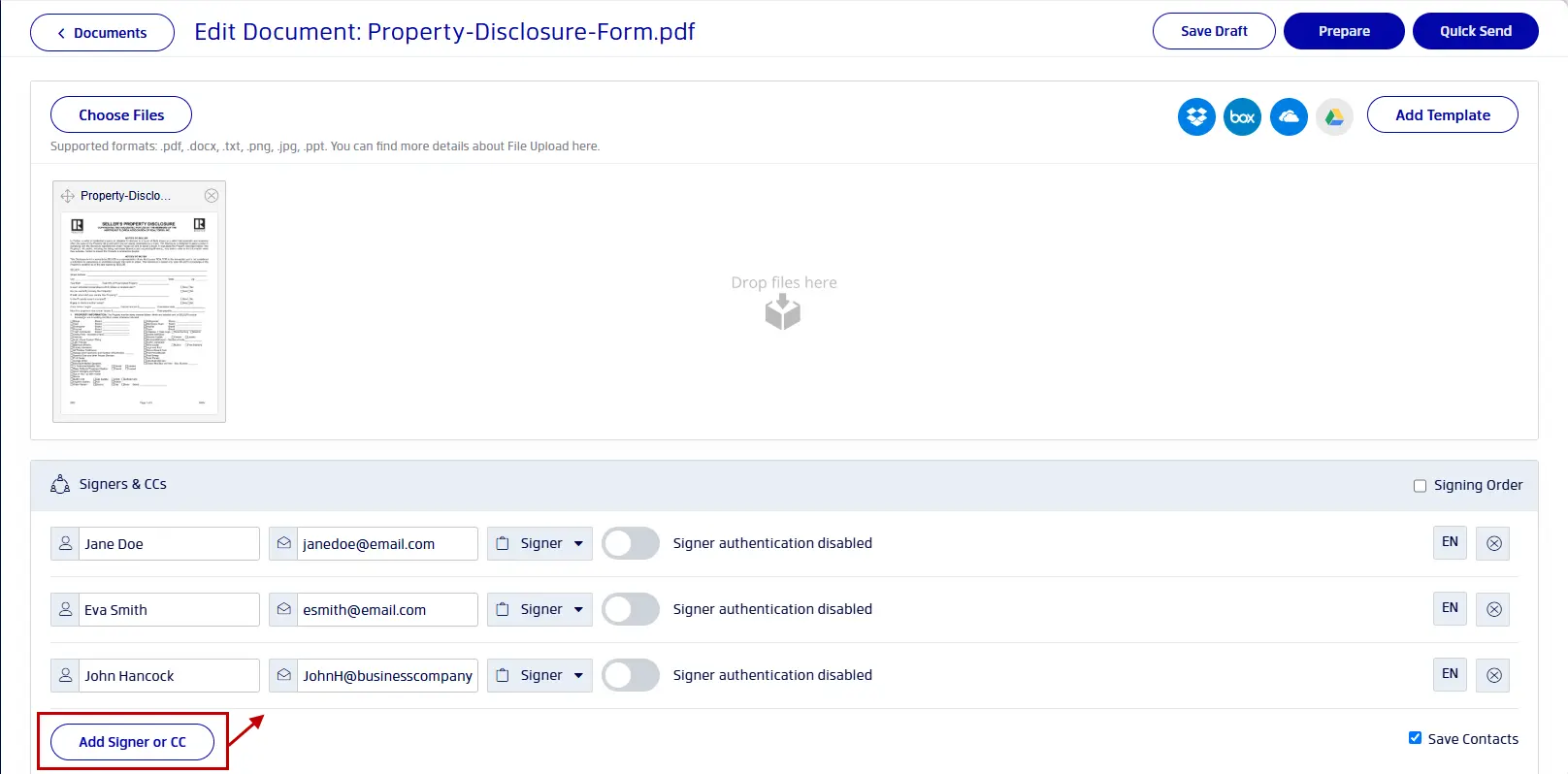
- Add your recipients by entering their names and email addresses.
- Set the recipients role: Signer or CC.
- Set a signing order.
- Add a message if required.
- Specify document settings: set expiration dates, auto-reminders, and completion requirements.
- Click on Prepare.
4. Add and assign signature fields
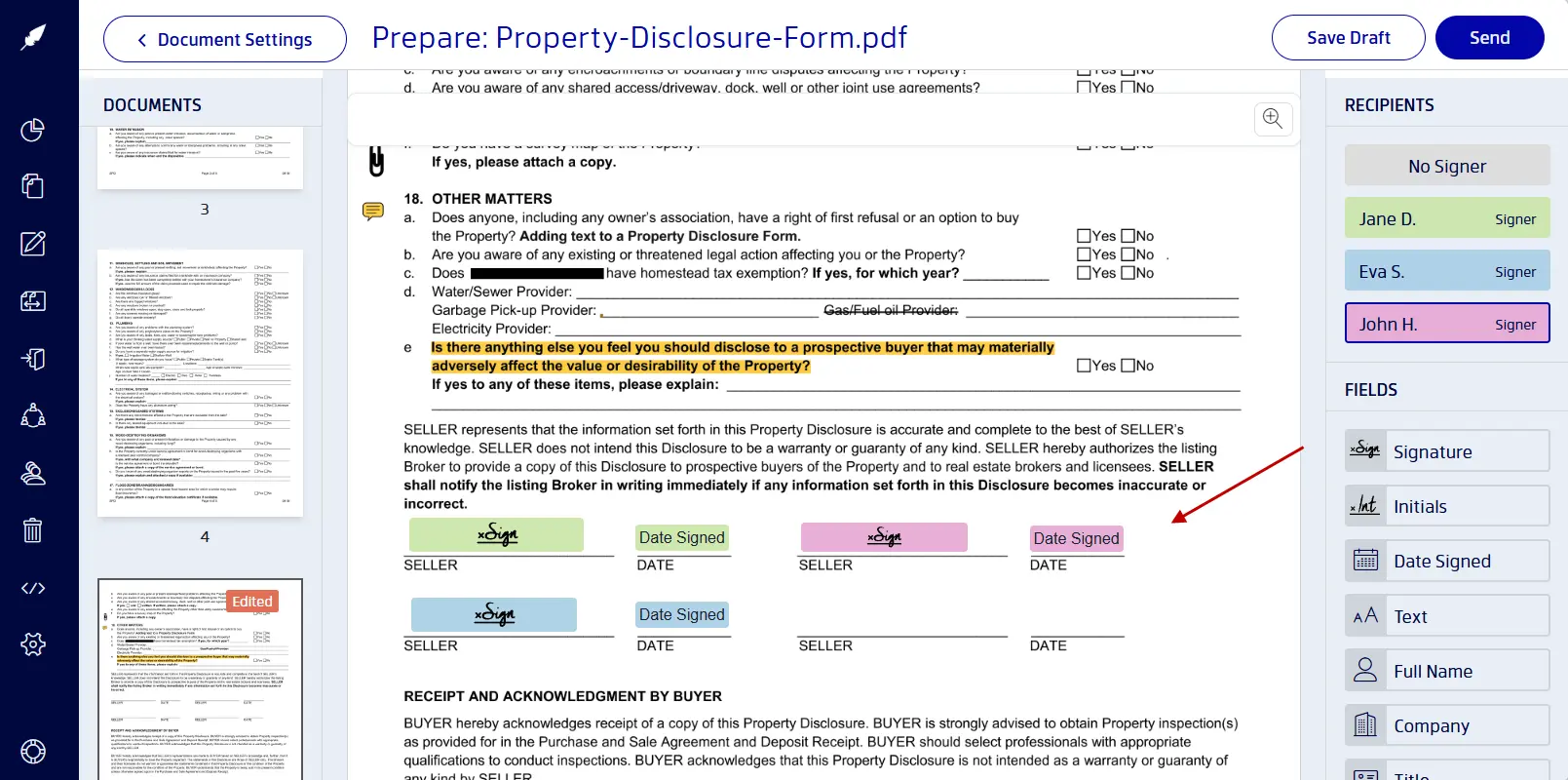
- Assign form fields to different signers by clicking on a recipient's name.
- Then drag the required fields onto the page where needed.
- Add signature and initials fields as well as text, date, and other data-collection fields.
- Mark fields as required where necessary.
- Click on Send.
5. Track the real estate document
After the request goes out, Xodo Sign provides document tracking and audit-trail capabilities.
- In your dashboard, go to Documents > In Process.
- Locate your document.
- View the document, check its status, or send manual reminders.
- Once completed, you can download the finished document and audit trail.
The key advantage for this particular workflow is continuity: the approved PDF goes from final preparation to signature-field placement and tracking inside Xodo Sign instead of being exported and uploaded to and from separate tools.
What other real estate PDFs can you prepare for signature?
The same preparation-to-signature workflow with Xodo Sign can help you with other real estate documents before they reach a buyer, seller, or other recipient.
I) Multi-page transaction packages and attachments
A transaction PDF may contain disclosures, addenda, exhibits, scanned documents, and internal reference pages bundled into one file.
Before sending it:
- Reorder pages: Rearrange forms and exhibits to appear in the intended sequence.
- Rotate sideways scans: Ensure recipients can read the file without adjusting the document.
- Remove authorized extras: Delete any internal reference pages accidentally included in the file.
- Review the finished PDF: Confirm that a required disclosure, addendum, or exhibit wasn't removed during cleanup.
Tip: Make page organization your final PDF-content check. Once the package is correct, you can move on to assigning recipients and signature fields.
II) Scanned real estate forms and property records
Older property records and paper forms may arrive as scanned PDFs or image files rather than PDFs with editable text.
Depending on the file, you may need to:
- Check readability first: Make sure names, dates, property information, and other original content are legible.
- Fix the presentation: Check page orientation and order before adding recipient fields.
- Add new elements: Place authorized text, annotations, redactions, or signature fields where needed.
- Protect the original information: Don't cover or change content from the original property record unless the modification is authorized.
Tip: Text that's part of the original scanned image may not behave like regular editable PDF text. If the underlying wording must be changed, verify the appropriate workflow before modifying the document.
III) Floor plans and property exhibits
Floor plans and property exhibits may need markup when you want to draw attention to a room, boundary, or property feature.
- Add reference measurements: Mark a distance, area, or angle when the drawing has an appropriate scale.
- Call out a feature: Annotate a garage, storage area, room, or other relevant part of the plan.
- Check the scale first: An incorrectly scaled drawing can produce misleading measurements.
Tip: Treat PDF measurements as reference information. Don't present them as a substitute for dimensions verified by a survey, floor-plan provider, appraiser, architect, or other authoritative source.
IV) Inspection reports and supporting property documents
Inspection reports, repair estimates, and property condition reports often need a final review before they're shared.
- Highlight items for follow-up: Mark a section of an inspection report that needs attention from the transaction team.
- Add review notes: Use comments or annotations to flag questions about a repair estimate or supporting document.
- Clean up before sending: Remove internal-only comments unless they're intended to remain in the recipient's copy.
Tip: Review every annotation before moving to signature preparation. A note meant for your brokerage team shouldn't accidentally become part of the PDF sent to a buyer or seller.
For exact steps on completing a property disclosure, see our property disclosure signing guide.
When is advanced PDF editing useful for real estate documents?
PDF editing can be useful before sending a document for signature, especially when the file still needs changes. But its value extends beyond the signing workflow, as well.
If you regularly work with real estate PDFs, you can also use the editor as a standalone tool for your everyday document tasks.
Advanced PDF editing may be useful if you need to:
- Make authorized text corrections to contract terms
- Add annotations or redact sensitive buyer or seller information
- Rearrange or remove pages to tidy up long agreements
- Review floor plans and other supporting PDFs
- Prepare finalized agreements for sharing or signature
Xodo Sign includes advanced PDF editing tools with the Professional plan, giving you the flexibility to modify PDFs as part of the prepare-and-sign workflow or use the tools independently to edit PDFs without Adobe Acrobat.
If your documents are already finalized and you mainly need straightforward electronic signatures, the Basic plan may be the better fit.
See how Xodo Sign stacks up against other e-signature tools for real estate agents and small brokerages.
Frequently asked questions
1. Should I edit an association-approved real estate form myself?
You should only make changes you're authorized to make and follow the rules that apply to that particular form and transaction. A PDF editor gives you the technical ability to change content, but it doesn't establish permission to modify contractual language. For standardized forms, check your brokerage, association, or applicable legal requirements before making substantive changes.
2. What should I do if a real estate PDF needs changes after it has already been signed?
You should avoid editing the completed signed file directly. With digital signatures, changing a document after signing can invalidate the signature because the signature is tied to the document's content. You will need to correct the source document and collect signatures on the revised version again rather than altering the signed copy.
3. Can buyers and sellers sign a real estate PDF on their phones?
Yes. Buyers and sellers can download, install and use the Xodo mobile app. It's available on iOS and Android. You can add your signature and also request signatures from others.
4. Do all recipients need a Xodo Sign account to sign real estate documents?
No. Recipients don't need an account to sign documents you send them. They can open the signing invitation from their email and sign through their browser without creating a Xodo Sign account.
5. Can multiple people sign the same real estate PDF?
Yes. Xodo Sign supports multiple recipients, including signers and CC recipients, and its document preparation interface lets you assign fields to individual recipients.
6. Can I try the advanced PDF editor before choosing a paid plan?
Yes. You can try start a 7-day trial to try the PDF editor and all of the e-signature capabilities for free. You don't need to add your credit card, and if you decide not to upgrade when the trial ends, you can continue with the Free plan but without PDF editor access.
Take a real estate PDF from final edits to signatures
When a disclosure, supporting document, or other approved real estate PDF still needs preparation, keeping the editing and signing stages together can remove an unnecessary handoff between applications.
With Xodo Sign Professional, you can edit PDF content and move the finished file into the electronic-signature workflow from the same platform.
Sign up today to test the workflow yourself with an approved real estate PDF.