
Table of contents
Sign and send unlimited e-signatures with Xodo Sign.
For many buyer's agents, getting the written agreement completed now happens before the first scheduled property tour.
That makes the signing request part of buyer onboarding and an early step in the real estate transaction, rather than another piece of paperwork to chase later on.
The practical challenge is simple: how do you get the correct agreement in front of one or more buyers, collect every required field and signature remotely, and keep the executed copy without resorting to printing and scanning?
This guide walks you through how to get a buyer-broker agreement ready for electronic signature, send it to your buyers with Xodo Sign, and keep track of the completed document.
What is a buyer-broker agreement?
A buyer-broker agreement (or buyer representation agreement) is a written agreement that outlines the services a real estate professional will provide a buyer, the agent's fee, and how the professional will be compensated.
The National Association of REALTORS® (NAR) recognizes different relationships permitted under state law, including agency, non-agency, transactional, and other arrangements. Thus, agents should use the current buyer-broker agreement form approved by their brokerage, association, or authorized forms provider.
When does a written buyer agreement need to be signed?
Under NAR rules, MLS Participants working with a buyer must enter into a written agreement before an in-person or live virtual home tour.
However, buyers independently attending an open house don't need an agreement simply to enter. The real estate agent hosting the open house doesn't need one with each attendee either. State and local requirements can differ, so agents should follow applicable law, MLS rules, and brokerage procedures.
Can a buyer-broker agreement use an electronic signature?
Buyer-broker agreements can be incorporated into an electronic signing workflow using tools like Xodo Sign. Agreements are still subject to the requirements that apply to the agreement and jurisdiction. Note that using an e-signature platform does not itself make an agreement compliant with MLS, state, or brokerage requirements.
Prepare your buyer agreement before signing and sending
Before you start, make sure the agreement itself is ready to send. Check that:
- You're using the current form approved for your situation.
- The buyer names, terms length, and other pre-entered information are correct.
- The agreement reflects what the parties have agreed to.
- You know every person who needs to sign.
- Any brokerage-required signer or approval has been accounted for.
- The timing follows applicable MLS, brokerage, and state requirements.
Follow your brokerage's instructions and applicable legal requirements when completing the form.
How to sign a buyer-broker agreement with Xodo Sign
The process is straightforward. As a real estate agent preparing an approved buyer-broker agreement, you can easily prepare the form for two buyers to sign. Here's how:
1. Sign up with Xodo Sign
- Start a free trial with Xodo Sign. No credit card required.
A free trial provides you with access to Xodo Sign Professional features, including unlimited document sending, unlimited templates, custom branding, credits for bulk sending, and PDF editing.
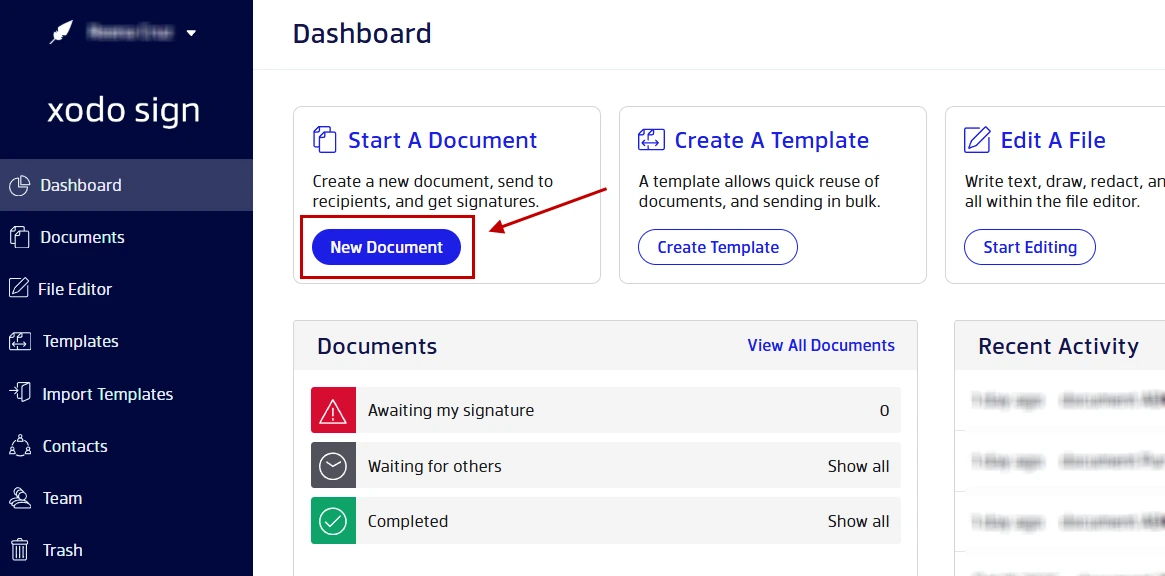
2. Upload the approved buyer agreement
- Click on New Document.
- Upload your approved buyer-broker agreement.
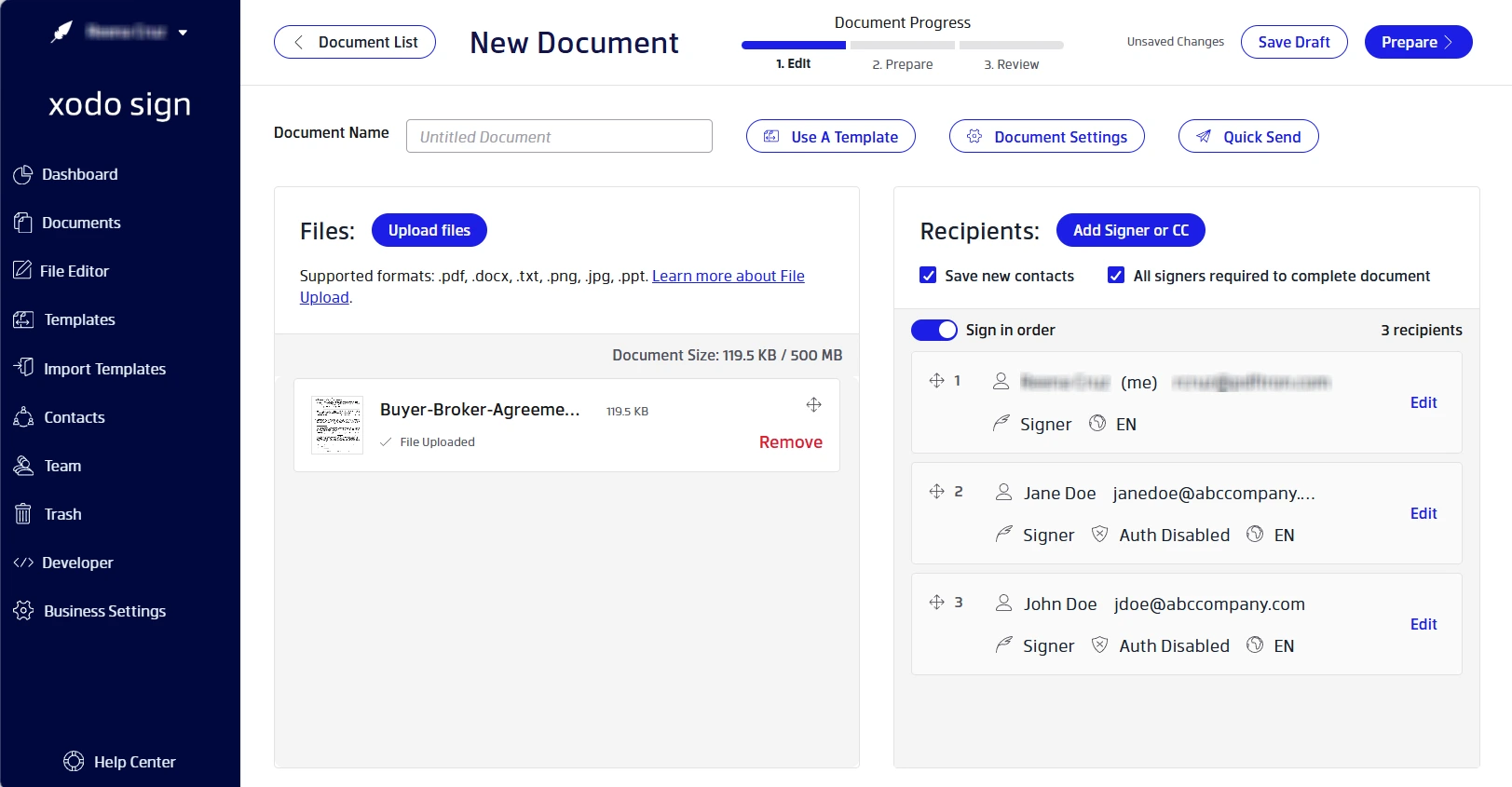
3. Add your buyers and any other required signers
- Add your buyer recipients.
- Enter their names and email addresses.
- Assign them either Signer or CC roles.
- Add yourself if you need to sign the document.
- Set the appropriate signing order.
- Click on Prepare.
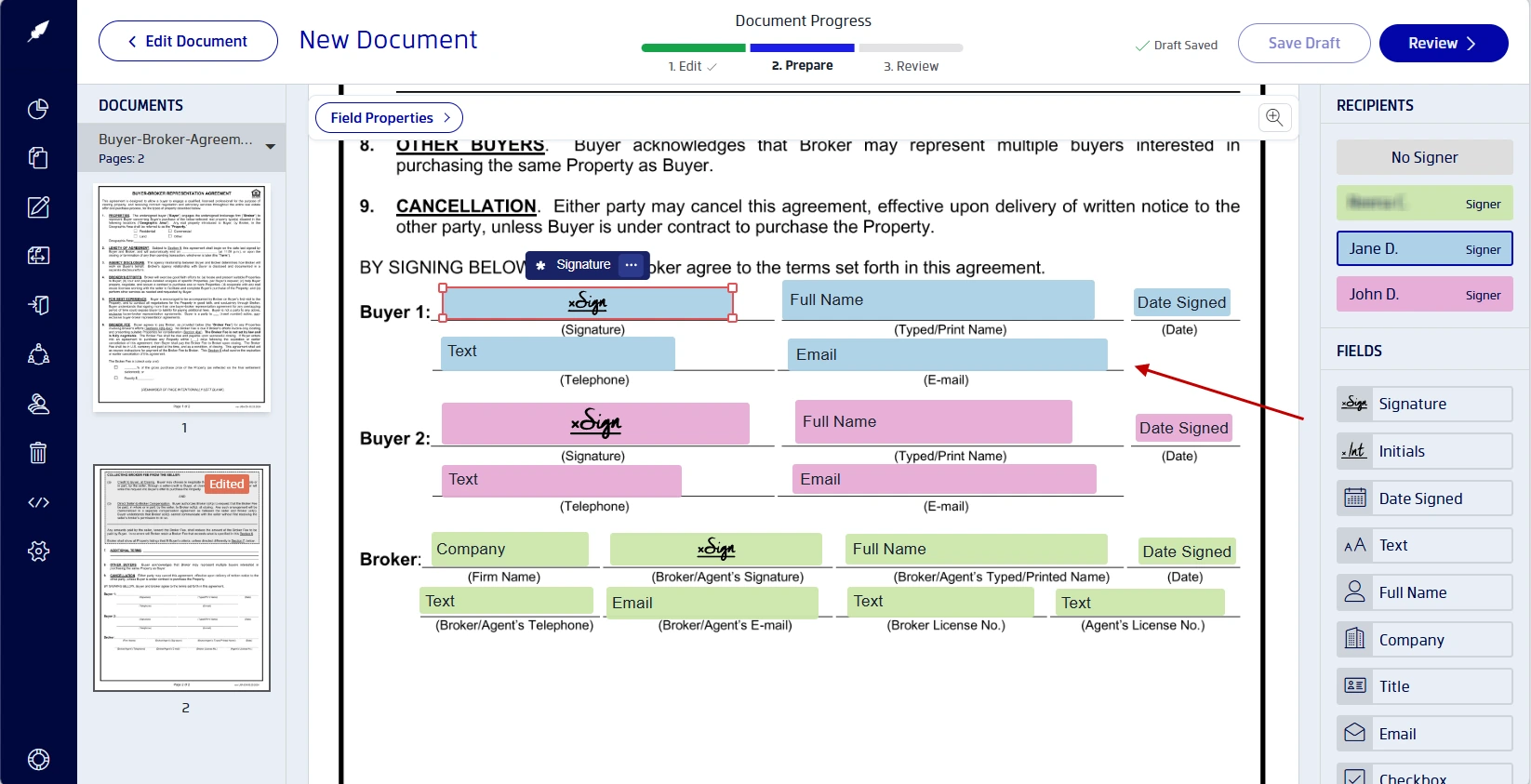
4. Assign fields and sign the agreement
- Click on a recipient's name to start assigning form fields.
- Drag and drop the required fields on the agreement.
- Add signature, initials, date, and text fields.
- To sign the document yourself, assign yourself a signature field and click on it.
- Draw, type, or upload an image of your signature and click on Sign.
- Ensure that all fields required are included.
- Click on Review.
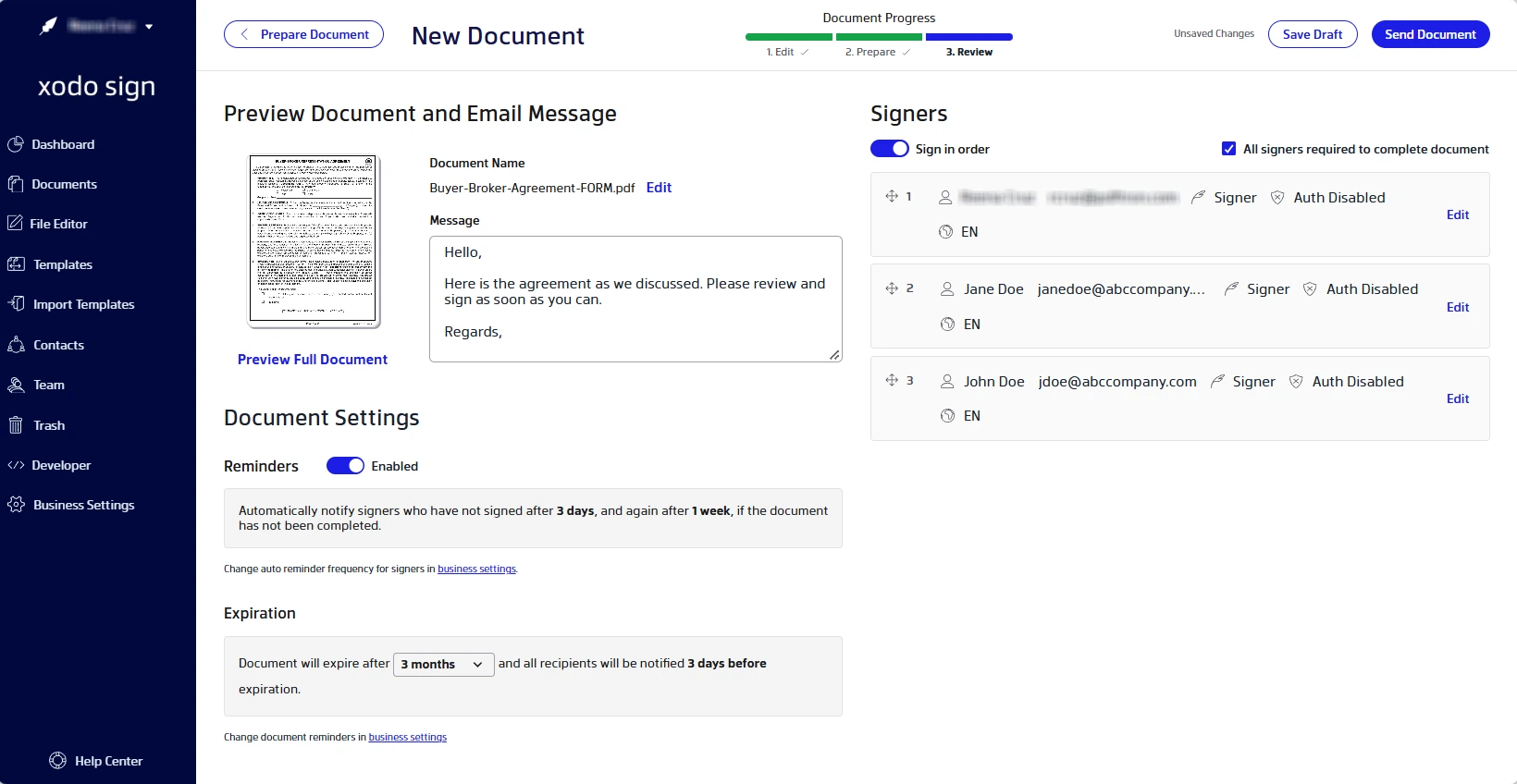
5. Review and send the signature request
- Review the document and recipients.
- Add a short message if needed.
- Specify your document settings.
- Once all is set, click on Send Document.
6. Track the agreement and retrieve the completed copy
- Monitor the document and track its signing progress.
- In your dashboard, go to Documents > In process.
- View your document's status, see who signed, or send manual reminders.
- Once the agreement is completed, download the signed copy and audit trail for your records.

Note that for more complex processes Xodo Sign can also help with multi-signer documents that require signing order, reminders, status tracking, and audit trails.
In addition, if your agreement needs more preparation before it’s ready to send, the Professional plan includes PDF editing tools for tasks such as text updates, redacting information, rearranging pages, and adding comments. See our guide to editing real estate PDFs for a closer look.
More guides for signing real estate documents online
For help with signing other real estate documents, check out our other guides:
Reuse the signing setup for recurring buyer agreements
If buyer agreements are a regular part of your real estate document workflow, rebuilding the same signing setup for every new client can get repetitive.
For such cases, Xodo Sign provides reusable templates with predefined fields and recipients. A template can preserve the signing setup for a recurring form while details for each new buyer are handled separately.
The Basic plan currently includes three reusable templates, while the Professional plan includes unlimited reusable templates.
For an independent agent with only a few repeat forms, Basic can cover the routine signing workflow. Agents who need unlimited documents or broader features can evaluate Professional features and compare the two plans before committing.
Frequently asked questions
1. Do buyers need a Xodo Sign account to sign a buyer-broker agreement?
No. Buyers don't need a Xodo Sign account to sign the agreement. Buyers can receive and easily complete a signing request through the request link sent to them via email.
2. Can two buyers sign the same agreement from different locations?
Yes. You can send the same agreement to multiple recipients and assign the appropriate fields to each buyer. Each buyer can then complete their assigned fields remotely from either their desktop or mobile device.
3. Can I make changes to a buyer-broker agreement before sending it for signature?
Yes. Xodo Sign Professional includes a PDF editor that let's you update document content and prepare the agreement before sending it. You can also add signature, date, text, and other fields for your recipients. Make sure any changes to the agreement itself follow your brokerage's requirements before sending it.
4. What can I do if a buyer hasn't signed the agreement yet?
You can track the document's signing status in Xodo Sign dashboard to see where it is in the process and follow up when a signature is still outstanding.
5. What signing records should agents keep after the agreement is completed?
Follow your brokerage's recordkeeping procedures and applicable legal requirements. With Xodo Sign, you can retain the completed document and its audit trail, which records signing activity and information such as names, email addresses, IP addresses, and timestamps.
Put your buyer agreement workflow into practice
Start with the correct approved buyer-broker agreement, then use Xodo Sign to prepare and send it for signature.
When it’s time to work with a new buyer, reusable templates can save you from rebuilding the signing setup from scratch.
You can start a Xodo Sign Professional trial to test out the workflow firsthand with your approved buyer-broker agreement.